



If you write a newsletter like me, you probably check Substack, Google Search Console, and Google Analytics to see how it’s doing. Maybe you bring the numbers into Google Sheets, then update them manually every week. I got tired of moving between apps and collecting the same reports.
So I built one dashboard with ChatGPT Sites and set up a scheduled refresh for Monday at 9 a.m. The goal is to open it, review the week’s progress, and decide what needs my attention without asking the agent to collect everything again.
In this week’s One Shot Show, I shared the dashboard, connections, design file, and prompt with Dheeraj Sharma. I’ll walk you through that example here. You can adapt the approach to client reports, sales numbers, or project tracking, depending on the data your agent can access.
Build and host a website through ChatGPT Sites
ChatGPT Sites lets you build an interactive website or small web app through a conversation. You describe what you want, supply the files or data it needs, and review the result. You can ask for changes, then publish it at a web address you like. ChatGPT handles the hosting, and you can keep the site private. You can check OpenAI’s Sites guide to find out more about sharing options.
That’s what I like about using it for this kind of project. I can describe the report I want, see the site beside the conversation, and keep working on it there. In the session, I showed the desktop app with the chat in the middle and the dashboard on the right.
What I built for my newsletter
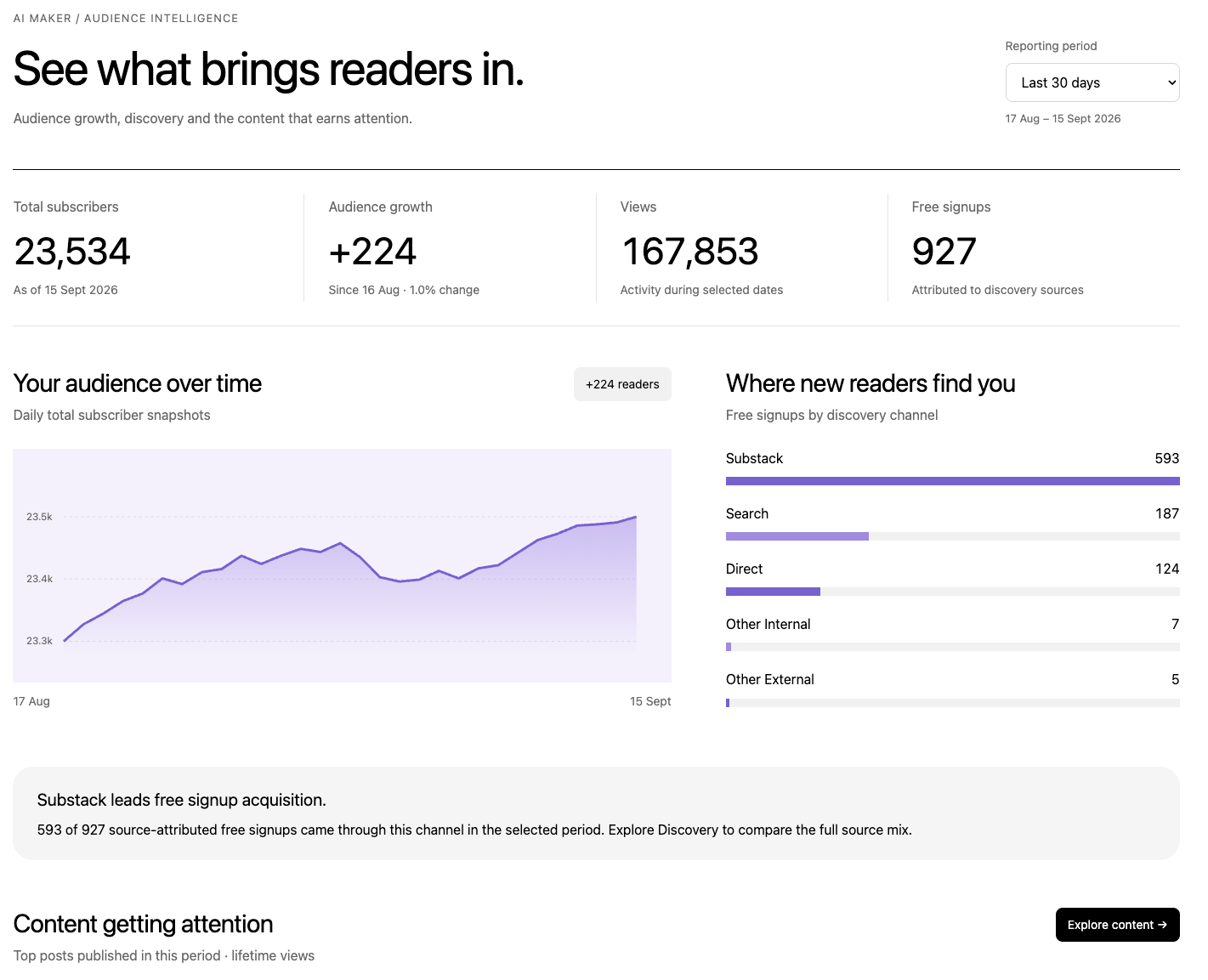
My dashboard brings together Substack, Google Search Console, and Google Analytics reports in five tabs:
Overview: Check subscriber growth and the content getting attention.
Discovery: See which channels and referral sources bring readers and free signups.
Content: Search my posts, sort by performance, and open an article for engagement details.
Search Opportunities: Explore search queries, clicks, impressions, and articles worth revisiting.
Retention: Compare how many free subscribers remain subscribed at the same point after joining.
I kept paid subscriptions and revenue out of this demo.
The overview tab gives me everything I need to know at a high level about my Substack data. I only visit the other four tabs when I want to go deeper. Building this Substack dashboard means I no longer need to open Substack to check subscriber growth, or even check Search Console and Google Analytics, because the data is already available in my dashboard.
But, to build this with my actual newsletter data, I needed two app connectors (MCP).
Connect ChatGPT to Substack and your Google reports
ChatGPT needs permission to access the data you want it to read and use to build the dashboard. I used the Substack MCP for my publication data and OpenSEO for Google Search Console and Google Analytics. MCP (Model Context Protocol) is the connection method that lets an agent request information from another service.
Here’s the list of data I can get by connecting ChatGPT to Substack and OpenSEO MCP:
Substack: Publication growth, post performance, referral sources, free and paid, ARR, signups, and retention reports
OpenSEO, connected to Search Console: Search queries, pages, impressions, clicks, click-through rate, and average position
OpenSEO, connected to Google Analytics: Website traffic, acquisition channels, and engagement
For OpenSEO, the connection happens in two parts. First, connect your Google account and the relevant Analytics and Search Console properties inside OpenSEO. Then connect OpenSEO to ChatGPT. That’s how the agent can request those Google reports through the tools OpenSEO provides.
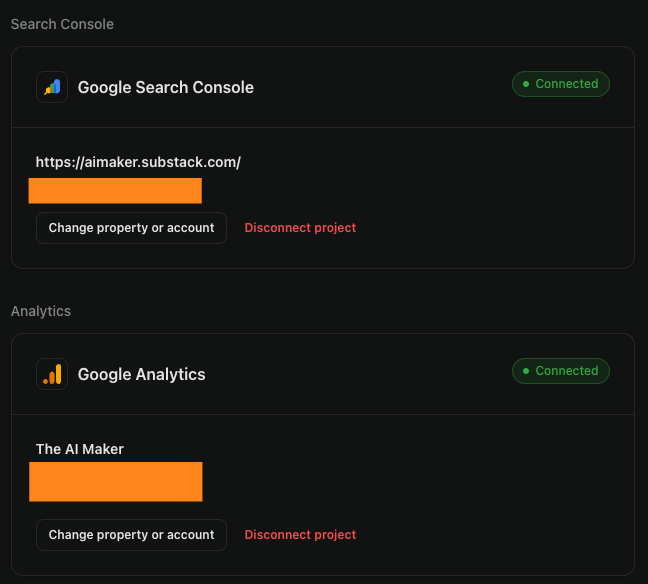
In the session, I showed where to add the MCP servers and explained how to authenticate the accounts. Once the connections are ready, have ChatGPT check which reports it can retrieve before you ask it to build the entire dashboard.
There are a couple of access details you need to know before connecting your agent to Substack and OpenSEO MCP. The official Substack MCP requires publication-admin access and a Bestseller publication. Substack’s guide explains the details. Dheeraj also shared his own alternative during the session; his Substack MCP walkthrough covers that route, though you should check which reports it exposes.
OpenSEO’s hosted plan was listed at $10/month, including $10 of usage. Pulling data from Search Console and Google Analytics, however, requires zero credits. If you want to learn how to set it up, I covered OpenSEO a few weeks ago.
OpenSEO is a really great alternative to using SEMrush and Ahrefs for getting Google traffic data.

If you are building a different report, this is where your setup will need to adapt. Connect the services that hold your data, or supply the files you want to use. These can be CSVs, Google Sheets, or any kind of data you want to analyze and visualize.
Give the dashboard a visual direction with DESIGN.md
Before I asked ChatGPT to build, I supplied a DESIGN.md file based on the visual direction of Figma’s website. I used a skill to extract that reference into a design guide the agent could read.

The file describes things such as typography, colors, spacing, layout, and components. When I tell ChatGPT to follow it, I’m giving it something specific to work from across all the dashboard’s views.
I think this is worth doing before the build. If you already have brand guidelines, use those. If you have a website whose visual direction you like, you can ask your agent to inspect it and help turn those choices into a design file. But, you still need to look at what it captured and decide whether it matches your taste.
Once you’re happy with the file, attach it in the chat. The prompt below tells ChatGPT to read it first and use it throughout the dashboard. DESIGN.md is part of this workflow, but Sites itself does not require DESIGN.md to build anything. I added it because I want a particular design that I like.
Now the agent has both the data it can work with and a direction for how to present it. The next step is to tell it what you want to build.
Ask ChatGPT to build the dashboard and its database
I also wanted the dashboard to have saved records it could read when I opened it. During the session, I showed the database containing my post data, traffic, and post details.
ChatGPT Sites supports Cloudflare D1 for this kind of structured storage. You can ask ChatGPT to create the database as part of the site and connect the dashboard to it. The Sites developer guide describes D1 as the supported option for saved records.
In the prompt below, we’re asking the agent to retrieve the reports through the existing connections such as Substack and OpenSEO, save the approved data in the database, and build the interface that displays it. Later, we can schedule tasks to refresh the data from Substack, Google Analytics, and Search Console, and update the database. Having a database gives the reports somewhere to live between updates, so you can access them at any time without requiring a live connection to Substack or OpenSEO.
To build your version, mention @Sites, attach your DESIGN.md, and paste the prompt below.
Before starting, confirm you have connected Sites plugins on your ChatGPT desktop app. Then use this prompt to build it in one shot using Astra 6 at medium thinking level:
Build me a private dashboard that helps me understand how people discover my Substack, which posts they engage with, and whether free subscribers stick around.

Use my connected Substack data and, if available, OpenSEO’s Google Search Console and Google Analytics data. First inspect the available connections and metrics. Build with verified data, and clearly explain anything you cannot access.

Use the attached `DESIGN.md` as the design specification. Read it before building and follow its typography, colors, spacing, layout, components, and responsive behavior consistently across every view. If it is missing, ask me to provide it before designing the dashboard. You can inspect the connected data while waiting.

Create a Cloudflare D1 database through Sites to store the approved dashboard data. Apply the exclusions below before saving any records. Have the dashboard read from this database. Store source names, reporting periods, and retrieval timestamps alongside the data so future refreshes can update the correct records without duplicating them. Keep the last successful data if a refresh fails, and show its age.

Organize the dashboard into these views:

1. **Overview:** subscriber totals and growth over time, views, and free signups.
2. **Discovery:** channels and individual referral sources bringing readers and free signups.
3. **Content:** a searchable post library with views, clicks, and free signups. Add engagement comparisons using likes, comments, shares, restacks, finished-reading counts, and total reading minutes where available. Let me select a post to inspect its traffic sources and attributed free signups.
4. **Search opportunities:** if OpenSEO is connected, show Google clicks, impressions, CTR, search position, and changes against the previous period. Identify articles worth investigating for declining traffic, weak search presentation, or opportunities to expand coverage. Include supporting queries and available website engagement data.
5. **Retention:** compare free-subscriber signup cohorts at the same tenure. Show cohort sizes and retention rates, distinguish incomplete months from completed observations, and validate the source’s denominators before comparing cohorts.

Include paid-subscription metrics, revenue, email open rates, and GA purchase, transaction, or key-event metrics from both the dashboard and its saved data.

Within the supplied design, provide clear navigation, useful filters, readable charts, post-level details, and filtered exports. Keep definitions, source dates, and limitations easy to find.

Do not confuse views with unique readers, website visits with subscribers, or lifetime post metrics with activity during a selected date range. Preserve missing values instead of turning them into zero. Do not invent metrics or causal explanations.

Validate the calculations and interactions, inspect the rendered dashboard where possible, then publish it privately using Sites. Keep it owner-only unless I explicitly request sharing access. State whether it is a snapshot or refreshes automatically.

Make sensible implementation decisions within `DESIGN.md` and proceed without asking me to choose routine details.
For another kind of report, change the data sources and the way you want to represent the data, then attach the design file you want it to follow.
I used GPT-6 Astra with medium thinking effort, and it took around 15–20 minutes to finish, with some refinement afterward. We toured the finished dashboard during the session. Dheeraj pointed out that my connections and design file were already ready; he estimated closer to a couple of hours if you were starting from scratch. Overall, how much time you spend building the dashboard will depend on your setup and how much you want to adjust.
Refine the result and set up the weekly refresh
When the first version is ready, open it beside the conversation and try it. Search for a post, change the date range, and click into the details. Compare a few numbers with the source reports so you know the dashboard is showing the right data.
If something doesn’t work, describe the issue to ChatGPT and ask it to inspect the page. This is the feedback process I explained in the session: the site and the conversation are next to each other, so you can point to a button or chart and keep refining it. Keep the dashboard private while you do this.
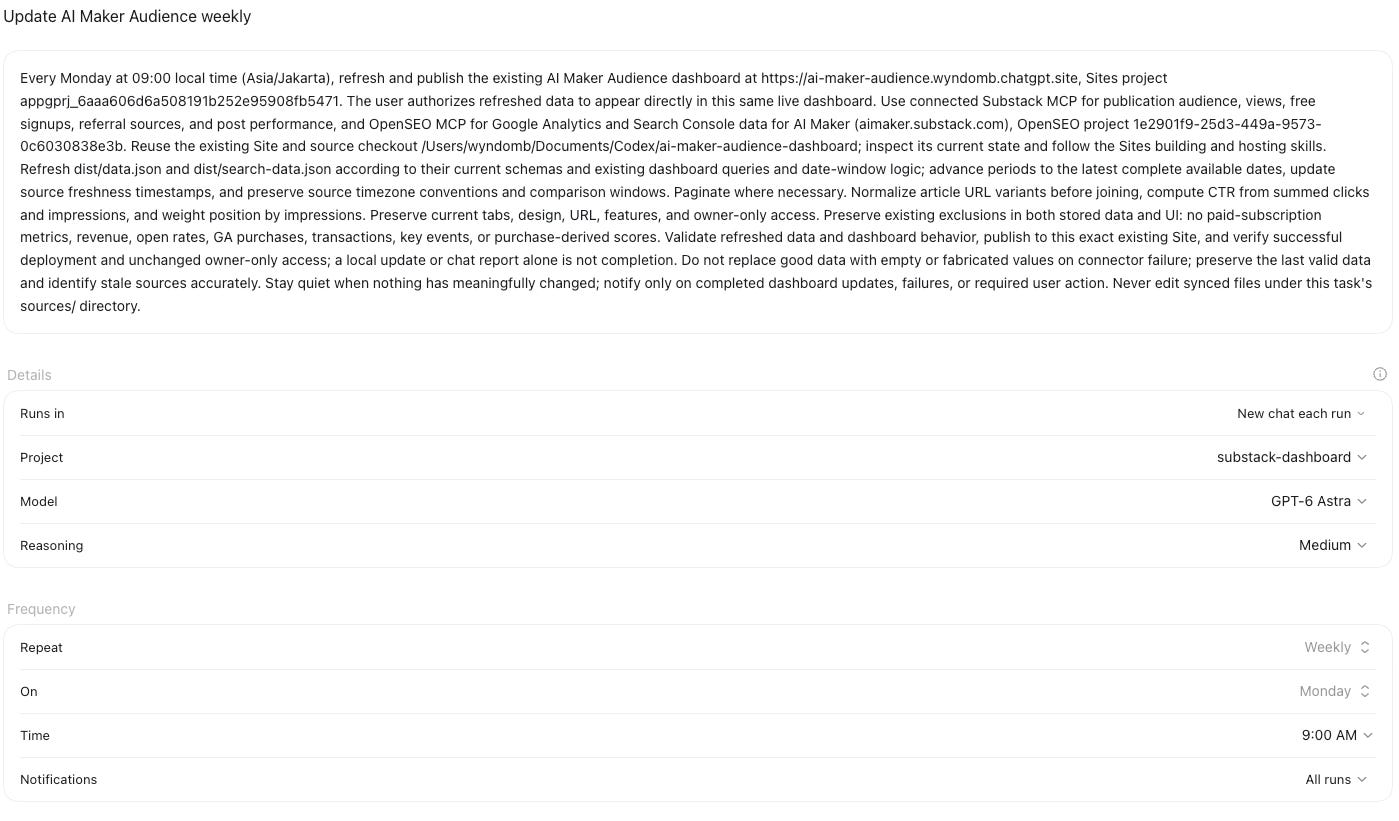
Once one data refresh works, you can schedule this task. I showed a task set for Monday at 9 a.m. to pull the latest reports and update my dashboard. But before you schedule anything, you need to make sure the data update works properly.
If the scheduled task needs files on your computer, that computer needs to be on and the desktop app running. A web task needs its files and connections available online. OpenAI explains the difference in its scheduled-task documentation.
For your first version, pick one report you already doing regularly. Give the agent access to that data, a design you like, and the questions the page needs to answer. Once you have a dashboard you can check and use, automate the update so next week’s report doesn’t start with collecting everything again.
Now, from here on out, you no longer need to manually update your data ever again.
Timestamps
00:00: Introduction and the newsletter dashboard we are exploring
02:36: Bringing Substack and Google data into one place
04:05: The goal of a Monday morning refresh
05:15: Why I supply a design file before building
07:18: What ChatGPT Sites contributes to the workflow
08:28: Hosting, domains, sign-in, and database discussion
13:32: The Substack and OpenSEO connections
15:04: Direct Google connections and the OpenSEO cost discussion
17:09: Substack access requirements and Dheeraj’s alternative
18:35: Adding and authenticating the connections
19:31: How OpenSEO connects to Google data
20:55: The reports available for the dashboard
22:24: The Figma-inspired design file
23:50: Planning the recurring data refresh
24:48: Sites navigation and settings walkthrough
27:35: Environment variables and possible future integrations
30:41: Site analytics and the saved database
32:11: Private and public sharing discussion
34:03: The dashboard build prompt
35:28: Overview and subscriber growth
36:29: Discovery channels and referral sources
36:59: Searching and sorting the content library
37:50: Opening individual posts for engagement details
39:08: Search opportunities and query data
40:59: Free-subscriber retention
41:54: Build time, refinement, and the setup qualification
42:30: The Monday automation configuration
44:28: Reviewing the site beside the conversation
46:02: Using the browser to investigate interface issues
47:13: Other possible sites and member-resource pages
49:36: Audience questions and future topic suggestions
Resources Mentioned
The main build uses Substack, OpenSEO, ChatGPT Sites, and a design file. The other tools below came up as comparisons, references, or possible future projects.
ChatGPT, GPT-6 Astra, and Codex: I demonstrated Sites in the desktop app and described using Astra with medium thinking effort. Dheeraj mentioned returning to Codex during our discussion.
ChatGPT Sites and scheduled tasks: The hosted dashboard and the separate refresh configuration discussed above.
Substack and its official MCP connection: The publication data source I used. The demo excluded paid metrics. Official access requirements are linked above.
Dheeraj’s Substack MCP: The alternative he shared for viewers to explore. See his connection walkthrough and analytics-server build log. He mentioned free and paid options; current coverage and pricing require checking separately.
OpenSEO: My connection to Google data. The hosted subscription and zero-credit Search Console requests are clarified above.
Google Search Console and Google Analytics: The sources for search performance and website activity respectively, used through OpenSEO in my demo.
MCP: The connection standard discussed by both of us for making external tools available to an agent.
DESIGN.md and the design-extraction skill: The design reference and the skill I described using to prepare it. Figma’s website supplied the visual direction for this example.
Figma, Paper Design, and Claude Design: Figma was my visual reference. I mentioned Paper Design, and Dheeraj discussed a future design-system session. These were not separate design demonstrations in this episode.
Claude and live Artifacts: Our reference point from an earlier dashboard episode. The comparisons in this conversation were not a new side-by-side test.
Cloudflare D1: The database technology I discussed. Sites supports D1 for saved structured records; it needs to be added to the implementation. See the Sites developer guide.
Lovable, Replit, and Bolt: Website-building comparisons I raised, with Dheeraj adding context.
Supabase: A database alternative I mentioned during that comparison.
Ahrefs and Semrush: SEO tools mentioned in the cost discussion. Their subscriptions are not prerequisites for reading your own Google data, and the episode was not a feature-equivalence test.
Namecheap: My example of a domain provider during the custom-domain discussion. Connecting a domain was not demonstrated end to end.
Stripe, Gumroad, Lemon Squeezy, and ConvertKit/Kit: Possible payment, product, and lead-magnet connections discussed by both of us. We did not build or test these integrations in the session.
Google, X, and Facebook sign-in: Examples I raised when discussing possible login options. They were not demonstrated as working login integrations in this dashboard.
PostHog: An external analytics tool I mentioned while showing the Sites analytics area.
Grok Bot: I mentioned my separate OpenSEO-connected bot and showed the related newsletter post in the content library.


