

Email Triage AI Agent: How I Automated Inbox Zero Without Losing Control
I don't sort emails anymore. My AI agent does it all.


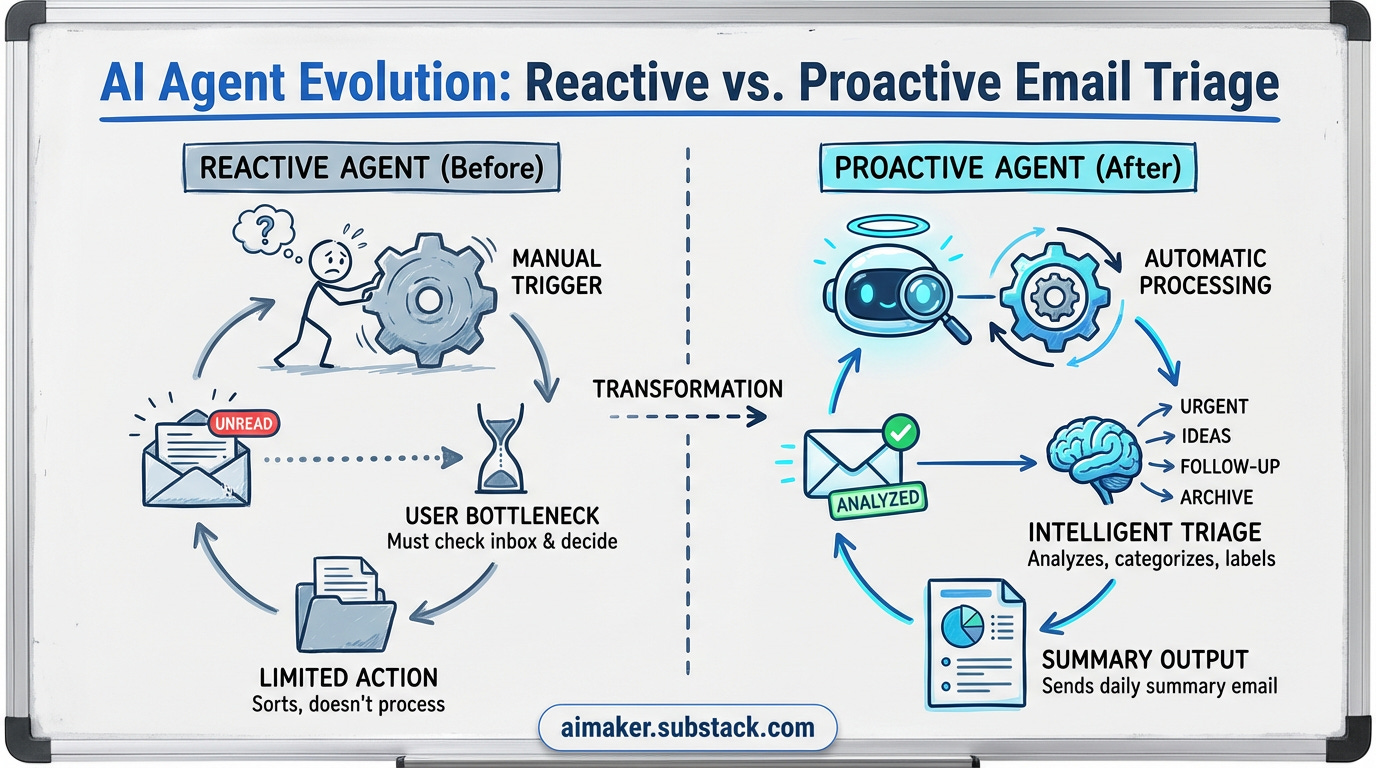
In the previous post, I showed you how to build a personal AI agent that connects your email, calendar, and Notion tasks—an on-demand assistant that responds when you ask.
But that agent had a problem.
It was reactive. You still had to check your inbox and tell the agent what to do.
You were still the bottleneck.
Here’s what I actually needed: an agent that watches my inbox and processes emails automatically as they arrive.
Not one that sorts everything into folders (that’s how important emails get buried).
Not one that auto-replies without approval (that’s how you send something stupid).
But an agent that:
Runs automatically when unread emails hit my inbox
Analyzes each email (sender, subject, content)
Applies my triage rules to categorize and label them
Sends me a summary email with everything processed
This morning, I woke up to an email titled “Email Triage Summary” with:
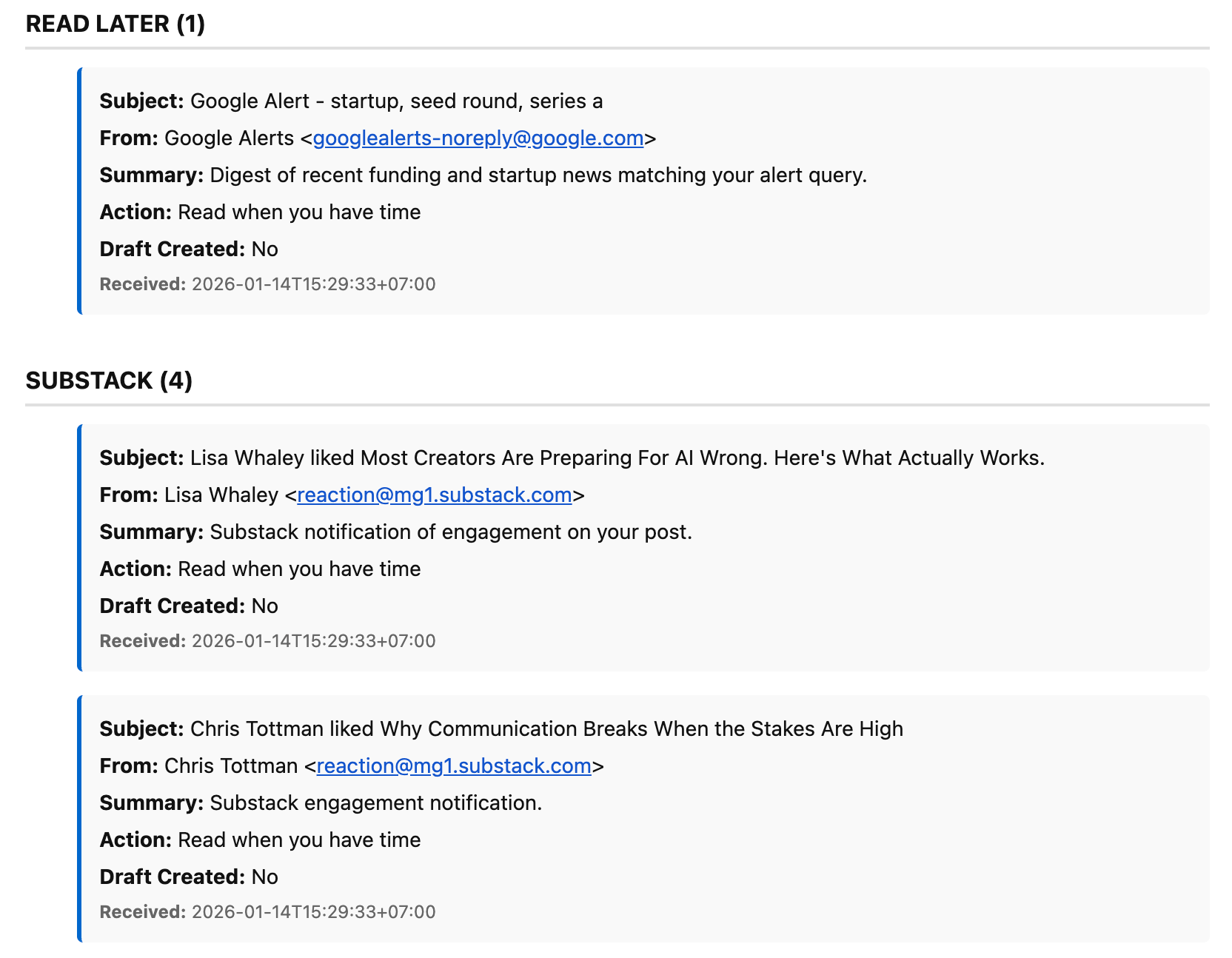
3 emails labeled URGENT (meeting invites that need responses)
2 emails labeled NEWSLETTER IDEAS (reader questions worth exploring)
1 email labeled FOLLOW-UP REQUIRED (partnership inquiry)
4 emails archived (newsletters, notifications, low-priority updates)
I didn’t open Gmail once. The agent handled everything while I slept.
That’s the difference between an on-demand agent and a proactive agent.
The workflow is simple:
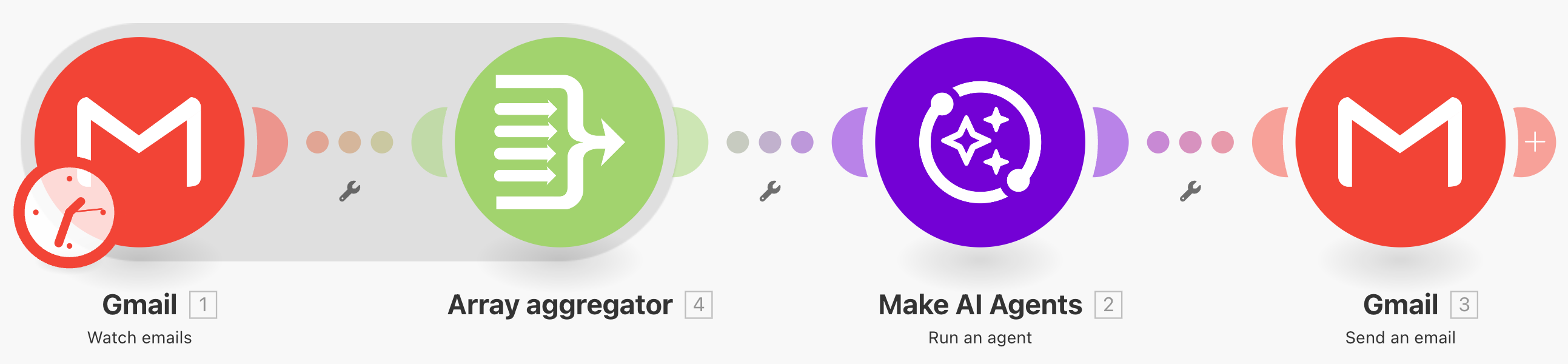
Gmail triggers the scenario when unread emails arrive
Make.com’s AI Agent processes each email against your triage rules
The agent categorizes, labels, and takes action (archive, flag, etc.)
You receive a summary email showing what happened
Same foundation as the last post. Same Make.com AI Agent module. Same Gmail integration.
The key difference? Instead of waiting for a Slack command, this runs on autopilot using Gmail’s “Watch New Emails” trigger.
I’m going to show you exactly how to build it.
By the end of this guide, you’ll have an email triage agent that processes your inbox automatically—one that applies your rules, takes action, and sends you clean summaries without you touching Gmail.
This is the system I wish I’d built years ago.
Let’s get into it.
Before we begin, here’s what you’ll need:
Make.com (AI automation platform)
OpenAI API
Gmail account
Here’s the additional cost details you need to consider:
OpenAI API key ($5-10 in credits, can last 1-3 months)
Make.com paid account (starts from $9/month)
Cost: ~$12-15/month on average (Compare to AI agent services charging $20-50/month)
References: Read my previous AI agent post to understand the basics so you can follow this process more easily.
Building Email Triage AI Agent
To start this process, the first thing you need to do is configure your AI agent—beginning with the system prompt and tool access.
1. System prompt
Build your AI agent and use this system prompt as its brain: