

I Built an AI Agent That Actually Manages My Email, Calendar, and Tasks
A complete blueprint to build your AI personal assistant.


I’ve spent years optimizing my productivity system.
GTD (Getting Things Done) for tasks. Time blocking for my calendar. Inbox zero for email.
But the problem was that each system worked in isolation. Here’s what broke down every single day:
An email arrives about a project deadline → Should this go on my calendar?
A meeting gets scheduled → Does this conflict with my deep work blocks
Someone asks for a status update → Which tasks are actually in progress?
Three separate systems. Dozens of micro-decisions. Constant context switching.
That’s when I realized I didn’t need better productivity apps. I needed something that could think across all three systems and handle the coordination I was doing manually.
Last week, I told you why AI agents mostly don’t work—how they’re unreliable, how they hallucinate, how “agentic workflows” are the better choice for automation you can trust.
I stand by that.
But here’s what I didn’t tell you: narrow, specialized AI agents actually work perfectly.
Not Jarvis. Not an AI that handles “everything.”
But an AI agent that connects your email, calendar, and tasks.
I’ve been using mine for months now.
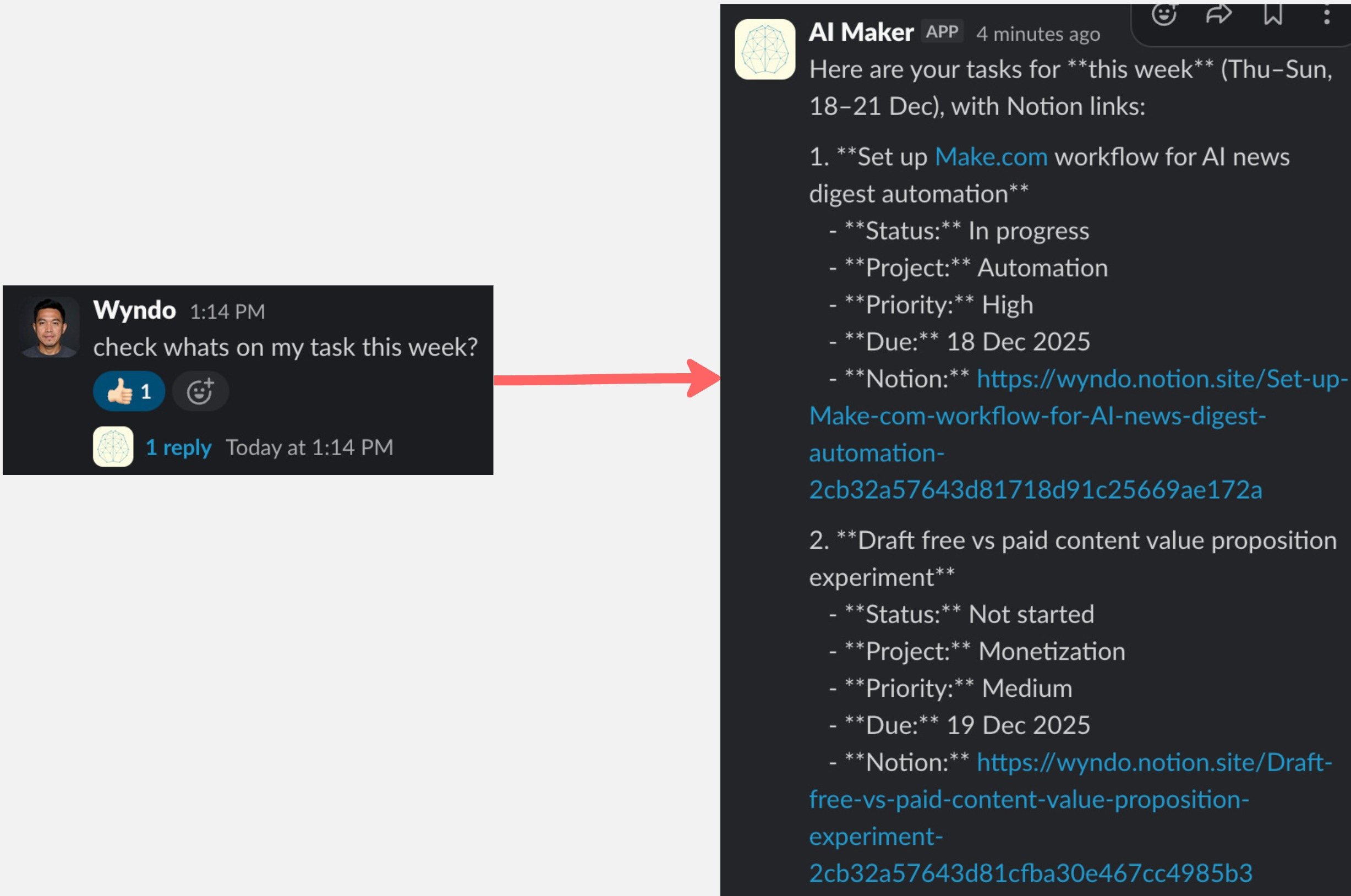
My AI agent has access to my Gmail, Google Calendar, and Notion. It responds accurately by taking action through tool calls and proceeds when I give it a specific command via Slack:
“Triage yesterday’s emails and send me a summary”
“What’s on my calendar today?”
“Add task: review Q4 analytics”
Same agent. Different tools. Complete control.
This is no longer science fiction—it’s a system you can build this afternoon.
Let me show you exactly how it works.
How the system actually works
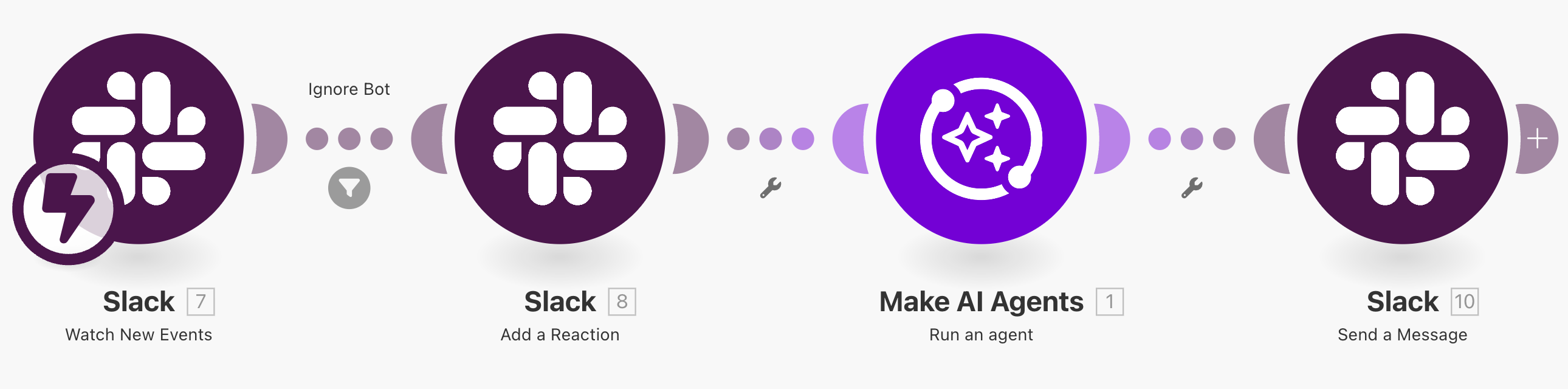
I built this as my productivity AI assistant that sits between me and my productivity stack. Here’s what it can do across each system:
Email Tools:
Triage and label emails by category (URGENT, FOLLOW-UP REQUIRED, NEWSLETTER IDEAS, etc.)
Search emails by time range, sender, keywords
Summarize recent emails in digestible format
Draft replies (never sends without your approval)
Send emails (only after explicit confirmation)
Calendar Tools:
Show daily/weekly schedule on demand
Create events with specified details
Flag scheduling conflicts
Delete events (with confirmation)
Task Tools:
Create Notion tasks with properties (project, priority, due date)
Update existing tasks (status, deadline changes)
Search and retrieve filtered task lists
The AI understands your command (”triage yesterday’s emails” vs “what’s on my calendar”) and routes to the right tool automatically.
When you say “block Friday afternoon for deep work,” it knows to:
Check your calendar for conflicts
Create a 3-hour block
Confirm the event was created
This guide shows you how to build this AI agent using Make.com, OpenAI, Gmail, Google Calendar, Notion, and Slack.
By the end of this post, you’ll be able to build your personal productivity AI agent and use it as the foundation for what we’ll build next as we advance in developing AI agents.
Before we begin, here’s what you’ll need:
Make.com (automation platform)
OpenAI API (the AI brain)
Gmail + Google Calendar (email and scheduling)
Notion (task management)
Slack account and Slack Bot integration (command interface)
Here’s the additional cost details you need to consider:
Gmail, Google Calendar, Notion, Slack (free tiers work)
OpenAI API key ($5-10 in credits, can last 1-3 months)
Make.com paid account (starts from $9/month)
Cost: ~$12-15/month on average (Compare to AI agent services charging $20-50/month)
Architecture:
One Make.com scenario triggered by Slack messages. AI agent receives your command, understands intent, routes to the right tool (Gmail, Google Calendar, or Notion), executes the action, and reports back to Slack.
Understanding AI Agents in Make.com
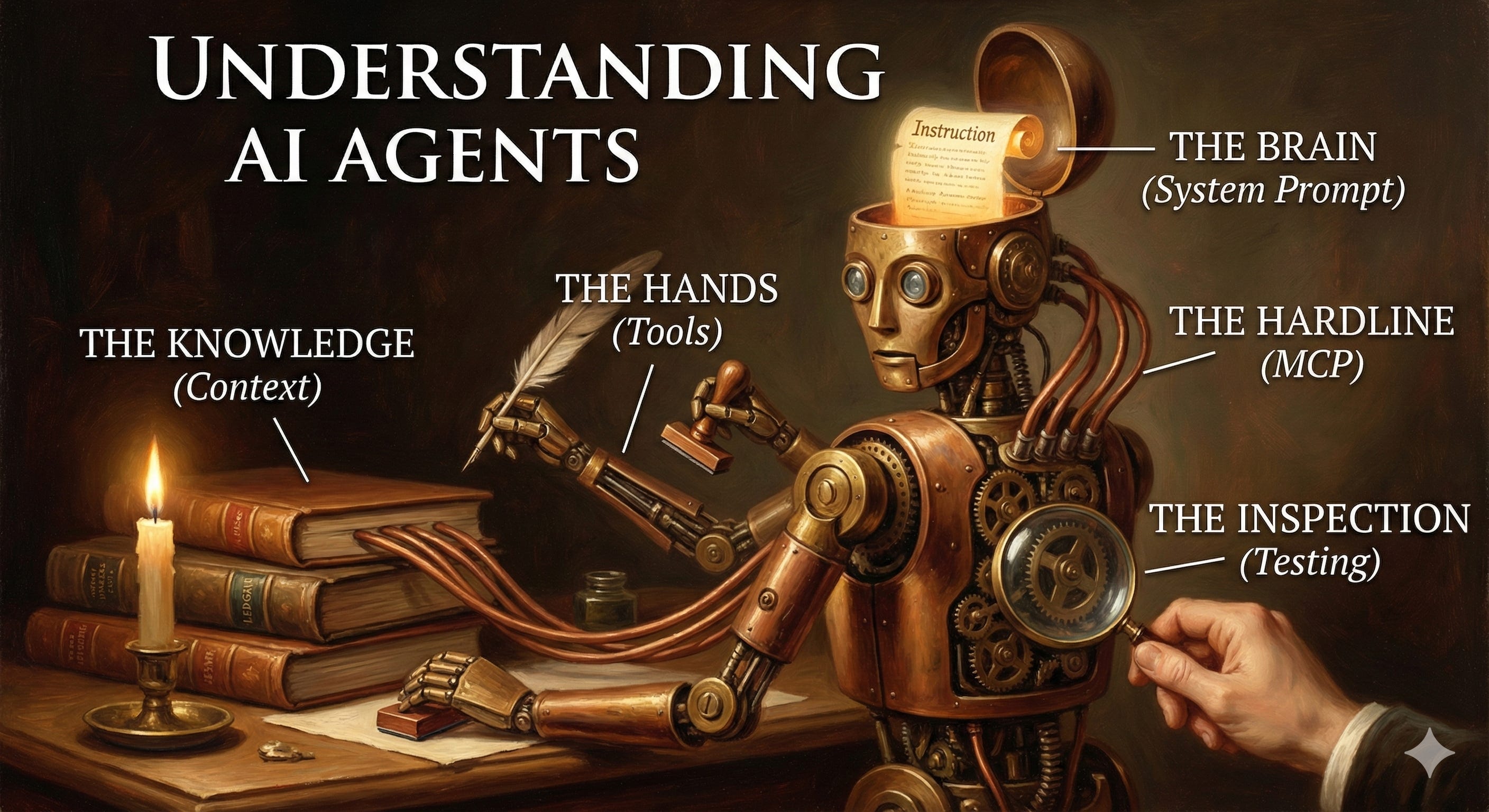
Before we build, you need to understand what’s actually happening under the hood.
Make.com’s AI Agent feature works like a coordination layer that connects AI reasoning to your actual apps and workflows.
Think of it this way: the AI is the brain, and Make scenarios are the hands.
Make scenarios are everything I’ve been sharing on Maker Labs—from newsletter digests and social repurposing automation to turning voice into a second brain.
Generally, whether you use n8n, Zapier, or other AI agent tools, these are the essentials you need to understand.
The five components you’ll configure
1. System Prompt (The Brain)
This defines everything about how your agent behaves:
What it does and doesn’t do
How it responds to different requests
Which tools it can access
When to ask for confirmation vs. act immediately
For our productivity agent, the system prompt tells it:
“You manage email, calendar, and tasks. You only act when explicitly instructed. You always confirm before sending emails or deleting events.”
2. Context (The Knowledge Base)
This is the reference material your agent can consult.
For example, if you were building an AI Maker growth agent, the context would include past posts, content strategy, audience data, and performance metrics—just like what I shared in Claude Project Knowledge. When you ask for newsletter ideas, it references this context to give personalized recommendations—not generic advice.
For our productivity agent, context isn’t critical (we’re working with live data), but you could add things like project definitions, priority frameworks, or a list of emails you want the agent to prioritize.
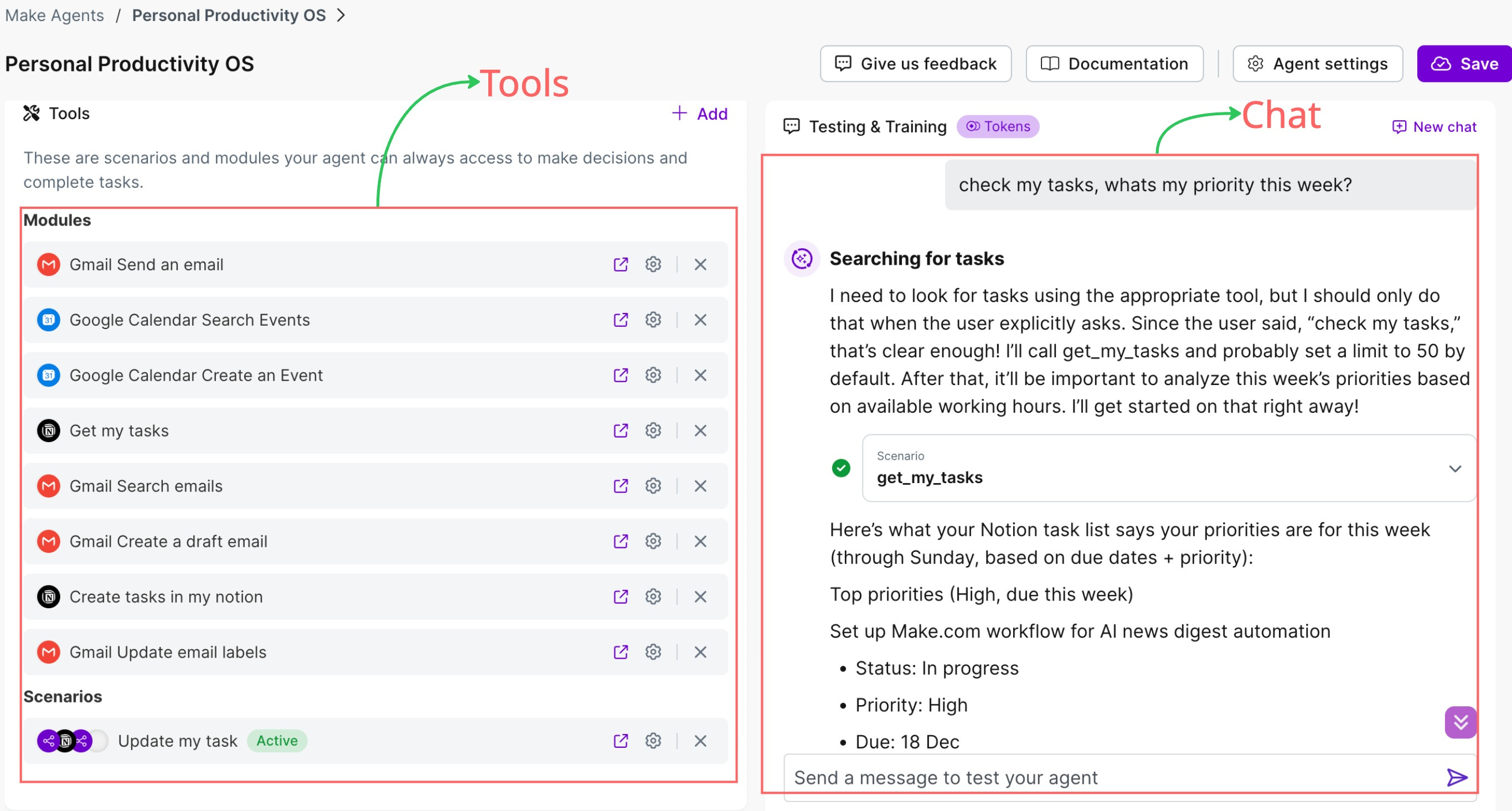
3. Tools (The Hands)
Tools are Make scenarios that the agent can call to take actions.
There are two types:
Individual modules: Single operations like “Search Gmail” or “Create Google Calendar Event”
Complete scenarios: Multi-step workflows like “Triage yesterday’s emails and send digest” or “Find tasks due this week and change due dates”
When you tell the agent “Find tasks due this week and change due dates to next week,” it:
Recognizes this is a Notion task
Calls the Notion search tool
Get all task details
Calls the update tool for each Notion task
Sends you a summary via Slack
This process can be done based on how precise and accurate your system prompt is.
4. MCP Integration (Optional Advanced Feature)
MCP (Model Context Protocol) lets your agent connect directly to apps like Notion, Monday.com, and Asana to read and write data natively.
For this guide, we’ll use Make’s standard tool approach (which works perfectly), but MCP is available if you want deeper integrations later.
We’ll get to that on the later post.
5. Testing & Training
A chat interface inside Make where you test if your agent behaves as expected before connecting it to Slack.
This is where you’ll verify that “what’s on my calendar today” actually searches your calendar instead of hallucinating a schedule.
How it all connects
Once your agent is configured, you connect it to a trigger—usually a messaging platform like Slack, Telegram, or WhatsApp.
Here’s the full flow:
You send a message in Slack: “Triage yesterday’s emails”
Make’s Slack trigger catches this message
The AI Agent module receives it and interprets intent
The agent calls the appropriate tool scenarios (Gmail search → label emails → summarize)
Results come back to the agent
The agent sends a summary back to Slack
That’s what makes it feel like an assistant instead of a basic automation.
Let’s get into the setup. The process will be divided into two parts: first, you’ll configure your AI agent; second, you’ll connect the AI agent to a workflow through Slack.
Now, let’s build it.
Building personal productivity AI agent
Before setting up the five components of our AI agent, we first need to choose which AI models to use.
In the Make dashboard, go to the AI Agent menu and click “Create agent.”
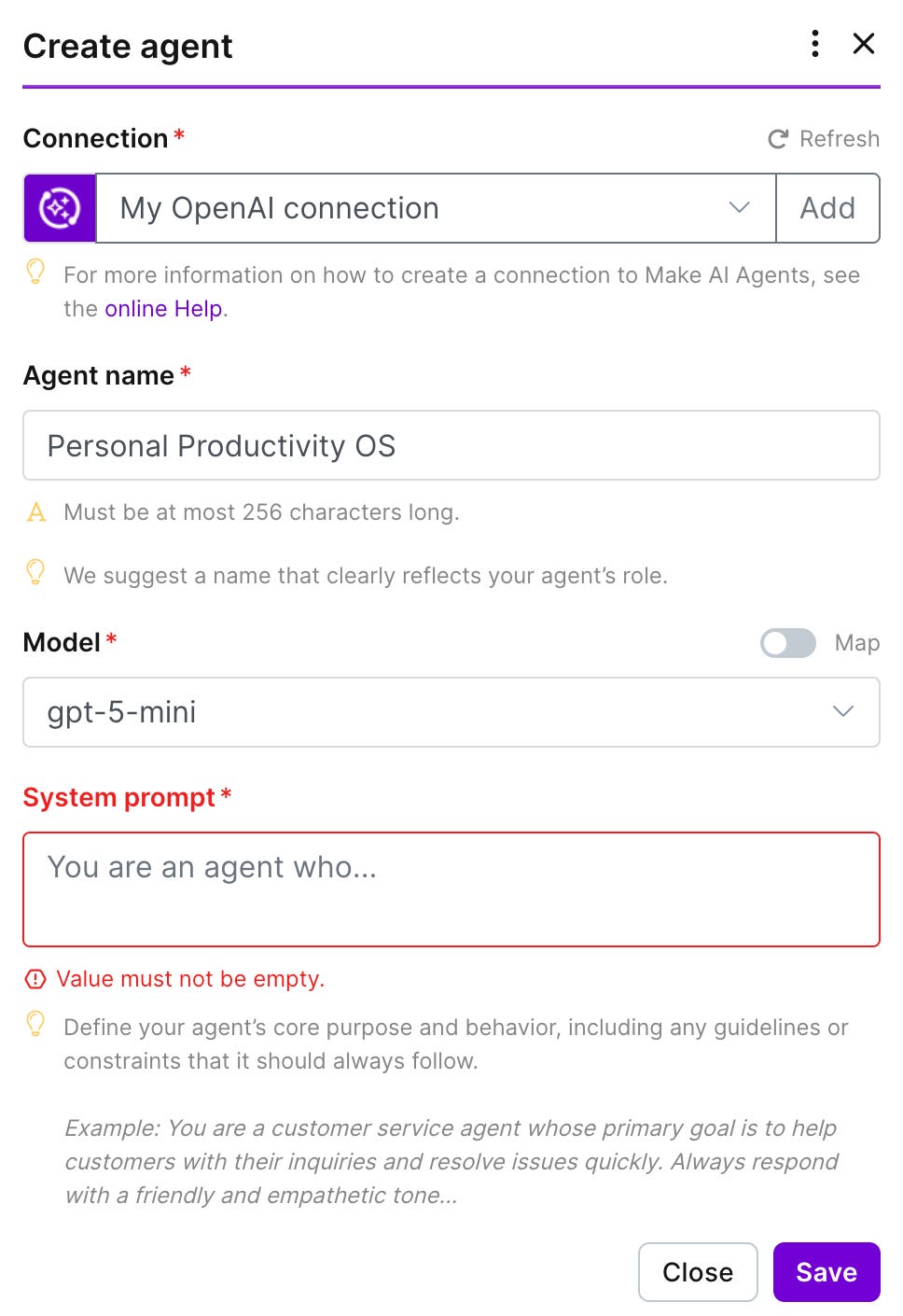
I recommend using OpenAI by connecting your API key and choosing gpt-5-mini—it’s faster, and this agent doesn’t need a more advanced model. Feel free to experiment, though. You’ll also need to complete the organization registration to fully access the model, which you can do on the OpenAI website in minutes by uploading your ID.
🚨 Important: DO NOT USE Make’s AI Provider Connection because it will drain your credits so much you’re going to scream.
Now, we can proceed through five components to set up our AI agent:
1. System prompt
Here’s the system prompt you can copy and paste: