




One of the hardest parts of writing online is knowing whether your work is actually being found. You can publish consistently, share on social, refresh your stats, and still have this weird blind spot: what are people already searching for that leads them to you?
That question becomes important if you write a newsletter, build a personal brand, sell a product, or are slowly trying to become easier to discover through Google. Organic search is not the whole game, but it is still one of the few places where strangers tell you what they wanted before they ever knew your name.
But, the easy reaction right now is to say SEO does not matter anymore because people are asking ChatGPT, Perplexity, Claude, Gemini, and Google AI answers instead of clicking blue links.
I understand that reaction. Search behavior is changing.
But I do not buy the leap from “search is changing” to “Google no longer matters.”
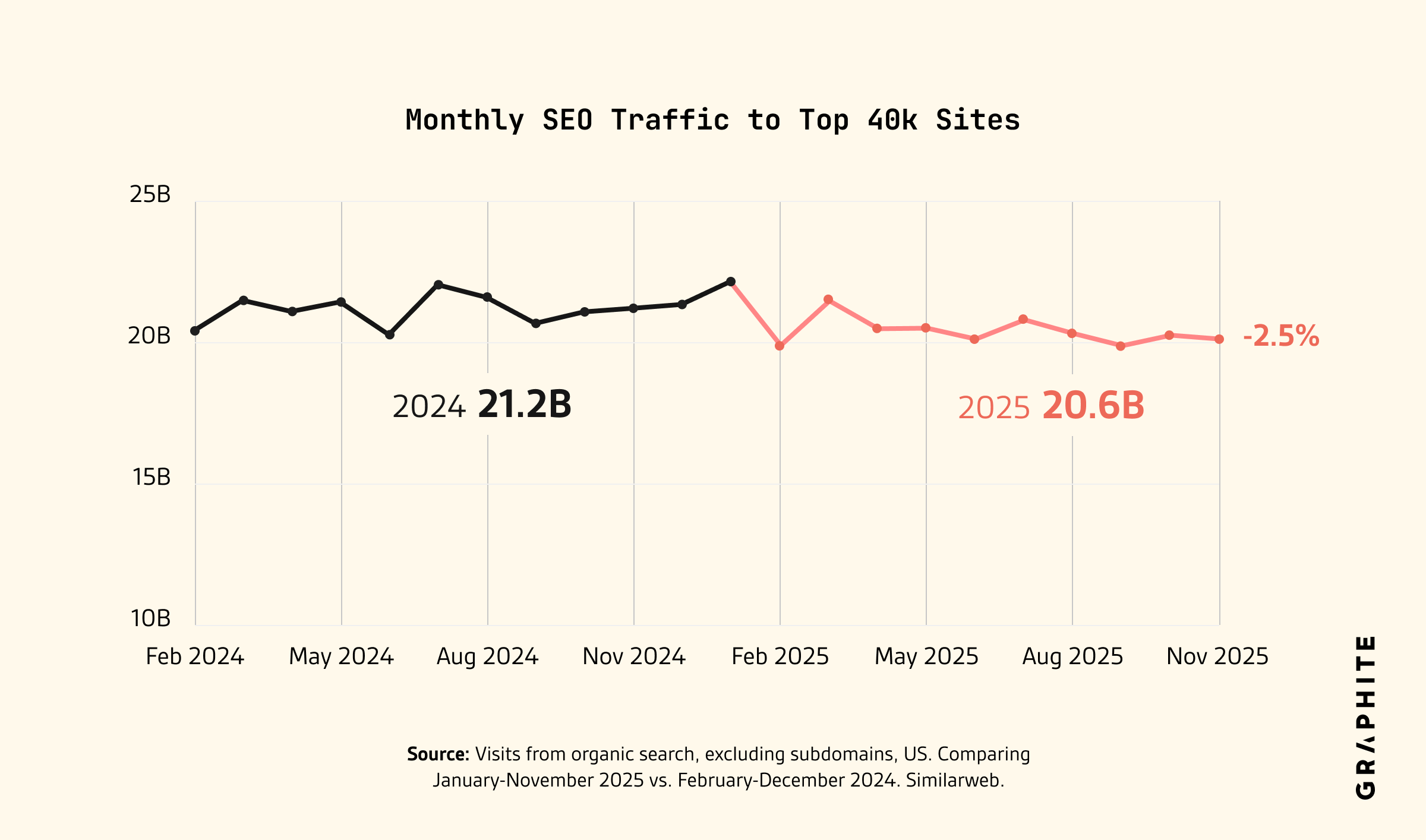
Graphite recently looked at search traffic across more than 40,000 large US sites with Similarweb data. Their finding was not that SEO traffic had collapsed. It was down slightly, around 2.5% year over year, not dramatically. They also found that traffic to Google and search engines was relatively flat in 2025, with Google visitors up slightly in Q4 2025 compared with Q4 2024.
That does not mean nothing is changing. Pew research suggested that AI Overviews can reduce clicks when they appear. Some categories are getting hit harder than others. And I would not treat any single study as the final word on what will happen next.
But the collapse story feels too simple.
People are still searching. Google is still sending readers. And for writers, creators, and people building an online presence, the practical question is not “Is SEO dead?”
The better question is:
“Can the right people understand and find my work when they are looking for something I already write about?”
That’s why I wrote about how I built my SEO review agent here, whose job is to improve your content so it follows the right SEO structure: titles, meta descriptions, slug URLs, image alt text, and more.

Google accounted for around 60% of my Substack traffic and roughly 30% of my subscription revenue. It was enough for me to stop treating Google like a tiny side channel.
That is why I like what Ilia Karelin built here. While my SEO Review Agent makes each article structurally ‘search‑ready,’ Ilia goes a step earlier in the pipeline: every week he pulls a content brief from Google Search Console so he’s never guessing what to write or update next.
Ilia writes Prosper, a newsletter about AI for people who want a sharper edge without drowning in every update. He has also written for AI Maker several times before, including pieces on AI memory, when not to use AI, Claude in Chrome, and our Claude Q1 update breakdown.

Check out his latest posts if you want to learn more what he writes about:
In this post, Ilia is not just showing how to connect Google Search Console. He is showing how to turn search data into a weekly decision loop for writers, creators, and anyone trying to grow from organic traffic.
His setup uses Google Search Console exports and Claude Cowork to turn raw dashboard data into a weekly brief: what changed, why it matters, and what he might write next.
If you are trying to grow your presence online, this is the kind of small system that can help you stop guessing from scratch every week.
Here’s Ilia.
Hello 👋🏻
About a month ago, I connected my Substack to Google Search Console (GSC). Actually, it was Wyndo’s recommendation. I wasn’t convinced it would matter.
Well…I was wrong.
It completely changed how I think about data, how important data is, and how it can really change the way you think about your business or a side hustle. Once you know the data, you know what other people like; you know what works versus what is not working at all.
The data also showed patterns I wasn’t sure how to act on. That’s where Claude Cowork comes in. We’re using Cowork rather than Claude Code here because it’s simpler, no code required, easier to use and look at.
The best thing about this setup is that it works for any data source you care about: newsletter, business, product. The pattern is the same wherever you have numbers without answers.
I built mine around GSC.
What Google Search Console does
GSC is a free Google tool. It shows you how your site shows up in Google Search results.
Super important:
Despite the fact the tools like Perplexity or ChatGPT can answer questions and search the web well, most people still go to Google to find things.
GSC tells you what happened during the search:
Which words someone typed
Which page Google served them
Whether they clicked
Where you ranked
When you connect it, Google starts logging four things for every search query that surfaces your content: clicks, impressions, click-through rate, and average position. Export any date range as a CSV and you have the data Google itself uses to decide where you rank.
Why bother? Because this is the only place you see the gap between what you think people search for and what they actually type into Google. For example, GSC showed me search terms I’d never have even guessed that people were searching for or what were my most popular articles.
That’s what you’re really after here. You want to know which keywords are already pulling readers in so you can write more of what’s working and fix what isn’t.
The best thing I’ve noticed so far about running this is the trend. By trend, I mean how my pages show up in Google Search week over week, and a short list of keywords worth focusing on next.
This is the raw material the rest of this post turns into something useful.
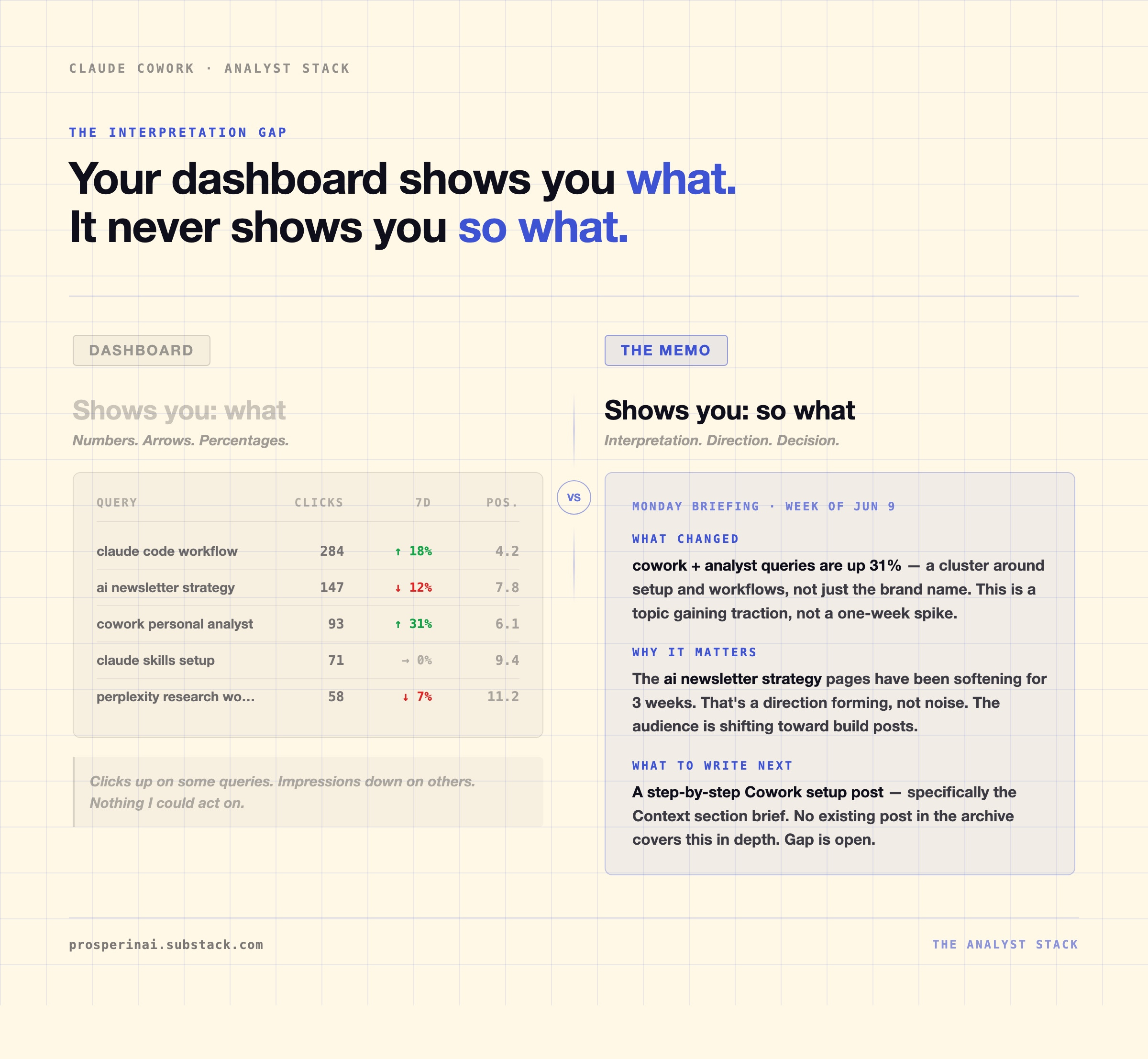
Your Dashboard Shows You What. It Never Shows You So What.
Here’s the thing about dashboards: they solve the wrong problem.
The problem isn’t getting the data. GSC is free, Notion is free, plenty of other tools are also free. You can have a color-coded dashboard running by lunch, especially with the power of AI.
But a dashboard shows you what happened:
Numbers
Arrows up or down
Percentages
It never tells you what any of it means or what to do next.
The “so what” layer is the interpretation that turns data into a decision. That’s the part you still have to do yourself. Every week. By hand. Staring at a screen.
That’s the problem I wanted to fix. What if Claude has a different insight that I have in my mind? So I gave the job to Claude Cowork.
One Cowork Job. Three Parts.
Claude Cowork is an Anthropic product that can run tasks on your computer: local files, apps, connected services. You give it a goal and a brief. It runs. You get the output.
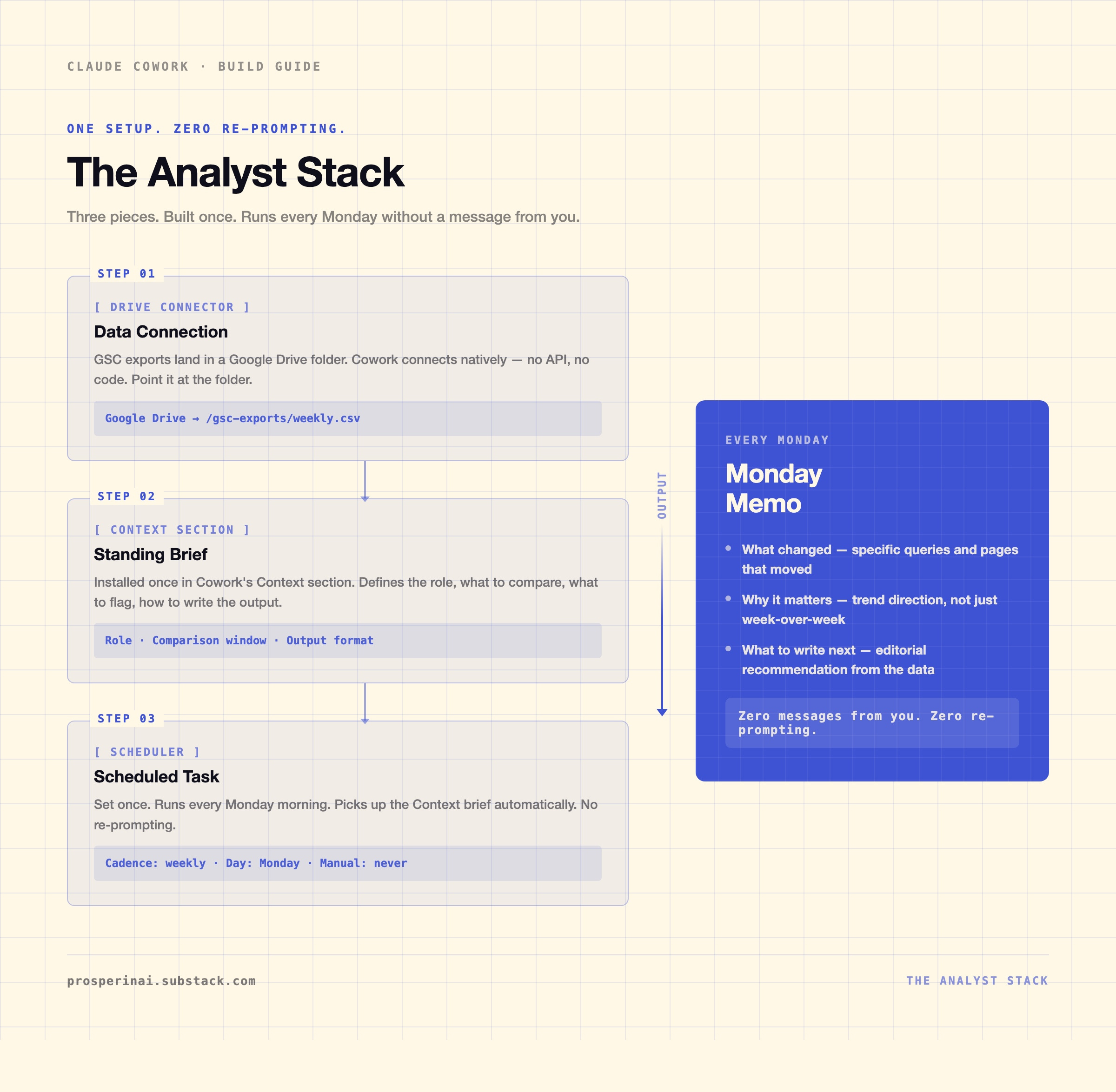
I built my analyst setup in three pieces. I call it the Analyst Stack. For this, we need:
1. The data connection
I decided to go simple and do exports to a local folder on my computer. Cowork reads it directly without needing a connector. You can also use Google Drive if you prefer.
2. The standing brief
A Context section inside Cowork that defines the role it’s playing, what to compare, what to flag, and how to write the output. Without this part, Cowork has no idea what useful output looks like for you and your case.
3. The scheduled task
Every Monday morning with no re-prompting. One thing to note here:
The analysis runs itself, but the data still needs a fresh export dropped in first.
Alright, let’s move on to see what that stack produces.
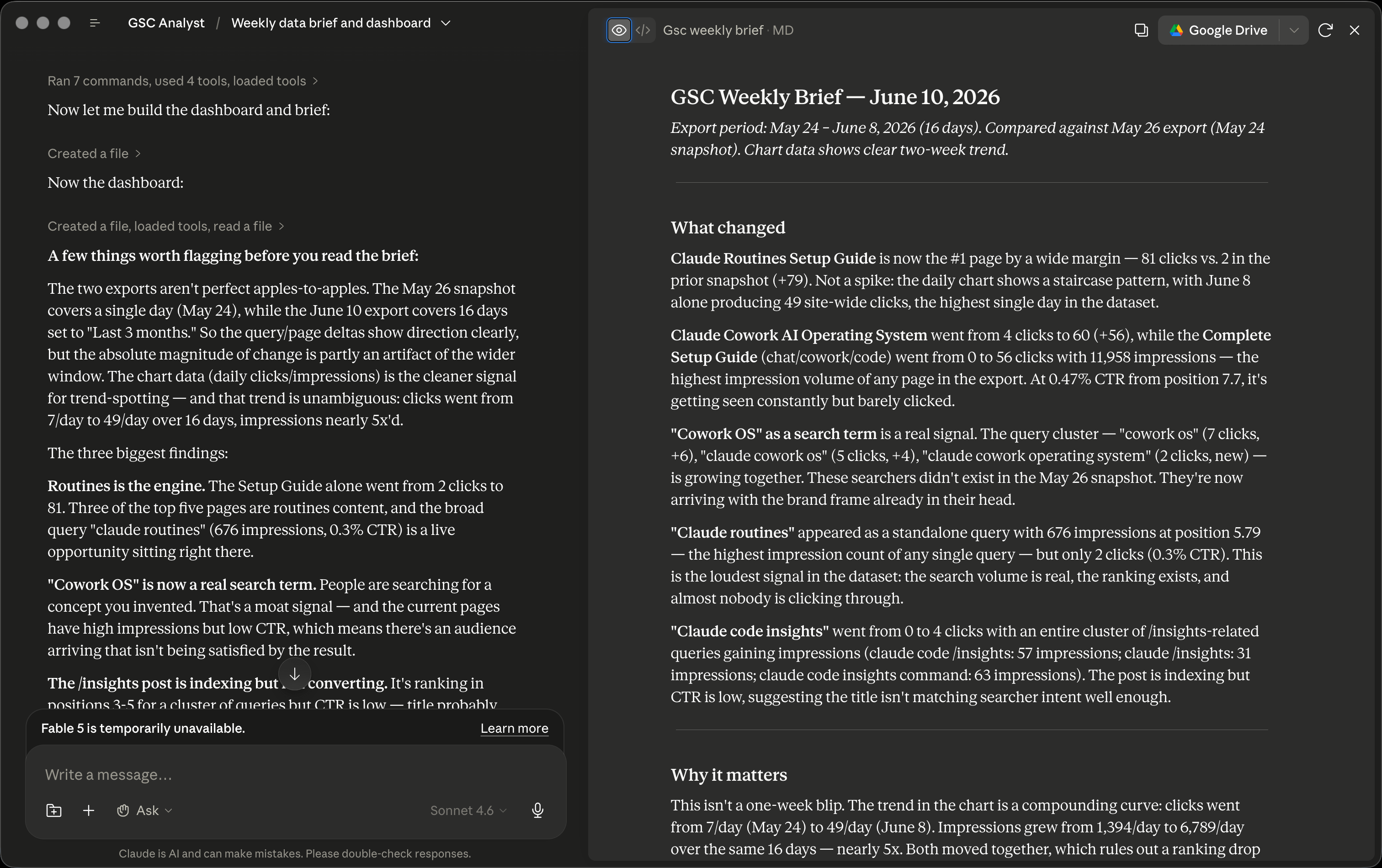
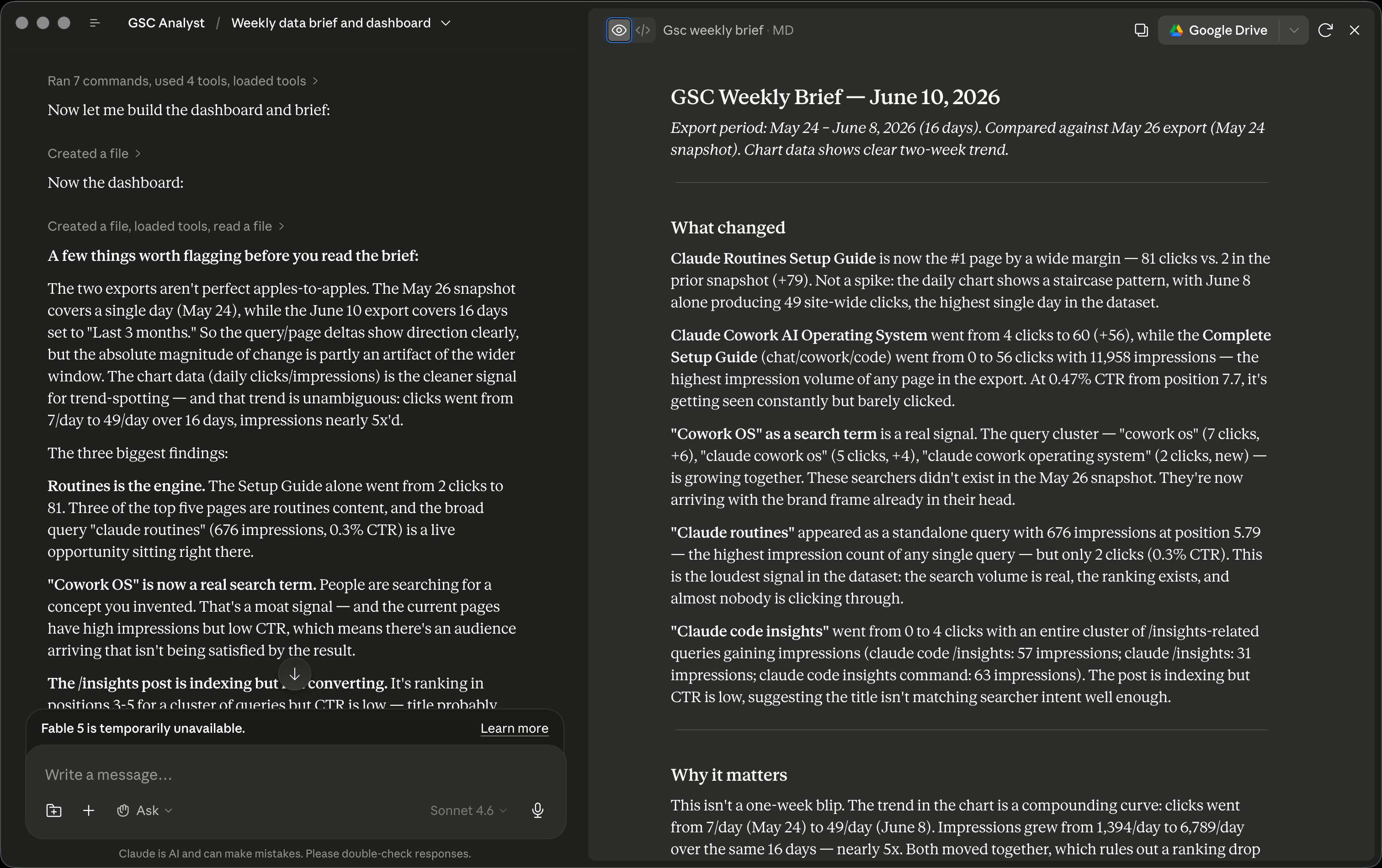
Here’s What the Brief Looks Like
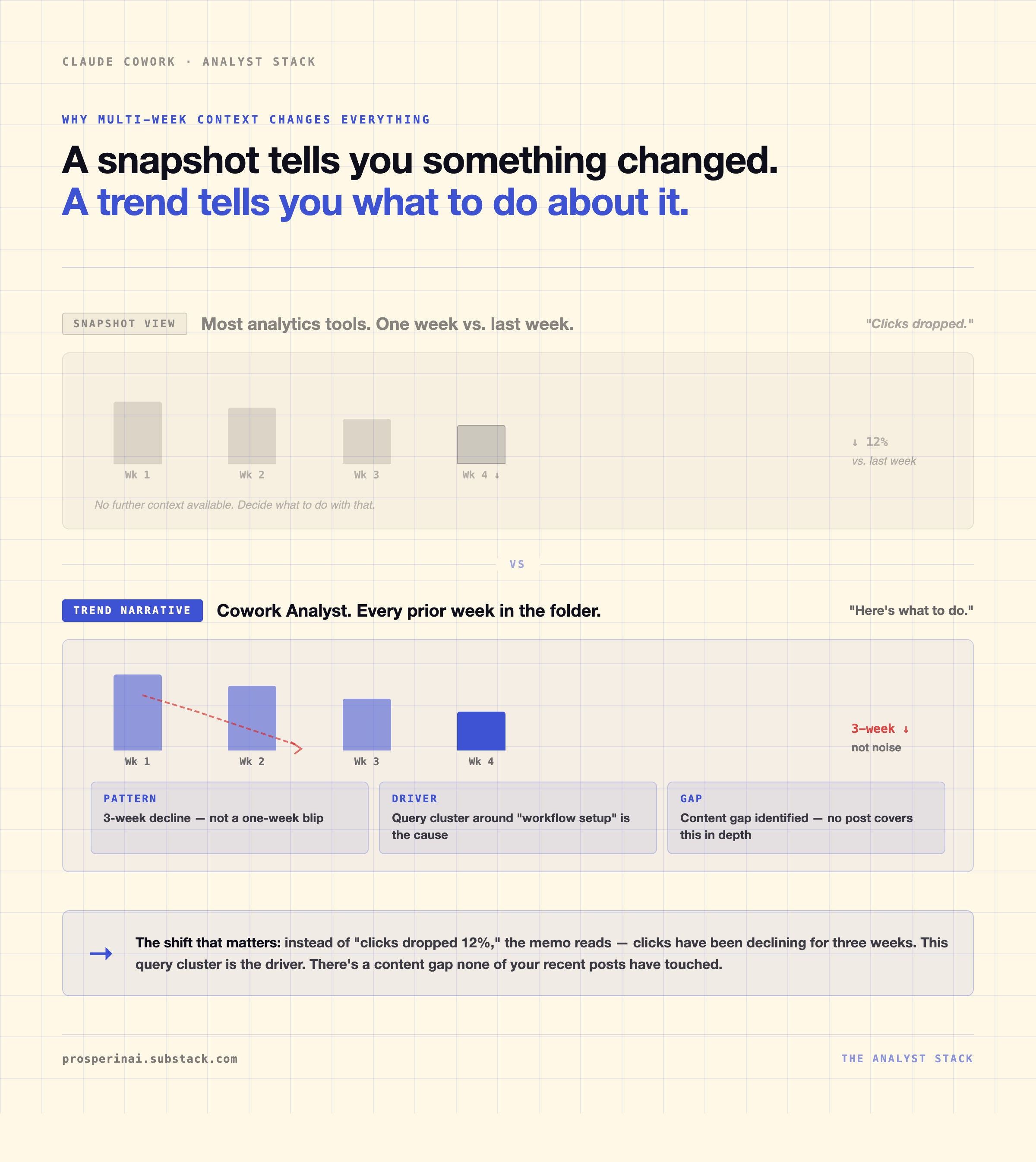
As data builds up week over week, Cowork produces a brief with three clearly labeled sections:
What changed - the queries and pages that moved since the last run.
Why it matters - whether it’s a one-week blip or a direction forming across multiple weeks.
What to write next - a content recommendation based on what’s gaining traction and where your archive has a gap.
That third section output surprised me the most. I built this expecting analysis, but instead I got a switch turn “ON” in my brain.
Now for the build.
How to Build It in Cowork
Step 1: Connect your data
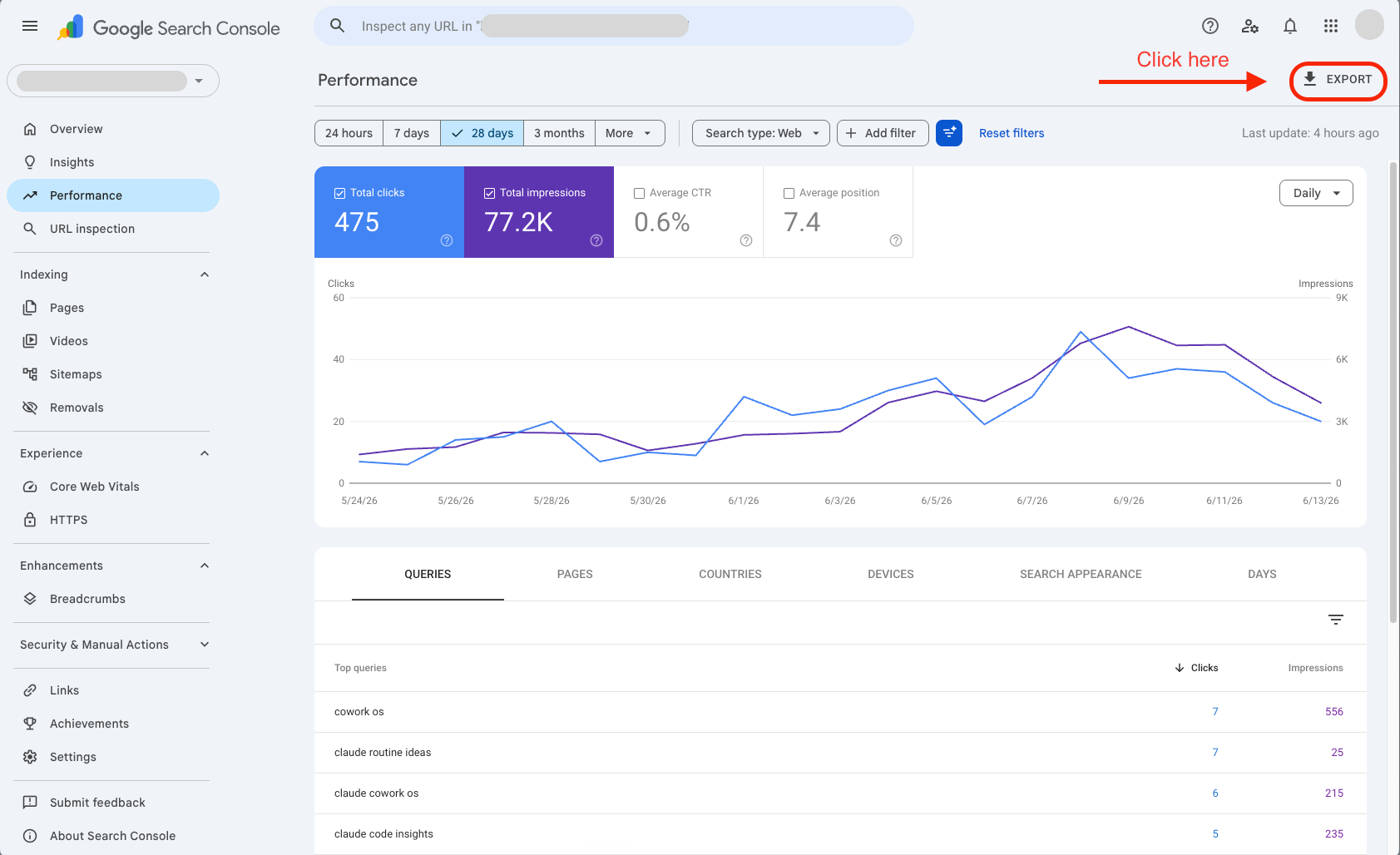
Go to GSC, hit the Export button at the top right of the Performance tab, and download the CSV. This is what those files actually contain:
Queries.csv - every search term people typed into Google that led to your site, with clicks, impressions, CTR, and average position
Pages.csv - same breakdown but by individual post URL, so you can see which articles are actually getting found
Devices.csv, Countries.csv - traffic split by device type and geography
Chart.csv - your overall click and impression totals over the selected date range
The two files you’ll use most are Queries and Pages. That’s where the signal lives.
Drop the exported folder into a local directory on your computer. I keep mine in google-search-console-data-dump/ inside my newsletter folder, with a subfolder for each export date so Cowork can compare across weeks automatically.
If you’re not using GSC, the same approach works for any data you can export as a CSV:
Email newsletter analytics
Sales reports
Ad performance data
The Analyst Stack is the pattern. The data is yours.
Step 2: Create a new project and connect your data folder
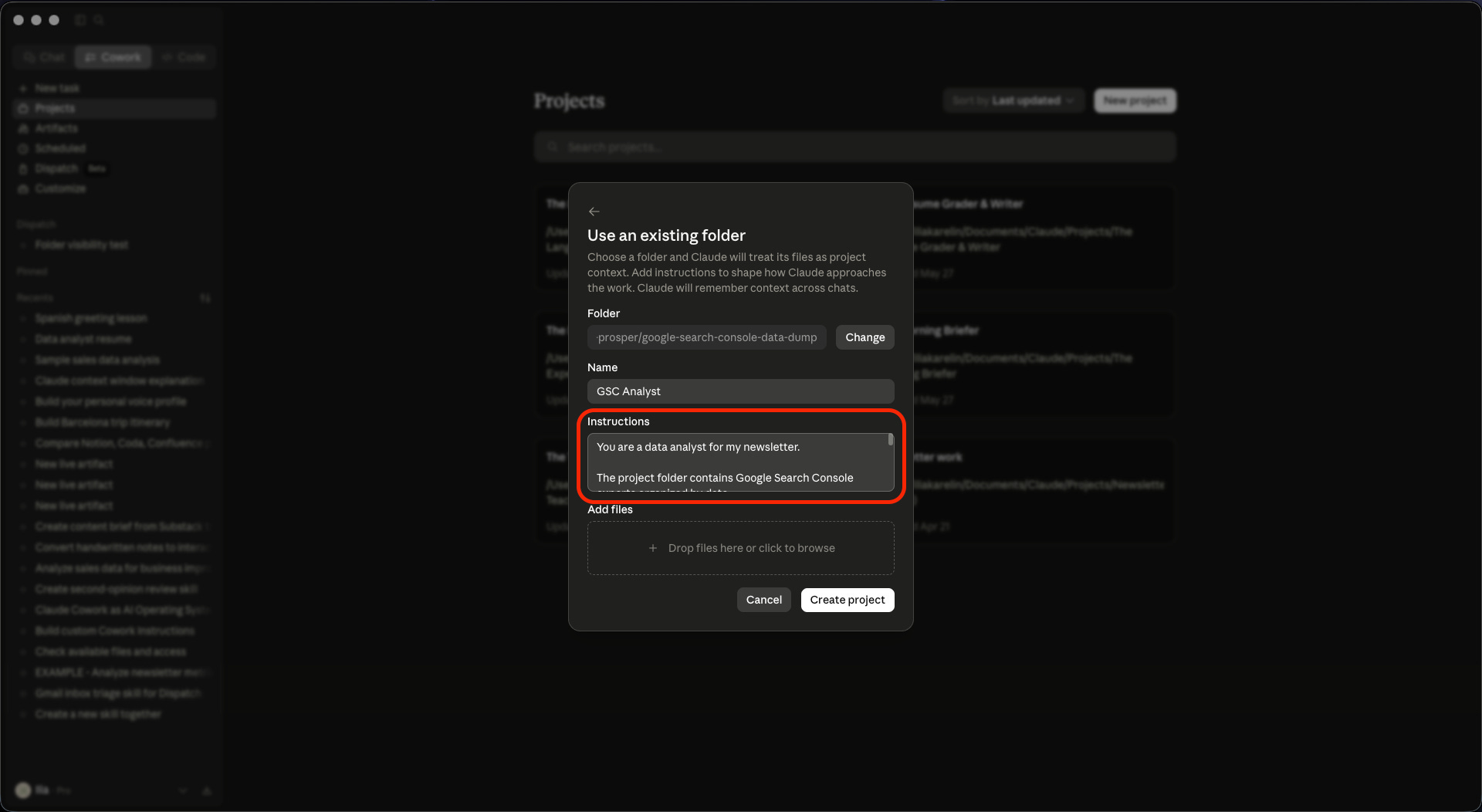
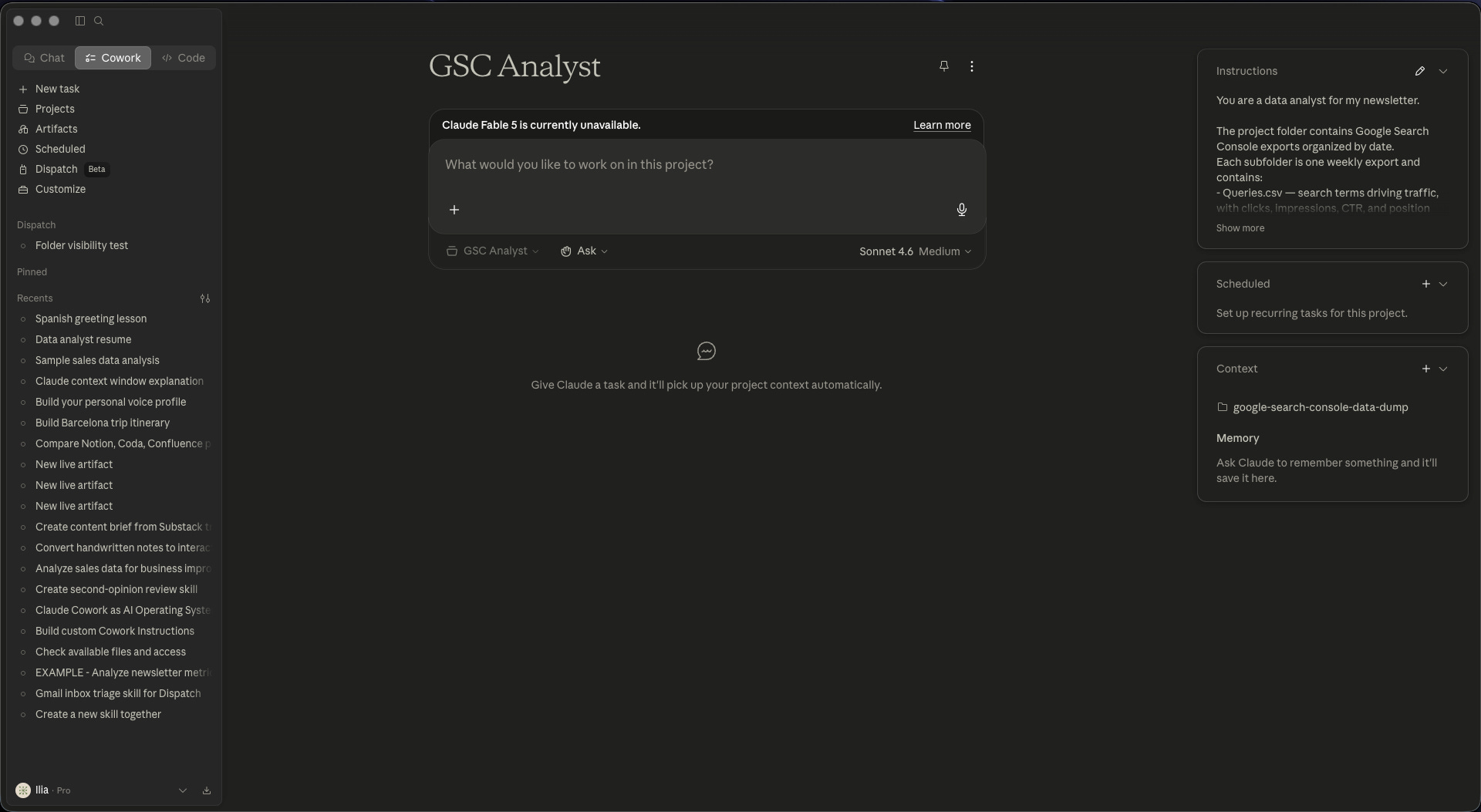
Open the Claude desktop app and go to Cowork. Click Projects in the left sidebar, then New Project. Name it something like “GSC Analyst” or “Newsletter Analyst.”
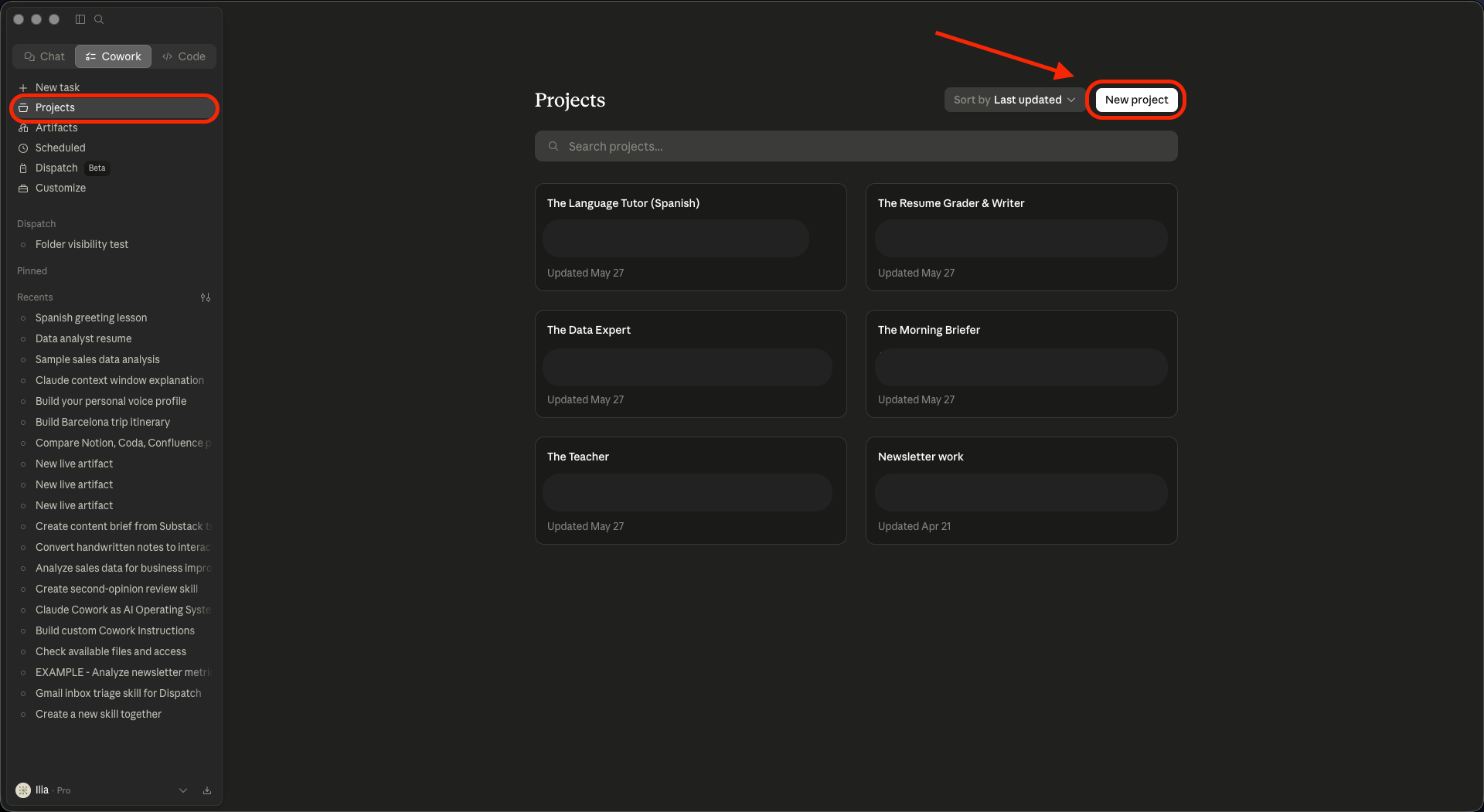
When prompted, this time we’re going to choose: Use an existing folder and point it at the folder where your GSC exports live.
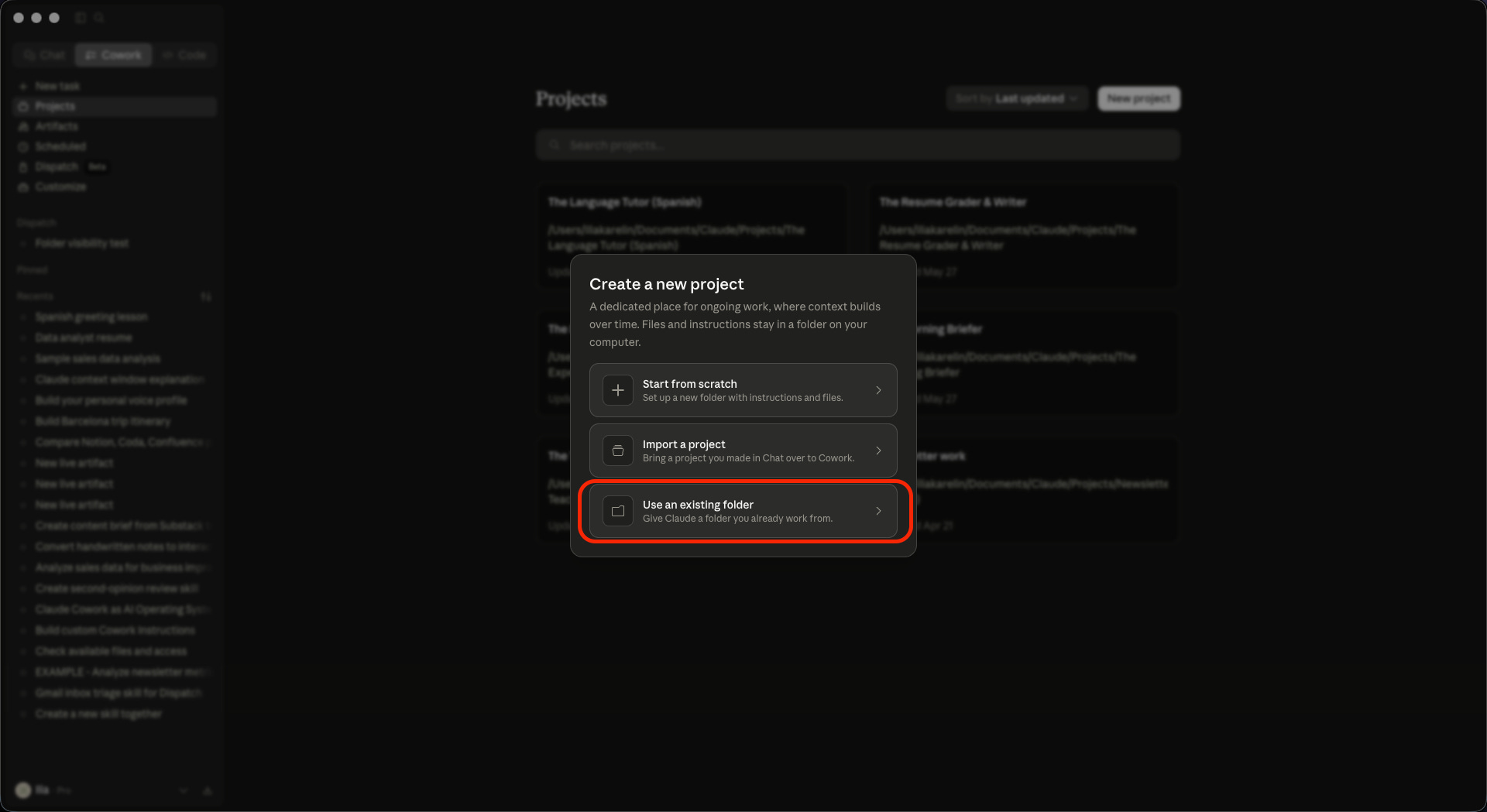
Cowork will treat every file in that folder as project context so each time you add a new weekly export, it picks it up automatically without any extra configuration.
In the Instructions field, paste this and update the first line to describe your own content:
You are a data analyst for my newsletter.
The project folder contains Google Search Console exports organized by date.

Each subfolder is one weekly export and contains:

- Queries.csv — search terms driving traffic, with clicks, impressions, CTR, and position
- Pages.csv — individual post URLs with the same metrics

Every time you run, compare the most recent export against all prior exports
in the folder. Look for trend direction across weeks, not just the latest snapshot.

Your output is a short brief with three clearly labeled sections:

**What changed** — the 3-5 queries or pages that moved meaningfully since the
last run. Name the query, state the direction, give the number.

**Why it matters** — is this a one-week blip or a direction forming across
multiple weeks?

**What to write next** — 1-2 content recommendations based on what’s gaining
traction and where there’s a gap in the archive.

No tables. No bullet dumps. Write it like a briefing from a sharp colleague
who knows the content well.
Here’s how your setup should look like for this step before hitting “Create Project”:
And here’s how the project looks once it’s created and ready to use:
Step 3: Run it once and see what you get
Before scheduling anything, run it manually first. This lets you verify the output looks right and gives you something concrete to show for it. For our first run, we’re going to use Data plugin that was created by Anthropic.
Steps to install the plugin:
Click on “Customize” in the left sidebar
Go to the Browse plugins
Install the Data plugin by clicking the “+” icon.
Here’s a brief video where to find it and how to install it:
The Data plugin adds a set of slash commands designed specifically for working with datasets, and these are the ones we’re going to use:
/data-exploration- profiles your CSVs before analysis: shape, quality, distributions, outliers. Run this first so Cowork understands what it’s working with./data-validation- QA check on the analysis before you trust it. Catches aggregation errors and methodology issues./interactive-dashboard-builder- if you want a visual output alongside the brief, this builds a self-contained HTML dashboard with filters and charts from your data.
For the first run, paste this prompt into the chat:
/data-exploration — start by profiling the Queries.csv and Pages.csv files from
the most recent export folder. Understand the shape, any nulls, and the range of
values before doing anything else.

Then /data-validation — compare this week’s data against the prior week’s exports
in the folder. Flag any anomalies or outliers that might be noise rather than signal.

Then produce the weekly brief with three sections: What changed / Why it matters / What to write next.

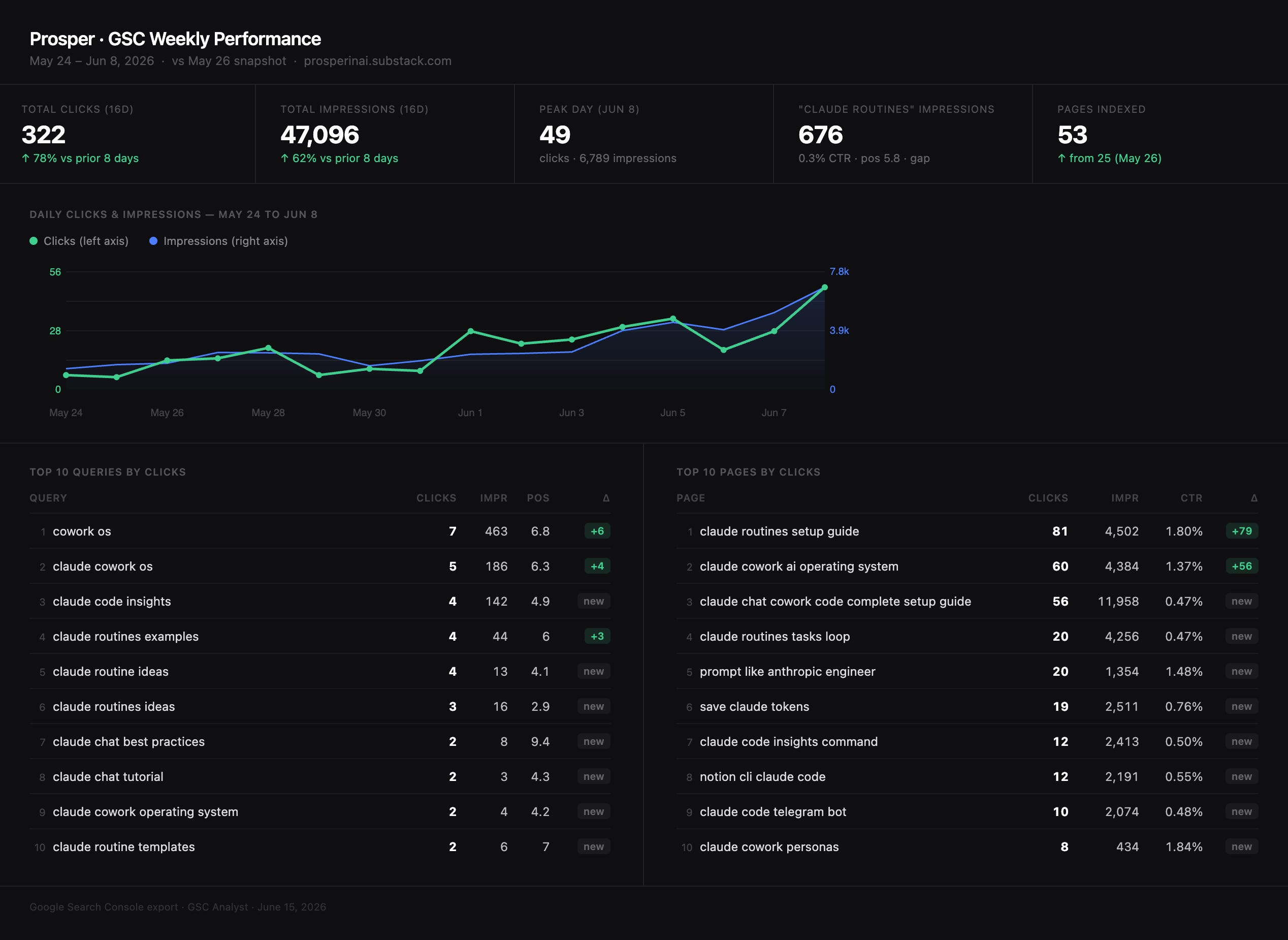
Finally, use /interactive-dashboard-builder to create a self-contained HTML file
showing the top 10 queries and pages by clicks, with week-over-week change highlighted.
This does four things in one run: profiles the data, validates it, writes the brief, and builds a visual dashboard you can open in a browser. You’ll see exactly what the full output looks like before committing to a weekly schedule.
And here’s the interactive dashboard it built alongside the brief:
Step 4: Schedule the task
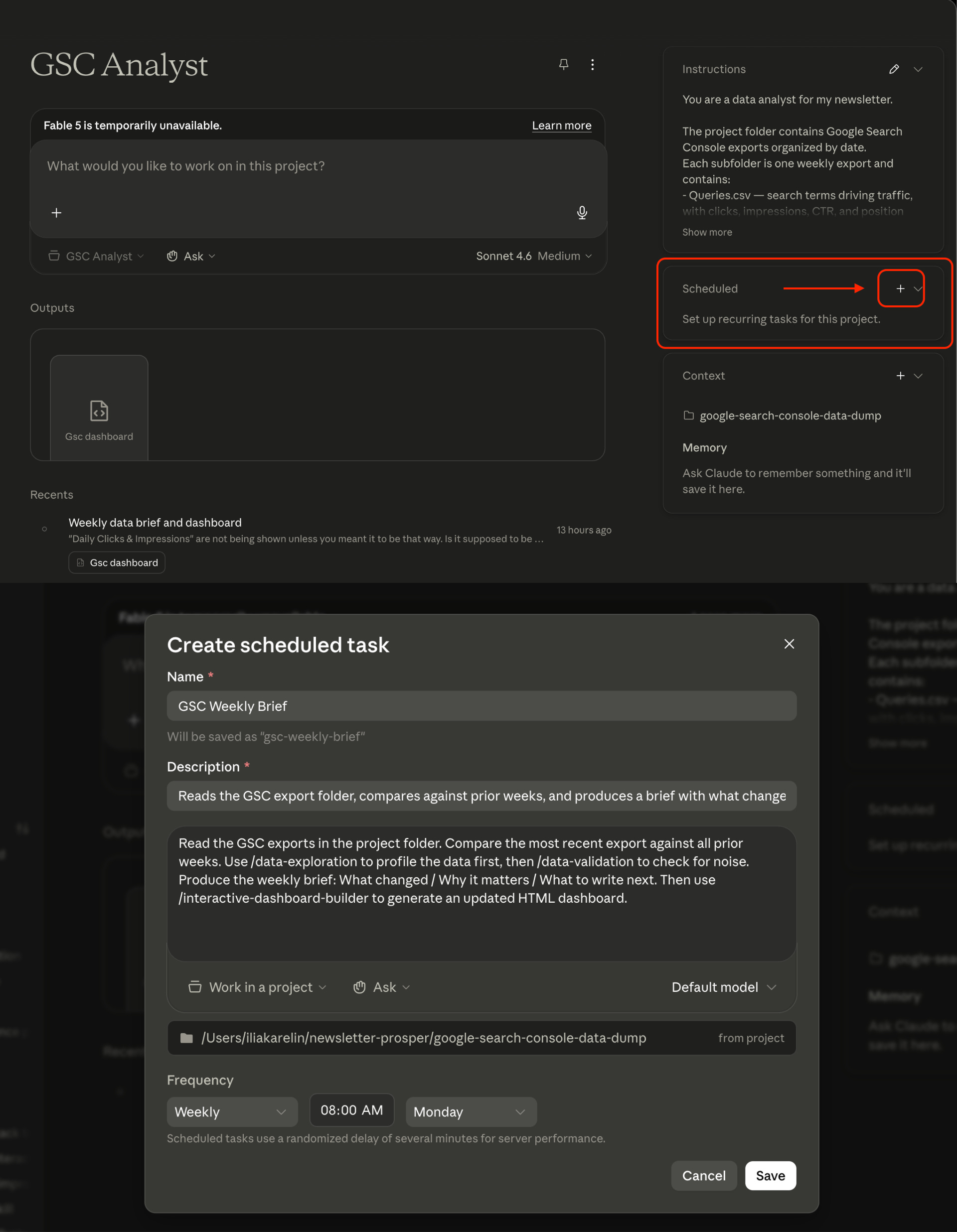
Once you’re happy with the output, click the “+” button next to Scheduled Tasks. Fill in the three fields:
Name: GSC Weekly Brief
Description: Reads the GSC export folder, compares against prior weeks, and produces a brief with what changed, why it matters, and what to write next.
Task:
Read the GSC exports in the project folder. Compare the most recent export against
all prior weeks. Use /data-exploration to profile the data first, then

/data-validation to check for noise. Produce the weekly brief: What changed /
Why it matters / What to write next. Then use /interactive-dashboard-builder to
generate an updated HTML dashboard.
Set the cadence to weekly, Monday morning. Cowork picks up the project instructions automatically, you don’t need to repeat anything here. Here’s where to find it in Cowork:
🚨 Important note: GSC has no live connection here, so every week, before the scheduled run fires, go back to GSC and export a new CSV into the dated subfolder. If you skip that step, Cowork just re-reads last week’s data with nothing new to compare against.
That’s it. You set this up once. From here it runs on its own.
One more thing worth knowing: the brief Cowork produces is a markdown file. The output is a markdown file. You can use it anywhere:
Open it in Claude Code and run your own skills and slash commands against it
Pipe it into a branded content
Reference it in a future Cowork session
Feed it into another task as context
Talk To Your Data
Any BI tool can show you a trend now. The difference here is what’s doing the analysis.
You’re talking to your data with the best AI model in the world. And that’s pretty amazing if you ask me.
Ask it to dig deeper on one query
Tell it to ignore mobile traffic
Create any document in any form you want on the fly
Ask why a page that ranks well doesn’t convert
It answers. You follow up. You go wherever the data takes you.
That’s what no dashboard gives you. A dashboard shows you what you built it to show. Cowork shows you whatever you ask.
The Bottom Line
Most dashboards answer the questions you had six months ago. Not the ones you have now. The Analyst Stack changes that. You give Cowork access, write the instructions once, schedule the task, and from there you can talk to your data, ask follow-up questions, change the angle, or just let it run every Monday and read what it found.
If you want to build it for your own Analyst Stack, open the Cowork Instructions field and write three things:
Your role
What data you’re working with
The decision you need it to help you make
That’s going to be a perfect start! The first output will show you what to adjust and what questions to ask.

Thank you Wyndo for the opportunity! Let us know what you guys think about this Cowork Analyst!
Followed the directions to build this in Codex. Works great! Thanks.