

How to Build Custom AI Tools in Minutes: My Google Opal Workflow Full Guide
Why Opal could be Google Gemini’s biggest agentic workflow builder.


If 2025 was the year AI agents arrived, 2026 is when agentic workflows finally become accessible to the rest of us—the non-technical AI users who don't spend their weekends debugging code.
Here’s why that shift matters.
I’ve been wrestling with a contradiction for months now: I know I should be writing about new AI tools. That’s part of my job. But every time I sit down to evaluate the latest product launch, three realities stop me cold:
The options are overwhelming. There are hundreds of AI tools promising to revolutionize your workflow, and most of them do essentially the same thing Claude or ChatGPT or Gemini already handle.
Most of these tools won’t exist in 1-2 years. I’m not interested in sharing you a platform that’s going to be dead soon.
Lastly—and this is the real killer—even when I find a tool that looks promising, the question that matters most is the hardest to answer: How does this actually fit into my workflow? Without a clear evaluation framework, answering that question becomes a full research project. Every. Single. Time.
These questions have been living rent‑free in my head.
This is why I’ve been selective. I don’t want to add noise to your tool stack. I want to be a curator, not a hype machine. So I’ve focused on tools that deliver 10x returns rather than marginal improvements—tools like NotebookLM, Claude Code, Make, n8n, Dia Browser and Glif. The reason is simply that they make you feel like you have a superpower: they automate entire workflows, not just individual tasks.
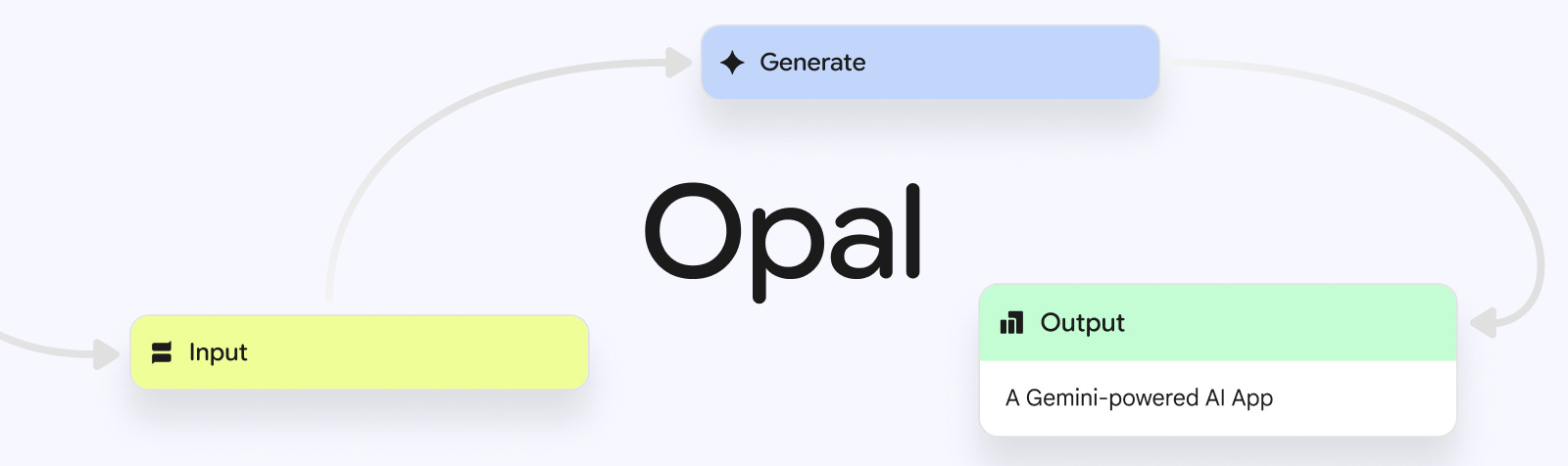
That selectivity is also why I’ve been sitting on Google Opal for over five months.
I’ve been using it since the early beta. I saw the potential. But it felt like an experiment. It’s interesting for sure, but not essential. I couldn’t articulate why it mattered beyond “Google made another AI thing.”
Then Gemini 3 launched. And Opal changed. I mean, a lot.
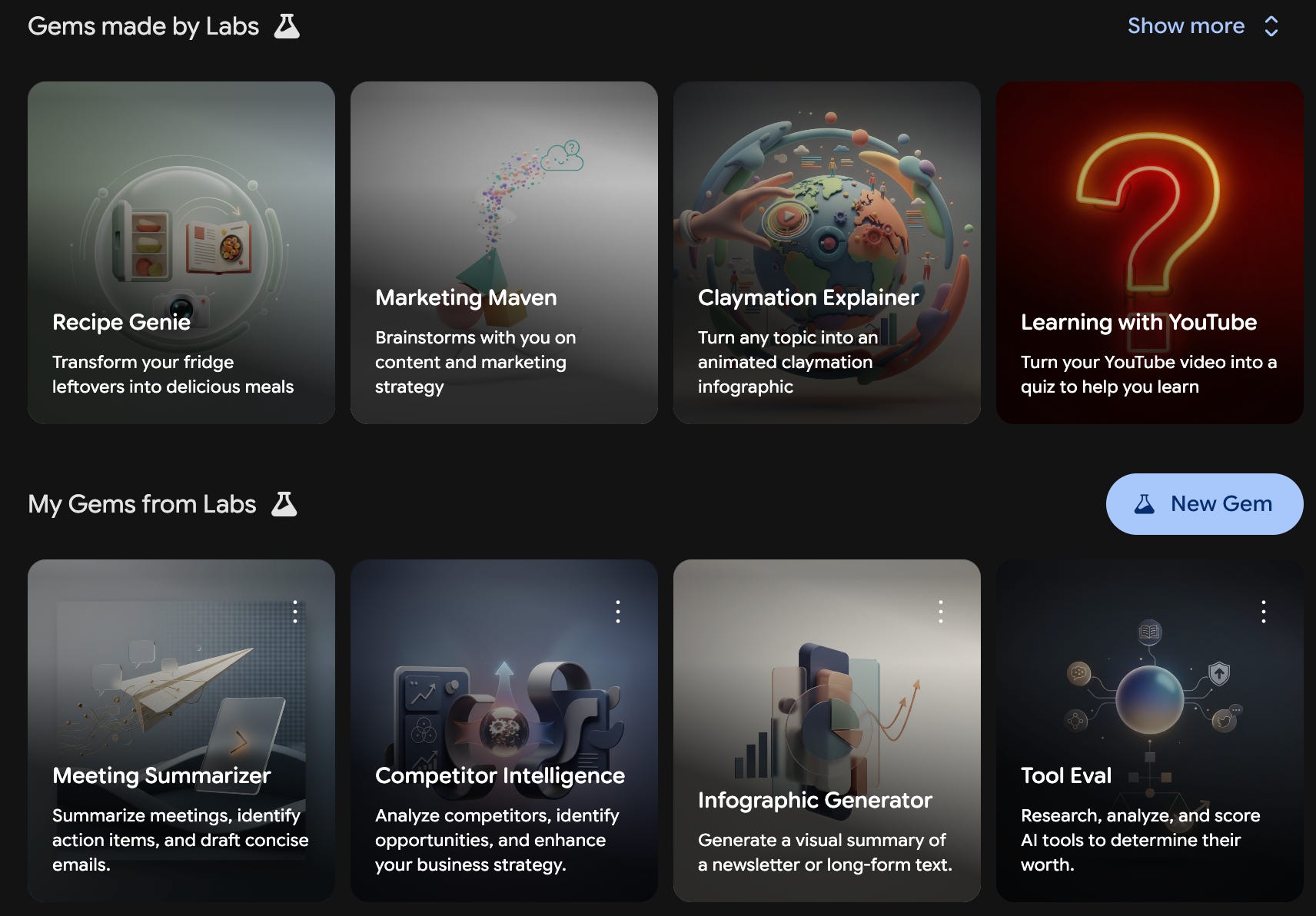
It’s no longer a side project buried in Google Labs. It’s now natively integrated into Gemini. The capabilities have expanded. It’s multimodal—spanning video, audio, and image generation. More importantly, I finally saw the use case clearly. I understood what Google was building toward.
Google Opal isn’t trying to be another chatbot or another automation tool competing with Zapier or Make. It’s something fundamentally different: an AI-native workflow builder designed for building custom apps to automate tasks, where plain english becomes the programming interface, and you build functional workflow without writing code or understanding JSON and other technical formatting.
And it’s completely FREE.
In fact, it offers a better user experience compared to Make or n8n. This is the agentic workflow future we’ve been talking about. And it’s here now, wrapped in a simple Google interface and integrated across Google products.
So I changed my mind. This one’s worth the deep dive.
When I built a tool to evaluate tools
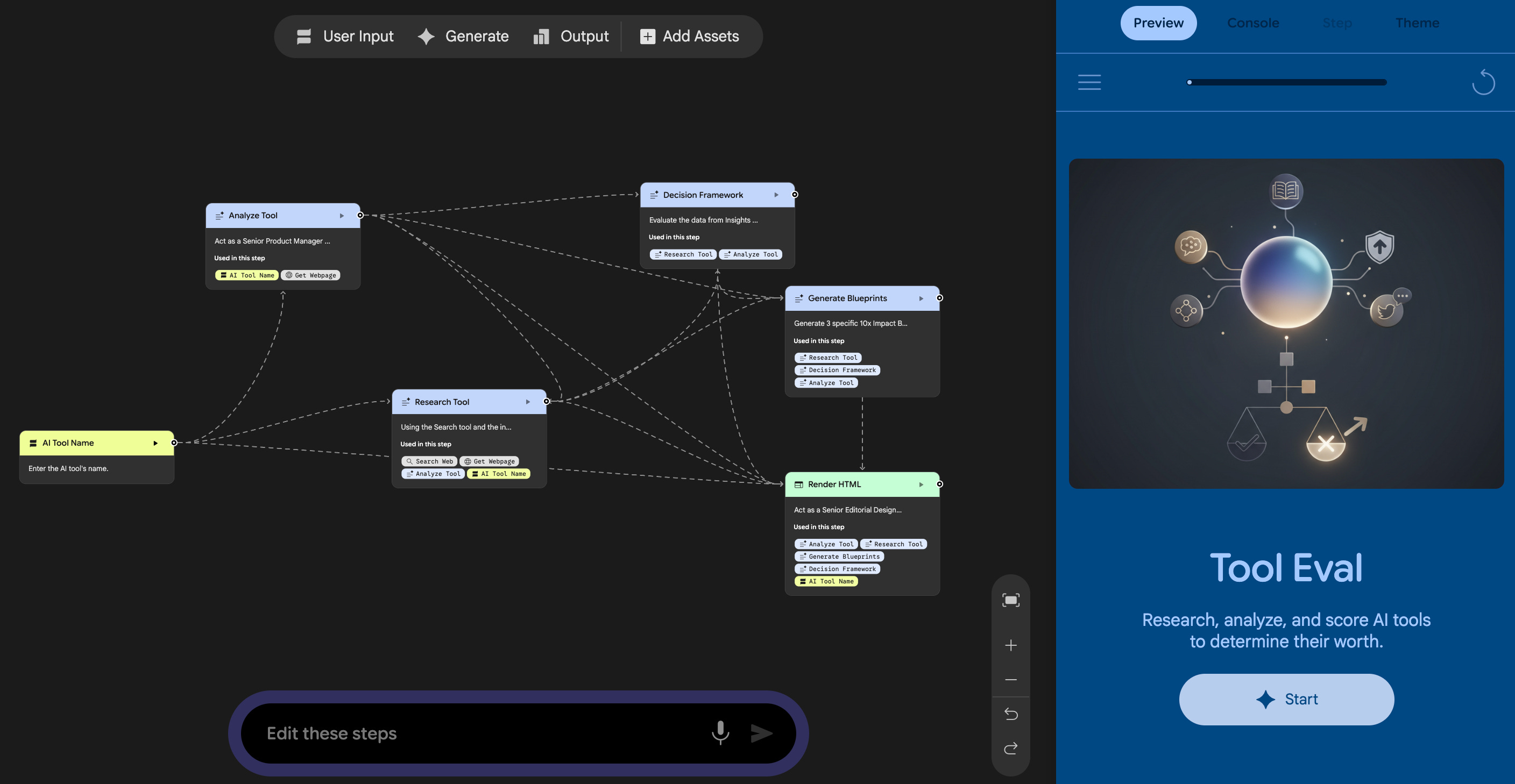
Let me show you what changed for me.
Every week, someone launches a “revolutionary” new AI tool. And I’m left asking:
“Is this actually useful? How does this fit my workflow? Is this worth writing about?”
I had this intense FOMO to try everything.
Answering those questions used to take 2+ hours of scattered research per tool. So I took a long breath and dissected what’s in my head when researching and deciding whether new AI tools are worth testing. Then I automated this process into Opal.
By using Opal, I just had to input the tool’s website URL.
Five minutes later, I had a clean HTML report with:
A clear overview of the tool’s capabilities, the problem it solves, and the target audience it serves
Scores against my criteria (10x vs. marginal, technical barrier, newsletter fit)
Specific recommendations for my workflow as a newsletter builder
Now, whenever I find new AI tools in the market, I no longer feel FOMO because I have my evaluation tool that measures use cases against how I actually work.
Because Opal is integrated across Google products, I save my HTML report to Google Drive and share it with friends who are drowning in the same tool chaos. If they want to remix my evaluation framework for their own workflow, they can grab my Opal template and customize it.
In that moment, I realized I’d built a capability I could reuse and share. And that’s when I finally understood what Google was building.
How Opal actually works - The two modes you need to understand
Most automation tools force you to think in steps from day one:
“If this happens, then do that. Parse this JSON field. Map this variable to that output.”
Opal works differently.
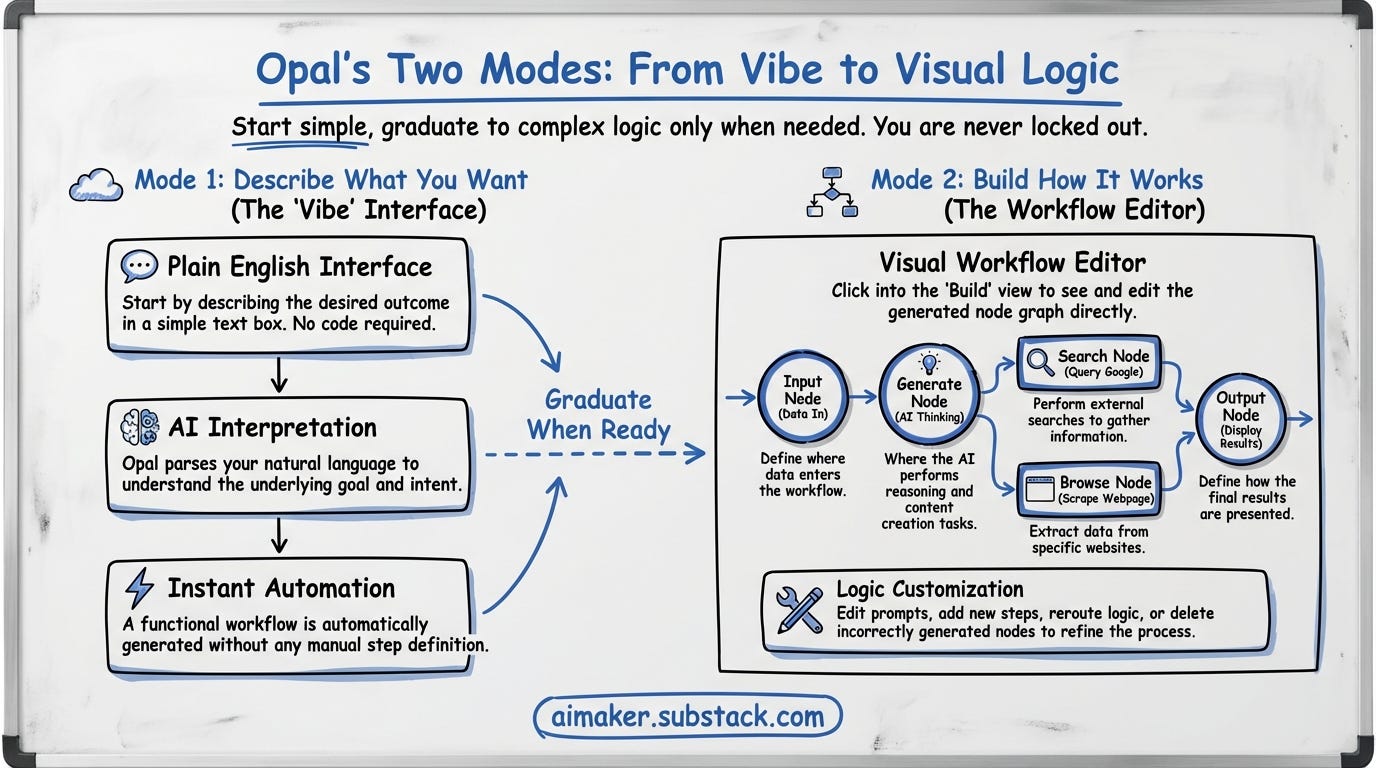
It gives you two modes, and here’s the key insight: you can start in the simple mode and graduate to the complex mode only when you need it. You’re never locked out of the logic.
Mode 1: Describe What You Want (The “Vibe” Interface)
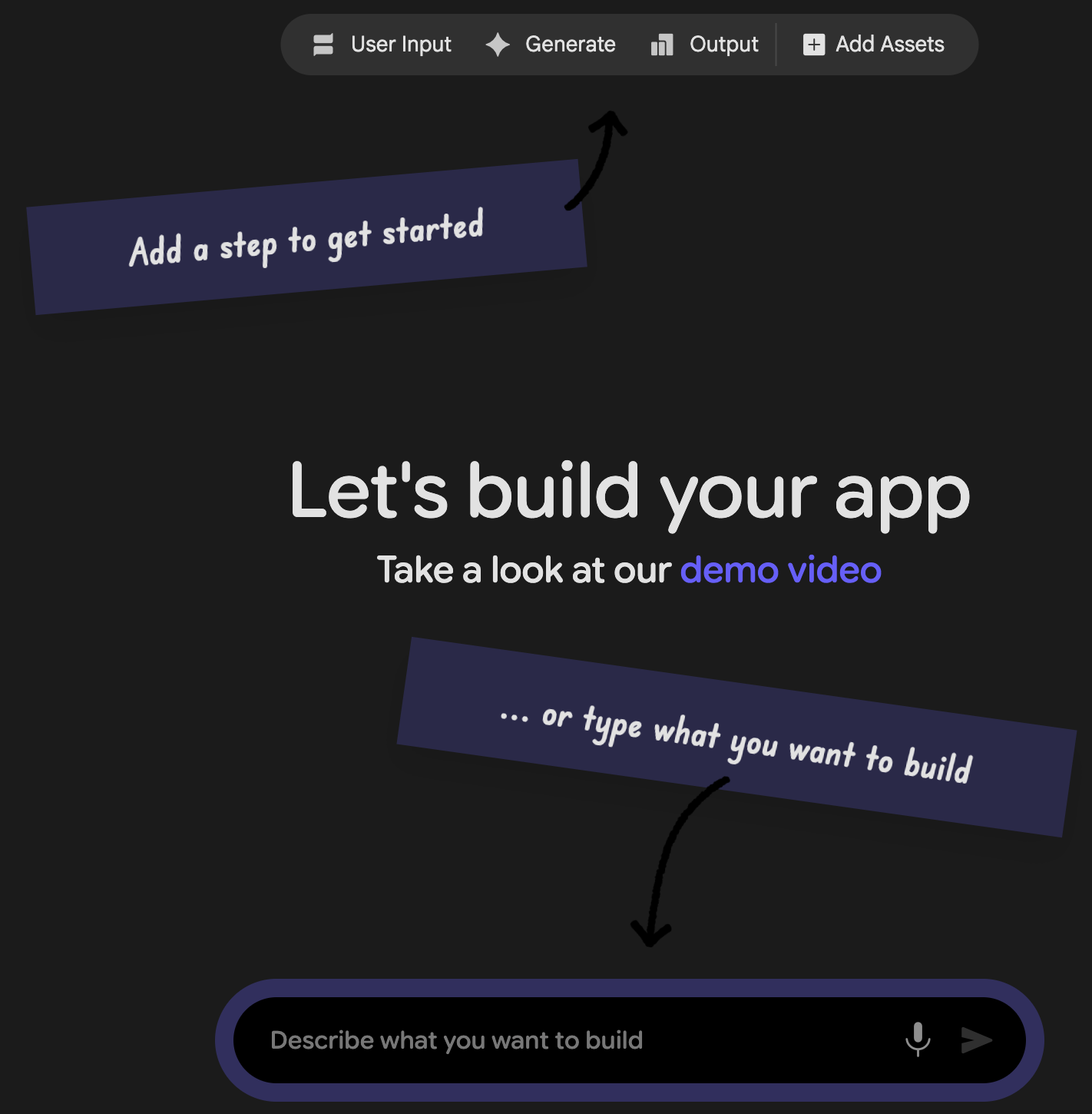
This is where most people start, and honestly, where most people can stay.
You open Opal. You see a text box. You describe the outcome you want in plain English.
Not “Use the Google Search module, then use the Browse Web module for each result, then extract the text, then pass it to the Generate module with this specific prompt structure...”
Just: “Build an app to evaluate new AI tools.”
Or: “Turn YouTube video into a Twitter thread.”
Or: “An app to analyze all my financial statements on PDFs and calculate my spending.”
The AI figures out the workflow.
You didn’t have to architect each process. You described the destination. Opal built the route.
This is what people mean by “vibe coding.” You’re coding with intent instead of detailed instructions.
What Makes This Different from Just Chatting with ChatGPT?
Fair question. Here’s the difference:
When you ask ChatGPT/Gemini/Claude to research something, it gives you an answer based on its training data (which is frozen in time) or maybe uses a search tool to grab a few snippets. You get a response. Then it’s over.
When you ask Opal to research something, it builds a workflow—a repeatable, editable process that you can see, modify, and reuse. It creates a web app with input fields and output displays—it can be Google Docs, Sheets, Slides, and HTML. You can run it again tomorrow with different inputs. You can share it with someone else.
ChatGPT or other typical chatbots give you answers. Opal gives you tools.
Mode 2: Build How It Works (The Workflow Editor)
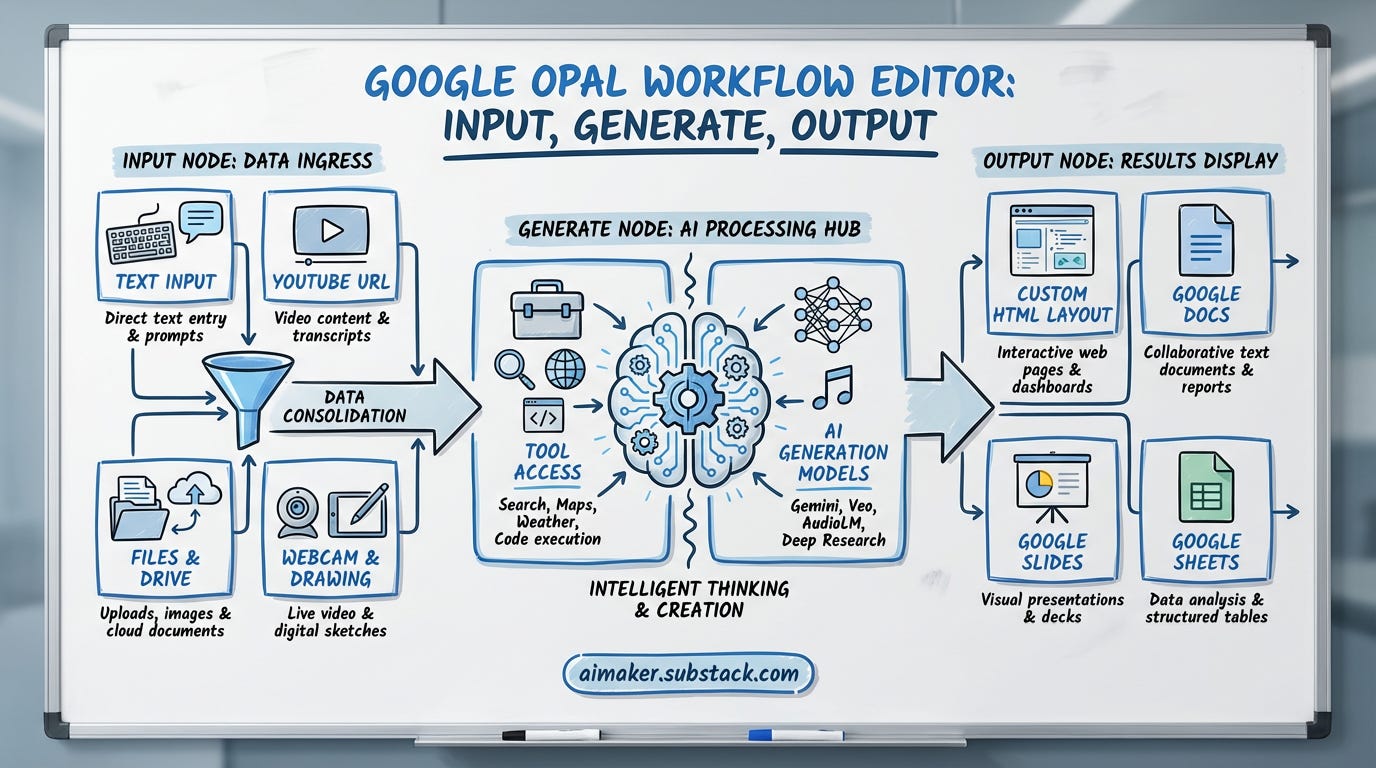
Here’s where it gets interesting.
After Opal creates your workflow from your description, you can click into the “Build” view and see exactly what it made.
You’ll see a visual graph—a series of connected nodes. Each node is a step:
An Input node (where data comes in), here are available inputs:
Text
Youtube URL
Computer files, including images
Google Drive files
Drawing
Webcam video
A Generate node (where the AI does thinking work), two things you can access:
Tool (where it can access tools to search, fetch website pages, search maps, get weather, and run code)
AI Generation (Gemini 2.5, 3, Nano Banana Pro, Veo 3.1, Deep Research, AudioLM, Lyria for music, etc)
An Output node (where results get displayed):
Custom HTML web layout
Google Docs
Google Slides
Google Sheets
You can click on any node and edit it. Change the prompt. Add a new step. Reroute the logic. Delete something that’s not working.
Additionally, you can use “Add Asset” as a reference or knowledge base when the AI makes decisions—it can include your writing style, template, voice, or images you want the AI to reference.
I’m sure some of you are quite familiar with this if you have implemented all AI automation blueprint I have shared using Make.com. But Opal is way simpler and requires less technical knowledge to really understand how it works as well as its interface.
That said, understanding how Opal builds workflows will help you move faster. Once you see the patterns—how it executes tool calling, chains Generate nodes and formats outputs—you’ll start thinking in systems instead of one-off tasks.
Building your first Opal workflow app
In this section, I’m walking through exactly how I built that AI Tool Evaluation workflow. Not just what it does, but why I structured it the way I did.
You’ll see:
The complete node breakdown (Input → Research → Framework Application → Scoring → HTML Output)
The evaluation framework I use and how to customize it for your workflow
The HTML template setup that makes reports clean and shareable
Plus 4 ready-to-use Opal workflows you can import and remix:
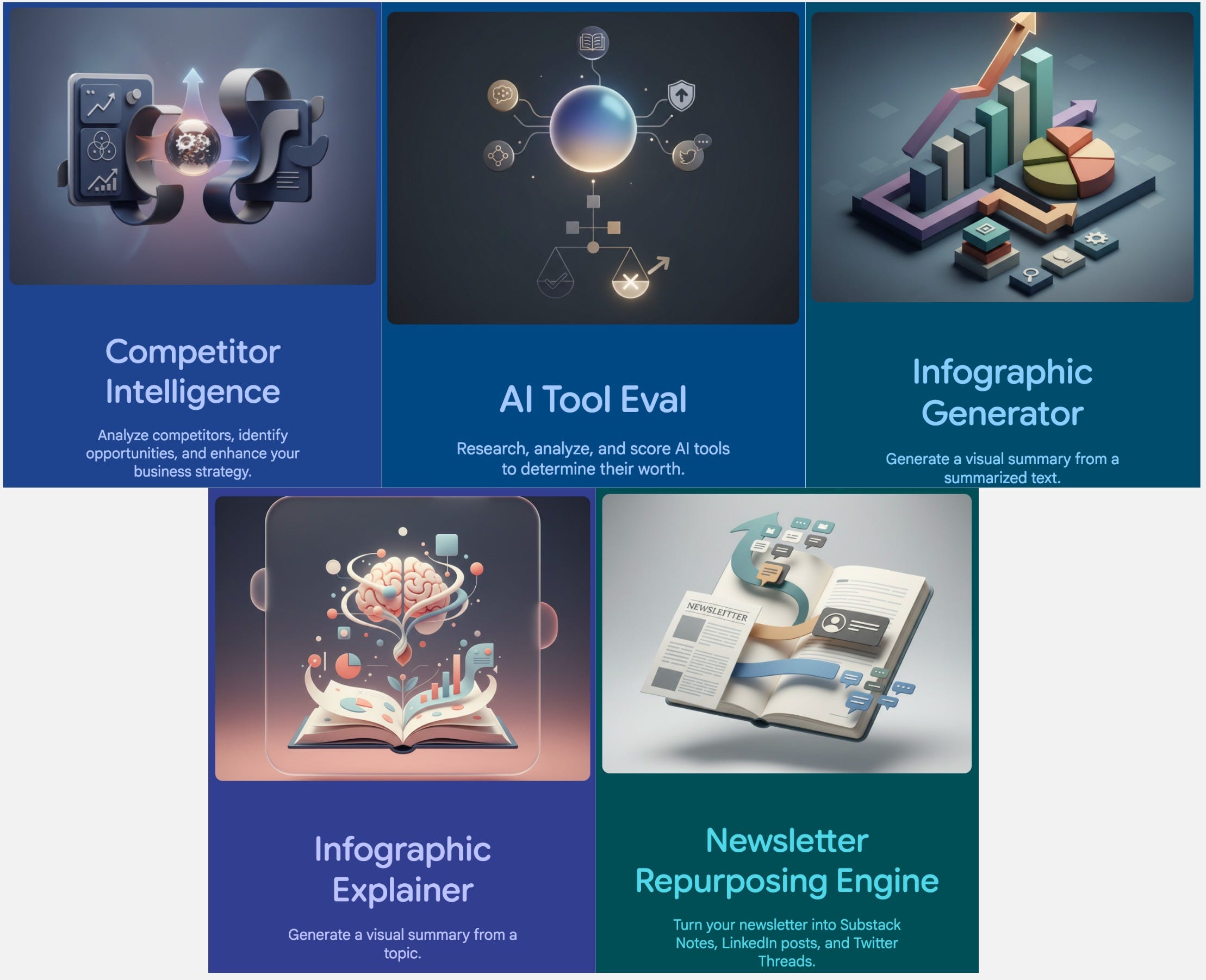
Newsletter Repurposing Engine - Turn one post into 10 Substack Notes, 5 LinkedIn, and 2 Twitter threads
Competitor Intelligence - Analyze your business competitors, identify opportunities, and improve your business strategy
Infographic Generator - Convert text and visualize them into infographic
Infographic Explainer - Find topic you want learn , run research, summarize them in text and turn them into visual assets
I’m convinced the fastest way to learn is to take examples and play around with your workflow until it fits your own style. Use my Opal as a reference to remix now, and reuse later. You can also learn from the workflow templates the Opal team has created inside your account.
I’m also sharing my honest take on Google Opal: when to use it vs. Make or n8n, where it excels, where it falls short, and how to fit it into your existing automation stack.
By the end, you’ll know whether Opal belongs in your workflow, and if it does, you’ll have working examples to build from.
Workflow #1: AI Tool Evaluator (Step-by-Step)
Let me walk you through how this workflow actually works.
But I won’t share the prompts here because you can find them directly on my Opal account instead. To see inside the workflow and the detailed prompts, you can go directly to the tool here: