

Make.com vs n8n: What Most Reviews Get Wrong About These AI Automation Platforms
Everything you need to know before building your first AI workflow.



This post feels long overdue.
I should have done this earlier, before I turned my newsletter’s paywall on to focus on helping my readers automate their work using AI. In my paid posts, I’ve shared how you can use Make.com to automate your work—including the system prompts I use, JSON configs you can download and apply on your own, and the tool integrations you need to make it all work.
But I haven’t yet gone into detail on why you should use Make.com over another platform. I feel like I jumped too soon, but fortunately, people are resonating with it, so it’s still a win.
In this post, I teamed up with
to write an AI automation tool review: Make.com vs n8n with me. Jonas runs an AI agency and uses Make.com for personal workflows and n8n for enterprise client work, which means he’s lived the exact decision you’re trying to make. His technical depth complements my practical, non-technical approach, giving you both perspectives.
I’m sure you might be asking this:
“Why Make.com and n8n, Wyndo? Why not other tools?”
Well, if you’ve been following the AI automation market, n8n is one of the most powerful tools out there, and I think it’s best to start with the most popular option and explore the rest over time. I promise, there will be more soon :)
Just look at this chart, it tells everything!
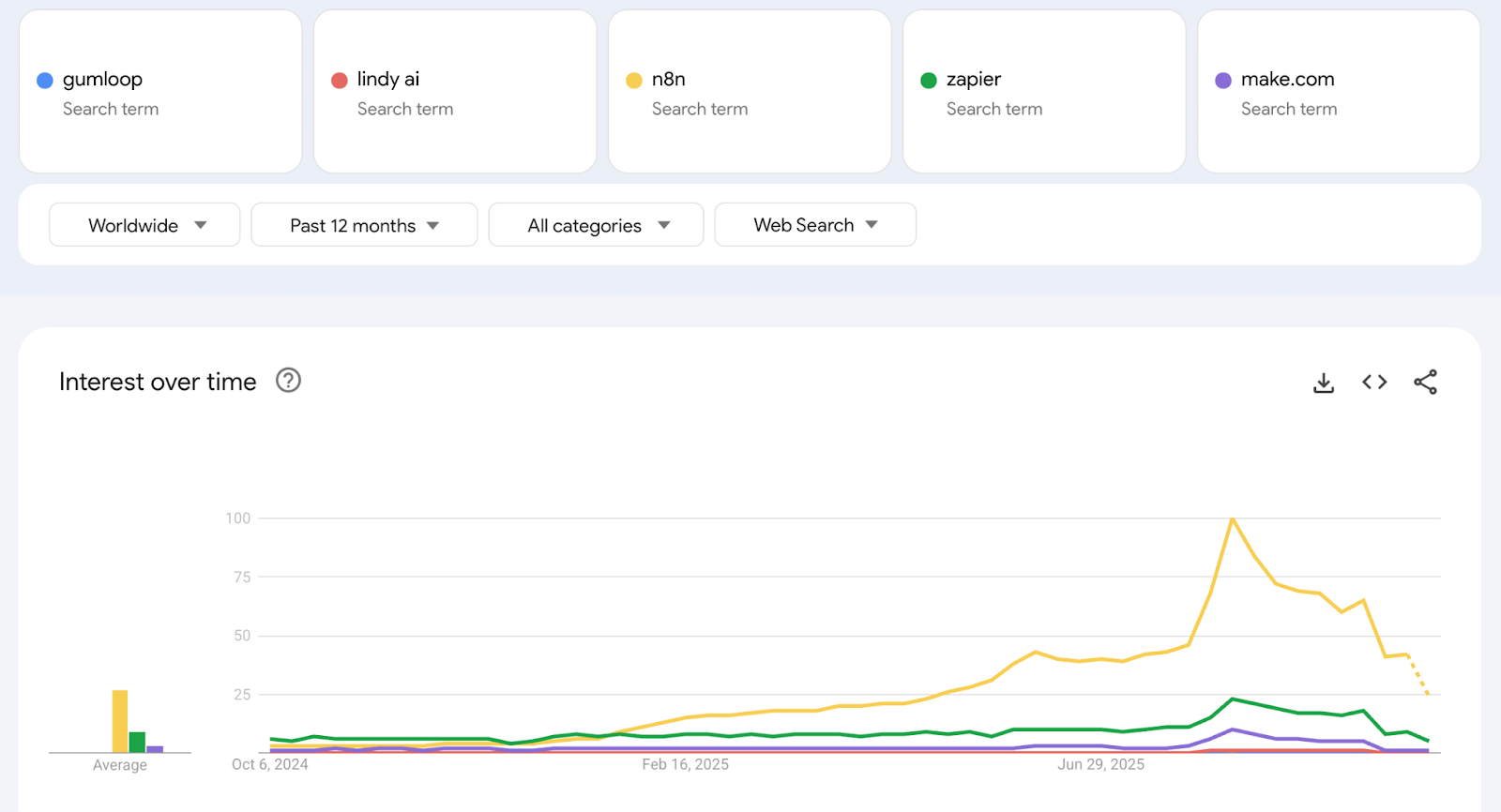
n8n is the most searched among AI automation tools, followed by Zapier and Make. We’ll discuss Zapier later, but I skipped it because it’s too costly ($20-30/month), and you end up paying for features you don’t even use.
Before we move on, I’m asking for a vote on which tools you want me to review later.
Now, let’s get back on track with our review comparison.
Every automation platform comparison you’ve read tells you the same thing: “n8n is open-source and free, Make has a better UI and is easier to use.” But none of them answer the question you actually need answered:
“Which one should you spend your time learning?”
We’ve built the same workflows in both platforms. Not just simple integrations, but actual AI-powered automation systems that process emails, analyze content, and generate outputs. The kind of workflows that either save you 10 hours a week or become maintenance nightmares.
Here’s what we learned: Make pushes complexity into their UI—more clicks, more configuration, more visual connections. n8n pushes complexity into your brain—more code, more control, more decisions you need to make. Neither approach is “better.” They’re optimized for different problems.
This matters because most people choose the wrong platform for their actual situation. They pick n8n because “experts say it’s more powerful” and then spend weeks debugging workflows that should take days. Or they pick Make because “it’s easier” and hit limitations they didn’t anticipate.
Why this Make vs n8n comparison is different
We are going to show you exactly how these platforms are different using a real workflow. Instead of giving you a feature checklist, we are going to walk you through building the same workflow in both platforms—step by step, decision by decision, frustration by frustration. By the end, you’ll understand not just what these platforms can do, but what it actually feels like to use them.
TLDR: What you’ll learn in this post
By the end of this comparison, you’ll know:
How to build the same AI automation in both platforms (with step-by-step implementation)
Which platform matches your technical skill level and budget
The real differences beyond “n8n is powerful, Make is easier”
When to choose simplicity over flexibility (and vice versa)
A decision framework to stop second-guessing your choice
We are organizing this comparison into three parts based on where you are in your AI automation journey:
Part I: Beginners — If you’re building your first automation workflows
Part II: Experts — If you’re deploying AI agents and complex systems
Part III: Teams — If you’re implementing automation at organizational scale
Let’s start where most people start: as a beginner trying to build something useful without getting lost in technical complexity.
Part I: For Beginners
If you’re new to automation platforms, you need answers to four fundamental questions before investing time in learning either tool:
Can I actually build this without technical skills?
Learning curve, interface design, and how long it takes to go from idea to working automation.Where do I go when I get stuck?
Documentation quality, community support, and whether help actually helps.Will this connect to the apps I actually use?
Available integrations for Gmail, Slack, Notion, Google Sheets, and other business tools you rely on daily.What will this actually cost me?
Free tier limits, pricing at scale, and hidden costs that emerge as you build more.
We’ll answer these questions by building real AI automation in both platforms. You’ll see exactly where each platform makes things easy, where they create friction, and what that means for your decision.
Let’s start with the most important question: can you actually use these tools?
Building your first AI automation
The best way to understand how these platforms actually work is to build something useful, for example, a real automation that saves you time: A newsletter intelligence system that scans your Gmail, summarizes important updates, and drafts social media posts.
This workflow tests everything that matters for beginners:
How intuitive is the visual interface?
How many clicks does basic setup require?
Where do you get stuck and need documentation?
Can you actually finish and deploy it?
Now let’s explore this automation using Make first.
🧠 A Quick Mental Model Before We Build
Before diving into either platform, understand this core concept: every automation is a chain of inputs and outputs. Each module takes an input (like an email body), processes it (summarizes the content), and produces an output (a summary text). That output then becomes the input for the next module (which might draft a social post from that summary).
Think of it like a relay race. Each runner (module) receives the baton (data) from the previous runner, does their part, and passes it forward. The key skill in automation isn’t just configuring individual modules, it’s understanding how data flows between them. When something breaks, it’s usually because the data format from one module doesn’t match what the next module expects.
Both Make.com and n8n handle this input-output chain differently, which is why the same workflow feels completely different to build in each platform.
Make.com
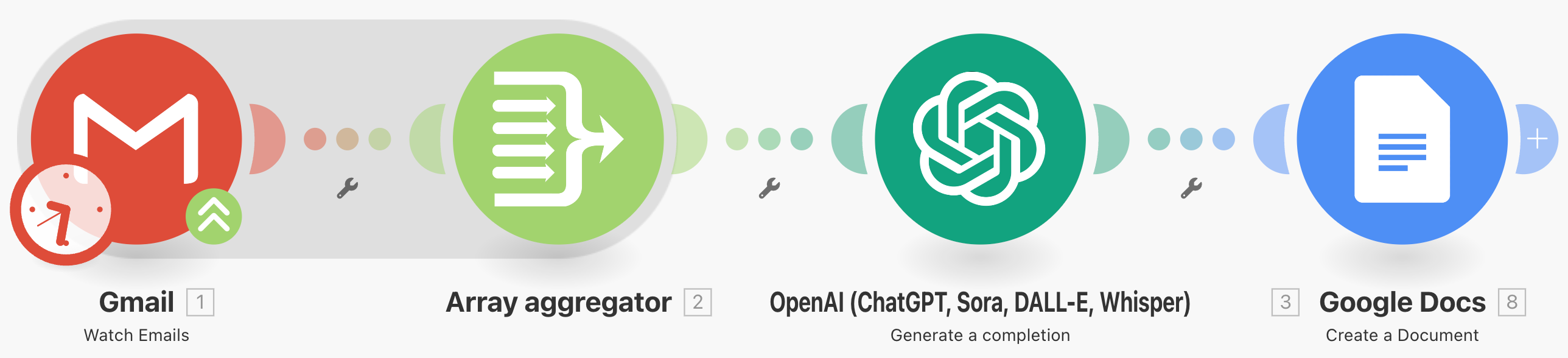
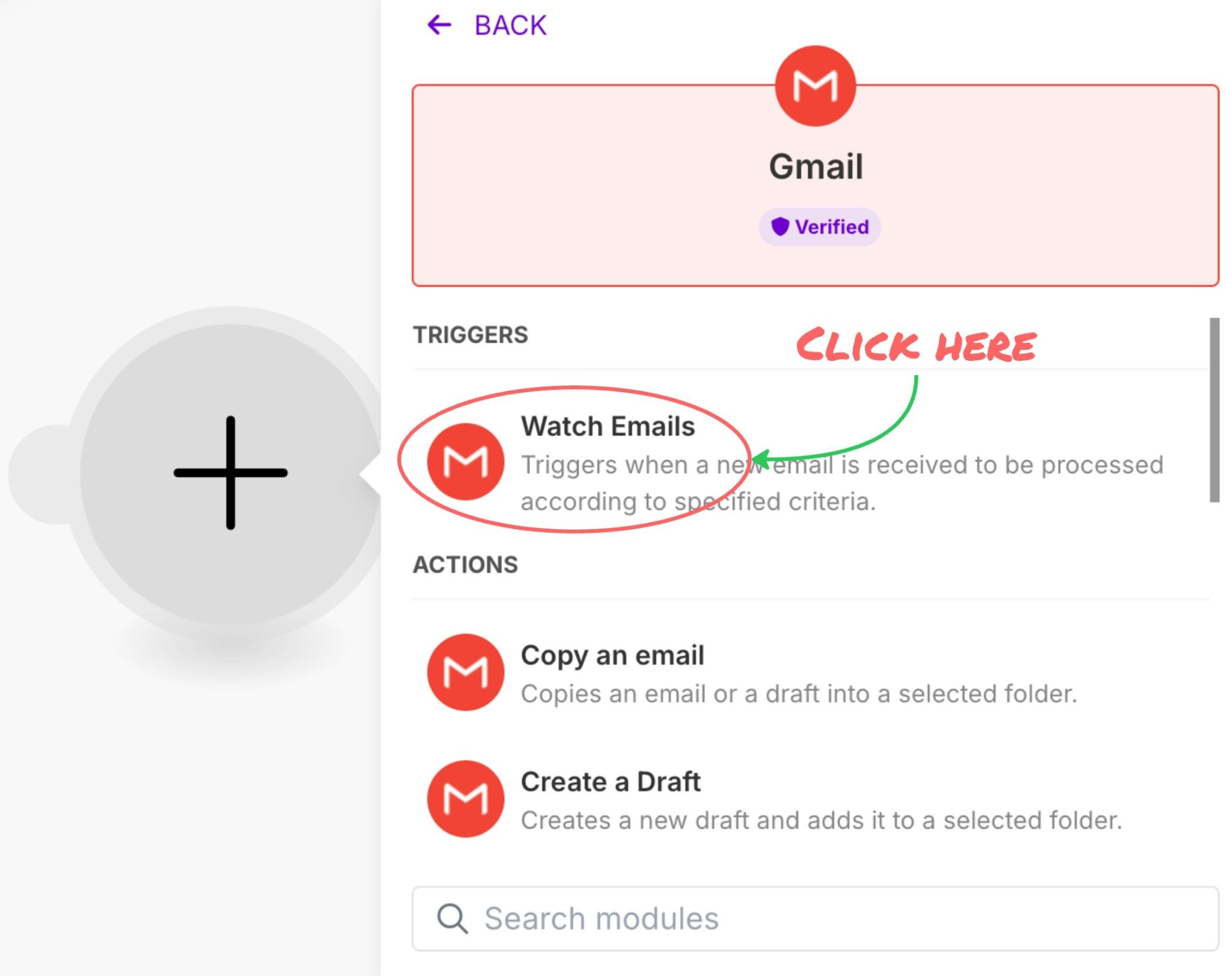
Workflow or automation in Make.com is known as Scenario. To build the newsletter intelligence, the first thing we need is a Gmail module with a specific function to watch emails.
Then you need to connect your Gmail account to Make.com.
Important note: If you use a Gmail business account, you can easily sign in without additional requirements. But if you use personal Gmail, you might have to do a couple of things before being able to connect with Make.com. The process might take some time but it’s not complicated if you follow this video guide.
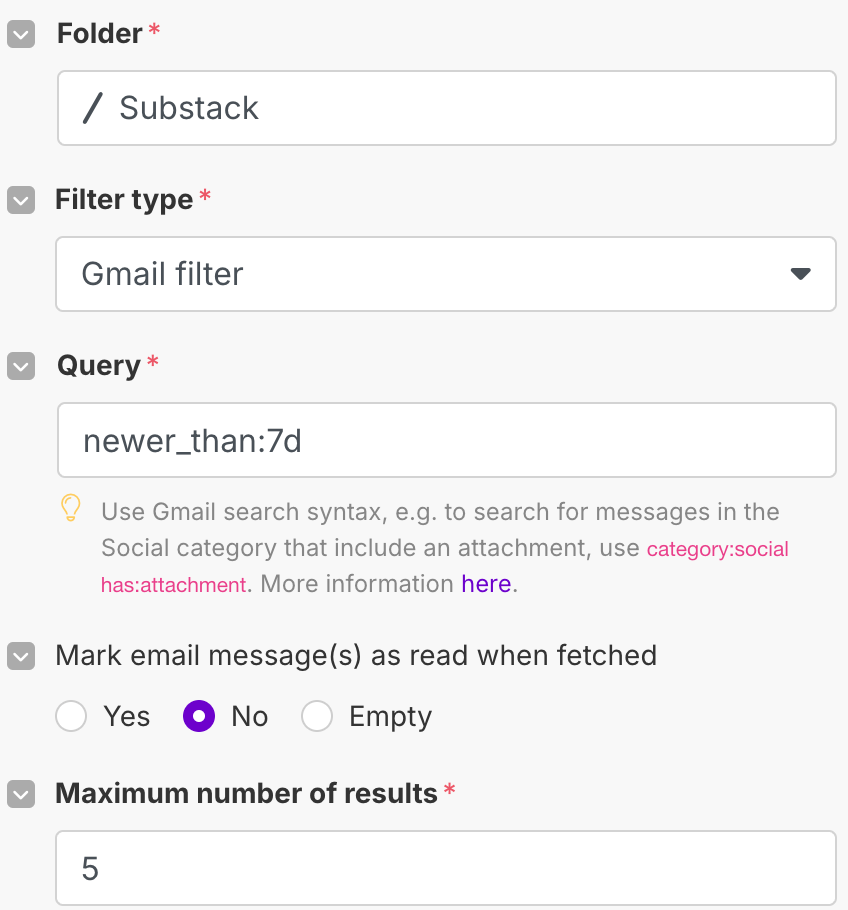
Once your Gmail is connected, these key settings (screenshot above) will appear.
Here’s what each field actually mean:
Folder: Specify which labels in your email you want this automation to monitor.
Filter type: Choose the filter you want to use; in this case, it’s Gmail.
Query: Customize your email filter to look only at emails from the last 7 days.
Mark email message: Set this to anything; it doesn’t really matter.
Maximum number of results: Define how many emails the automation can pull.
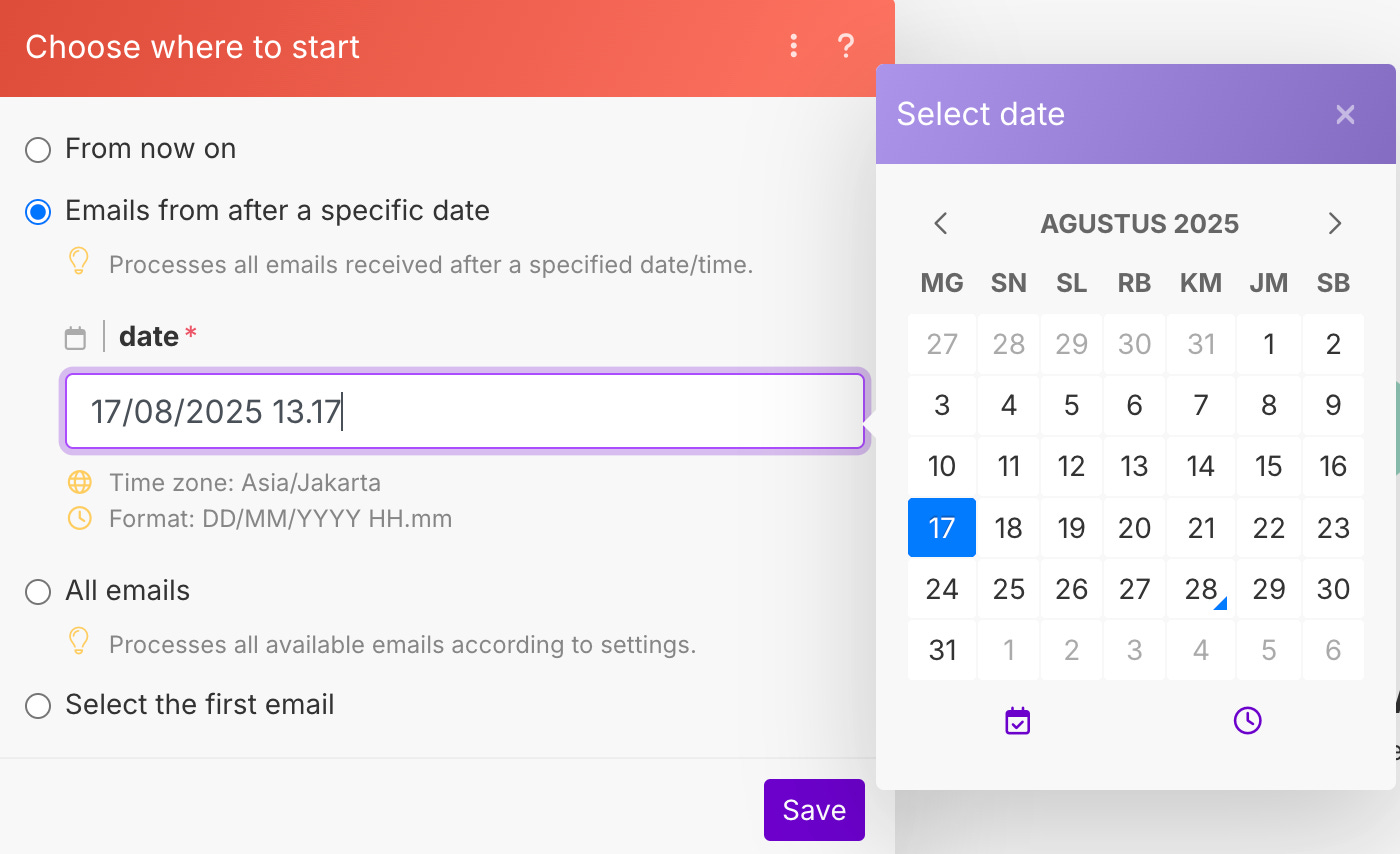
After you hit save, you’ll see the timeframe picker pop up. Just enter the time you want the Gmail module to start checking your emails.
The next step is to add an Array Aggregator module.
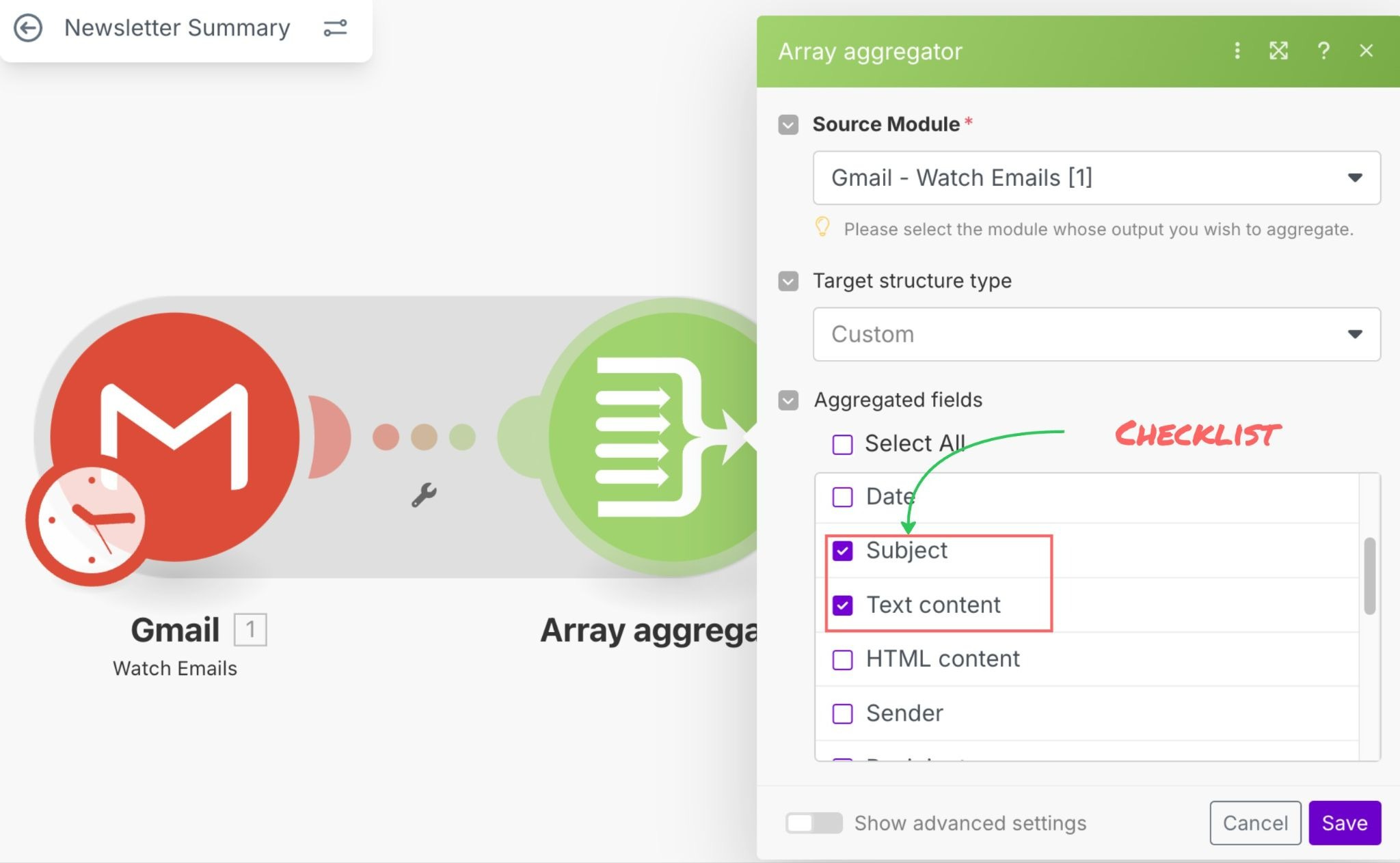
The purpose of this module is to compile all emails that will be processed into one output bundle for OpenAI to process later.
We only need the email’s subject and the body text content as you can see on the screenshot above.
Now this is where the magic happens. We’re adding OpenAI to actually read and summarize all those newsletters.
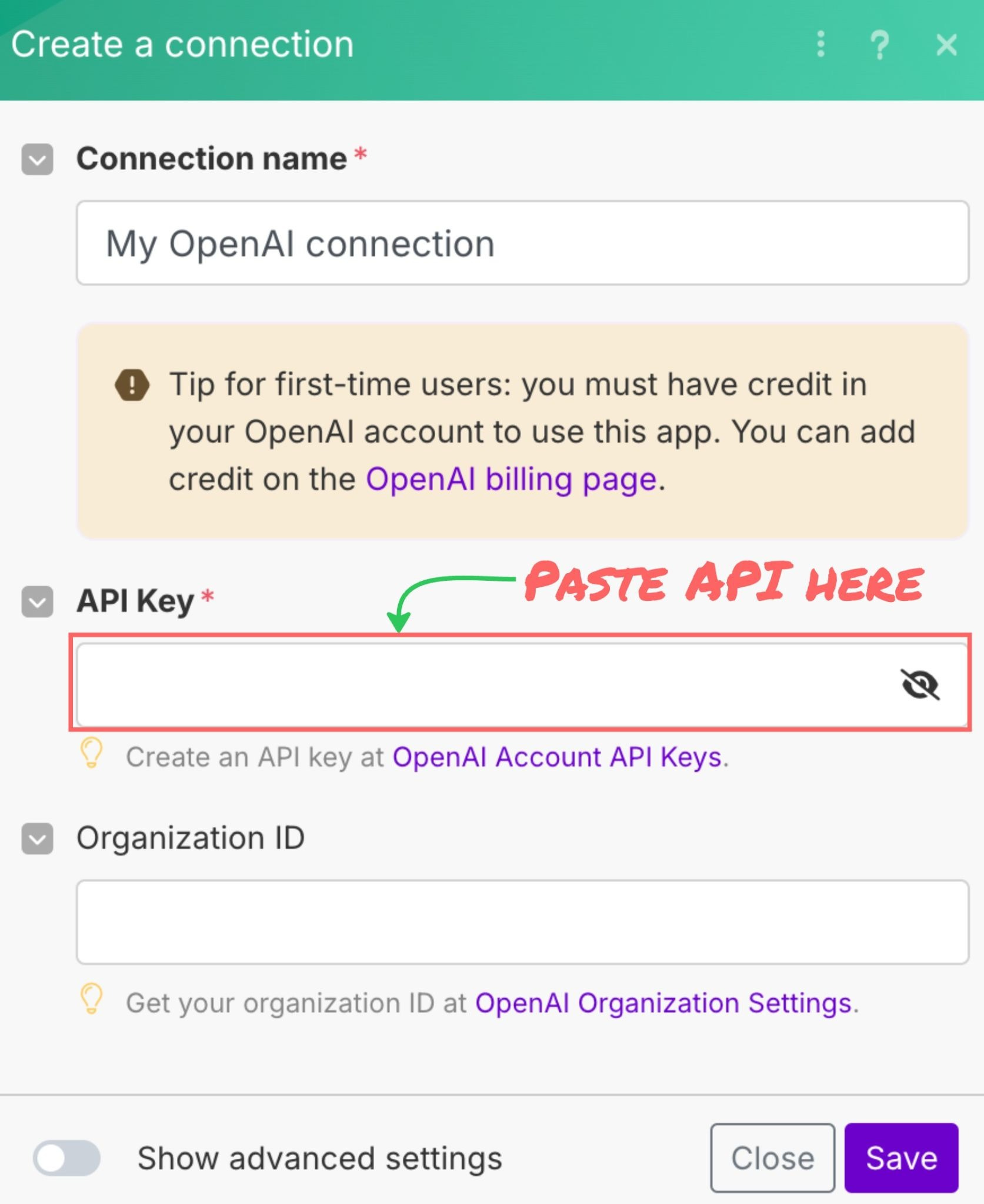
But, before doing it, you’ll need your OpenAI API key first on platform.openai.com and paste them inside the module.
Once OpenAI integration is done, you need to set up the GPT model you’ll use in this workflow. Select “gpt-5 (system)” from the dropdown. You can also use other GPT models available.
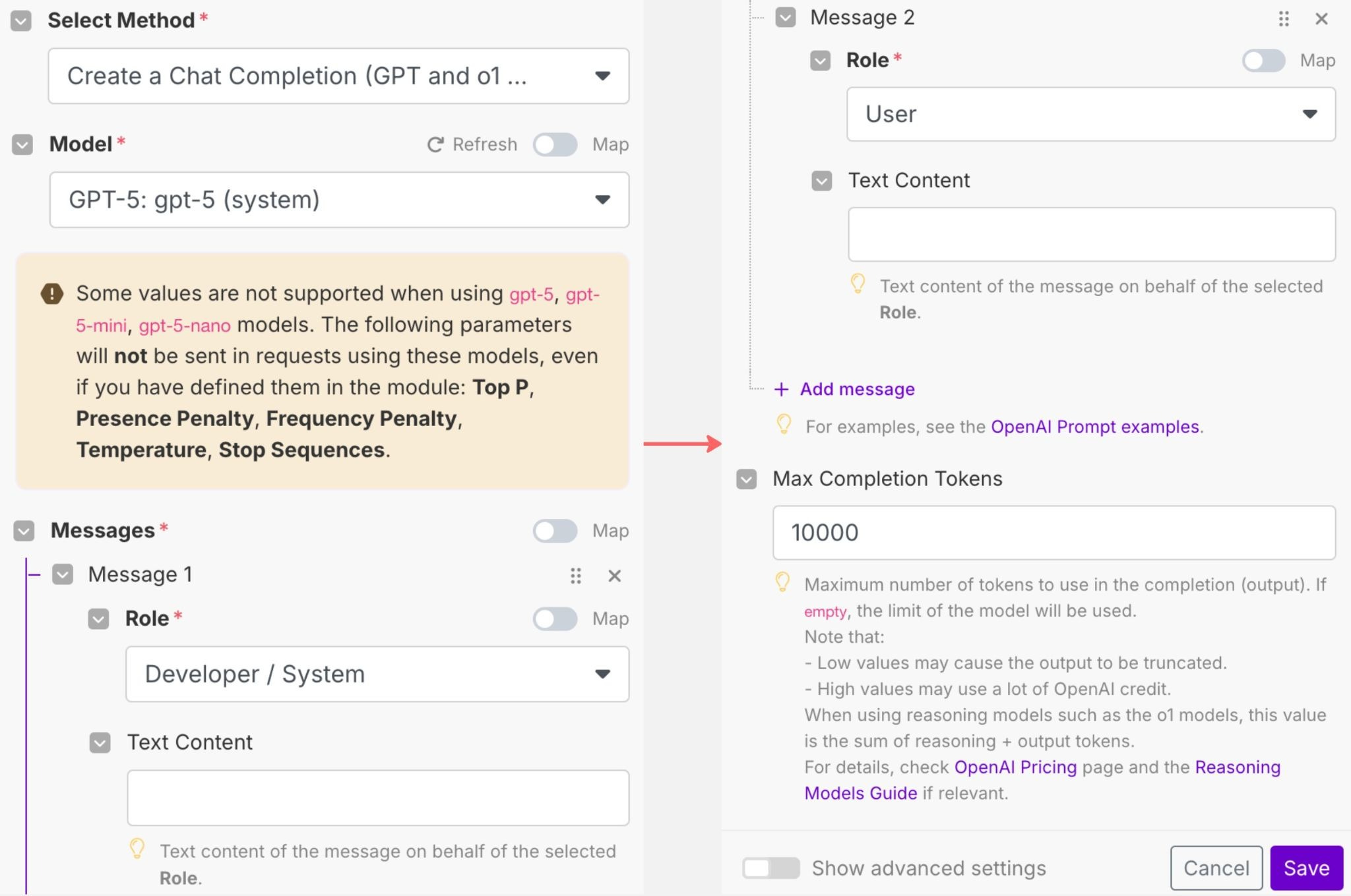
The next step is to setup GPT roles in the “Messages” field. There are mainly two roles you need: system and user.
A system prompt sets the overall context, behavior, and guidelines for an AI to define its role, tone, and format for all interactions.
A user prompt provides the specific, immediate questions or requests that drive a particular response from the AI, acting as its day-to-day instruction.
Update the “Max Completion Tokens” field to 10000. This represents how many tokens you allow OpenAI to access. You can increase this later depending on how many newsletter contents you’d like to summarize.
Now, what you need to do is to insert your system and user prompt inside the module to summarize all newsletters found on your Gmail account.
Here comes the last module, sending OpenAI outputs to Google Docs.
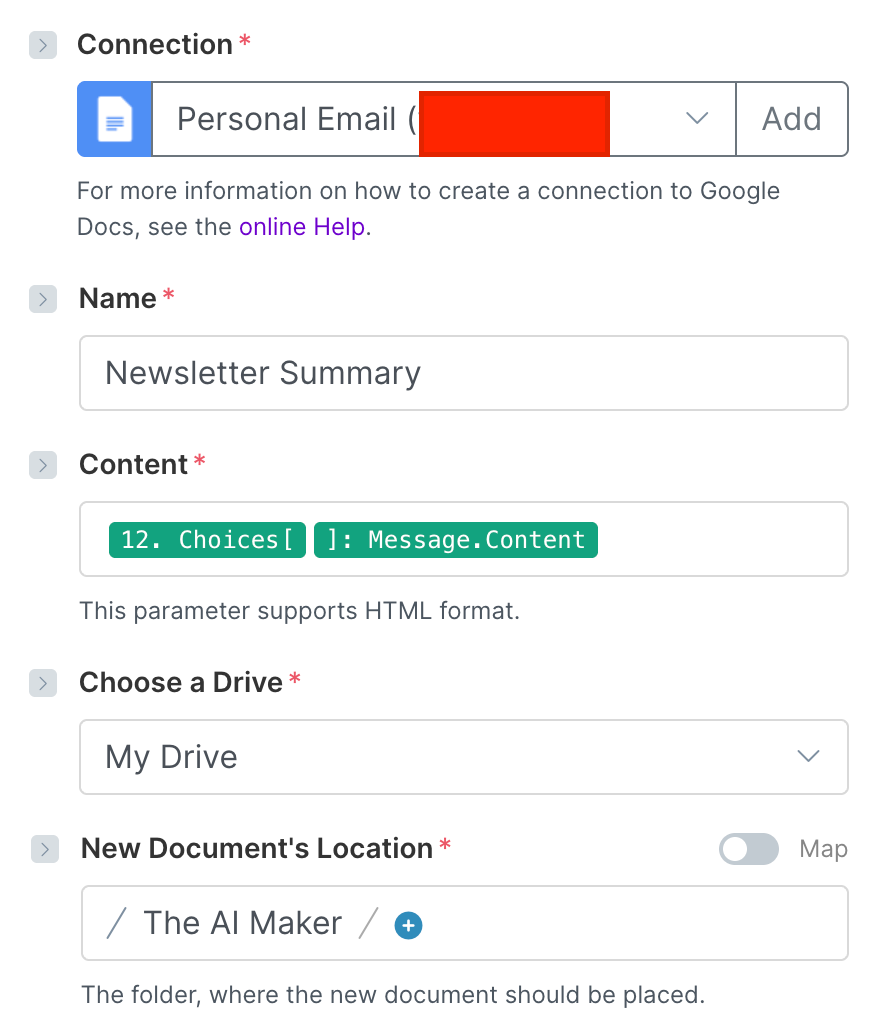
It’s actually pretty simple: you only need to name your Google Doc, put the output from the previous OpenAI module into the “content” field, and then choose the folder where you want the document to be generated.
And you’re done!
Generally, the visualization for building automation on Make.com is simple and easy to understand, even though it isn’t as intuitive as n8n, as you will see later. But, the configuration and settings for each module are straightforward, and it’s equipped with brief labels that explain the functions in general.
I get it. Finding the right module to plug into your automations can be a struggle. When I was first learning, I didn’t even know which module to use to make things work. That’s why guides—or learning from people who’ve already done it—can be a lifesaver. You skip the trial and error and avoid the frustration of navigating the tool blind. That’s exactly what I’m trying to do with this newsletter.
Now let’s create a similar workflow on n8n.
Jonas will explain this for you.
n8n
Coming from the world of make.com, n8n.io took some getting used to.
One of the key things missing was an easy Google Workplace integration.
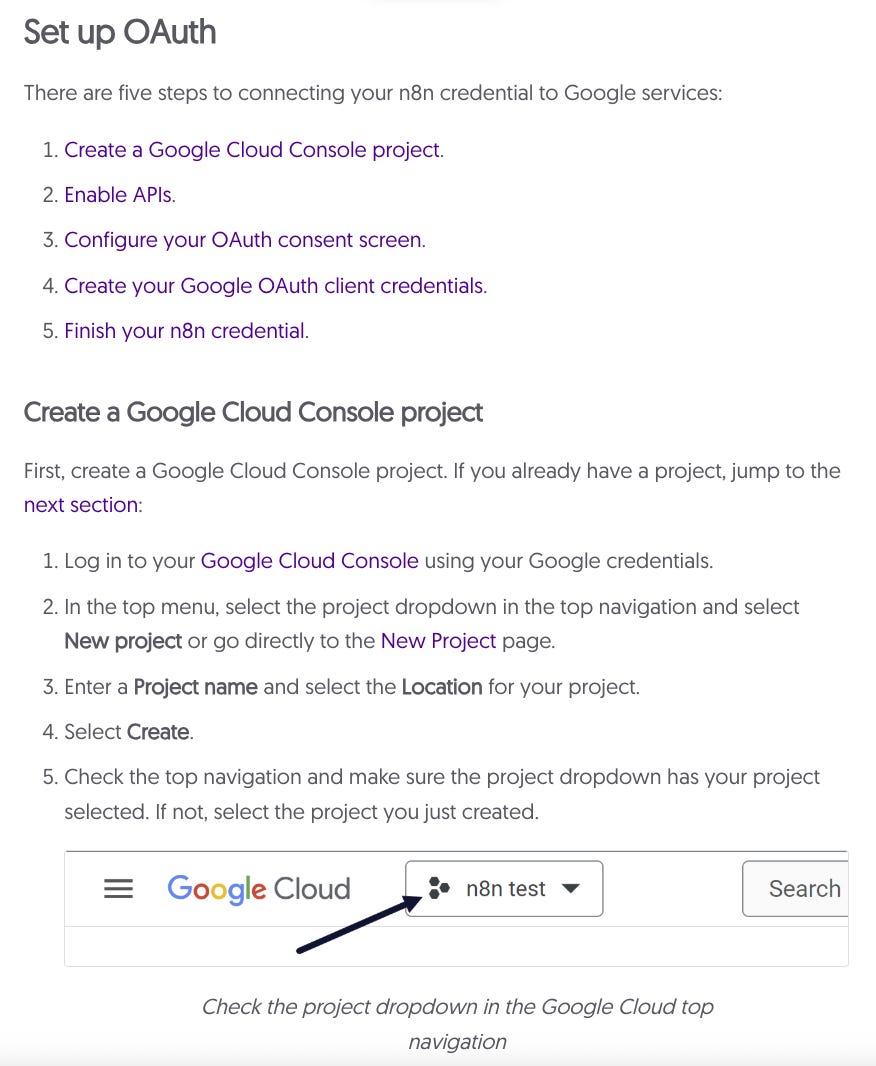
For n8n, connecting either business and personal Gmail accounts requires 31 manual steps and a GCP (Google Cloud Platform) account (!).
Setting up a GCP account when you don’t have any engineering experience can already feel like a big step for someone just starting out in AI automation.
Because to manage a GCP account properly, you need to know the basics of IT security, cloud operations and so on.
So instead of Gmail, for n8n we decided to use the RSS feed of Substack publications.
This is the newsletter intelligence scenario I ended up building:

Let’s walk through the workflow (which is what an automation is called in n8n) step-by-step.
Because I didn’t have a Google Workplace integration to manage the list of Substack publication URLs in Google Sheets, I added the list in the native n8n Code node, which allows you to run JavaScript or Python code as part of a workflow run:
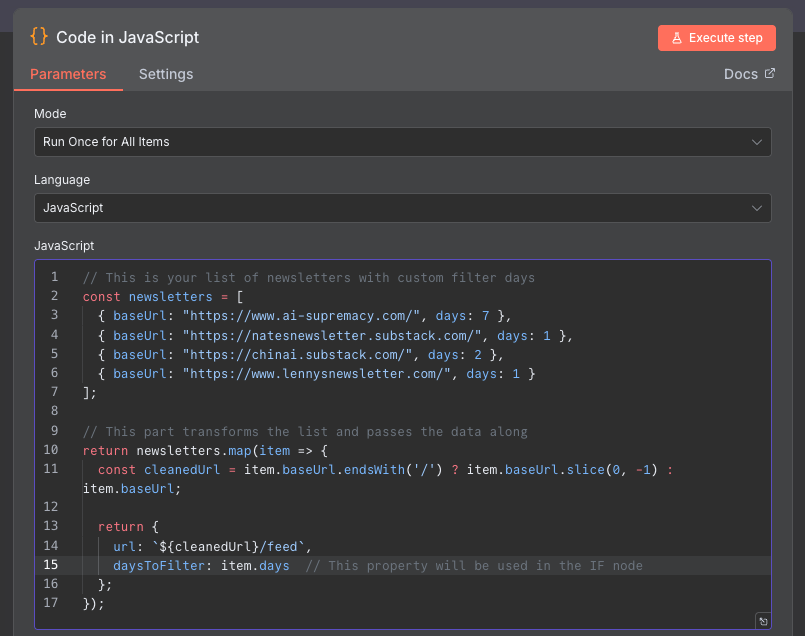
Besides expediency, I was also looking for a way to try out the n8n Code node.
And as someone that’s been working in AI for the past ten years, I’m convinced the n8n Code node will definitely make for a great addition to my automation toolkit.
There are sometimes steps in an automation where expressing what you want the automation to do through code is the easiest and most powerful way to solve for that step. And by pushing part of the workflow logic into code, you’ll often end up with a much simpler and easy to manage automation workflow in turn.
In contrast, in make.com running code as part of scenarios isn’t natively supported.
The downside of this is that in order to leverage this n8n feature successfully, you need to be at least somewhat familiar with running code-based programs. That said, most AI chatbots (ChatGPT, Gemini, Claude etc) are really good at writing code so even without extensive programming experience this node can be quite valuable.
The next step was to use the URL of the Substack publication to read the RSS feed:

Here I used n8n’s RSS Read node, which comes pre-installed with any n8n instance.
Compared to make.com’s RSS feed module, I found n8n’s RSS Read module easier to configure. In the n8n RSS Read node configuration screen it allows you to connect variables from the previous step in the workflow to input fields for the current step through a simple drag-and-drop interface.
And this panel in the screenshot above is available for all n8n nodes.
Having the output of the previous step available while configuring the current step, and the ease with which I could link variables between steps made configuring n8n nodes much easier and less error-prone than it would have been in make.com.
Once you’ve configured the node in n8n, you can immediately run it with the “Execute step” button, and inspect the output on the right-hand side.
In make.com, you need to do much more of the mental arithmetic for configuring scenario nodes yourself.
The next node in our n8n newsletter intelligence node is an AI agent node that summarizes individual articles published in a feed:
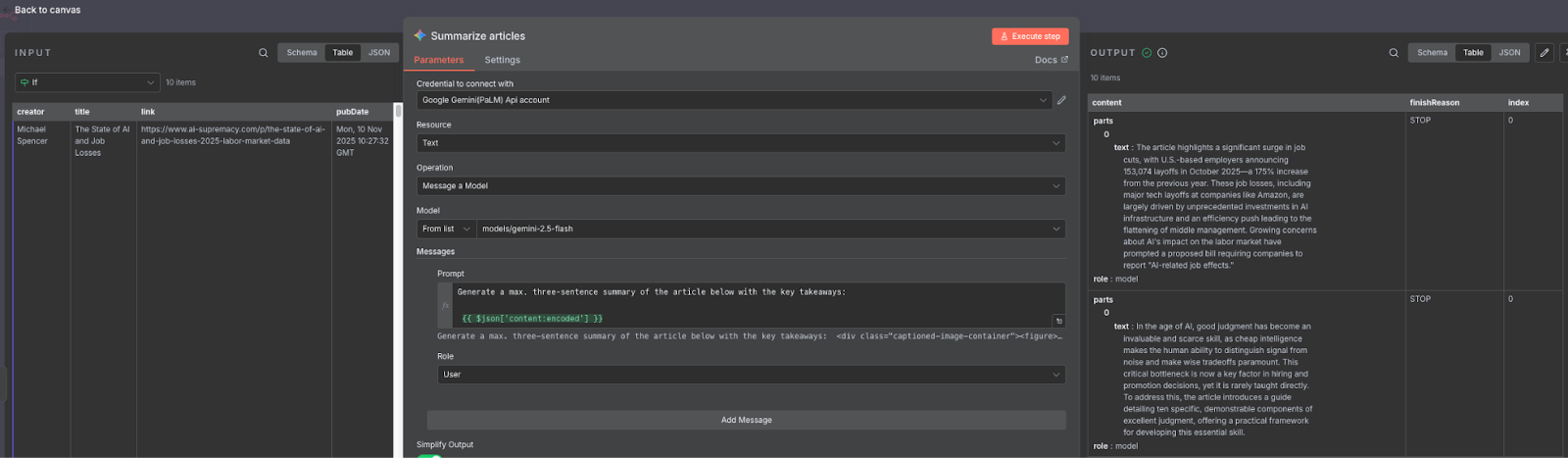
It will take the raw content of the article collected from the Substack publication’s RSS feed with the RSS Read node, and summarize it using a Google Gemini AI model.
In this case, the AI prompt is very simple:
Generate a max. three-sentence summary of the article below with the key takeaways.
It will do this for each article from each publication collected in the previous steps.
Example summaries can be seen in the image above in the output panel on the right.
The last node of the workflow, “Daily News Update” was another AI agent node.
The Daily news update node was configured to generate a roundup of the summaries of individual articles generated in the previous AI agent node.
This gives us a quick way to check what people are writing about AI without having to spend hours reading up on everything that’s been published around the world.
Similar to make.com, you need to insert your system and user prompts to tell the AI how it should summarize articles and generate its outputs afterward.
After working with n8n for a bit I’ve actually come to prefer the n8n design and UI.
It is more clean, easier to use, and provides users with a great workflow development workbench through partial executions and evaluation of workflow steps.
The one gripe I have with the n8n UI is that in the canvas—their workflow builder—it’s not possible to drag the focus area of the workflow you’re working on.
Other than that, I was pleasantly surprised by how much of an upgrade the n8n UI and UX are compared to make.com—to me as an experienced engineer, n8n is both more intuitive and more user-friendly, even without taking into account features like the Code node or being able to execute commands on the host.
Quality of documentation
Next, we’ll dive into the documentation for each platform.
Make (Wyndo)
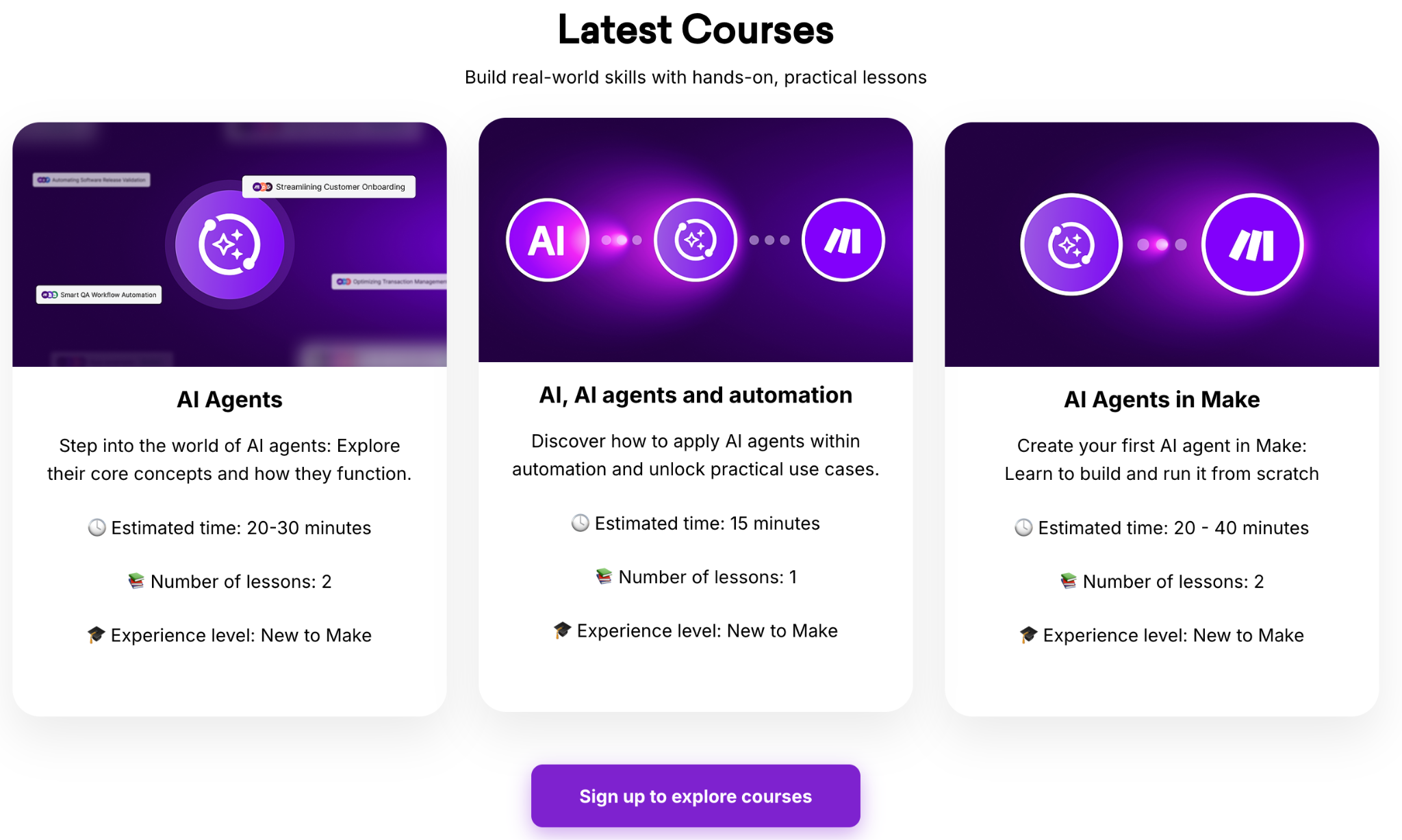
For me, Make.com and n8n have comprehensive resources for getting started with building your AI automation workflow, ranging from documentation and API references to YouTube videos. However, one thing that differentiates Make.com is a special course you can sign up to get up to speed faster and learn what you need to supercharge your AI automation.
Additionally, Make.com offers over 7,900 community templates that users can use to start their AI automation workflows instantly.
n8n (Jonas)
Like make.com, n8n has a huge library of 6700+ free community workflow automation templates to help you get started with your first automation in no time.
What I also really like about n8n is that it allows you to add sticky notes to your workflows, as can be seen in the example below:
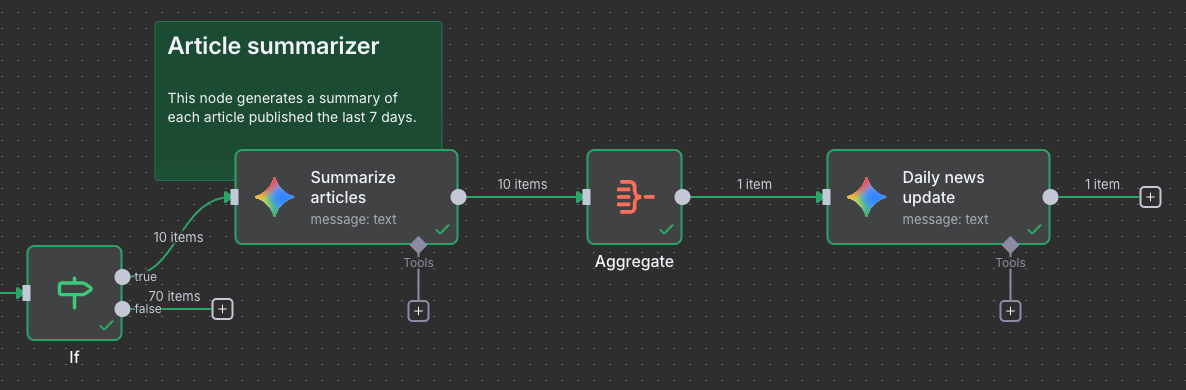
You can add key information on what individual nodes do to the sticky note while building the workflow. This makes it easy for your team members (or your future self) to glance over workflows and see what they do or what they need to watch out for.
Having built hundreds of AI automations across dozens of organizations, I cannot stress how much of an improvement this is over any of the existing automation tools.
The alternative—keeping your workflow documentation in a wiki or Sharepoint document—is both less user-friendly and more prone to lead to outdated docs.
Business app integration
You might be wondering how many apps you can connect with Make versus n8n, right? Let’s explore them together.
Make (Wyndo)
Generally, both platforms offer similar app integrations: Slack, WhatsApp, Telegram, Google, Meta, Notion, and more. However, there’s one key difference: Make.com has more native integrations than n8n.
Let me explain.
There are two common ways to connect these platforms to external apps: via credentials or via an HTTP/Custom endpoint.
The credentials route is simpler: you paste your API token into the platform. That’s what “native integration” usually means.
The HTTP endpoint route is more technical. You’ll need to understand cURL, HTTP endpoints, and JSON to wire things up manually—used when there’s no native integration.
For example, I use Firecrawl to scrape web content. With Make, I just added my API token and was done. With n8n, I copied a cURL snippet from Firecrawl’s API docs and configured the node manually.
Both work. But n8n typically demands a bit more technical know-how and manual setup than you might expect.
For the record, Make lists roughly 1,500–2,000 native/official integrations, whereas n8n offers around 400–500 apps.
n8n (Jonas)
For most business apps setting up connections works the same across Make and n8n.
You create auth tokens or other credentials in your business app like Salesforce or Hubspot, and paste those credentials in the right n8n node.
The one exception–we already hinted at above–is Google Workplace.
Just to connect a Gmail account requires 31 manual steps and a cloud platform subscription as you can see here.
In general, I’d say that n8n is not set up well for personal productivity—even though they work the same, the business app integrations feel more like enterprise integrations than personal connections.
So for most solopreneurs and content creators starting out with AI automation, Make will win out here in ease of use, user-friendliness, and number of available business app integrations.
Pricing for beginners
Given what you’ve understood at the beginner level about what each platform can do, let’s explore their low‑tier pricing.
Here are some conclusions on the pricing:
Make is an easy choice if you’re solo, a creator, or a knowledge worker who wants to automate your work without technical complexity. Its low pricing is an easy win for me ($9/month).
If you’re comfortable with technical integrations and want more complexity and customization, explore the starter n8n pricing tier that starts from $22/month. If you want to reduce costs further, consider self-hosting n8n as you won’t need to pay for the platform, but you’ll need to be comfortable with local hosting, GitHub, Docker, and database integrations like PostgreSQL. Note that a locally hosted n8n won’t always be online because it runs on your computer. To keep n8n online consistently, host it with a cloud provider or your preferred hosting service. However, this requires more maintenance compared to using n8n’s own cloud hosting, so you’ll end up adding more work on your end just to maintain it.
Part II: Experts
Now that you’ve learned the basics to build your first AI automation, we’ll step up a level and introduce the AI agent system.
I’ll publish a separate post with an in-depth guide comparing AI workflows, automations, and agents, and how they connect to the new buzzword everyone keeps mentioning: context engineering. Until that’s out, let’s keep it simple.
For this post, the key idea is: an AI agent system is a workflow where you give AI a set of instructions plus tools, memory, and a knowledge base so it can make decisions on its own to achieve predefined goals.
Setting up AI agents on the platform
Let’s walk through how to set them up on each platform.
Make (Wyndo)
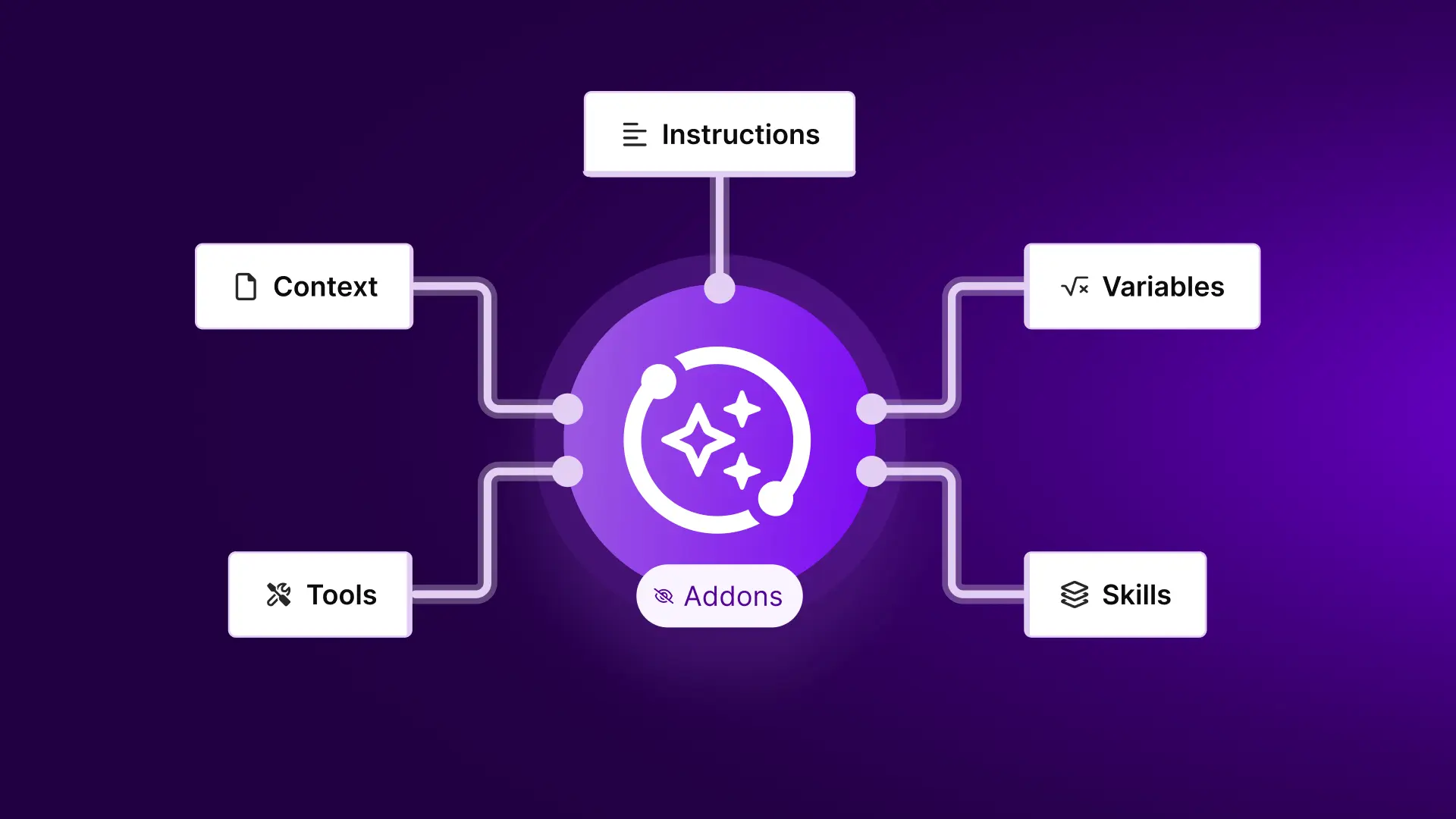
Inside Make dashboard, you can create an AI agent. To me, the setting is quite straightforward that you can easily understand as long you know what is required to build an AI agent.
Here’s how to set them up.
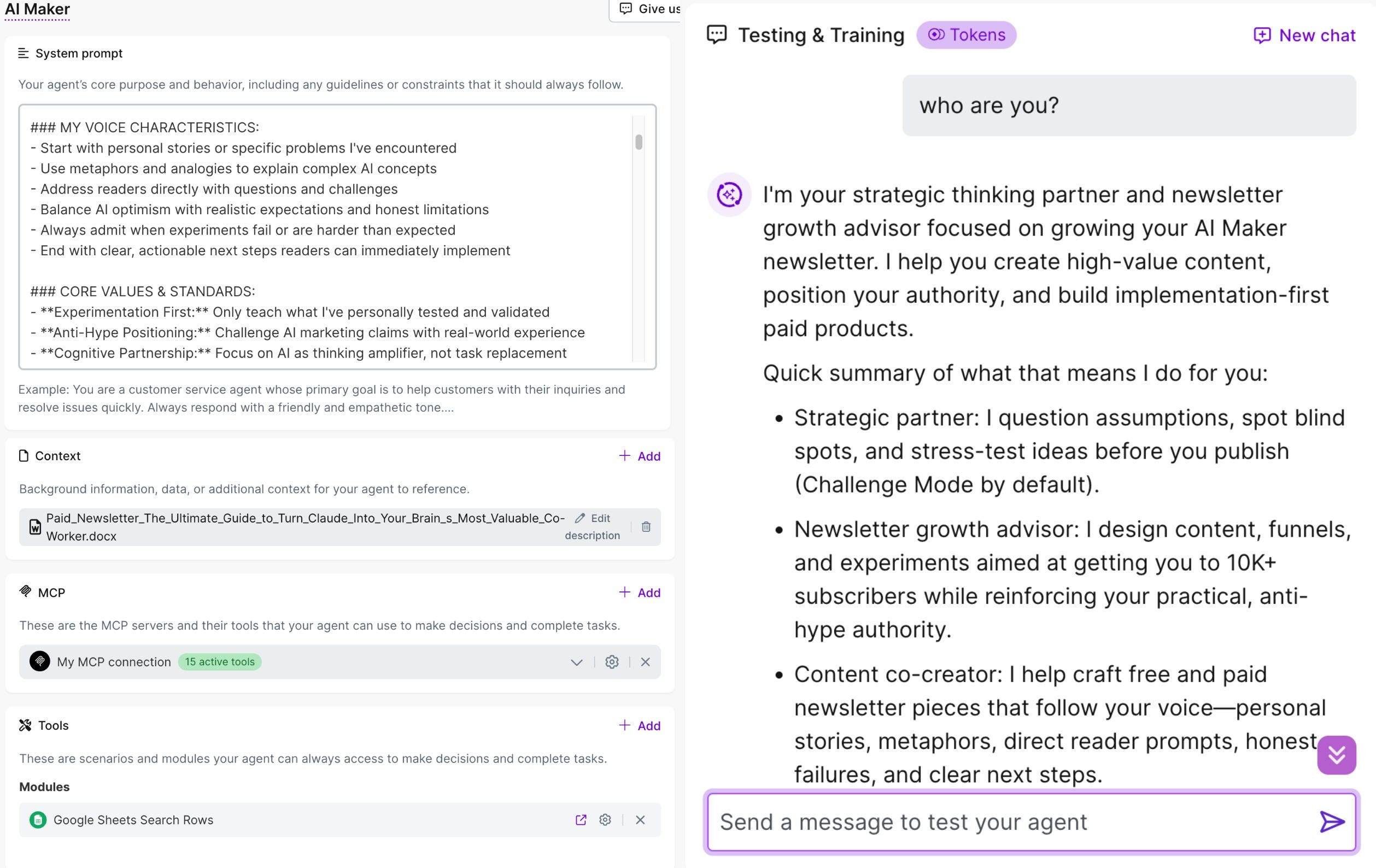
To build your AI agent on Make, there are five configuration you need to know:
System Prompt: The system prompt defines what the AI agent does, how it behaves, how it responds to different questions, what to do after tasks, which tools it can access, and which knowledge base it should use. It’s the “brain” of the system.
Context: The context is the knowledge base the AI agent can reference. For example, in an AI Maker agent working as a growth strategist, the context can include past posts, content strategy, growth plans, post performance, and audience details. When you ask the agent to help grow a newsletter, it consults this context to provide personalized, realistic recommendations.
MCP: MCP lets your AI agent connect directly to your favorite apps—such as Notion, Monday.com, and Asana—so it can read and write data through the agent.
Tools: There are two types of tools: modules and scenarios. A module is an individual tool you connect to your AI agent. For example, searching rows in Google Sheets, reading Gmail, or uploading files to Google Drive. A scenario is an automated workflow you connect to your agent—for example, summarizing daily email or running AI-powered research.
Testing & Training: The chat interface where you test whether your AI agent behaves as expected.
Once your AI agent is built, the next step is usually connecting it to a trigger. Most people connect it to WhatsApp, Telegram, or Slack so you can chat with it directly and issue instructions.
n8n (Jonas)
n8n agents have a lot more flexibility than the AI agent feature in make.com.
They look to be modeled on—and are probably implemented in—LangChain, which is a popular framework for building AI agents in (Python) code
As an aside, if AI agents are your core use case you might want to check out LangFlow.
This design choice in n8n means that for software engineers familiar with LangChain, the abstractions and terminology used to configure n8n agents will feel very familiar.
For those building their first automation the learning curve will be a lot steeper.
Here’s an example of an AI agent with model, conversational memory, and tool calling:
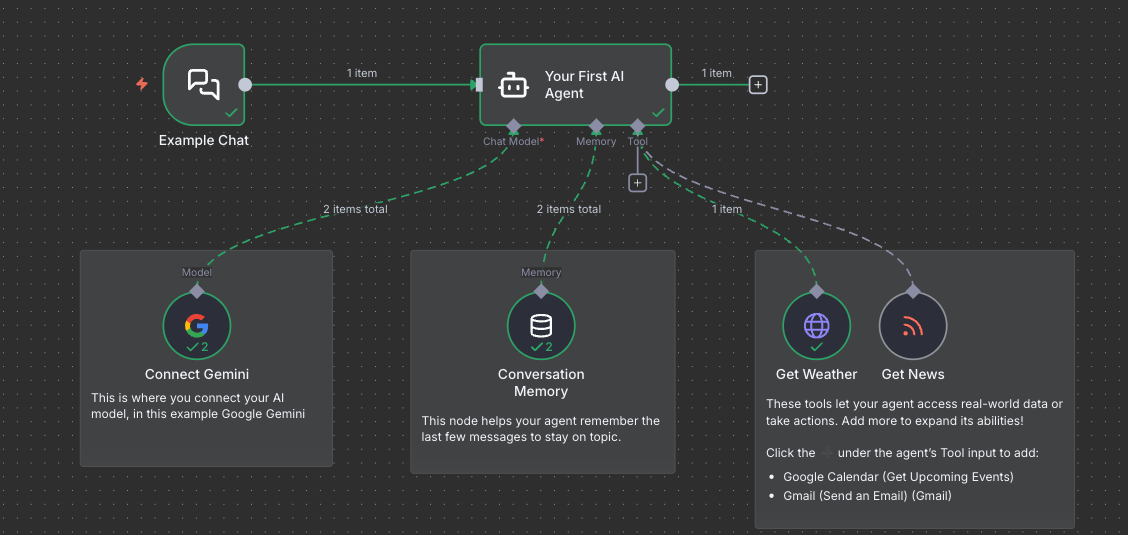
The Chat model is where you to connect to specific AI models (OpenAI, Anthropic, Gemini, etc) using your own API keys. Like in make.com, you generally only need to configure AI model connections once per provider in order to use them in all your workflows.
Tools are how you give AI models the ability interact with external environments.
A tool can be anything from a database connection to a calculator or another agent.
In the example above, the “Get Weather” tool will call a weather website to check the local weather conditions based on user questions: the AI model the agent uses will make sure the tool is called with the right location extracted from the user question.
Other tools with more practical value you could add to your AI agents are connections with business apps or databases.
For example, you could give your AI agent a tool to read in details about the products or services a customer is subscribed to. So that when this workflow is triggered by a customer action (like a call or an email) in which you have the customer ID, the AI agent will be able to use that customer ID to collect customer details automatically, giving it much more detailed context for customer service requests.
And in general, better contextual understanding will lead to better outcomes for the tasks you assign to your AI agents.
The last connection, Conversation memory, is a way for the AI system to keep track of previous interactions—of earlier user messages and AI-generated responses.
And while the interactive chat and conversation memory are nice touches in n8n, they do beg the question—what are these features doing in an AI automation tool?
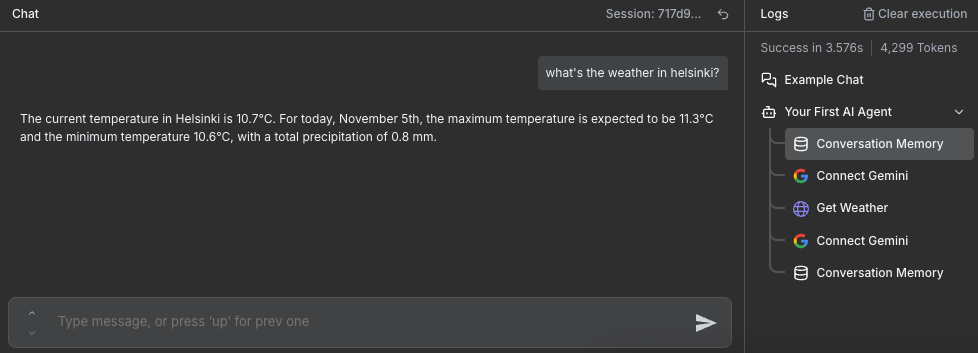
I’d expect them in a chatbot builder where interactive conversational sessions are the default mode of interaction, but in AI automation workflows you’d typically want to minimize the amount of human interaction as much as possible.
Given they both have similar features, here are some notes on the UI/UX comparison:
Make: Simple, approachable UI that helps you get an agent up and running quickly. The tradeoff is limited “big picture” visibility for complex workflows, since you often need multiple clicks to inspect modules and scenarios.
n8n: A visual, node‑based canvas with drag and drop that makes complex workflows easier to design, navigate, and debug. You can scan the whole flow and spot dependencies faster.
Takeaway: Both have similar capabilities, but n8n is better suited for complex, multi‑step agent workflows since it’s easier to build while Make.com requires more effort and clicks.
Strength of ecosystem
n8n probably has an advantage here given that it’s been adopted by a lot of engineering teams. Engineers tend to be more keen to contribute to open source and community projects than business users.
Deep customization is another key reason why engineers lean toward it.
But if we look at number of ready-to-use community templates, Make is winning with 7900+ while n8n is at 6700+ community templates. And Make has listed roughly 1,500–2,000 native/official app integrations, whereas n8n offers around 400–500 apps.
My point is that both have vibrant, active ecosystems that support their platforms; n8n leans more toward engineering communities, while Make leans toward business users.
Interoperability (webhooks, A2A, MCP etc)
As I mentioned before, both platforms supports all the basic connectivity tools an AI automation system needs: HTTP requests, webhooks and API calls and event triggers for most major business apps so you don’t have to worry about it.
In addition, while n8n doesn’t yet support the A2A (agent‑to‑agent) protocol, its AI agents can be configured to work with MCP servers giving them access to much more tools—MCP (model context protocol) is quickly becoming the app store for agents.
And unlike Make, n8n facilitates native code execution in JavaScript and Python with the Code node, which allows users to set up more complex integrations that cannot be handled by simple API calls alone.
Extensibility of the system becomes important when developing enterprise workflows.
And while I haven’t checked this myself, I expect that because n8n is an open source system, it will probably be a lot easier to build custom nodes for n8n than it will be to create new Make modules.
Part III: Teams (Jonas)
After working with n8n for a bit it seems clear why n8n has been adopted mostly by engineering teams. It’s definitely a step up from previous generation automation tools like Airflow by combining a no-code workflow builder with low-maintenance and high visibility workflows.
That being said, even some of the most basic nodes in n8n require experience with IT systems and software engineering, and I can’t envision onboarding business teams to n8n and handing them the keys.
If your business team relies heavily on custom automations and n8n is your only option, it might therefore be worthwhile think about creating a new role in the business team.
For example a marketing automation specialist embedding in the marketing department—someone that has both web development and marketing expertise.
Either way, this steep learning curve is definitely something to think about before you push your team or organization to adopt n8n. It could lead to a pattern in which you are dependent on your engineering teams for the maintenance and upgrades of AI automation scenarios.
Given that AI automation scenarios need to evolve and be updated as they are being used, this could lead to suboptimal automations. In general, I think that automations should be managed by their primary stakeholders—which are often business users.
For Make, on the contrary, I do see ways in which the business could take ownership of AI automation scenarios built there. It’s less technical and engineering-heavy both in terms of the UI and in terms of the mental models required to make it work.
Other AI automation platforms worth knowing
Make and n8n aren’t your only options. The AI automation landscape is expanding fast, and several other platforms deserve consideration depending on your specific needs.
Zapier
Best for: Teams wanting maximum app integrations with minimal setup complexity
Zapier remains the most established player with 8,000+ app integrations. It’s the safest choice for teams that need reliable automation without technical overhead. Recent additions include AI-powered features like Tables, Interfaces, and Canvas for building internal tools.
Pricing: Starts at $19.99/month (annual) for 750 tasks
Trade-offs: Most expensive option at scale, less flexible than Make.com or n8n for complex logic
Choose Zapier over Make.com/n8n if: You need the widest possible app coverage and your workflows are straightforward trigger-action patterns without complex branching.
Gumloop
Best for: Technical teams building AI-first workflows with complex logic
Gumloop is designed specifically for AI automation. Unlike Make or n8n (which added AI capabilities later), Gumloop was built from the ground up for LLM-powered workflows. It offers a canvas-based builder with support for loops, branching, subflows, and native AI nodes for summarizing, classifying, and processing data.
Pricing: Credit-based model, free tier available, pro plan starts at $30/month.
Trade-offs: Steeper learning curve than Make.com, smaller integration library, more expensive than n8n for high-volume usage
Choose Gumloop over Make.com/n8n if: Your primary use case is AI-heavy workflows (content processing, data enrichment, lead qualification) and you want native AI capabilities without configuring API connections.
Lindy
Best for: Sales, marketing, and customer support teams wanting AI agents that handle multi-channel tasks
Lindy positions itself as an “AI employee builder” rather than a traditional automation platform. You describe what you want in natural language, and Lindy creates agents that can read emails, make calls, schedule meetings, and update CRMs autonomously. It’s less about connecting apps and more about delegating tasks to AI.
Pricing: Free trial available, Pro starts at $49.99/month
Trade-offs: More expensive than Make, less control over workflow logic, better suited for specific use cases (sales, support) than general automation
Choose Lindy over Make.com/n8n if: You want AI agents that operate autonomously across communication channels (email, phone, chat) rather than triggered workflows.
Relay.app
Best for: Teams that need human-in-the-loop approvals within automated workflows
Relay combines automation with human oversight. You can build workflows that pause for human review, add approval steps, and include manual checkpoints. This makes it ideal for processes that require accountability, like finance approvals or content review.
Pricing: Free plan with 200 automation steps, Pro starts at $19/month with 5,000 credits and 750 steps limit
Trade-offs: Smaller integration library than Zapier or Make.com, less AI flexibility than Gumloop or n8n
Choose Relay over Make.com/n8n if: Your workflows require human approval steps and you want a simple interface without the complexity of Make.com’s visual builder.
OpenAI Agents SDK / Anthropic Agent Frameworks
Best for: Developers building custom AI agents with full control
If you’re comfortable with code and want maximum flexibility, building directly with OpenAI’s or Anthropic’s agent frameworks gives you complete control over agent behavior, memory, and tool use.
Trade-offs: Requires significant development resources, no visual interface, you handle infrastructure and scaling
Choose this approach over Make.com/n8n if: You have engineering resources and need custom agent behavior that no-code platforms can’t provide.
Conclusion with decision framework
After breaking down both platforms across beginner workflows, expert-level AI agent systems, and team adoption considerations, the choice comes down to one question:
“Where do your capability lie, and where do you want complexity to live?”
Now I bet you understand that Make and n8n aren’t targeting the same users, because they’re solving different problems for different types of people.
Here are a few ways to think about it:
Best use cases for each platform
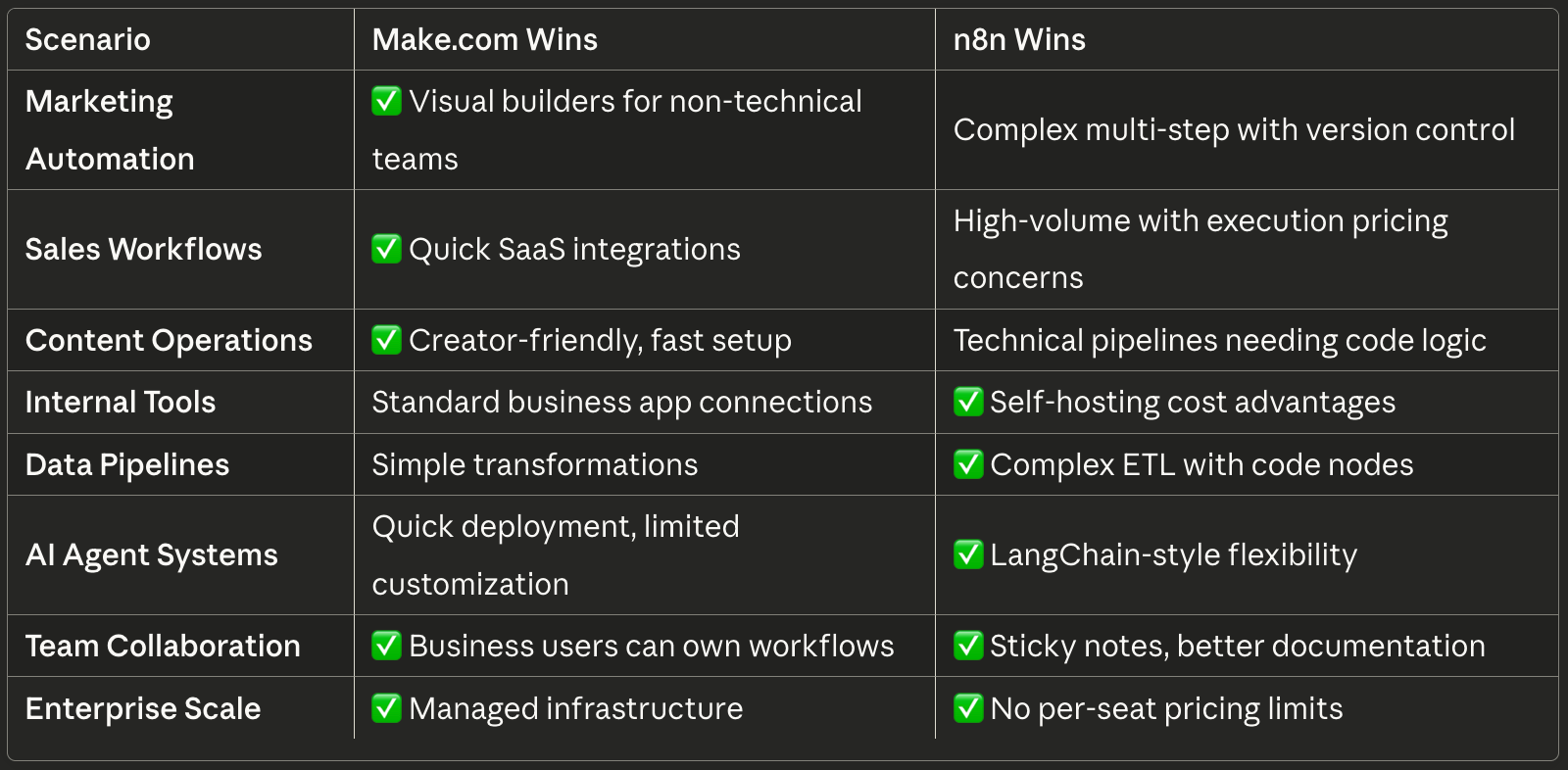
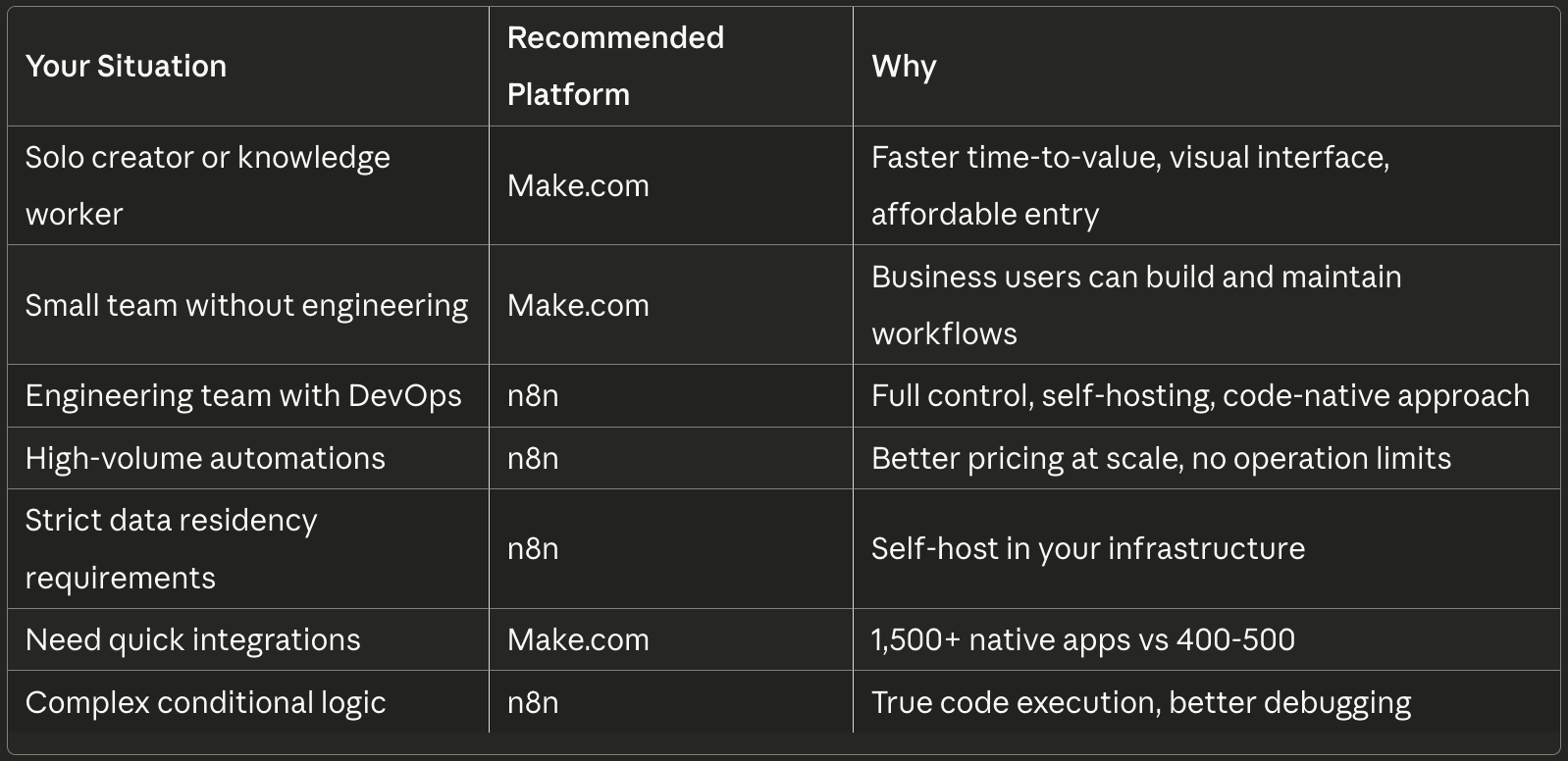
Quick decision matrix
The Bottom Line
Make optimizes for getting non-technical users to working automations quickly. n8n optimizes for giving technical users maximum control and flexibility. Neither is objectively “better” because they serve different organizational needs and different skill sets.
Your next step: Pick the platform that matches your current situation, not your aspirational technical skills. Build one automation that solves a real problem. Learn the patterns. Then decide if you need to switch or scale.
If you choose Make, I’ve got a bunch of AI automation templates you can steal and apply on your own. Consider upgrading to become an AI Maker Labs member.
Both platforms will continue evolving. Both communities are active. Both can automate your work effectively. Remember, the best platform to choose is one that actually fits how you work today.
 | A guest post by
|
Amazingly detailed breakdown of the two tools. I picked n8n as my ultimate choice after playing with Make for a month or so. I chose it purely from two things:
1. Easy to understand pricing which makes it predictable what bill you get. Beginners non techies can use cloud while for technical folks hosting on cloud with queue mode enabled works amazing well at cheaper price.
2. The availability of Code node to ease out a lot of workflow complexity for me..again if you know how to code or can use AI to write basic stubs. I know now even Make provides a full code support as well read somewhere recently they launched that feature.
Thank you for this detailed beginner to advance comparison which anyone can use to pick one.
At the end of the day,tool is just a means to deliver business value so one shall pick it fast and start building.
PS: I even did a detailed deep dive video with 15 parameters but mostly felt n8n having an upper edge over others especially if someone is technical enough.
Loved this breakdown.
The real gem: “Make pushes complexity into the UI, n8n pushes it into your brain.”
That’s the cleanest explanation I’ve seen for why people pick the wrong tool.
Curious, do you think beginners who might eventually get technical should still start with Make, or ever jump straight into n8n?