

How Google Workspace CLI Made My Claude Code Setup 10x More Powerful
4 commands that run my day on autopilot and a Slides skill that builds decks for me.


I’ve spent the last few months building what I call my agentic workspace — and if you’ve been following along, you’ve watched it grow in layers.
First, I moved from scattered ChatGPT conversations to a single Claude Code environment where my entire newsletter lives. Writing guidelines, performance data, content archive, social media creation — all accessible to one AI agent in one place.
Then I connected NotebookLM through MCP, giving Claude the ability to research across 50 sources without me switching tabs. Then Nano Banana, so Claude could generate images directly inside the same conversation where I write. For a quick research session, I injected Claude with Perplexity and Firecrawl MCP to execute the research for me.
Then — if you read my last post — I moved my entire project management system into Obsidian and connected it to Claude Code. Goals, roadmaps, sprints, weekly plans, daily logs — all as plain markdown files that Claude reads and writes directly. Five slash commands that plan my week, prep my mornings, process my inbox, wrap my evenings, and review my progress. A copilot that doesn’t just store my plan — it has opinions about my plan.
Each layer removed a gap. Each integration meant one less place I had to be the middleman.
But there was still a gap. A big one.
My projects, my goals, my writing, my research, my image generation — all inside Claude Code. But my email, my calendar, my Google Docs, my Google Slides & Sheets — the place where I actually communicate with the outside world — still trapped in browser tabs, forcing me to manually hop between them.
I was the human bridge between Claude and Google Workspace.
Then Google quietly released something that closed that gap.
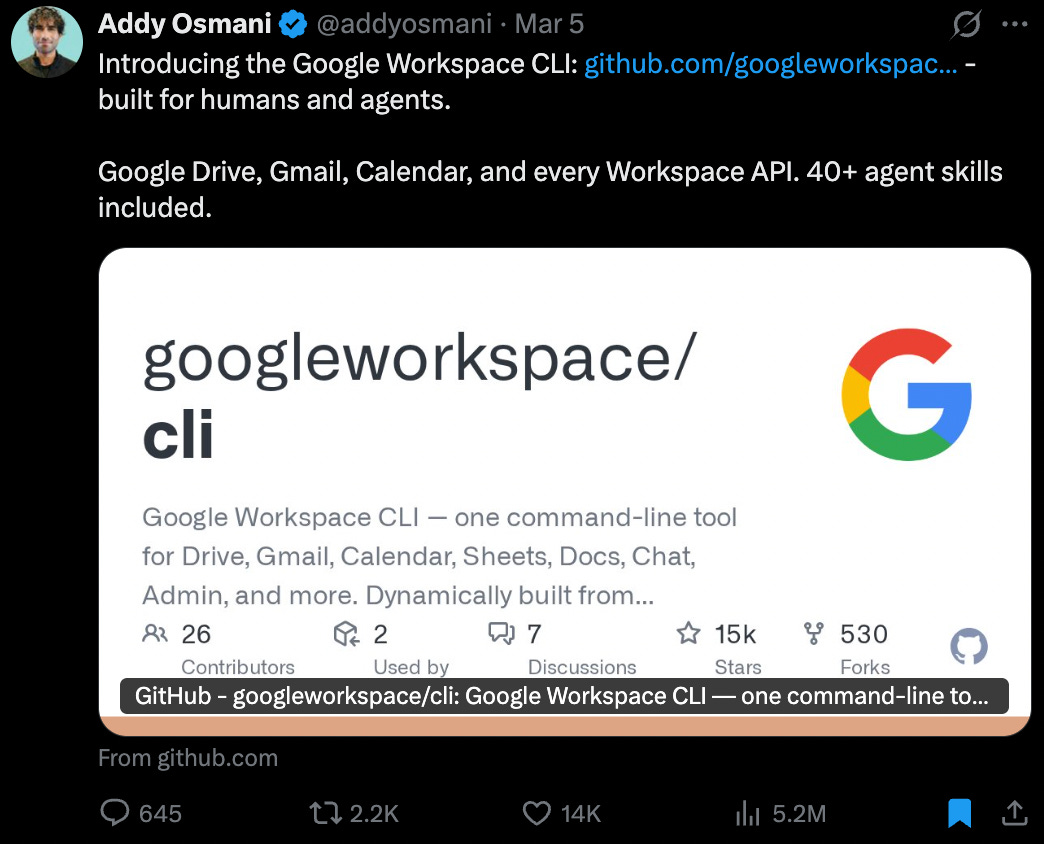
Google Workspace (GWS) CLI — a command-line tool that gives your terminal direct access to Gmail, Calendar, Docs, Drive, Sheets, etc. And here’s the part that caught my attention: Google built it specifically with AI agents in mind.
This is not a chatbot plugin. Or MCP (Model Context Protocol). Or even a browser extension. It’s a terminal tool. The exact surface where Claude Code already operates. Before you get discouraged by the term CLI (Command Line Interface), stick with me, this is how AI agents will interact with the millions of software tools we use every day (soon).
And the timing couldn’t have been better. Because right around the same time, Anthropic shipped the /loop command for Claude Code — a way to set any workflow to run on a recurring interval inside your active session. Every 10 minutes. Every 30 minutes. Every hour. As long as your session is running, Claude keeps executing.
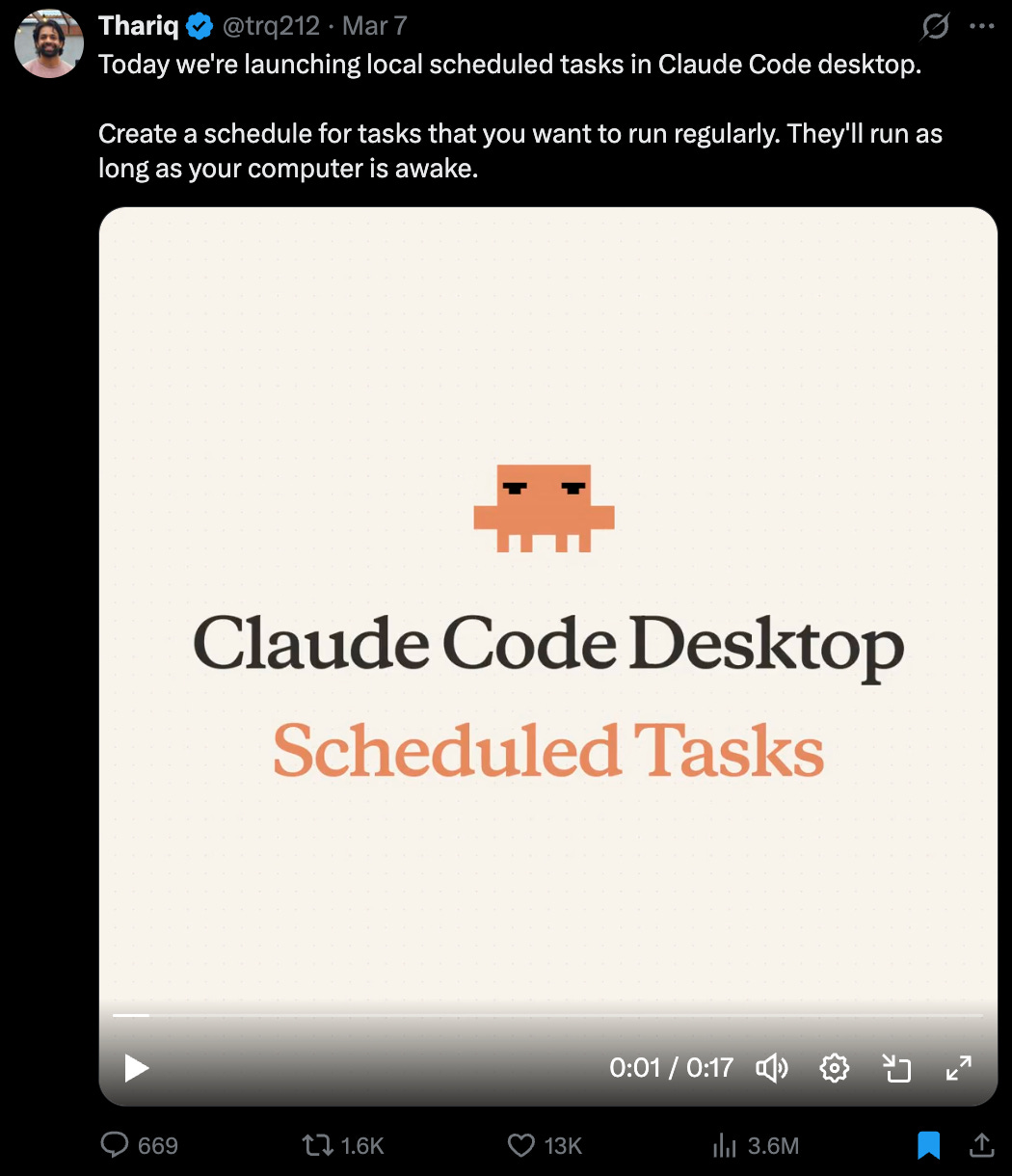
Two things clicked into place at the same moment: Google gave Claude access to my work data. Anthropic gave Claude the ability to act on it repeatedly without me triggering each step.
I spent the last few days connecting it all, building workflows, breaking things, and rebuilding them. Here’s what a normal day looks like now.
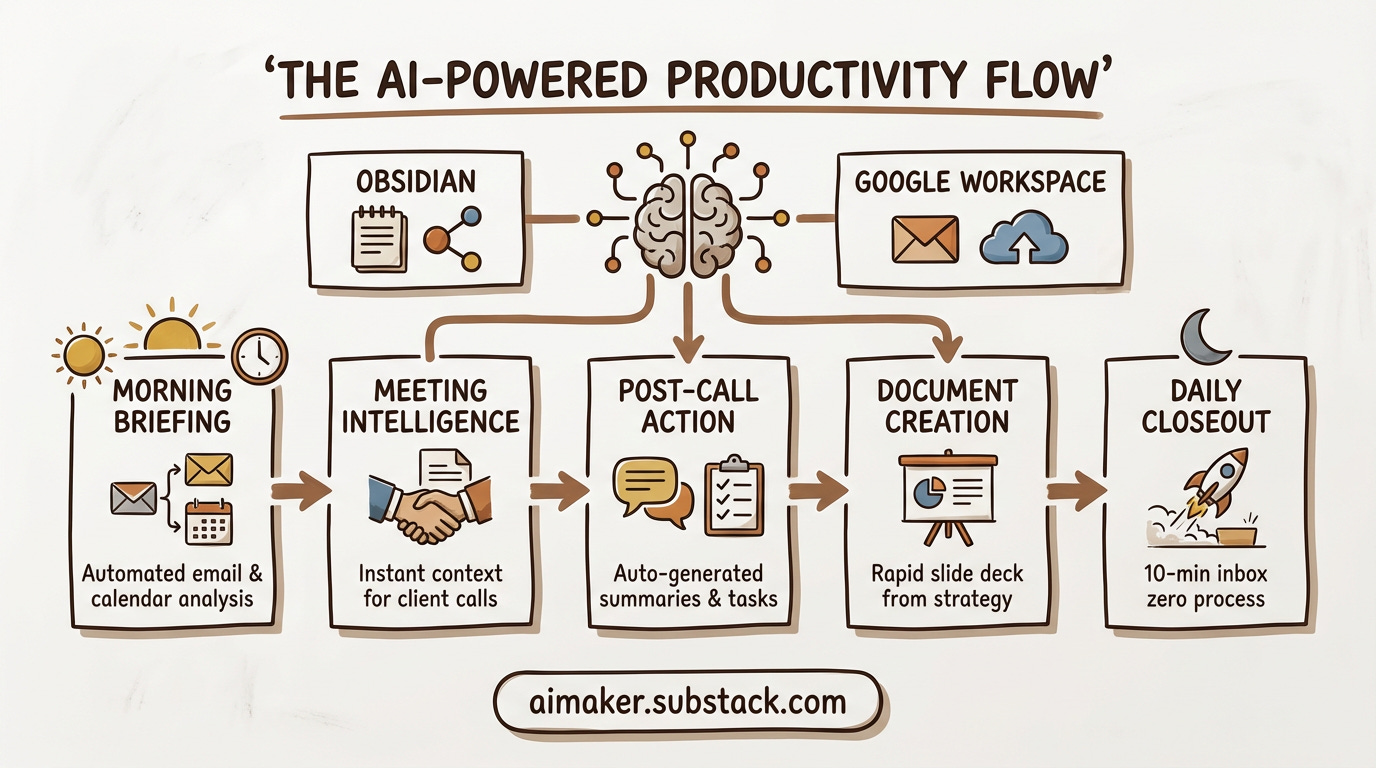
Last Tuesday, I opened my laptop around 9 AM and launched Claude Code. By 9:15, my morning briefing had already run — a scheduled task that fires the moment my session starts. 34 emails categorized into five segments. Two newsletters summarized with key takeaways I’d actually want to read. Three emails flagged for reply. My calendar pulled up to show every call for the day.
I had a client call at 10. One command — Claude pulled the attendee’s email history, found two unresolved threads, searched my Drive for a doc they’d shared last month, and compiled a one-page meeting prep with context on what they’re working on and how I can help. Ready before I finished my coffee.
After the call, I shared the transcript. Claude generated a summary, extracted four action items, and routed them straight into my Obsidian vault — linked to the right sprint, tagged with deadlines. Then it drafted a follow-up email to all attendees. I adjusted one line and sent it.
That afternoon, a client needed a presentation for their team. I pointed Claude at my strategy doc and triggered the Google Slides skill. Structure, content, formatting — done and saved to Drive in under 15 minutes. No Slides editor. No dragging text boxes around.
At 5 PM, I ran inbox zero. 47 emails categorized, 6 draft replies ready for review, action items routed to Obsidian, the rest archived. Ten minutes instead of forty-five.
That was one day. Every day since has looked similar.
Obsidian handles what I’m working toward. Google Workspace handles how I communicate about it. Claude Code sits in the middle: reading both, connecting both, running both.
What Is a CLI and Why It Matters for AI
If you’ve been following this newsletter, you’ve been using Claude Code, which is itself a CLI. But let me explain this clearly for everyone, because it’s the key to understanding why this Google integration is different from everything else out there.
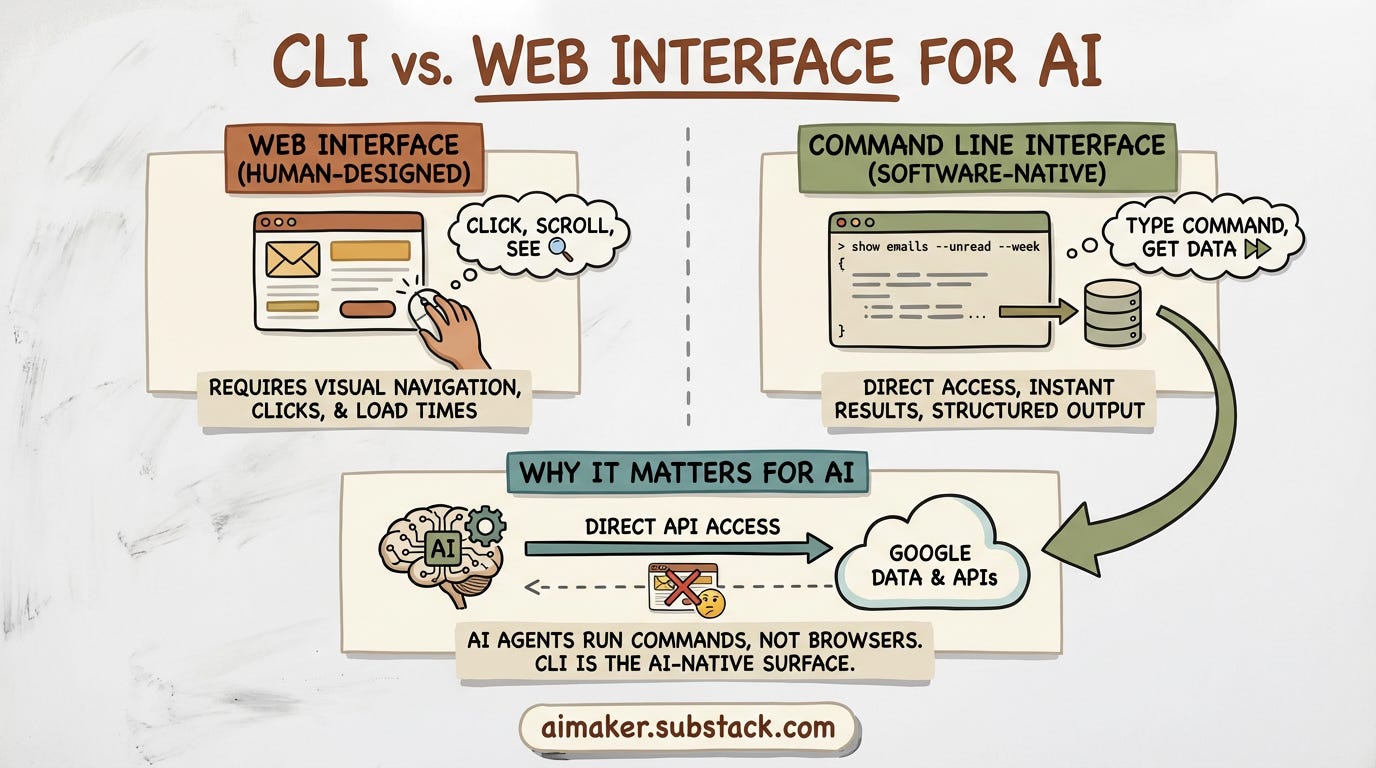
CLI stands for Command Line Interface. Instead of clicking buttons in a browser, you type a command and get a result.
Think of it like this: Gmail’s web interface is designed for you. You click into an email, read it, scroll down, click reply, type your response, click send. Every action requires your eyes and your mouse.
A CLI is designed for software. It lets you say “show me all unread emails from this week” and get the answer instantly — no clicking, no loading, no scrolling. One command, structured data back.
AI agents can’t click buttons. They can’t navigate a browser. But they can run commands. A CLI gives your agent direct access to your data without trying to simulate human behavior in a browser window.
Andrej Karpathy tweeted about this recently. He’d built his own dashboard using the Polymarket CLI and made the point that every company needs to ask: does our product make it easy for agents to access it? Because agents are increasingly doing the work for us.
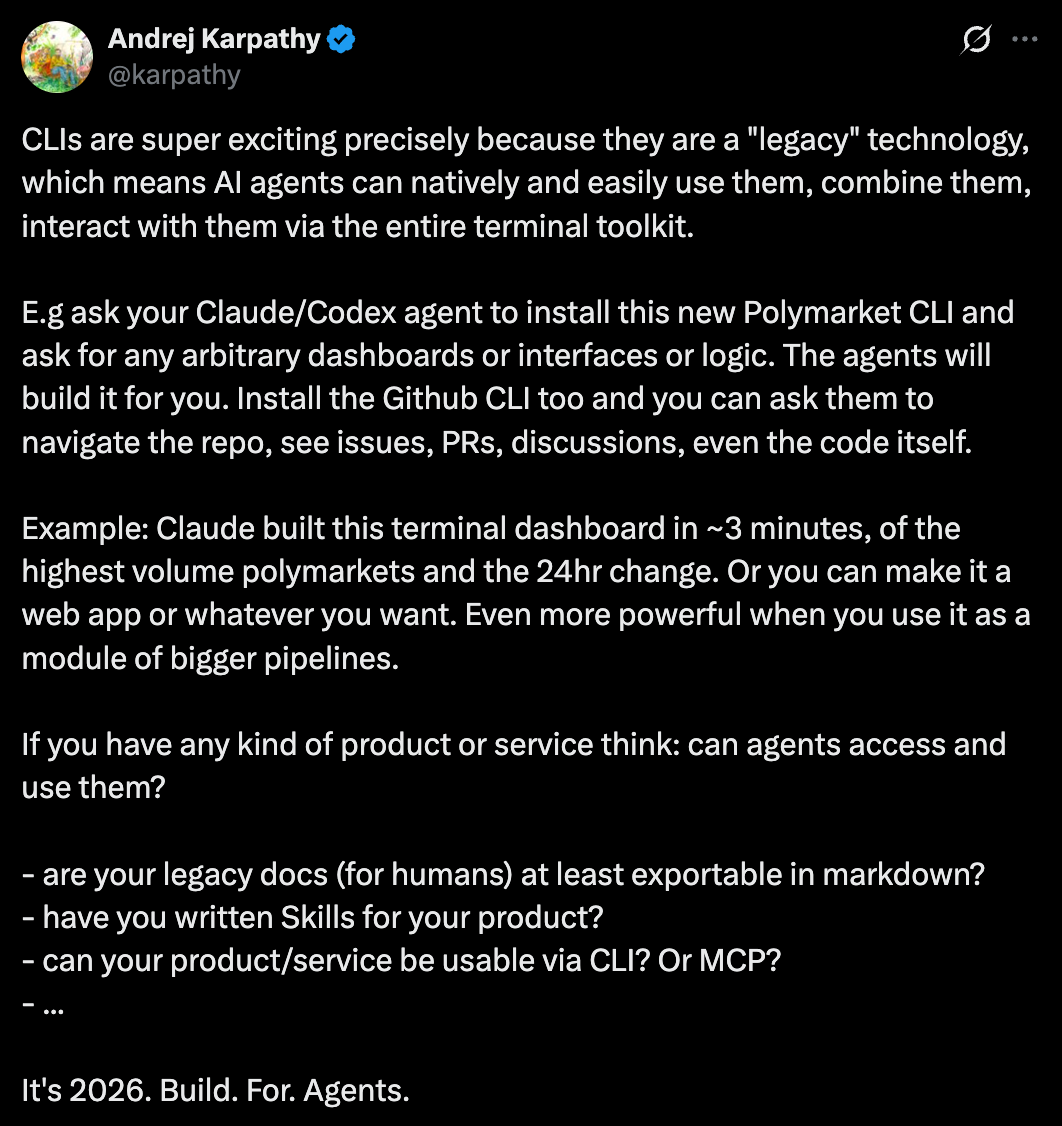
Google answered that question. They built a Workspace CLI — a terminal tool that talks directly to their APIs — and said it out loud: “built with agents in mind.” Claude runs a command, Google returns the data, Claude acts on it. No browser in the loop.
The companies building the best AI integrations right now are all doing the same thing: building surfaces that agents can operate on natively. Terminals, IDEs, scheduled task runners. Better prompts help. But better surfaces — where your AI can actually read and write your data — that’s where the real shift is happening.
CLI vs MCP — What’s the Difference?
If you’ve read my MCP posts where we connected NotebookLM and Nano Banana to Claude, you might be thinking: “Isn’t this the same thing? Connecting a tool to Claude?”
Close, but different in a way that actually matters.
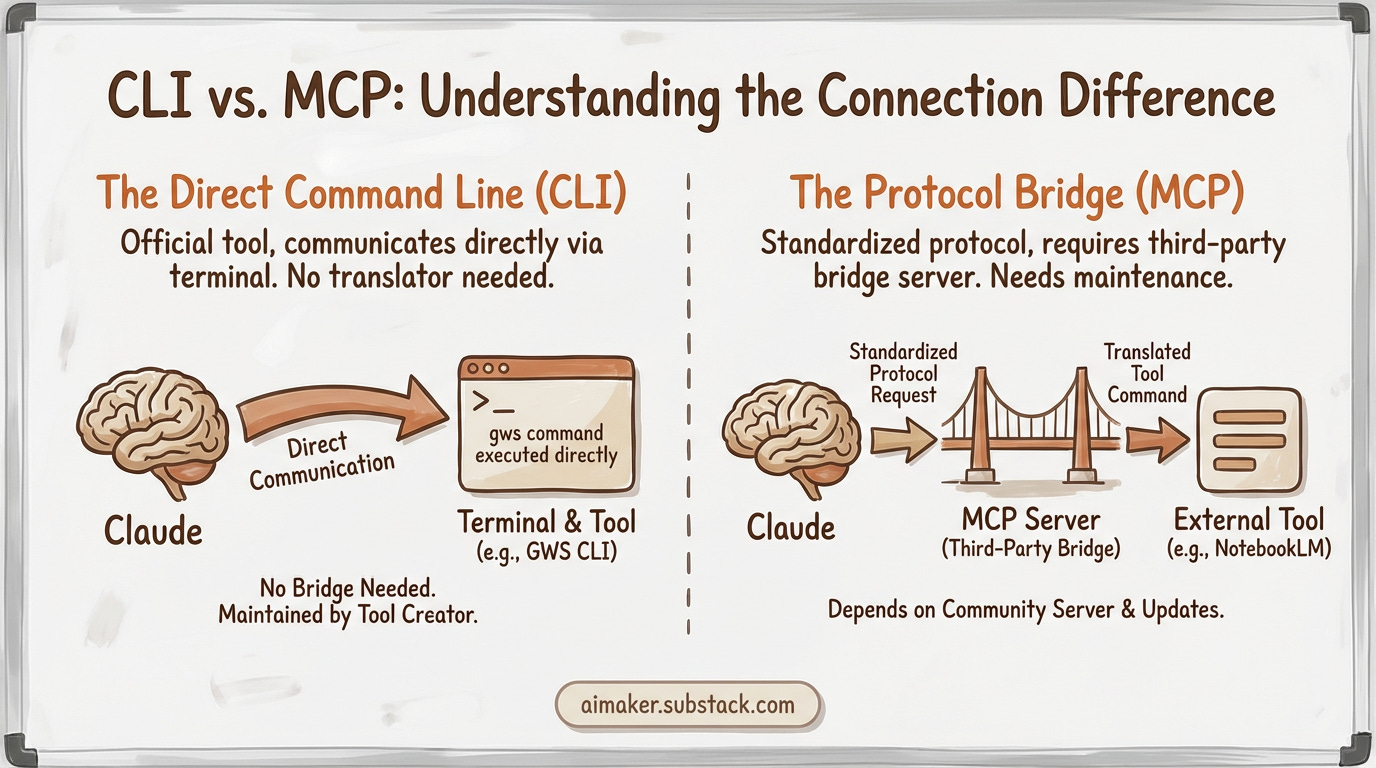
MCP is a protocol. It’s a standardized bridge between Claude and an external tool. Someone builds an MCP server that translates Claude’s requests into something the tool understands, and translates the tool’s responses back. It works well, but it depends on a third party maintaining that server. If the API changes, someone has to update the bridge.
A CLI is the tool itself. No bridge needed. Google built the GWS CLI, Google maintains it, and Google updates it when their APIs change. Claude runs the `gws` command in the terminal the same way you’d run any other command — directly.
In practice, the difference is reliability and maintenance. My NotebookLM MCP and Nano Banana MCP work great — but they depend on community-maintained servers. The GWS CLI comes from Google software directly. When Gmail’s API changes, Google updates the CLI. I don’t have to wait for someone to fix a broken MCP server.
The bottom line: MCP is how Claude connects to tools that need a translator. A CLI is when the tool already speaks Claude’s language — the terminal.
For this setup, you don’t need to configure any MCP server. Claude Code uses the GWS CLI as a regular terminal tool, out of the box.
What Google Workspace CLI + Claude Code Unlock
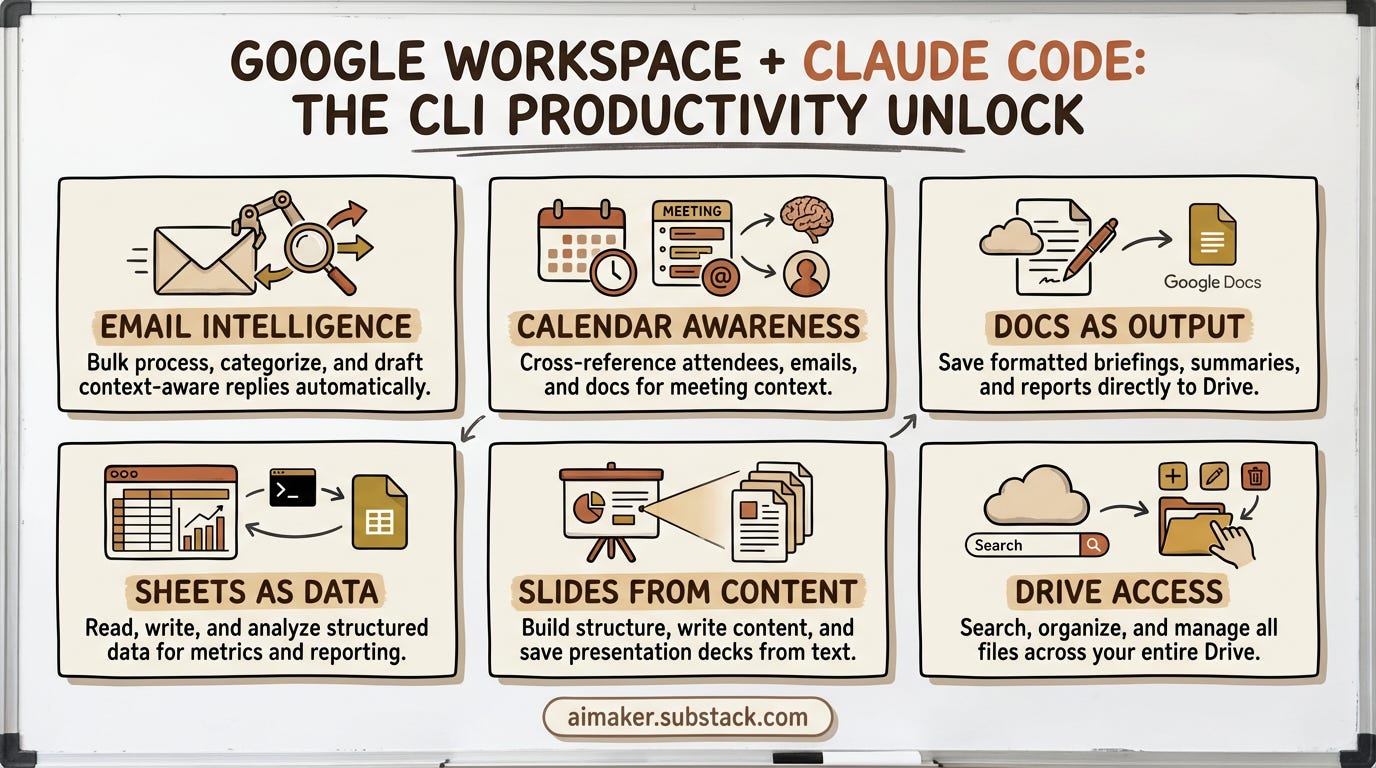
I showed you what one day looks like in the opening. Here’s the full picture of what becomes possible once Google Workspace is connected to your terminal.
Email intelligence. Claude can read your entire inbox — not one email at a time, but in bulk. It categorizes by urgency, sender type, and required action. It fetches full content only for the emails that matter and summarizes the rest. It drafts replies that match the context of the conversation, not generic templates.
Calendar awareness. Claude sees your full schedule — who you’re meeting, when, and what’s on either side of each call. It cross-references attendees against your email history, shared documents, and past meetings. For new contacts, it can run web research automatically through Perplexity.
Docs as output. Any workflow can save its output to Google Docs — morning briefings, meeting summaries, weekly reports. Proper headings, clean formatting. Useful if you want a running log or need to share results with someone who doesn’t use Claude Code.
Sheets as data. Claude can read from and write to Google Sheets — pull numbers for analysis, append rows to a tracking spreadsheet, or generate a formatted report from raw data. If you’re tracking metrics, managing a content calendar, or running any kind of structured workflow, Sheets becomes a live surface Claude can operate on.
Slides from content. Claude can create Google Slides presentations — from a meeting summary, a strategy doc, a newsletter outline. It builds the structure, writes the content, and saves the deck to your Drive. Turns any written output into something shareable without opening the Slides editor.
Drive Access. Claude can search, create, edit, and delete files across your entire Drive. Pull context from a shared doc before a meeting, find a proposal someone sent three months ago, organize files into folders, or clean up outdated drafts — full read-write access to your Drive without opening a browser.
And all of this can run on a loop inside your session. Your morning briefing fires when you open Claude Code. Meeting prep runs every 30 minutes, checking for upcoming calls. Inbox processing at end of day. You set the cadence once per session, and the workflows keep running as long as your session is live.
What’s Inside This Post
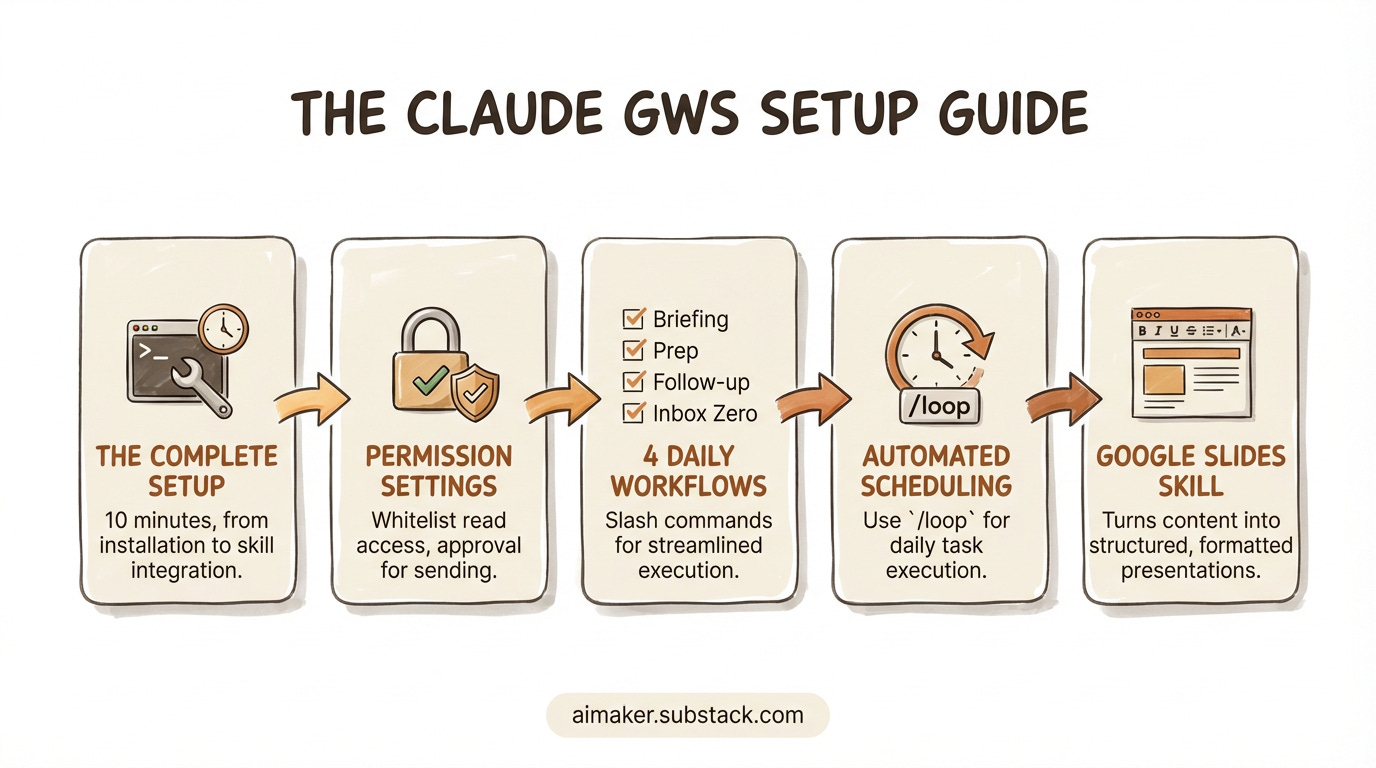
This guide covers everything from installation to automation. Here’s what you’ll walk away with:
The complete setup — Installing the GWS CLI, authenticating your Google account, and installing the GWS skill that teaches Claude how to use every Google Workspace command correctly. Ten minutes from start to finish.
Permission settings that make it usable — By default, Claude asks for your approval on every single CLI command it runs. That’s fine for learning, but it kills the flow when you’re processing 100+ emails. I’ll show you exactly which permissions to whitelist so Claude can read your inbox, check your calendar, and search your Drive without stopping to ask while still requiring approval before it sends anything on your behalf.
4 daily workflows as custom commands — Morning briefing, meeting prep, meeting follow-up, and inbox zero. Each one packaged as a Claude Code slash command you copy into your project. Type one command, Claude handles the rest.
Session-based scheduling with
/loop— How to use Claude Code’s/loopcommand to run these workflows on a recurring interval inside your active session. Imagine it as a live copilot that keeps working as long as your session is open.🎁 A Google Slides skill — This is a gift for you. A downloadable Claude skill that turns any written content — meeting notes, strategy docs, newsletter outlines — into a properly structured Google Slides presentation. Claude analyzes the content, builds the slide structure, writes the copy, and saves the deck to your Drive.
Before we go further: This system runs on Claude Code. If you’re not set up yet, read my beginner’s guide to Claude Code first for the basics. If you want the full picture, jump straight to my Claude Code complete guide. In it, you’ll see that Terminal isn’t the only way to use Claude Code. You can also run it from VS Code or the Cursor extension, which are both more user-friendly than Terminal.
That’s the full surface. Now let me show you how to set it up.