

How I Built LinkedIn Carousels Using Claude Skills in Less Than 5 Minutes
I was shocked that this was possible in the first place.


I’ve been posting on LinkedIn 5x a week for the past three months without fail.
Before that? Complete mess. On and off for months.
The problem wasn’t motivation—I had plenty of that. It was juggling multiple tasks that frustrated me. I’m already writing 3-4 Substack Notes every day plus weekly newsletter posts that take 10+ hours. Adding consistent LinkedIn on top felt impossible.
What changed? I built my entire newsletter operating system inside Claude Code.
Now Claude Code knows my voice, my performance data, my content archive, my audience patterns. The whole publishing flow became semi-automatic. I write everything with Wisprflow, and it just works.
But I kept getting stuck on one thing: carousels.
Every time I’d see a well-designed carousel—clean styling, brand guidelines, proper overlay images—I’d bookmark it and think: “Next week, I’ll figure this out.”
Next week never came.
Because “figuring it out” meant:
1 hour writing the content
1 hour wrestling with Canva
Another 30 minutes fixing alignment and spacing
Plus the mental overhead of “does this even look professional?”
So I’d rationalize: “Text and a simple image I pulled from Twitter posts works fine. I’ll stick with what I know.”
Hence, I kept avoiding carousels because the effort-to-output ratio felt broken. It was too much.
Then I realized something: I’ve been building Claude Skills to automate my entire workflow. Not because I love automation, but because breaking down systems end-to-end teaches me how workflows actually function. It challenges my systems thinking.
I told myself, “What if I could build one for carousels?”
Not generic templates. Not AI slop that sounds like everyone else.
A system that generates carousels in my voice, with my brand, in under 5 minutes—without losing what makes my content authentic.
After multiple trials and errors, I finally cracked it.
The carousels below? Built in less than 5 minutes each. Still my voice. Still on-brand.
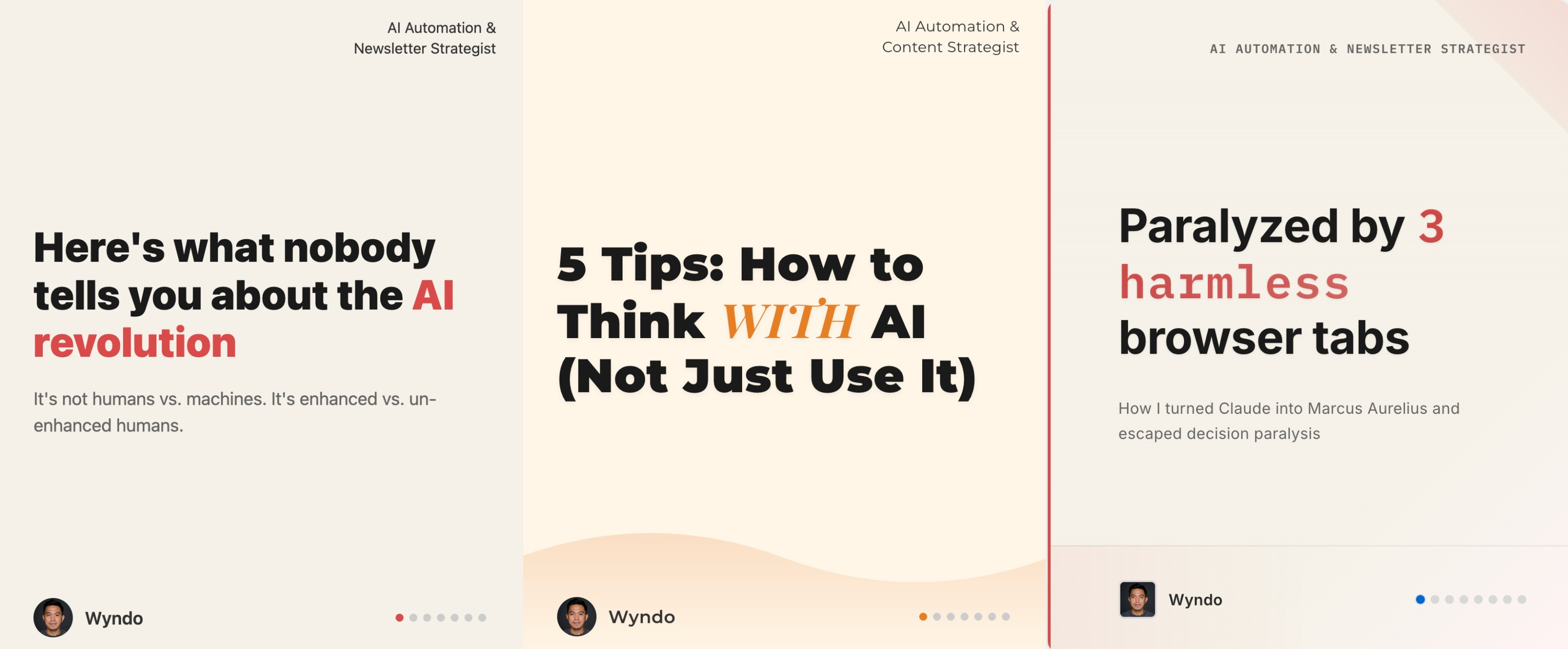
Before showing you how it works, let me show you how I got there.
The Three Failed Attempts (And What Finally Worked)
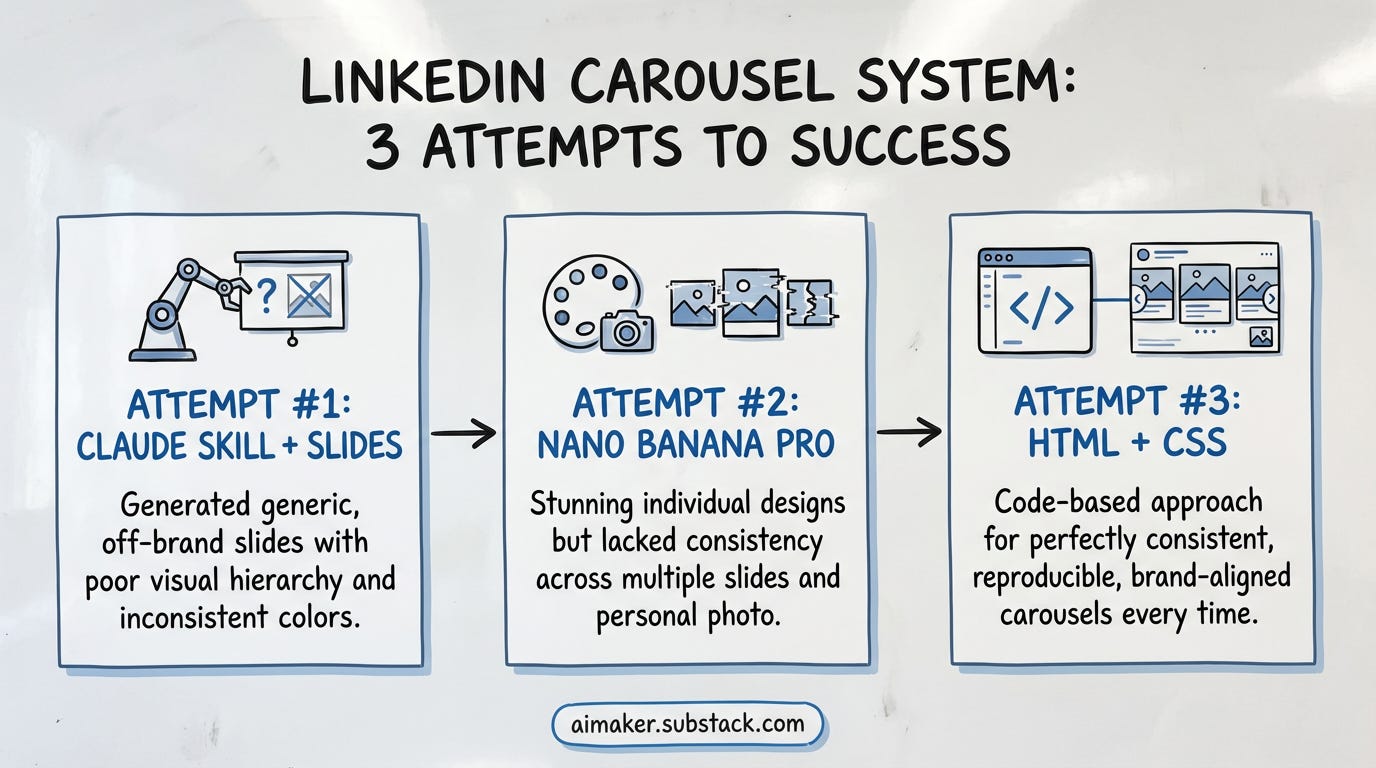
I’ve had “build LinkedIn carousel system” on my 2026 goals.
But you know how it goes—always busy, never urgent. It sat on my list for months while I prioritized everything else.
Then I saw Jonas Braadbaart about building LinkedIn carousels with Claude Code.
That was the push I needed. Not because he showed me it was possible—I already knew that. But because seeing someone else solve the exact problem I’d been avoiding made me realize: I have no more excuses.
So I finally committed to figuring this out.
What I didn’t realize was how many dead ends I’d hit before finding something that actually worked.
Attempt #1: Claude Skill + Slides (PPTX)
My first instinct was obvious: use Claude Skill to generate carousels in PowerPoint Slides format.
I already use Claude Skills for everything else in my workflow, so this felt like the natural path. Anthropic already has PowerPoint slide–builder skills on their GitHub.
I copied the skill, ran it, and Claude successfully created the slides.
But the output? It’s too plain.
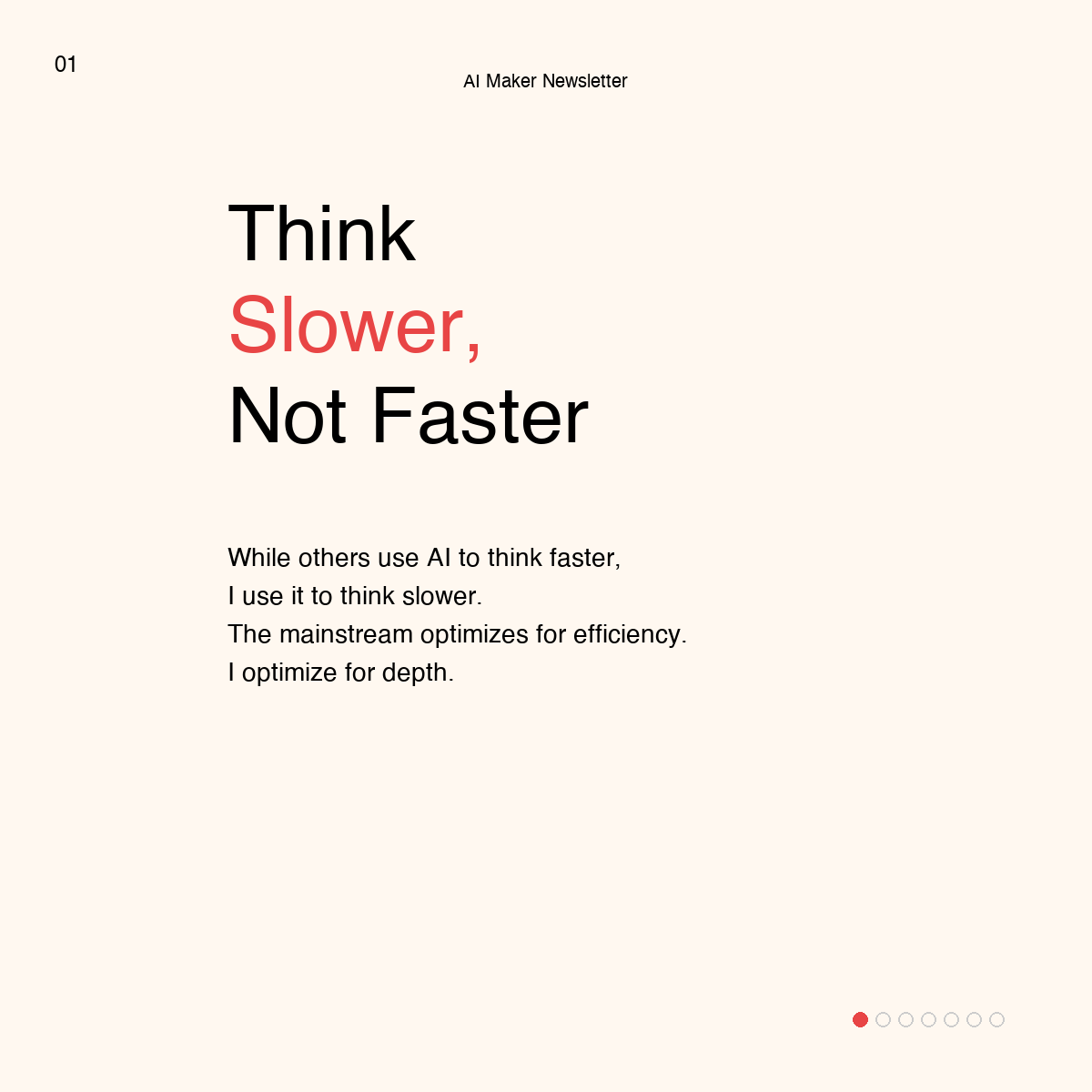
There’s no soul, and it leaves too much space unused. It technically works, but it looks generic. What’s great, though, is the speed of generating each slide, it takes me around 3–5 seconds. Insane.
Still, I’ve convinced myself this isn’t going to cut it. I need more creativity and aliveness in the slides.
Attempt #2: Nano Banana Pro
If there’s one lesson I took away from the first attempt, it’s that I needed better design quality, so I switched approaches entirely.
I studied successful carousel posts from other creators—the ones that actually stopped me from scrolling. I broke them down into components:
Logo placement and sizing
Header typography and positioning
Body text hierarchy
Tag styling and colors
Brand footer elements
Then I rebuilt these design patterns into a detailed prompt for Nano Banana Pro to generate images that matched my brand.
And honestly? The results were stunning.

The design was clean. The colors were on-brand. The text was sharp. Everything looked professional in a way Claude PPT Builder never could.
But here’s where it fell apart:
Carousel posts need multiple slides. And Nano Banana Pro couldn’t maintain consistency.
Every time I generated a new slide, I’d get random icon placements, different spacing, shifted elements. The design components I’d carefully extracted would randomly shuffle around.
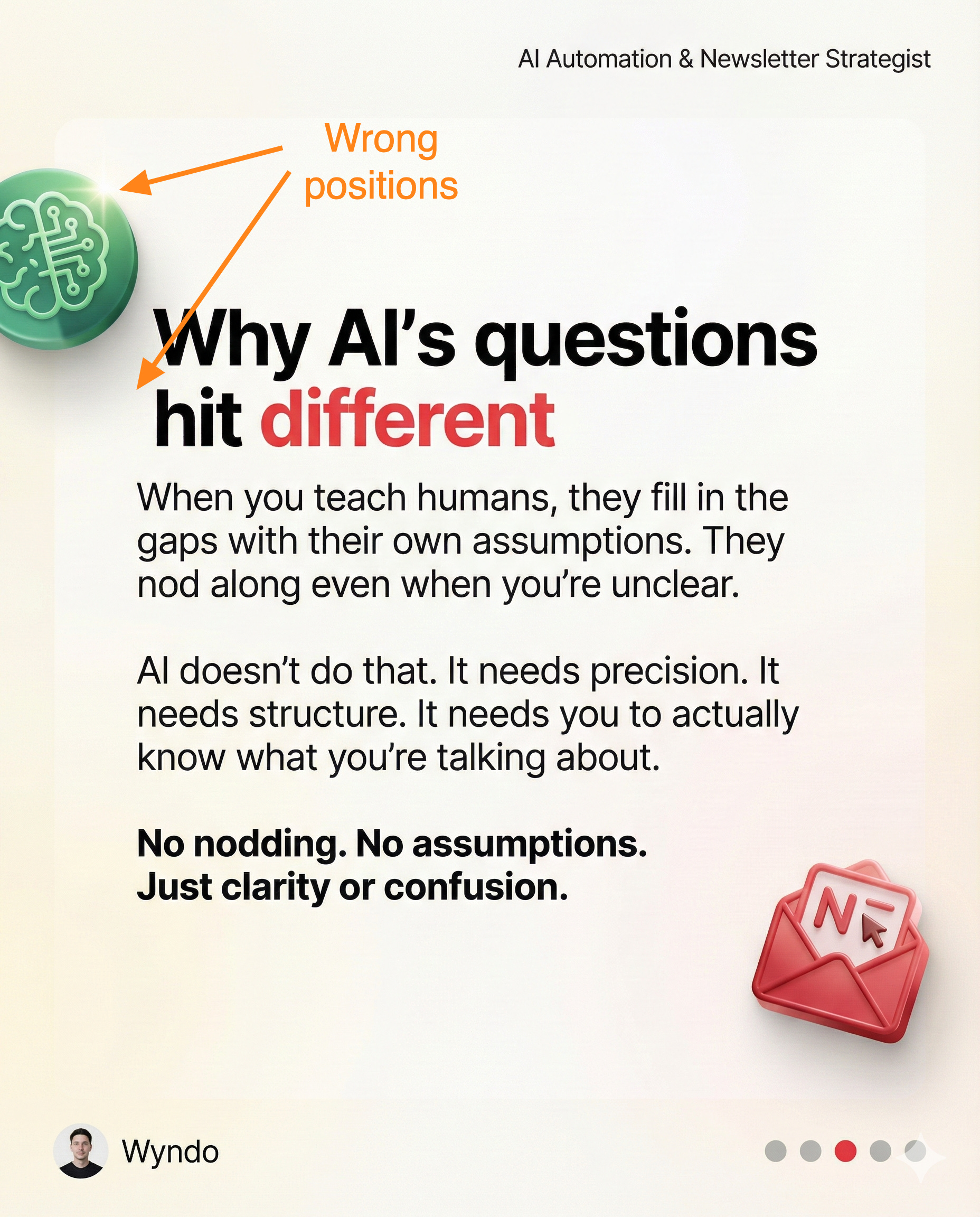
One slide would be perfect. The next slide would have the header in a completely different position.
But, some parts of me didn’t want to give up, I still wanted Nano Banana Pro to work. So, I tried to solve this with Glif—a tool that connects you to multiple AI models and lets you edit generated images instead of creating new ones from scratch.
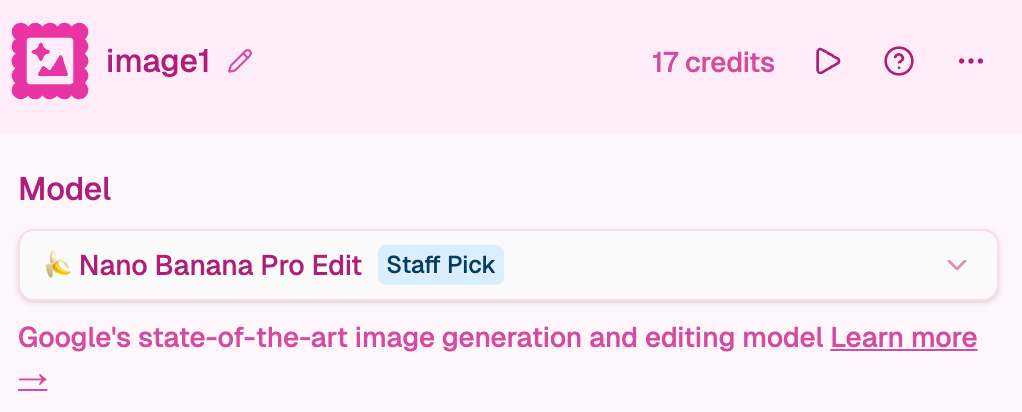
My workaround: Generate one perfect template slide with Nano Banana Pro, then use Glif’s editing feature to swap out text for each new slide instead of generating fresh images every time.
It actually worked... for a while as you can see below.
But I had to edit each slide manually. Fortunately, Glif has MCP that I can connect with Claude, so I can run it all inside Claude Chat and get the results.
Then a new problem surfaced: my brand footer includes my photo. Every time Nano Banana Pro tried to generate it, the face didn’t look like me—because image-generation models can’t reliably reproduce specific people’s faces.
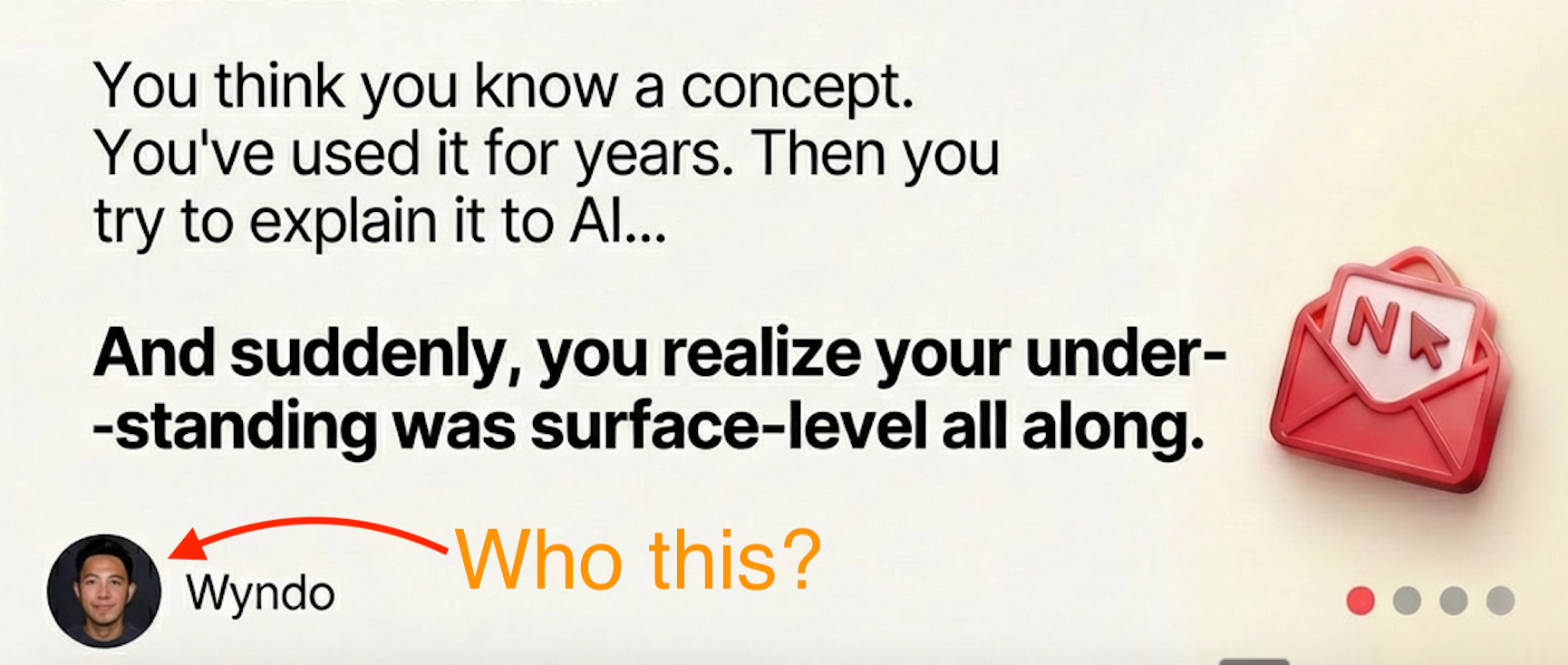
So I’d have this beautifully designed carousel where the person in the footer looked like my AI-generated cousin 😅
One thing I learned: Nano Banana Pro is crazy good at generating precise text and images. If it weren’t for my photo, I’d stick with Nano Banana Pro to do this.
But because the results can be unreliable, I told myself it wasn’t going to work.
I ditched this entire approach. Again.
Attempt #3: HTML + CSS
After two failed attempts, I stepped back and asked myself:
“What if I’m overcomplicating this? What if I just build carousels using simple HTML and CSS?”
I knew what I wanted: reliable outputs with good design. It doesn’t have to be extraordinary, just good enough that it works.
This means AI-generated images are no longer in the equation. This shift is the reason I turned to using code; it’s far more effective because you get exactly what you build.
Claude is exceptional at writing HTML and CSS. These aren’t complex languages—they’re basically instructions for layout and styling. And unlike image generation, code is perfectly reproducible.
So I built a Claude Skill that:
Takes my brand guidelines (colors, fonts, spacing, logo, actual photo)
Accepts either raw text input or a newsletter URL
Generates clean HTML/CSS code that renders as a carousel
Outputs files I can screenshot and upload to LinkedIn
The result?
Exactly what I wanted. Consistent branding. My actual photo in the footer. Perfect text hierarchy. And I can generate 5-10 slides in under 5 minutes just by telling Claude: “Turn this newsletter section into a carousel.”
If I share a newsletter URL, Claude extracts the content, breaks it into slides, and builds the whole carousel automatically without me lifting any fingers.
This is how I finally got here—through three failed attempts with rapid iteration plus two espressos every morning.
AI-generated LinkedIn carousels had been living rent-free in my head. Every day, I had this open loop and a nagging feeling I needed to do something about it. Now I can rest easy knowing I’ve sorted it.
The First Time It Actually Worked
The first time I used this system, I wasn’t trying to do anything fancy.
I just wanted to turn one of my Substack Notes into a carousel. Something quick to test if this whole thing actually worked after weeks of failed attempts.
Since Claude already stores all my Substack Notes in its knowledge base, I kept it simple:
“Hey Claude, turn this Substack Note into a carousel.”
That’s it. There’s no detailed instruction prompt essay. I don’t need to specify design requirements. With a simple instruction, it works.
In less than five minutes, Claude generated 6 slides:
Slide 1: Hook that stops the scroll
Slides 2-5: Core content broken into digestible chunks
Slide 6: Clear CTA (subscribe or follow)
Three minutes total from idea to downloadable files ready for LinkedIn.
I stared at the screen thinking: “Wait, that’s actually... good?”
The colors matched my brand. The typography was consistent. My actual photo was in the footer. The content flow made sense.
After weeks of wrestling with Slides and Nano Banana Pro, this just... worked.
Here’s what happened behind the scenes that made this possible.
For New Users: The One-Time Setup
If you’re using this Claude Skill for the first time, there’s a quick onboarding process. Claude needs to understand your brand before it can generate carousels that actually look like yours.
The setup conversation looks like this:
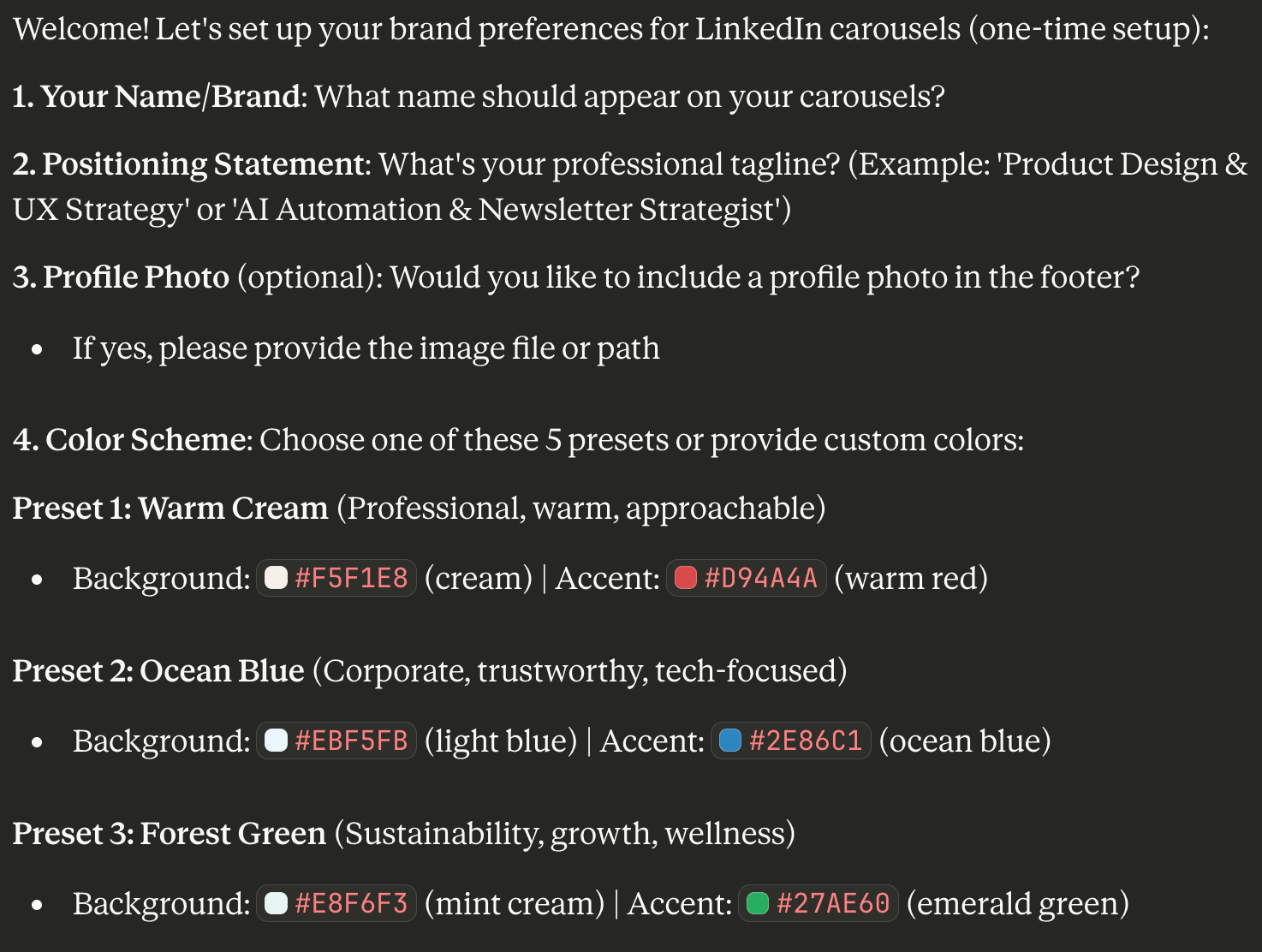
Claude asks you for:
Your brand colors (primary, secondary, accent)
Your typography preferences (headers, body text)
Your logo file
Your profile photo
Your positioning statement (who you help and how)
You provide these details once, and Claude stores and updates everything in a brand configuration file.
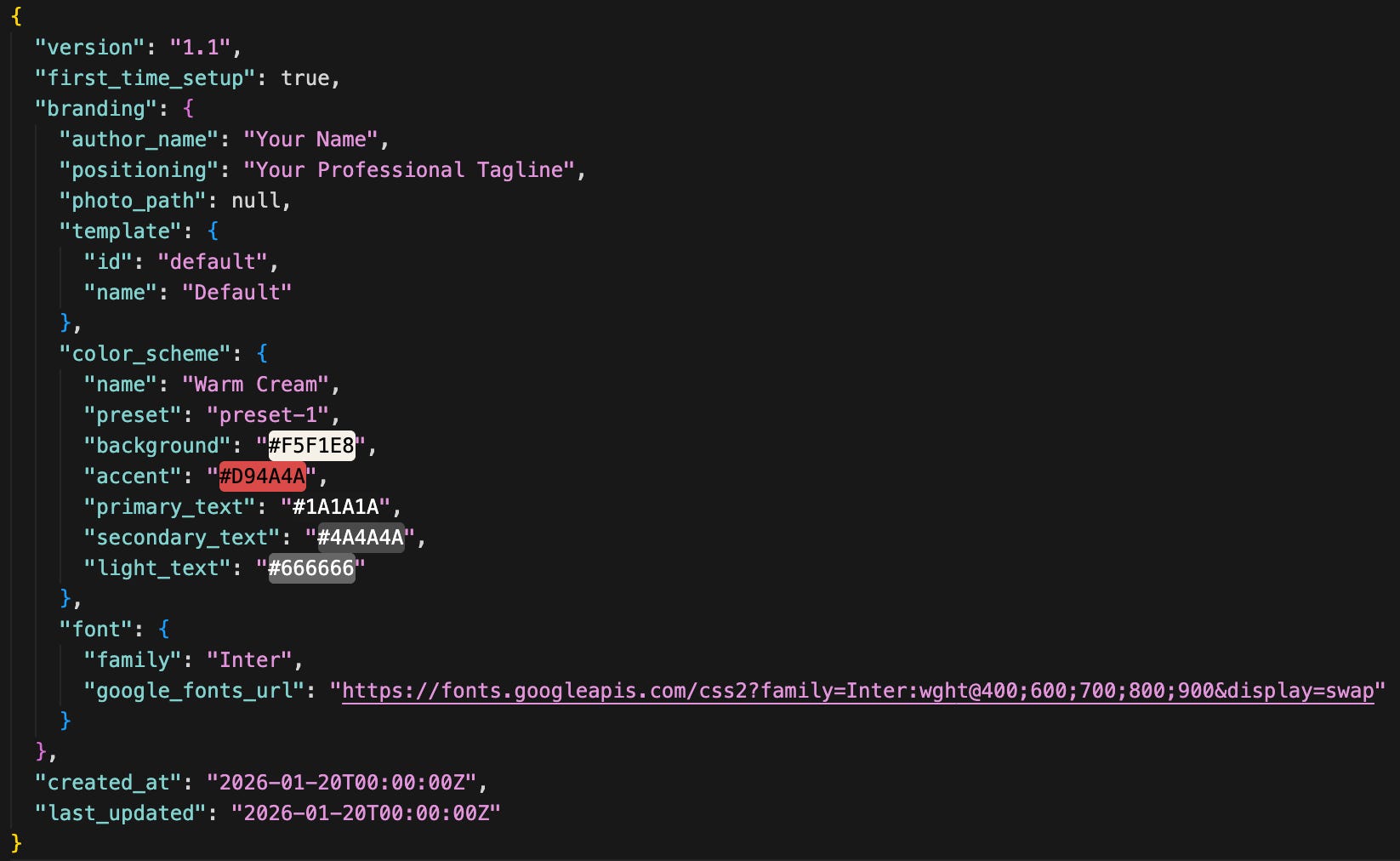
This is the key difference from image-generation tools: instead of guessing every time it generates a new carousel, it uses this brand configuration as the reference. This configuration is adjustable and will be carried across your usage of this Claude Skill in multiple conversations.
After this 1-minute setup? You never think about brand consistency again.
How It Works Every Time After That
Once your brand is configured, creating carousels becomes stupidly simple.
You have two options:
Option 1: Text Input
Paste your content directly into Claude:
A brain dump from your voice notes
A Twitter thread you want to expand
Bullet points from a presentation
Literally any text you want to visualize
Option 2: Newsletter URL
Share your newsletter URL and Claude handles the rest:
Fetches the full content from the URL
Analyzes the structure and key points
Breaks it into 6-10 slides depending on content length
Generates the complete carousel series
Both paths take under 5 minutes from input to download.
The Claude Skill also gives you 3 template options to choose from:
Template 1: Default (clean, professional, minimal design)
Template 2: Bold (decorative waves, mixed typography, larger text)
Template 3: Technical (Swiss Brutalist design and geometric accents)
Pick the one that fits your content vibe, and Claude generates the HTML/CSS files.
Then you just:
Download the HTML files
Open it on your browser
Click the image download button to instantly download all slides
Convert JPG to PDF using ILovePDF.com
Upload to LinkedIn
Done.
Pretty simple, right?
Want to Try This Without the Full Automation?
Look, you don’t need my exact Claude Skill to start making better carousels.
If you want to test whether this HTML/CSS approach works for your content style, here’s the manual version:
Step 1: Set up your brand specs once
Open a new Claude conversation and paste this:
“I want to create LinkedIn carousels using HTML/CSS. Here are my brand specifications: Primary color: [your hex code], Secondary color: [your hex code], Header font: [font name and size], Body font: [font name and size], Logo: [upload your logo file], Profile photo: [upload your photo]. Save these as my carousel brand guidelines.”
Step 2: Generate your first carousel
Once Claude has your brand specs, try this prompt:
“Create a 6-slide LinkedIn carousel using my brand guidelines with this content: [Paste your text - could be a newsletter excerpt, voice memo transcript, or bullet points]. Structure it as: Slide 1: Hook, Slides 2-5: Main content, Slide 6: CTA to subscribe/follow. Generate HTML/CSS files I can screenshot and upload to LinkedIn.”
Step 3: Download and post
Claude will generate the HTML files. Open them in your browser, screenshot each slide, convert them into PDFs, and upload to LinkedIn.
Takes about 15-30 minutes the first time. Once you’ve done it twice, you’ll get it down to 10-15 minutes per carousel.
This manual approach proves the concept. If you create 2-3 carousels this way and like the results, then automation makes sense.
🎁 For Maker Labs Members: Skip the Manual Work
If you’re already a Maker Labs premium member, I’ve packaged this entire system for you.
You get the complete Claude Skill I built—the one that took three failed attempts and weeks of iteration.
What’s included:
✅ Pre-configured Claude Skill (import and start using immediately).
✅ Brand configuration setup (one-time 1-minute process).
✅ 3 carousel design templates (minimal, bold, technical).
✅ Newsletter URL to carousel automation (paste URL, get slides).
✅ Text to carousel automation (brain dump to visual in 5 minutes).
By having this, you no longer need manual prompting. You don’t have to think about brand configuration. Simply tell Claude what content you want as a carousel, and it’s done.
Access the Claude Skill in Maker Labs page.
Not a member yet? Consider to upgrade.
Three months ago, the “carousel problem” was an open loop in my head. Every week I’d see other creators getting 5x my engagement with visual content. Every week I’d think “I should do that” and then avoid it because 2 hours in Canva felt impossible.
Now? That loop is closed. Five minutes from idea to downloadable carousel.
That’s what happens when you actually understand how to automate friction points instead of just working around them.
You’ve got two paths from here:
Build it manually using the steps above. Test the concept. Learn how the system works. Takes 15-30 minutes per carousel (or it can be more).
Or grab the packaged system if you’re a Maker Labs member and start posting today.
Either way works.
What’s your next friction point to solve?
See you in the next one.
Great post here, Wyndo! I love the use case and will for sure be trying this out.
Nice. You know I'm going to be trying this out.