

The AI Tools I Actually Use To Grow My Newsletter
Not as a list to copy, but as a look at how I decide what earns a place.


Most of what I write here goes deep on one thing.
One workflow, one system, one way of using AI that I have actually tested and can walk you through step by step. This post is different, and I held off on writing it for a while because of that.
What I wanted to share is the set of tools I use to build and grow AI Maker. The problem is that almost every “AI tools I use” post reads the same way. Ten apps, a line of hype on each, a promise that they will change how you work. You read it, you nod, and you have forgotten all of it by the next morning. I did not want to add another one of those to the pile.
But, in my experience, what makes a tools post worth reading is everything the list leaves out:
How the person actually uses each tool
Why they picked it over the alternatives
How they decide whether it earns a place at all
So here is the deal for this one. I will show you the tools I use to run the newsletter, a real example of how I use each, and the reason it stuck. Underneath all of it is the framework I use to decide whether a tool fits the way I work.
My hope is not that you copy my stack. It is that you can see the decision-making, and walk away with a few new possibilities to explore in your own workflow.
The harder part of all this, by the way, was never finding tools. It was deciding where each one belongs.
Because when I’m building and growing my newsletter, the job is not just writing. There’s idea capture, research, drafting, visual packaging, social repurposing, guest prep, reader replies, weekly trend watching, and the pile of messy notes that might turn into something later. The problem is that each of these steps lives in a different app—Notion, Granola, Google Docs/Slides, Slack, Gmail, etc. This makes the real work harder, because I spend my energy moving between tools instead of moving the work forward.
So I stopped asking which AI tools are best and started asking a more useful question: which tools can my agent reach, so I am not the one carrying the work between apps?
The loop looks simple from the outside:
A rough idea becomes a note.
A note becomes a researched angle.
The angle becomes a newsletter.
The newsletter becomes a thumbnail, an infographic, or a carousel.
The carousel becomes a LinkedIn post.
The post gets scheduled.
Then reader replies, client conversations, and the newsletters I read turn into source material for the next round.
And I want all this work to run seamlessly without me being the bottleneck, so my agent can handle it for me. That’s the friction I’m trying to remove.
So the real question is not just whether a tool is good. It is whether the tool can become part of the agent flow, so the work keeps moving without me carrying every piece by hand.
How I decide whether a tool gets in
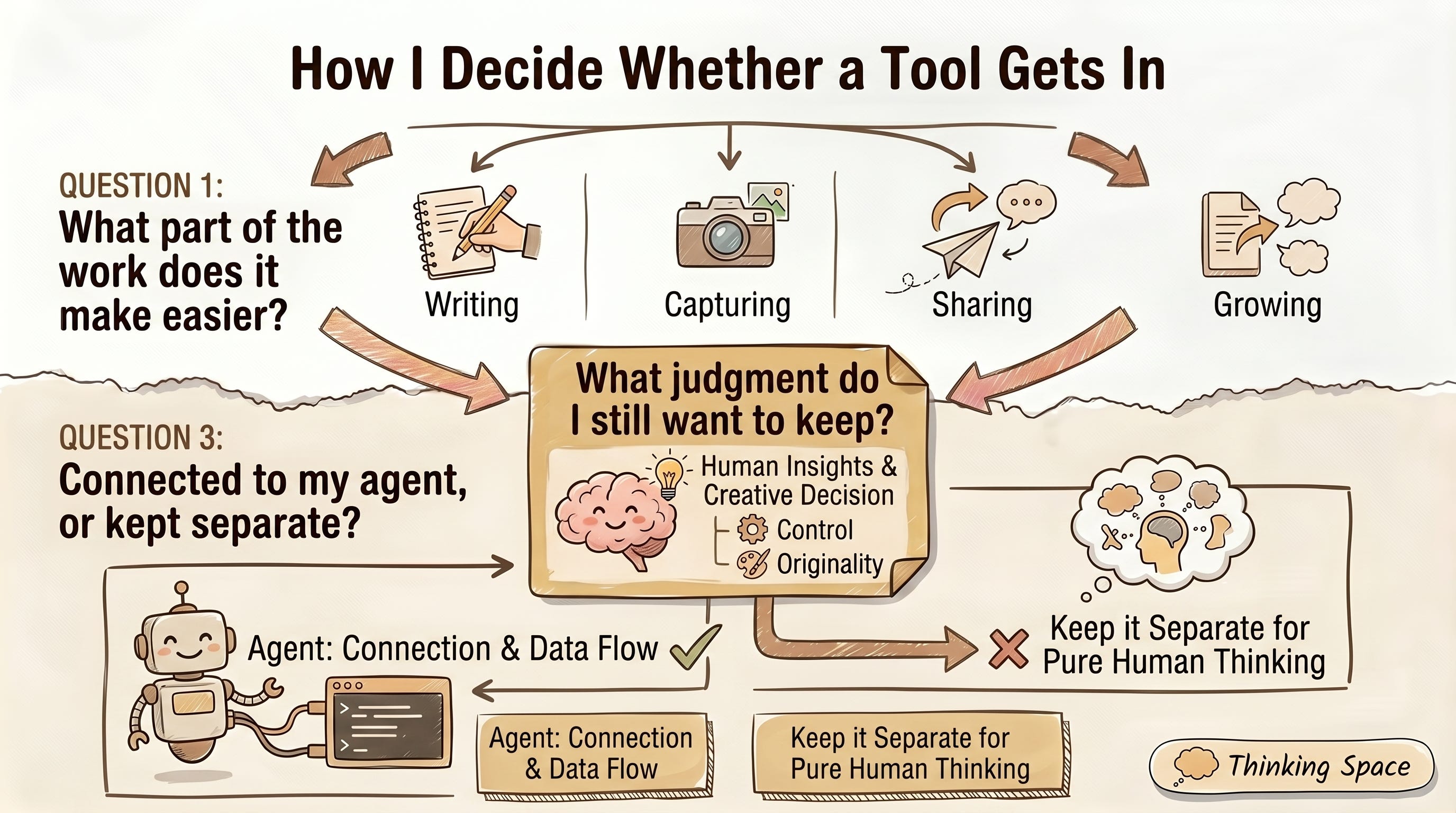
Before I walk through the actual tools, I want to explain the filter I use.
Every tool in my setup has to answer three questions:
1. What part of the work does this make easier?
For me, the work is not just writing. It is capturing ideas, researching angles, drafting, turning drafts into visuals, sharing them, scheduling them, replying to readers, and noticing what should become the next post.
So before I keep a tool, I ask where it helps that loop move.
Does it help me find better source material?
Does it turn something private into something shareable?
Does it help me package an idea visually?
Does it help a finished piece get out the door?
If I cannot point to a real step in the work, I probably do not need it yet.
2. What judgment do I still want to keep?
This is where the filter gets more personal.
Some tools are useful because they take repeated work off my plate. Others are useful because they give me a better place to make decisions.
For research, scheduling, and moving files around, I usually want less friction.
For visuals, learning, and raw ideas, I still want to stay close to the work. I want to choose the direction, fix the awkward part, and decide whether the result actually feels right.
That is the line I try not to cross. I do not want tools that remove me from the work. I want tools that remove the repeated friction around it.
3. Should this tool be connected to my agent, or kept separate?
This is the last question, not the first.
If a tool helps move work from one step to another, I usually want my agent to reach it using MCP and CLI. That way I do not have to keep opening apps just to move the same piece of work forward.
If a tool helps me think, learn, or make creative decisions, I am more willing to keep it separate.
That distinction has made my setup much clearer. Some tools are part of the agent flow. Some tools are places I still go myself. Both can be useful, as long as I know why they are there.
So in the sections below, I am not going to rank the tools by how impressive they are. I am going to show you the job each one does in the newsletter loop, and why it earned its place.
🚨 A quick note from me…
I got tired of staring at a blank screen every time I sat down to write newsletter.
So I built Newsletter Compass, the AI co-pilot I wished I had when I started. It helps you to generate titles, ideas, subject lines, repurposing without making your newsletter sound like a robot wrote it. The work that used to eat my weekends now takes an afternoon.
The center: Codex and Claude Code
The main tool in my setup is the agent I work through every day.
Both of my agents, Claude Code and Codex, know how I write the newsletter, how I write LinkedIn posts and Substack Notes, the recurring topics, the files, the rules, and the kind of answers I usually care about. So when I ask them to help with a product idea, revise a welcome email, review a why-upgrade page, or plan a post, I am not starting from a blank chat and re-explaining who I am every time.
That removed a huge amount of mental overhead.
For context, I’ve been shifting between Claude Code and Codex lately. I move between the two for planning, coding, designing, and agent work. Lately, I lean on Codex more for writing and day-to-day work, because since GPT-5.5 the app feels more complete for how I operate. It can help with files, documents, slides, sheets, visuals, and browser tasks, so more of my work can happen in one place instead of feeling like a terminal sitting off to the side.
I am still on the $20 Codex plan while also keeping Claude Max for Claude Code. That is not the cleanest setup, and I am not going to pretend I have a tidy rule for which one I open. I am still testing which fits which job.
But what I want you to take away from this isn’t which agent is better between Claude Code and Codex. It’s understanding which agent becomes far more useful when it truly understands your actual work, so every task moves you closer to your goals, faster.
One small note: I use VS Code to access Claude Code via its extension. I used to use Cursor, but it consumed my computer’s memory so quickly that I had to find a lighter alternative.
VS Code is what I use when I want to see files clearly, review changes, and edit directly.
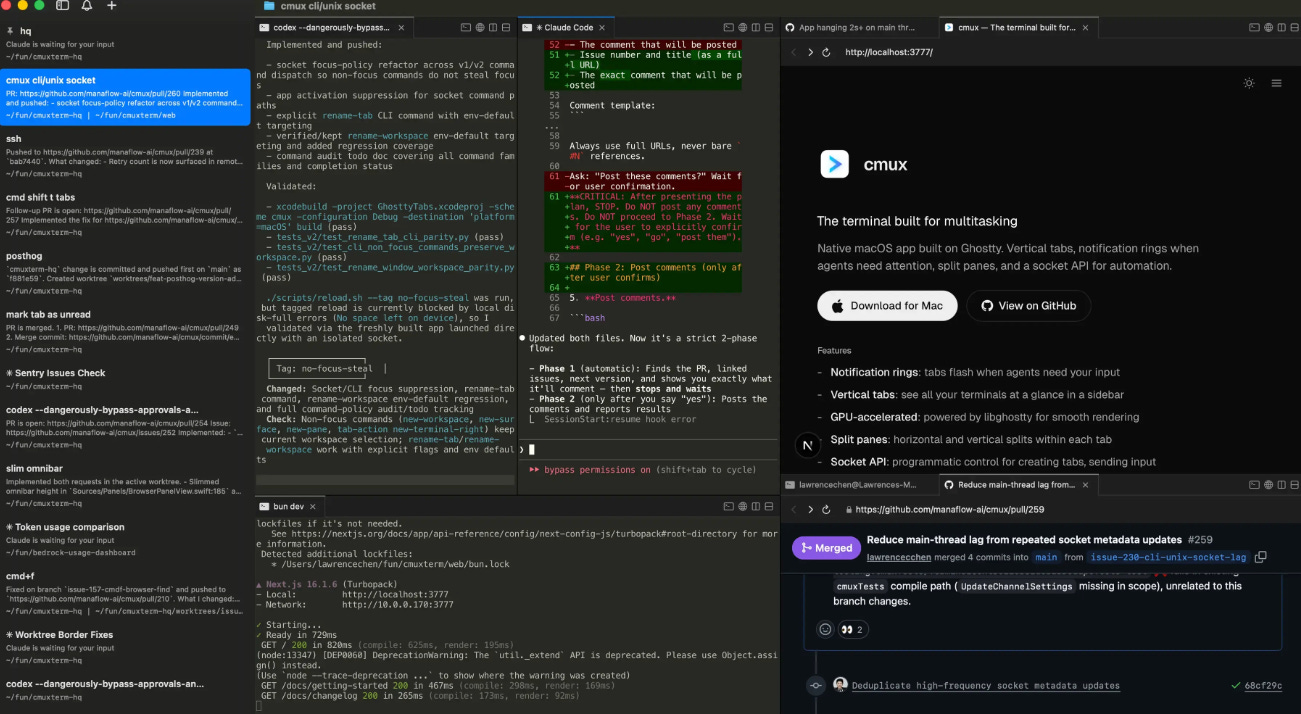
Another alternative I’ve been using to access Claude Code from the terminal is Cmux. I use it when I want to run several agent sessions at once, let them work, and get pinged when they finish.
Because I have so many agent folders to work on, running them in Cmux lets me run multiple projects at the same time with a single interface where I can easily monitor their progress.
This opens up even more possibilities for what I can do with agents.
The connected tools
These are the tools wired into my agents so the work keeps moving without me leaving my folder. For each one, the thing worth paying attention to is the handoff it removes.
1. Tavily, for research my agent can actually use
Tavily runs web search, fetches pages, extracts content, crawls multiple pages, and maps the links on a site.
I used to lean on Perplexity, and it is still useful, but I kept hitting the same issue. Perplexity does the synthesis before my main agent ever sees the material, so by the time I get an answer I have lost the raw source my own system could have worked from with the rest of my project context.
I want fewer agents in the middle.
Tavily feels more like handing my agent research access than asking a separate assistant to make the judgment for me. The pricing fits too, since my research is uneven. Some weeks I need a lot. Most weeks I barely need any. Paying for usage suits that better than a subscription I do not fully use.
If you want to learn how to use Tavily to run research, you might want to check out my full in-depth post on building an AI agent for research below:

That is the same reason I no longer be using Firecrawl because it charged me with subscription. Good tool, but Tavily fits on-demand research better for how I work.
2. Google Workspace, for turning private work into shared work.
This might be the most useful tools in my whole setup, and it sounds boring until you feel how big friction it removes.
Most of my work starts locally as a markdown file, a brief, a research note, or a draft. That is fine when I am alone. It breaks the moment I need to share something.
When I prep a One Shot Show episode, the brief comes out as a markdown file on my laptop, and a guest cannot open a file sitting in a local folder. So I ask my agent to turn it into a Google Doc with proper headings and bullets, and now it is something I can send.
Same with Sheets and Slides.
I use Google CLI (Command Line Interface) workspace to connect my agent to Google products.
Additionally, Gmail adds another layer, since my agent can read the newsletters I subscribe to and pull out the week’s patterns, the tools worth checking, and ideas based on what keeps showing up.

Calendar makes it practical too. When I have a meeting and do not know much about the person, I can have the agent check the calendar, run Tavily on them, and hand me context before the call. I wrote about this in my post on building an AI Chief of Staff.
By giving my agent access to Google Workspace, I realized how much time I used to spend reading emails, setting up calendars for meetings, creating documents, preparing slides, and entering and analyzing data in Sheets. Now I just ask my agent to do it so I can focus more on the things that need my fullest attention.
3. Paper Design, for visuals I can still edit
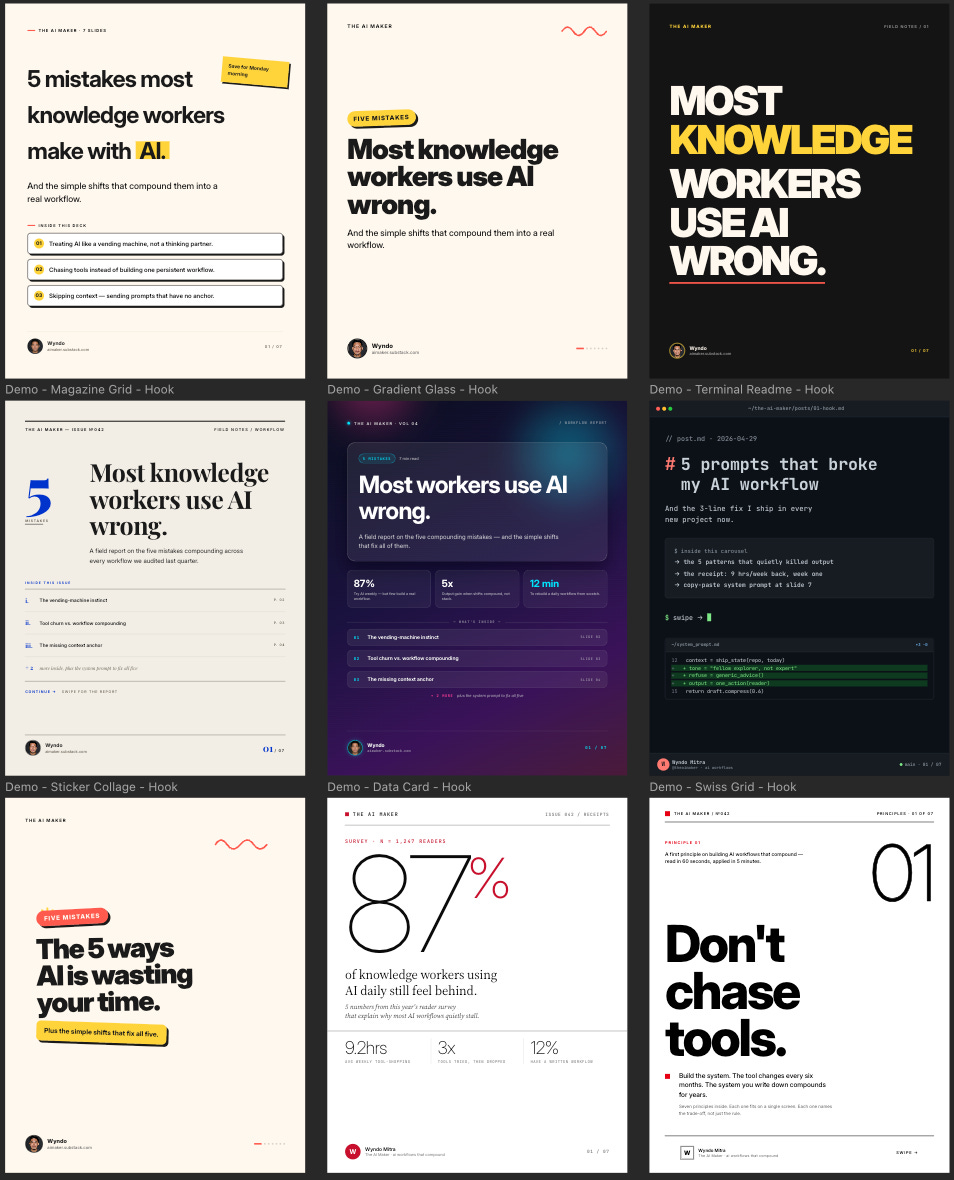
I have written about building LinkedIn and Instagram carousels with Claude Code and Paper Design before.

The short version is that Paper gives my agent a place to create visual assets that stay editable afterward, and that editability is the whole reason I use it.
I used to do this in Canva by hand. Open the app, choose the format, nudge spacing, export, check, fix, export again. I am not good at design, so that process was pure friction.
Now I ask my agent to build a banner or carousel from the post I am writing. Paper generates it, and I review and make small edits where my taste actually matters.
That keeps me in the loop.
If I build a banner or LinkedIn/IG carousel using Nano Banana or GPT Image 2.0, even though it can generate beautiful designs, it feels like I’m playing Russian roulette every time.
I don’t want a tool that gives me probabilistic, high-variance output. I want something more reliable that I can count on every time, while still giving me control to tweak the final result.
4. Typefully, for moving a finished idea out the door
Typefully schedules my posts for X and LinkedIn, and the reason I like it is that it connects to the way I already work rather than becoming one more app to visit.
When a newsletter section becomes a LinkedIn post, I write it as a local markdown file, build the carousel with Paper Design, then tell Typefully to schedule the caption, the carousel, and the first comment for 6pm.
I never open the app.
Distribution is usually where good ideas get stuck. Writing the post is one thing. Getting it into the world consistently is another.
Not a promotion, but Typefully offers a CLI connection, and they also have Skill so the agent knows exactly how to publish and schedule a post, on which channels, and when it will be published.
The tools I still open myself, on purpose
This is the part most “my AI stack” posts skip.
My default preference is still to connect my agents directly to the tools I use every day. If my agent can operate a tool for me, I usually want that, because I don’t want to keep visiting different apps just to move the same work forward.
That is where I think a lot of software is going. The app still exists, but the agent does more of the operating. I describe the goal, the agent handles the steps, and I only come back in when judgment or review matters.
But there are still cases where the app itself gives me a better loop than the outside agent. Sometimes the interface makes the result easier to see, it has built-in editing tools that make the process faster, and sometimes the app has its own agent that is better suited to that specific job.
So these are not tools I keep separate because I am against connecting them. They are tools I still open because, right now, their own working environment helps me review, tweak, or navigate the work better.
1. Glif, for creative work that needs a conversation
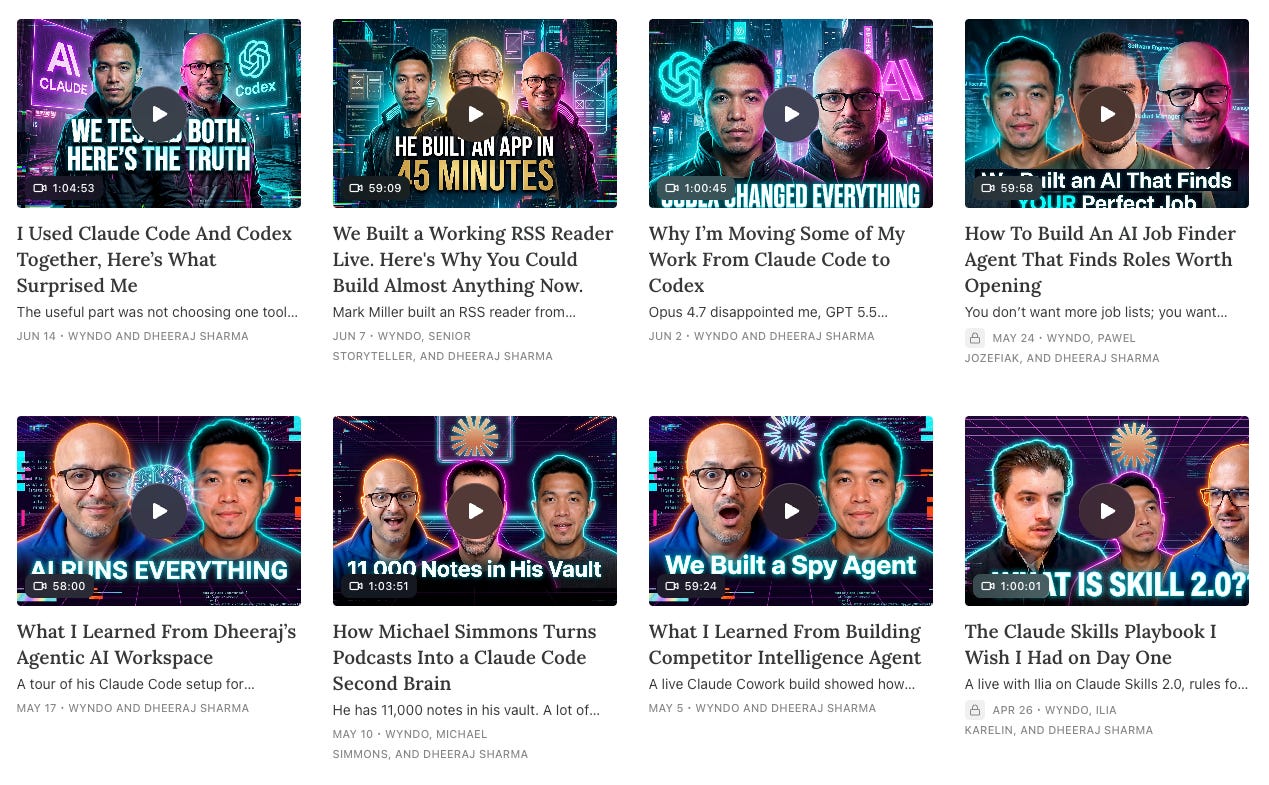
I use Glif for One Shot Show thumbnails, newsletter thumbnails, and infographics, and I have been on it for almost ten months.
The reason it stayed is that it keeps things simple to use and I do not need a perfect prompt to start.
With a lot of image generation tools, getting started often becomes the real work. You have to know the model, the prompt style, the aspect ratio, and all the little details before anything useful happens.
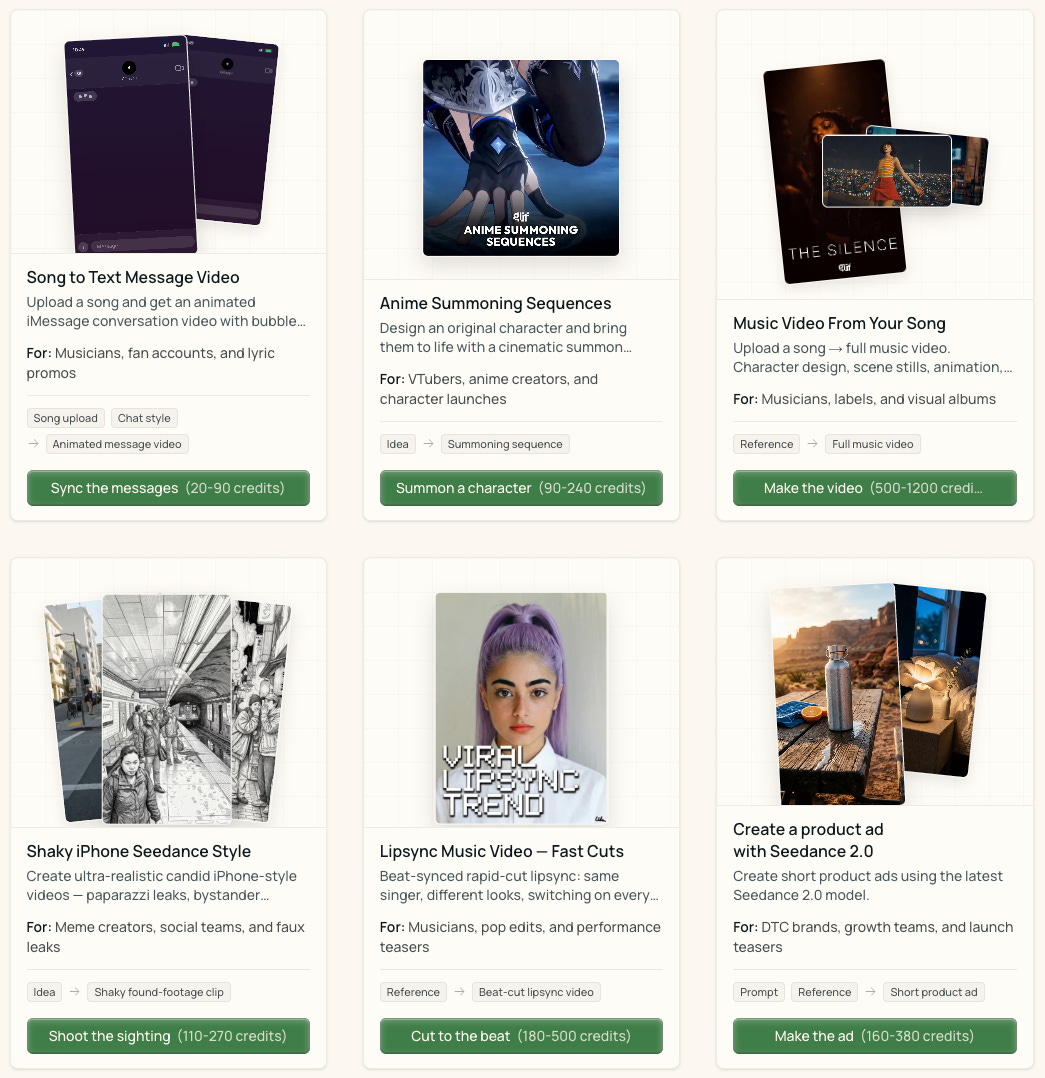
Glif has a creative agent built into the chat, so I can explain what I am trying to make and the visual style I want, and it picks from different AI models based on my request. It can generate both images and videos.
I use Glif by directly accessing their website and prompting the agent. During the image generation process, I still make the final call on whether the visual fits the post. If I don’t like something, I can ask it to change the image directly. Glif also has built-in editing features that make small adjustments easier.
This is also why I stopped running Nano Banana through an MCP for this job. It can make good visuals, but Glif gives me a better refinement process inside the website. For generating thumbnails and infographics, I care less about raw model access and more about how fast I can talk my way to the right result.
When the work needs visual judgment, I want the tool that makes refinement a conversation.
2. Obsidian, for seeing the work clearly
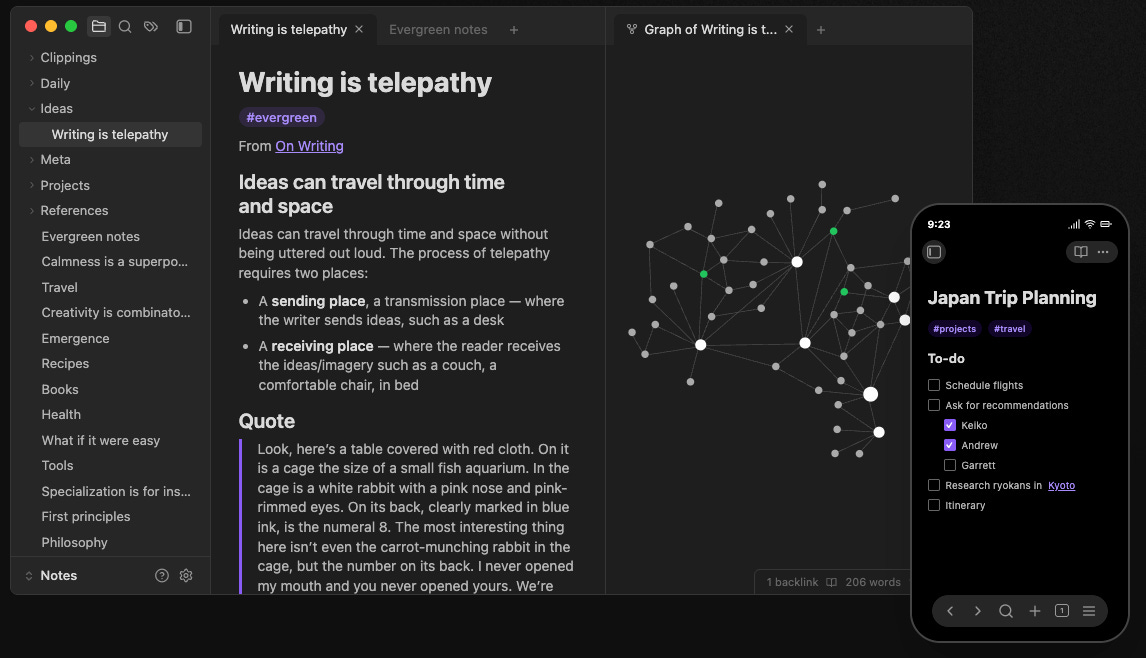
A lot of my ideas still start in Obsidian, not as clean outlines but as messy notes.
A thought from a conversation. A reader question. Something I noticed while reading.
But Obsidian is not only a thinking app for me. It is also where I can see my files, projects, and markdown notes in a way that feels clean enough to manage.
Obsidian is super useful as part of my second brain workflow:

When I brainstorm with my agent, the result can show up in Obsidian afterward. That means I still get the agent doing the actual work, but I can review the output in a place where my projects are visible and easier to navigate.
Obsidian also has small things that matter more than they sound like they should. Markdown files look better there. It is easier to access related notes. It works as a kind of IDE for the non-code parts of my work, especially project management, drafts, and planning.
I also keep it for mobile sync, which costs around five or six dollars a month and lets me capture an idea when it shows up while I am walking or talking with a friend, then process it later when I am back at my laptop.
You could do some of this in VS Code or Cursor. I still use Obsidian because it feels better for seeing the work clearly, and ideas rarely arrive when I am ready to write them.
3. Notion, for the backlog I still want to browse
Notion used to play a much bigger role in my setup.
For a while, I used it for project management and connected it with my agents so they could update pages, move things around, and help me manage the work. Over time, that job moved to Obsidian, because Obsidian feels better for the way I now manage projects, drafts, and local notes.
But I did not drop Notion completely. I narrowed its job.
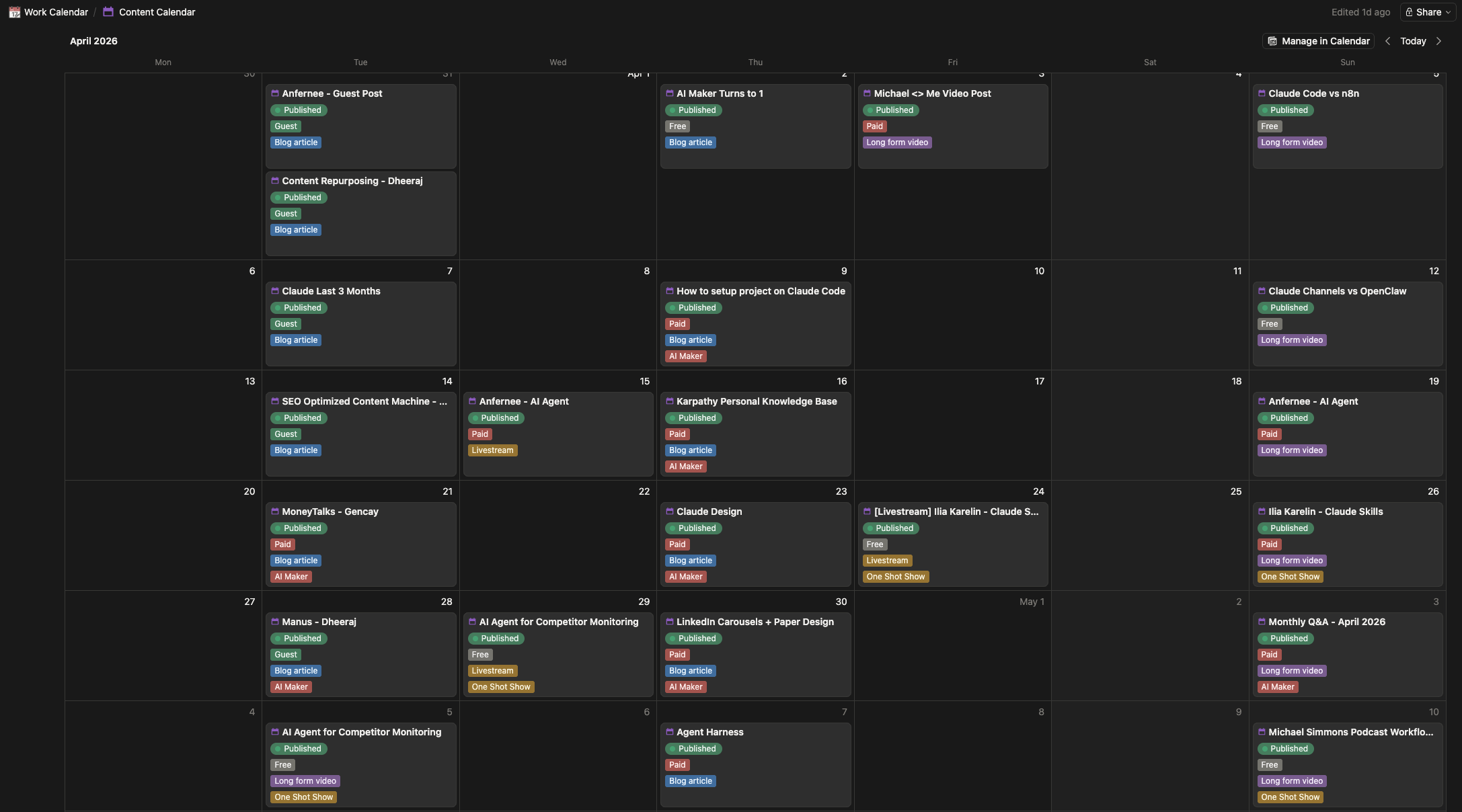
Right now, Notion is mainly where I keep my content backlog. When I want to decide what to write next, I still like opening the Notion website and seeing the topics in front of me. It gives me a clean table of ideas, statuses, and possible angles without making my local notes feel heavier.
The part I do not do manually is the preparation work around that backlog.
I use the Notion CLI through my agent to update content status, clean up tables, prepare pages, and add research or outlines to a topic page. So if I find an idea worth pursuing, I can ask my agent to research it using Tavily, create an outline inside the Notion page, and leave it there for the next writing session.
Then later, when I am ready to write, I can open Notion, see which topics are prepared, pick one, and ask my agent to expand from the outline that is already sitting there.
By doing this, I can save on the additional cost of adding another Notion AI agent, which would be $25 per month.
That is the small but important difference for me. I still visit Notion to choose from the backlog, but I do not want to maintain the backlog by hand.
4. NotebookLM, for learning before I have an opinion
NotebookLM used to be a bigger part of my system, and some of my most popular posts have been about it.
I use it more narrowly now, and that smaller job made it more useful, not less.
Tavily and my agents handle the lighter research, so NotebookLM is where I go when I need to understand something deeply before I have a take, like a dense paper, a long report, or a set of materials I have to sit with.
Anything that requires me to learn as a beginner, I’d use NotebookLM to help me with that.
But since I’ve connected the NotebookLM MCP to my agent, I sometimes use it directly from Claude Code or Codex, because the agent can run multiple queries at once instead of forcing you to ask question after question manually.
That changes the role a bit. I can give the agent the learning goal, and it can figure out what needs to be understood from the NotebookLM sources.
What I would copy from this
If there is one thing I would copy from my setup, it is not the exact list of tools.
It is the habit of giving every tool a narrow job.
For me:
Notion holds the backlog.
Obsidian helps me see the work.
Tavily brings source material into my agent.
Google Docs turns private notes into something I can share.
Paper and glif help with visuals.
Typefully gets finished ideas out the door.
Those tools might change. The jobs probably will not.
That was the thing I got wrong for a long time. I kept adding tools because they looked useful or cool, but I had not decided what part of the work was actually stuck. So every new tool became another tab, another place to check, another small decision I had to make later.
Now I try to start with the friction:
Where am I repeating myself?
Where am I carrying work from one place to another?
Where do I need a better thinking surface?
Where do I still want my own judgment close to the work?
That last one matters most to me.
I do not want AI tools to remove me from the newsletter. I want them to remove the repeated friction around it, so I can spend more time on the parts that actually need me: choosing the angle, noticing what feels off, deciding what is worth saying, and making the work feel like mine.
So my stack is less permanent than it probably looks from the outside.
Some tools will stay. Some will get replaced. Some will shrink into one narrow use case, like Notion did for me.
But the underlying question stays the same:
Where does this tool help the work move?
If I can answer that clearly, it probably deserves a place.
If I cannot, it is probably just another thing I am collecting.
Now, what are your favorite AI tools for getting work done?
Share them in the comments.
Best,
Wyndo
What stands out is less the tool stack and more the decision to design around flow rather than apps: treating the agent as the connective layer changes the whole shape of the work.
The useful filter here is “what job does this tool own?”
I would add one removal rule: if a tool cannot name the workflow step, the handoff, and the judgment it leaves with the human, it probably does not belong in the stack yet. Otherwise the stack becomes a museum of good intentions.