



Months ago I wrote about moving my whole project management setup out of Notion and into Obsidian, and a fair number of you replied with some version of the same question.
“So you finally quit Notion?”
Not exactly. Here’s the honest version.
I’ve been a Notion user for the better part of seven years. Project management is the one job I moved out of it, for the reasons I wrote about last time. But my CRM still lives in Notion. So does my content calendar. So does the backlog of every post idea I haven’t gotten to yet. The truth is I just stopped using it for the one thing it was bad at for my workflow, and kept it for the things it’s good at: structured databases I want to filter, sort, and look at in a clean table.
What changed isn’t the tool. It’s who operates it.
Because here’s the part I should be upfront about. When I say “I use Notion” now, I mostly don’t mean me. I’m not the one clicking into the database, adding the row, setting the status, typing the dates. The agent does that.
I connected Notion into my Claude Code setup, and now when I move a draft from a local markdown file into Notion, or build out a content calendar, or update the CRM, Claude Code does the actual work. I still do the final editing inside Notion when something needs my judgment.
But the clicking, the data entry, the querying? That’s not me anymore.
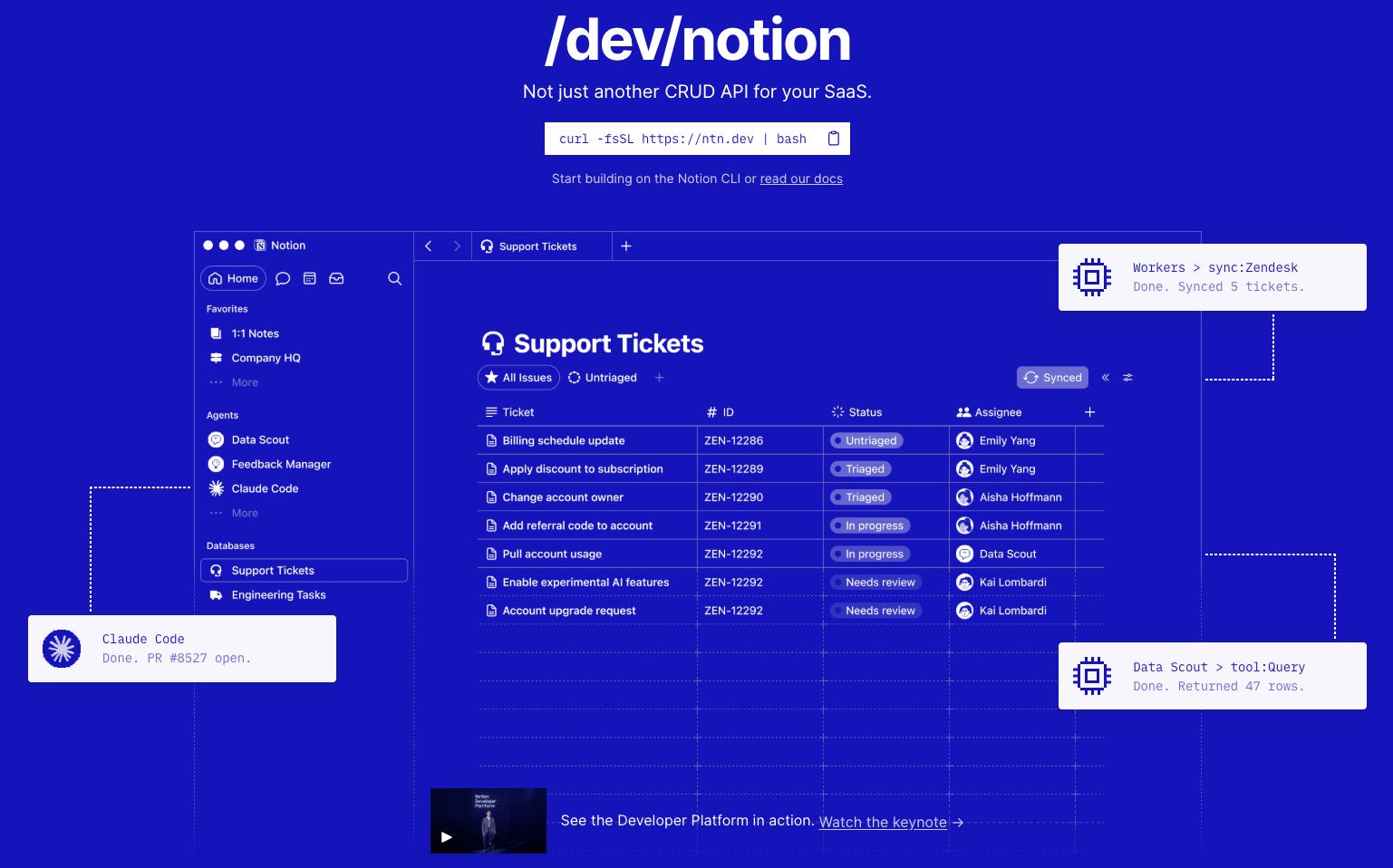
This got a lot more real about a month ago, when Notion released a CLI (Command Line Interface) you can wire directly into Claude Code. I’d been using the Notion MCP before that, and it was fine for asking questions. But the CLI let Claude Code actually do things in my Notion that the MCP couldn’t. MCP also consumes a lot of tokens. So finding an alternative to MCP became my priority, and I’ve been leaning on the CLI more and more. At this point, most of what happens in my Notion happens without me touching the app.
That’s the shift I want to walk through in this post. Not Notion versus Obsidian. Not which app wins. The reframe is simpler than that, and it’s the one idea I’d pay for if I were reading this:
“Notion is the interface. Claude Code is the operator.”
What “Operator” Actually Means
For as long as I’ve used Notion, my newsletter backlog has been one of my favorite databases. Dozens of post ideas, paid and free, captured the moment they hit me so I’d never lose them. On paper, that’s exactly what a backlog is for.
In practice, it just sat there.
Here’s how it actually went. I’d sit down to plan a post, or to run some research with AI on a topic, and the first thing I had to do was open Notion and read my own backlog. One idea at a time. Asking myself which one I still cared about, which one had legs, which one was worth handing to AI to dig into. I was the filter. Every single time.
Before I could do the interesting work, I had to do the boring work of scanning my own list and making the call by hand.
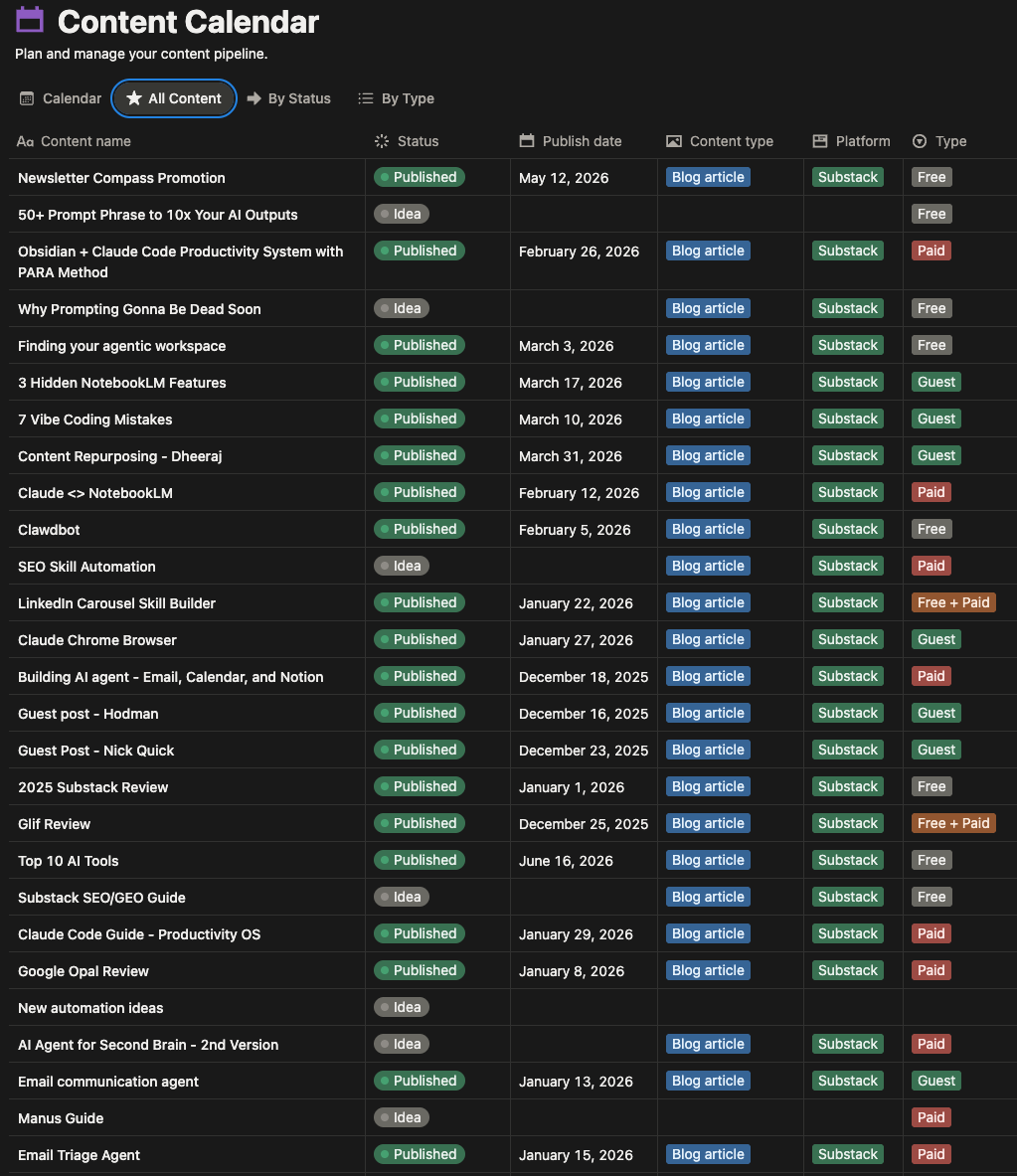
What I wanted was simple. I wanted to say: “Look at my paid post backlog, find the angles worth exploring, and let’s go research the strongest ones.” I wanted the backlog to be something I could think with, not a list I had to read first.
That’s the gap the CLI closed.
Once Claude Code could actually reach into Notion and operate it, the backlog stopped being a list I check and became something I hand off. Now I open Claude Code, not Notion, and say exactly the thing I always wanted to say:
“Go through my paid post backlog and pull the ideas worth researching.”
It reads all of them, so I don’t have to. I make the final call on the few it surfaces, which is the only part that actually needed me.
That one change is what made the rest of this post possible.
The same plain-English handoff works for everything else too. It builds the database. It fills it. It updates it. It writes content into it. I’m not clicking through menus or formulas or six settings to spin up a new view. I say what I want, and the agent does the work inside the tool.
You stop operating Notion by hand and start describing what you want.
💡 A quick note: Getting AI to operate your Notion database normally means paying for Notion’s own AI tier on top of your subscription. With Claude Code driving the CLI, you don’t. It builds, queries, and updates your databases on whatever Notion plan you already have, including the free one. You’re already paying for Claude Code, so you get the AI-operating-my-Notion part without a second AI bill. That alone made a huge difference for me.
The rest of this post is how that actually works, starting with the question a lot of you are about to ask:
“Don’t I already have this with the Notion MCP?”
Notion MCP vs Notion CLI
This is the fair objection, and a lot of you will have it, because plenty of people already connected the Notion MCP and like it. So why bother with a CLI?
If you don’t know what CLI means, you might want to check out this post first:

The short answer: they do different jobs, and the easiest way to keep them straight is this.
The MCP answers questions about your Notion. The CLI builds your Notion.
Let me unpack that.
The MCP is the asking layer. You wire it into your AI, and now you can have a conversation with your Notion:
“Summarize this doc.”
“Find my note on that podcast guest.”
“What did I write about pricing last month?”
Your AI reads, searches, and reasons over what’s already there. It’s good at that, and if reading and reasoning is all you need, the MCP is the right tool and you can stop there.
The CLI is the building layer. It’s what you reach for when you stop asking Notion questions and start making Notion do work:
Generate CRM databases worth of 100+ rows
Query your own database without paying for a separate Notion AI tier to do it
Run the same job again next week without redoing the conversation
That’s a different kind of task, and it’s where the MCP starts hitting walls.
Here’s the full picture, dimension by dimension, so you can see exactly where each one fits:
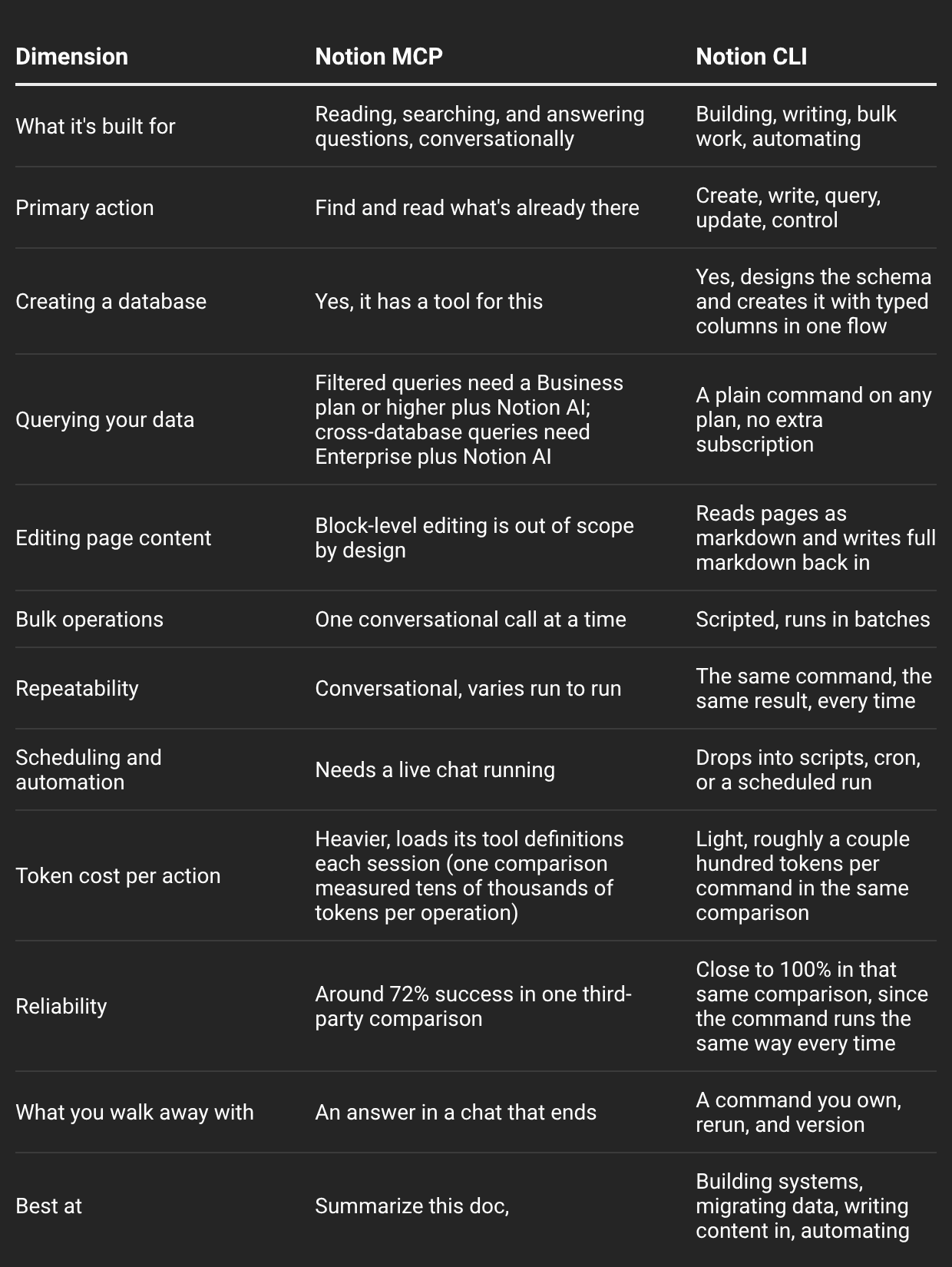
To put it simply: The MCP gives you a conversation. The CLI gives you a system you own.
Another thing worth highlighting is that MCP is token‑heavy and slow. Once you move toward a CLI direction, you’ll notice the difference when querying, searching, creating, and updating any of your data.
But none of this means you should rip out the MCP. It’s not going anywhere—Notion is actively investing in it—but I’m no longer using it, since the CLI has done a better job in my workflow.
🚨 One last note: The CLI is still beta, but it’s stable enough that I run real work through it every day. Everything in the rest of this post is something I actually ran, not theory.
What You’re Actually Going to Build
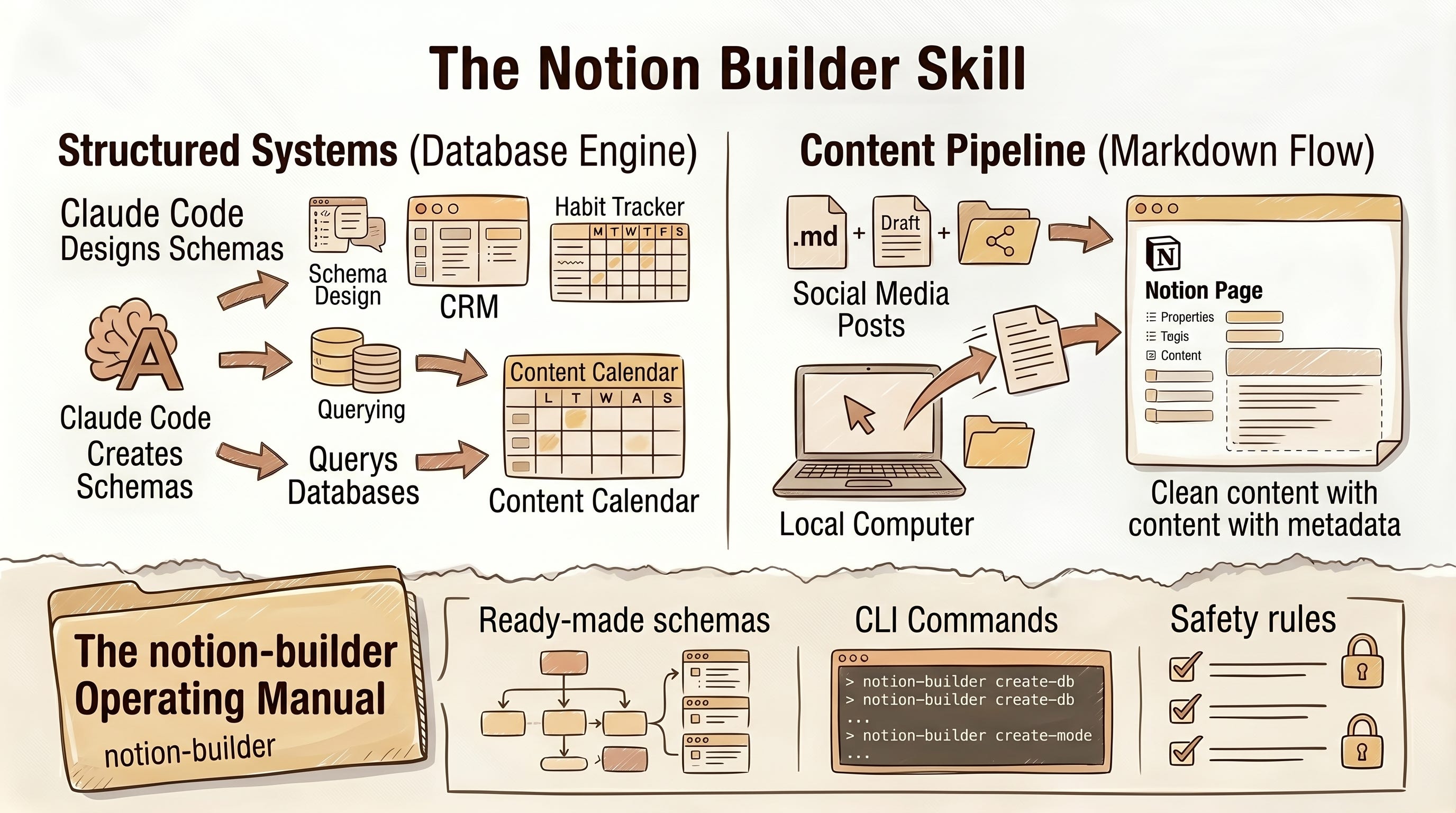
So here’s where the rest of this post goes, and what you’ll be able to do by the end of it.
The whole back half of this post is me showing you what this looks like in practice, with the exact commands, on real data I run my own work through. I’ll walk through two things, because they’re the two I lean on most. But they come from the same place.
At its core, the agent can operate anything inside your Notion. You already know Notion holds your databases and your docs, and you already manipulate both by hand. The shift is just that Claude Code does the manipulating now:
The first job is structured systems, and this is the big one. Because your agent can have full access over your databases: a CRM that tells you who’s gone cold, a habit tracker with a weekly rollup, a content calendar, a reading list, a research log. You describe what you want to track in plain English, and Claude Code designs the schema, creates the database, fills it, queries it, and keeps it updated.
The second thing is moving your actual writing in and out. Because Claude Code works in markdown, it can take a finished draft, a note, a LinkedIn post sitting in a local file and push it straight into Notion as real page content, then pull it back out whenever you want. I used this to move a year of scattered Substack notes and LinkedIn posts by using /goal into a single content library, each piece carrying its own metadata and its full text in the page body, without copying and pasting any of it.
And to make sure you don’t have to rebuild any of this from scratch, I’m handing you the thing I actually use to run it.
It’s a Claude Code skill called notion-builder.
notion-builder/
├── README.md          ← start here: what it is + how to set it up
├── SKILL.md           ← the brain Claude Code reads to operate your Notion
└── references/
    ├── system-recipes.md           ← ready-made blueprints for 6 systems (CRM, calendar, habit tracker, etc.)
    ├── build-cookbook.md           ← how it builds databases and adds rows
    ├── filter-cookbook.md          ← how it queries and filters your data
    └── content-writing-cookbook.md ← how it moves your writing in and out of Notion
Think of it as the operating manual Claude Code reads before it touches your Notion.
It carries the whole build loop (design the schema, create the database, populate it, query it, maintain it), the exact command shapes for every field type, ready-made schemas for the common systems (CRM, second brain, project and task tracker, research database, habit tracker), the content-library pattern for moving your writing in, and the safety rules that keep it from touching anything you didn’t ask it to.
You drop the skill in, share one Notion page you want to update, and describe what you want. That’s the setup. The rest of this post is how each piece of it works, starting with the loop that builds any system.
Now, let’s dive in.
How to Setup the Notion CLI
This is the only process where you actually touch a terminal and click around Notion yourself. It took me a few minutes the first time. Once it’s done, you don’t think about it again.
One heads-up before you start: the CLI is macOS and Linux only right now. If you’re on Windows, you’ll need WSL2. And ntn login needs full membership in your Notion account, so if you’re a guest or restricted member you won’t be able to authenticate.
Step 1: Install it
One command. The quickest way is the install script:
curl -fsSL https://ntn.dev | bashIf you’d rather go through npm (you’ll need Node 22+ and npm 10+):
npm install --global ntn