



Near the end of Episode 23 of One Shot Show, Dheeraj Sharma asked me a direct question: do you still use Claude Code?
The short answer was yes. I still use Claude Code, and a lot of my existing systems are already set up there. I also use Fable a lot for my most complex work.
But over the last few weeks, I have found myself opening ChatGPT Work more often.
Part of that came down to the output. In my own newsletter files and project setup, ChatGPT has sometimes understood the work and returned a more accurate analysis than Claude Code. But this is just my personal experience; it might be different for most of you.
ChatGPT’s UI/UX on desktop also contributed just as much. Their app is simpler to use compared to the Claude desktop app. OpenAI has added so many features to the ChatGPT desktop app that it now handles work I used to spread across Claude Code, a browser, connected apps, design tools, and several separate chats.
That became the focus of this episode. Instead of using slides, I opened my actual ChatGPT setup and walked through 10 features that have changed how I use it for growing AI Maker and Agentic Academy.
Here are 10 of the most important features in ChatGPT Work that you should use to 10x your productivity:
1. Plugins Put Apps, Skills, and Tools in One Place
The first feature was also the most confusing to explain.
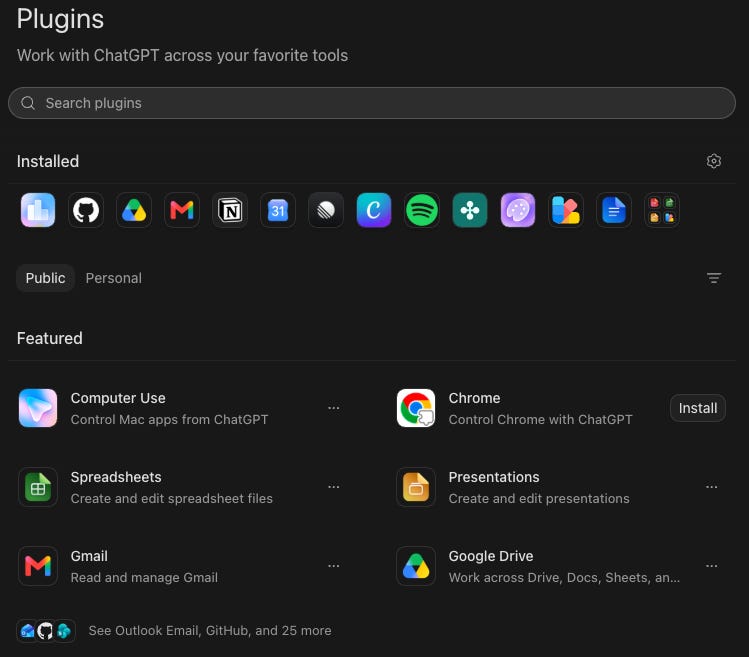
In ChatGPT, a plugin can be a connection to an app such as Gmail or Google Drive. It can also be a larger package containing Skills, connectors, and MCP tools for a particular kind of work such as Product Design, Sales, Data Analytics, Investment Banking, etc.
Dheeraj noticed the confusion immediately. A Gmail plugin looked similar to a connector in Claude, while the Data Analytics plugin looked more like a complete package for an analyst. It included the connected services (Slack, Google Drive, BigQuery, Mixpanel, Amplitude, etc.) and the skills needed for several related data tasks such as building dashboards, creating reports, generating data context, and much more.
OpenAI’s current plugin documentation confirms that plugins can bundle Skills, connectors, MCP servers, browser capabilities, hooks, and scheduled task templates. Plugins in OpenAI might look confusing, but as you use them more, you’ll start to notice the main differences between them and connectors and skills.
I showed two examples from my account:
Data Analytics packages several analysis capabilities together.
Creative Production includes Skills for intake and production, along with the tools those Skills need.
I also showed my AI News Intel Skill. It opens the AI label in Gmail, reads the newsletters I subscribe to, and turns the useful updates into Markdown files. This skill has been helpful for keeping me updated on what’s happening in AI every week.
I also shared advice to ensure you only connect apps that you use on a daily basis. Otherwise, you’ll consume more tokens as you connect more apps in your ChatGPT chat session.
2. I Can Import My Claude Code Setup Instead of Rebuilding It
This feature removed the biggest practical reason to stay inside one agent app, for example: Claude Code.
Previously, in my monthly Q&A, I also talked about how you can import Claude Code settings into the ChatGPT desktop app so your workflow becomes model-agnostic.
Here’s how to do it:
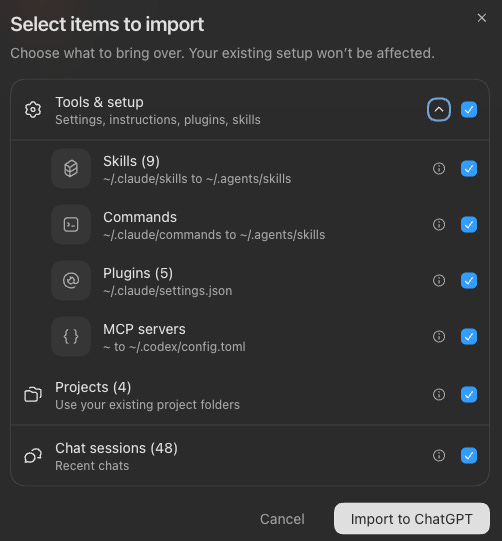
Under Settings > Import, ChatGPT can now import supported material from Claude Code, Claude Cowork, and Cursor. OpenAI’s import guide says that can include instruction files, settings, Skills, plugins, project folders, recent chats, MCP configuration, hooks, slash commands, memories, and subagents.
That means I can bring an existing project into ChatGPT without manually recreating every command, skills, and connection.
There is also an automatic update option. When I change any files and materials in the original Claude Code setup, ChatGPT can pull the updated version into the imported project.
So, how does this easy importing process impact how I work across Claude Code and ChatGPT?
Well, it changes the migration decision.
The imported project keeps the same settings and can run in the same folder, so I can move between Claude Code and ChatGPT without rebuilding my workflow. Claude Code can generate an output that I review in ChatGPT, and ChatGPT can produce work that I continue or review in Claude Code. Now that the project folder works with both systems, I can compare them on the same work without sacrificing the workflow I already have.
In fact, using the same concept, I took it a step further and built a multi‑model AI agent workflow, which you can read more about below:

3. The Built-In Browser Can Run a Real Signed-In Workflow
I bet these features still feel underrated, and not many people know how to use them well.
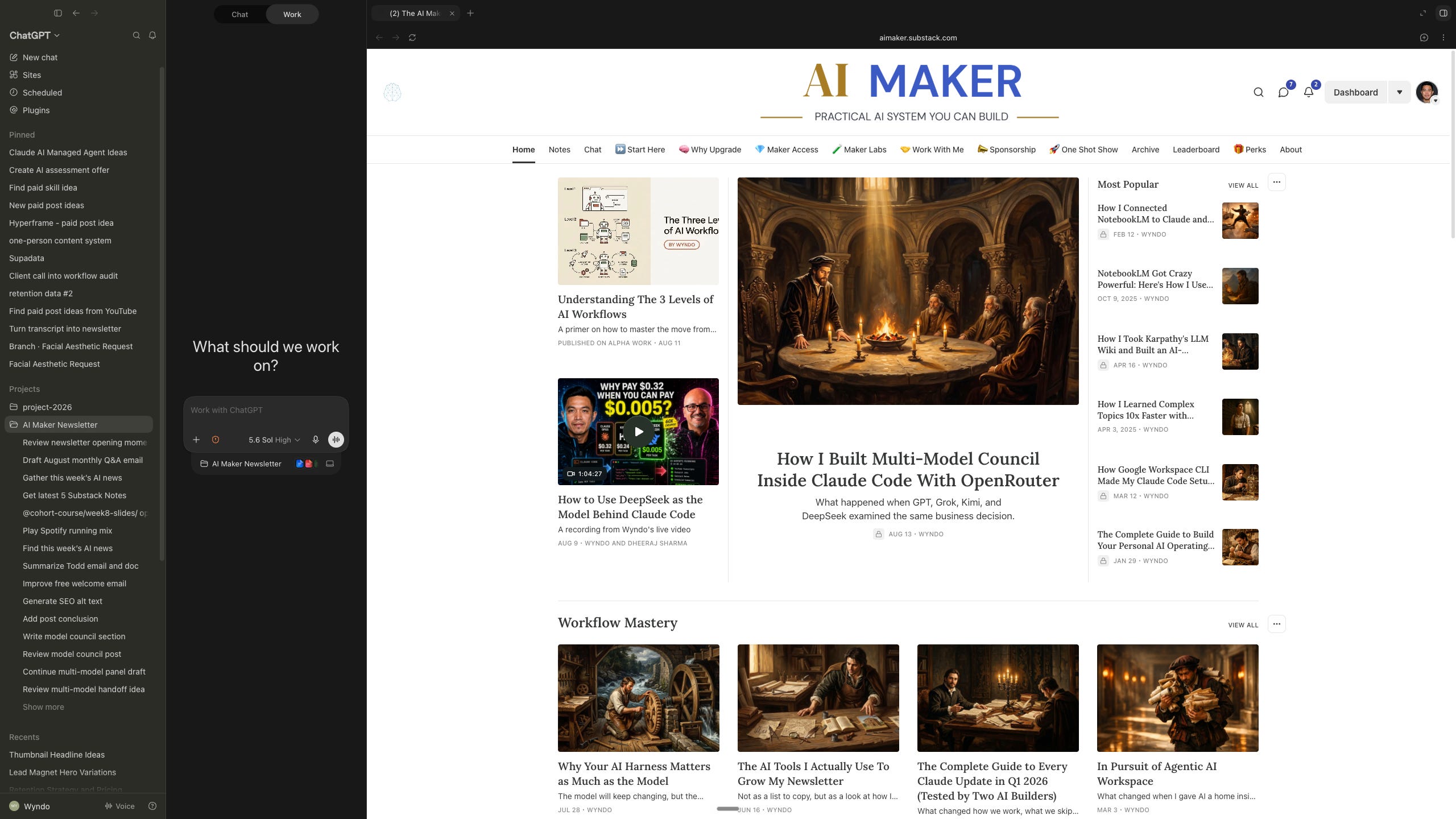
The ChatGPT desktop app has a built-in browser that both you and the agent can see. It uses its own browser profile, separate from your normal browser. Once you sign in inside that profile, the session can remain available for later tasks.
I used my Substack account as the example.
I have a Skill that opens my profile, finds my latest five Substack Notes, enters each Note’s analytics, collects the performance numbers, and records them in Google Sheets.
During the live run, ChatGPT opened my profile, moved through several Notes, opened their analytics, and reached the Google Sheet. It moved quickly enough that I could not follow every click.
I built the Skill using Record & Replay. R&R is a feature in ChatGPT that activates your computer’s screen recording, and once you stop the recording, ChatGPT watches it and turns whatever process you demo into a Skill that you can trigger to execute repetitive tasks.
I recorded myself completing the job manually: open Substack, select a Note, copy the analytics, and paste the result into the sheet. ChatGPT inspected the recording and created a reusable Skill from the demonstrated process.
Dheeraj added the caveat I would keep in the post: the generated Skill may give you a 70 to 80 percent starting point. You still need to inspect its instructions, add missing preferences, and test whether it finish the work as you expect.
One thing to keep in mind is that Browser work can also use a lot of credits, because the agent is repeatedly reading screens, opening pages, and deciding what to do next.
I would encourage you to use the R&R Skill for repetitive tasks that don’t require complex work or navigating multiple tabs in the browser. Start with simpler things such as scheduling posts on social media, doing competitive research, or any other tasks you currently do manually.
Then use the Automation feature to schedule them to run every day or week, depending on your needs.
4. Sites Can Build and Host a Working Landing Page
Next, I asked @Sites to build a lead-magnet page for AI Maker.
I’d be honest, my prompt was vague. I asked for a page that captured an email address in exchange for five methods to audit an AI agent system. I gave ChatGPT very little design direction.

The first version was better than I expected. It produced a complete landing page and used the official Substack signup form, so an email entered there could go into my publication’s subscriber system.
ChatGPT Sites can create, host, refine, and share websites and lightweight web apps. You can return to the Site, edit it through the chat, and manage who can visit it.
The live discussion exposed how quickly this feature is changing. I said the page would stay on a chatgpt.site address and that a custom domain would require moving it to Vercel. OpenAI’s current documentation now says custom domains can be connected where the feature is available. Availability still depends on the plan, region, and account settings.
I also opened the page locally in ChatGPT’s browser and used its annotation controls. You can select an element, request a copy change, or adjust properties such as color, spacing, and font before asking the agent to update the underlying page.
If you want to build websites live and let other people access them as well, then Sites is a feature you should explore further.
If you want to see the Claude Code Desktop version of this, check out this video.
5. Parallel Chats Let Me Split One Large Request Into Smaller Jobs (Threadmaxxing)
I think of the fifth feature as thread maxing.
I gave ChatGPT one request: find the latest AI news from three different places. I asked one chat to search my email, another to search the web, and another to check Reddit.
ChatGPT opened separate chats in the sidebar and started the three lines of work at the same time.
This is useful when the jobs are genuinely independent. Researching three sources, reviewing several files, or asking different chats to produce separate parts of a deliverable can save a lot of waiting.
I would be more careful when several chats can edit the same file or connected source. OpenAI’s long-running work guidance recommends keeping each chat independent and avoiding concurrent access to the same files unless the work has been isolated.
For those of you who love deploying 5–10 agents at once, you’re going to love this feature. You no longer need to prompt them one at a time; you can do it all inside a single chat that deploys multiple agents at once.
I think this feature particularly attracts people who care a lot about the number of productive outputs they generate.
6. Ask for More Details Opens a Focused Side Investigation
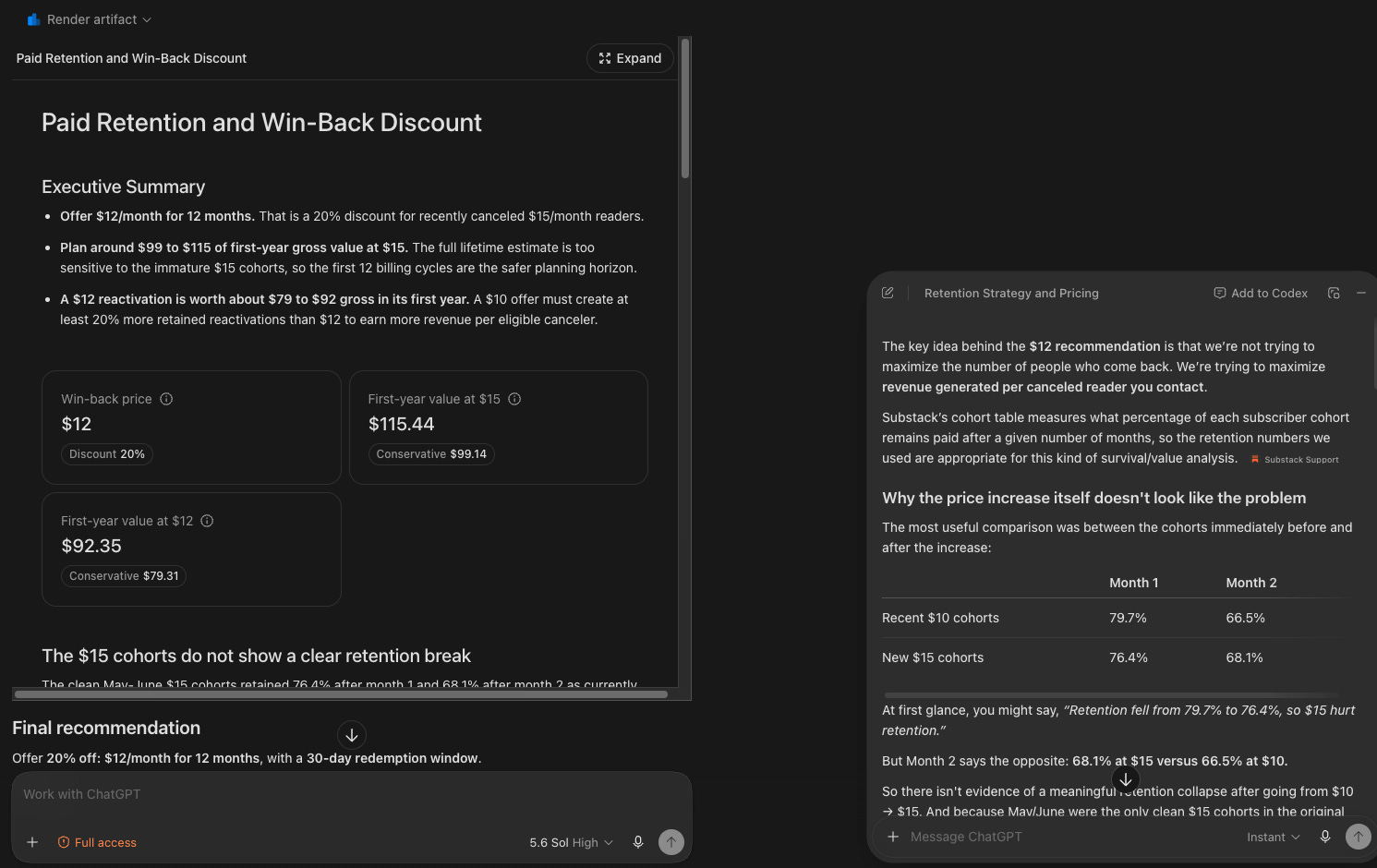
While reviewing an analysis of my subscriber retention and pricing, I highlighted one recommendation and selected Ask for more details.
ChatGPT opened a separate conversation around that selection and explained the reasoning behind the recommendation. I could question the assumption without burying the original analysis under a long detour.
Once I was satisfied, I could bring the result back into the main task.
This is a small interface feature, but it matches how I actually think through a decision. I often want to challenge one number, test one assumption, or understand one sentence before I continue with the main work.
Previously, I would ask every follow-up in the original conversation and eventually make the chat harder to navigate. This feature helps by adding a focused side investigation that allows me to explore multiple directions while keeping the main conversation in place and unaffected.
7. Earlier Chats Can Become Source Material for the Next Task
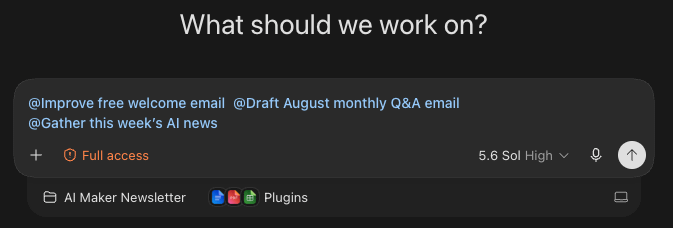
ChatGPT also lets me bring an earlier conversation into a new one.
During the episode, I searched for a previous chat, dragged it into the current task, and used it as additional context.
This becomes useful when you want to continue a conversation after hitting the context window limit.
I might analyze a set of welcome emails in one chat, decide what should change in another, and then bring both into a third chat that writes the revised version. The new task can use the earlier work without requiring me to copy the past chat manually.
This feature completely removes my anxiety about hitting a context window where I have to explain the previous chat all over again, which can be time-consuming. With this, I can simply use my past chats as additional context in my current AI conversation.
8. I Can Preview and Annotate Presentations and Data Files
ChatGPT Work desktop app can preview presentations, documents, spreadsheets, PDFs, and supported HTML files beside the chat. OpenAI’s file guidance also describes annotations for focused revisions.
I opened a PowerPoint file during the session and showed how I could inspect the slides without leaving ChatGPT. If a label, layout, or chart needed work, I could point to that exact part of the preview and ask the agent to change it.
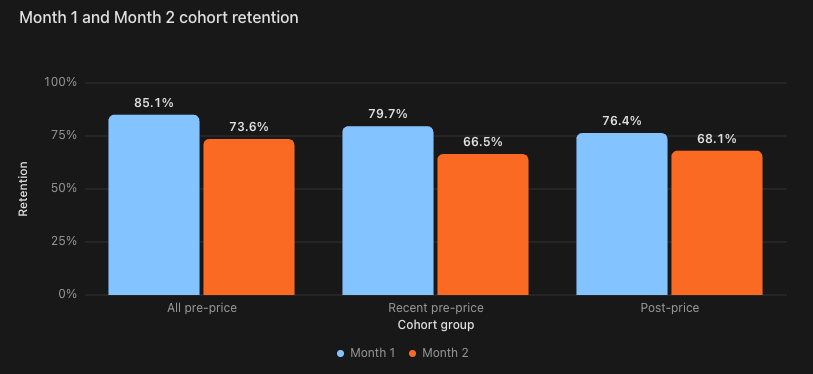
I also showed an analysis of my subscriber value at different prices. ChatGPT had turned the data into an interactive visual where I could change the chart type, group the data, or select different axes.
The valuable part for me is the review loop. Generating a file is easy. Being able to see the output, identify one weak area, and request a narrow revision makes the generated file much more usable.
9. Voice Can Direct Work While I Watch It Happen
I have been using ChatGPT Voice more often because it can coordinate actual tasks inside ChatGPT Work and Codex.
To be honest, ChatGPT Voice is the closer thing for having Jarvis in real life. I stand by this!
ChatGPT Voice can start work, check active chats, and redirect a task while you continue talking. On macOS, it can also use screen context when you allow it.
For the live demonstration, I connected ChatGPT to Paper, a design tool built on an HTML and CSS canvas. Paper’s MCP server allows an agent to read and write design files.
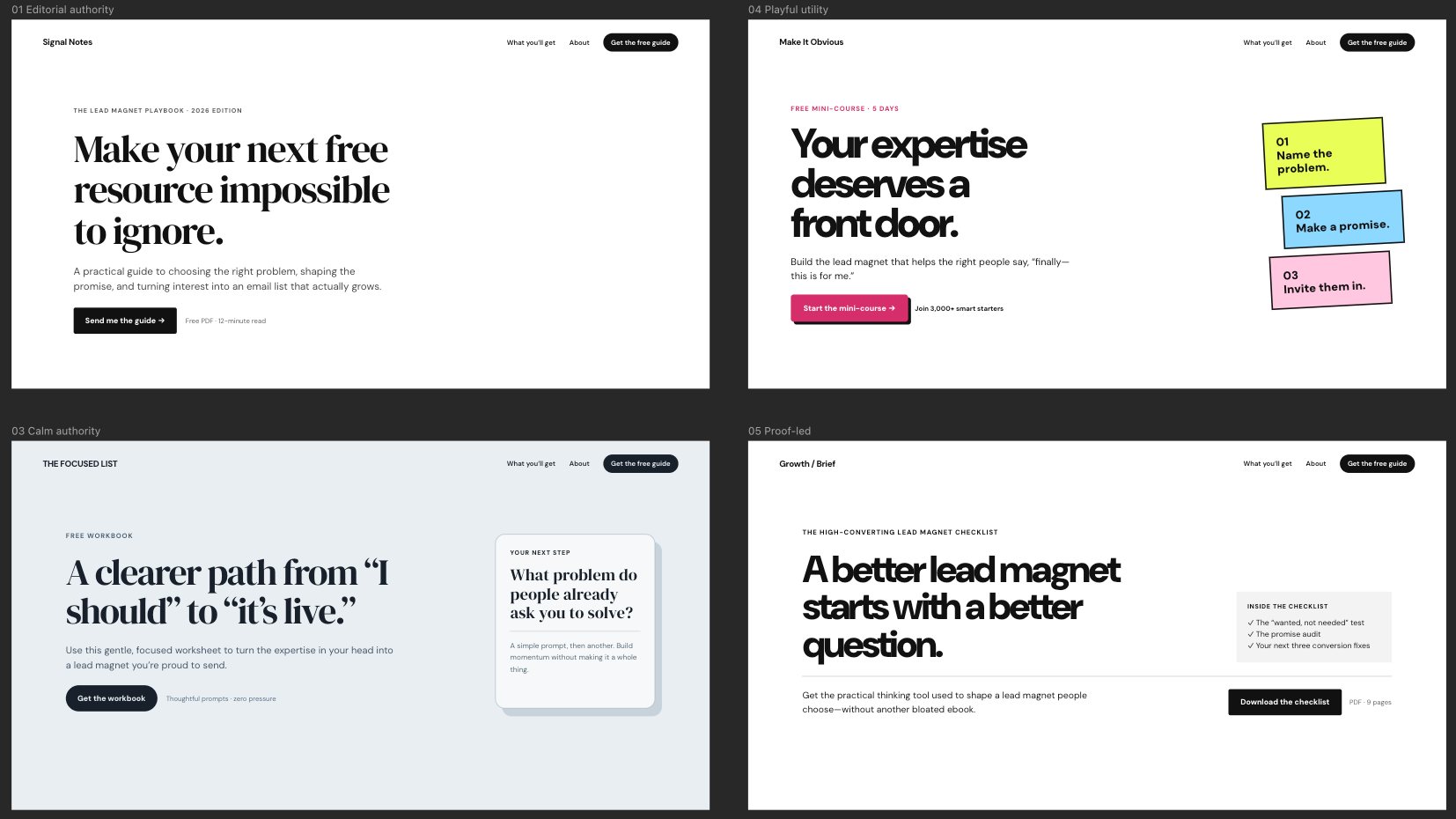
I asked ChatGPT by voice to create three to five hero-section variations for a lead-magnet page. As I talked, the agent worked inside Paper and the variations began appearing on the canvas.

This is also how I developed the new AI Maker logo and some of my LinkedIn carousel designs. I can look at the output, say which direction I prefer, and ask for another variation without translating every reaction into a formal written prompt.
10. Computer Use Can Operate Apps Without a Better Connection
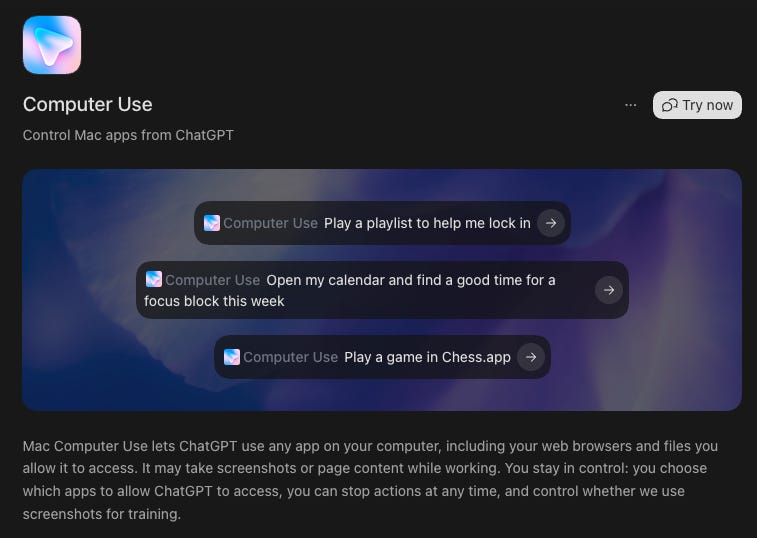
The last demonstration was intentionally simple.
I enabled the Computer Use plugin, allowed ChatGPT to access the relevant app on my Mac, and asked it to open Spotify and play a running playlist. ChatGPT opened the app, inspected the interface, and started navigating toward the requested playlist.
Computer Use allows ChatGPT Work or Codex to see and operate approved graphical apps on macOS and Windows. It is meant for tasks that depend on a visual interface in your computer.
One of audiences asked which computer-use agent was best without making this workflow too expensive. Dheeraj raised an even more useful question: which general-purpose jobs are actually worth giving to computer use?
I am still figuring that out.
For Spotify, a direct integration would usually be cleaner if one were available. Computer Use becomes more interesting when I need to change a setting, test an interface, inspect a desktop-only source, or complete a short process across several apps.
Why These Features Changed My Default App
In the video, you can feel my energy and how excited I was explaining and showing you how I use ChatGPT Work.
But none of this means I’ve abandoned Claude Code.
My Claude Code setup already works. I still use its Max plan, and I can route some of that work to other models when needed.
Over time, I find myself using ChatGPT more and more compared to Claude Code. And the reason is simple: I love ChatGPT’s output quality and how it will execute the tasks I demand from start to finish. ChatGPT has been giving me better results on some of my project analysis and brainstorming. Then the desktop app adds the browser, imports, plugins, parallel chats, file previews, voice, Sites, and computer control around that work.
Overall, the ChatGPT app is also easier to use and much more intuitive compared to Claude Code. The Claude Code app is too cluttered with too many features inside. I like how ChatGPT makes things way simpler to use.
If you already have a mature Claude Code setup, I would not move everything at once. Import one project and run the same real task through both systems. Compare the result, the corrections required, the credits used, and which app makes the review easier.
That is how I ended up using ChatGPT more. I tested it against work I already understood, and more of those tasks gradually stayed there.
Well, that’s it for today.
I hope you enjoy this post :)
Show Details
Show: One Shot Show
Episode: 23
Topic: 10 ChatGPT Work Features You Must Use
Hosts: Wyndo and Dheeraj Sharma
Live schedule: Wednesdays at 10:00 AM ET on Substack
Timestamps
00:01: Episode 23 introduction and why the show turned to ChatGPT Work
00:05: Preview of the ten features
00:10: Inside the ChatGPT desktop app
00:11: Plugins, connected apps, and Skills
00:16: Why Wyndo recommends connecting only the apps you use
00:18: Importing Claude Code, Claude Cowork, and Cursor setups
00:21: Dheeraj asks whether import synchronization works both ways
00:23: Opening the built-in browser
00:24: Logging Substack Notes analytics into Google Sheets
00:28: Turning a screen recording into a reusable Skill
00:30: Des asks about browser credit usage
00:31: Building a lead-magnet page with Sites
00:33: Hosting, domains, and the comparison with artifacts
00:34: Editing a local page through browser annotations
00:36: Reviewing subscriber-value analysis and interactive charts
00:38: Running three research chats in parallel
00:40: Asking for more detail in a separate conversation
00:42: Bringing an earlier chat into a new task
00:45: Previewing and annotating a presentation
00:46: Introducing ChatGPT Voice and Paper
00:49: Creating landing-page variations by voice
00:51: Paper pricing and the open-source question
00:53: Setting up Computer Use and opening Spotify
00:55: Hari and Dheeraj question the best computer-use cases
00:56: Does Wyndo still use Claude Code?
00:58: The personal tipping point toward ChatGPT Work
00:59: Wyndo’s early take on Grok Bot
01:02: ChatGPT and Claude subscription choices
Resources Mentioned
ChatGPT Work: OpenAI’s agent mode for longer tasks and finished deliverables. Wyndo used it throughout the episode for project work, browsing, analysis, file creation, and connected apps.
ChatGPT desktop app: The combined desktop application containing Chat, Work, and Codex. The browser, local projects, previews, voice, and Computer Use demonstrations took place there.
Codex: OpenAI’s agent experience for local projects and software work. Wyndo and Dheeraj compared it with Claude Code and referenced a previous backup-harness episode.
Claude Code: Anthropic’s agent interface and the source of Wyndo’s existing projects. Wyndo still uses it, while shifting more day-to-day work into ChatGPT.
Claude Cowork: One of the agent environments ChatGPT can import from. No pricing was discussed.
Claude Desktop: Mentioned when comparing Anthropic’s desktop features and connected tools with ChatGPT. No pricing was discussed.
Claude in Chrome: Anthropic’s browser integration, mentioned during the discussion about browser credit use and visual web tasks.
Claude Opus 5: The Claude model Wyndo discussed when explaining why some users were testing alternatives. His comments were personal observations, rather than a general performance comparison.
Cursor: One of the supported import sources in the ChatGPT desktop app. It also appeared later in the Grok Bot discussion.
Plugins: Packages that can contain Skills, connectors, MCP servers, browser capabilities, hooks, and scheduled task templates.
Skills: Reusable instructions for a specific workflow. Wyndo demonstrated AI News Intel and his Substack Notes analytics logger.
MCP: A protocol used to connect agents with external tools and data. It appeared in the plugin explanation, the Claude import flow, and the Paper demonstration.
AGENTS.md: The project instruction file ChatGPT reads after importing or opening a compatible local project.CLAUDE.md: Claude Code’s project instruction file, discussed while Dheeraj and Wyndo compared how the two systems read project guidance.AI News Intel: Wyndo’s Skill for reading AI newsletters from a Gmail label and saving useful summaries as Markdown.
Log Substack Note Stats: Wyndo’s recorded Skill for collecting recent Note analytics and writing them to Google Sheets.
Data Analytics plugin: An OpenAI plugin package containing several connected analysis capabilities and Skills.
Creative Production plugin: A plugin bundle Wyndo opened to show how one installation can include production Skills and an MCP service.
Presentation plugin: The plugin used to open and review a PowerPoint file inside the desktop app.
Computer Use plugin: The capability used to open Spotify and navigate its graphical interface.
Browser: The built-in browser with its own profile, history, permissions, annotations, and Computer Use support.
Record & Replay: A macOS feature that turns a demonstrated process into a draft Skill for later reuse.
Scheduled tasks: ChatGPT’s background scheduling feature. Wyndo suggested using it to repeat a tested browser Skill on a set cadence.
ChatGPT Sites: OpenAI’s managed service for creating, hosting, refining, and sharing sites and lightweight apps.
Atlas: OpenAI’s earlier browser product, mentioned while explaining how browser features were moving into ChatGPT. OpenAI retired Atlas on August 9, 2026.
Claude Artifacts: Dheeraj used Artifacts as the comparison point for Sites and hosted interactive outputs.
Vercel: A hosting and deployment service discussed as an option for moving a generated web project to a custom deployment. Current ChatGPT Sites documentation also supports custom domains where available.
Paper: The HTML and CSS design canvas used for the voice-directed design demonstration. Paper currently offers a free plan and lists Pro at $20 per editor per month or $16 with annual billing.
Spotify: The desktop app used for the final Computer Use demonstration.
OpenClaw: Mentioned while comparing multi-agent products and Grok Bot. No pricing was discussed.
Grok Bot: Cursor’s beta product for creating agents that can use plugins, a cloud computer, and routines.
Cursor Ultra: One of the plans that currently includes Grok Bot beta access. Cursor lists Ultra at $200 per month.
OpenRouter: Wyndo’s existing route for using multiple model providers from an agent setup. A related guide was mentioned near the end of the session.
DeepSeek: The lower-cost model provider demonstrated in Episode 22 as an alternative model behind Claude Code.


