

From Blank Folder to Working System: How to Set Up Any Project in Claude Code
After converting dozens of people to Claude Code, this is the process that actually gets them unstuck.


Every time a new AI tool drops, I ask myself the same question:
“What’s the 10x play here?”
Not the 2x. Not the “saves me 20 minutes.” The thing that fundamentally changes how I work with AI.
For me, that answer has been the same for almost a year: building an agent workspace where AI actually knows your projects, your thinking, your preferences. An AI partner that compounds its understanding of you over time. Claude Code is where I’ve gone all in.
And to be honest, one of the proudest things I’ve done in my entire AI journey, besides growing this newsletter, is converting people to Claude Code. Founding members of AI Maker. Clients. Close friends in the space. Maker Lab subscribers. I’ve walked dozens of them through the setup, watched the moment it clicked, and seen their faces beam with excitement, knowing it changes the way they work.
The Blank Folder Problem
Last week, my livestream with Michael Simmons went live where I did something I hadn’t done before: open my entire Claude Code setup on screen and walk through how I actually run this newsletter. Not a polished demo. Just sharing my screen, triggering skills, explaining what each layer does, and answering questions in real time.
🚨 This video can only be played if you are a paid member of Maker Labs.
I showed everything. My CLAUDE.md file. My custom commands. My skills for SEO, thumbnails, LinkedIn carousels, news digests, draft reviews. My MCP connections. My CLI tools. The full system, layer by layer, running live.
And the response from Maker Lab members were almost unanimous:
“That’s incredible. But how do I get there? Is there a clear path I can follow to build something like that?”
That question hit me. Because it confirmed something I’d been hearing in private conversations too. After publishing my Claude Code guide, I got a wave of messages that all sounded the same:
“I installed it. I opened my folder. Now what?”
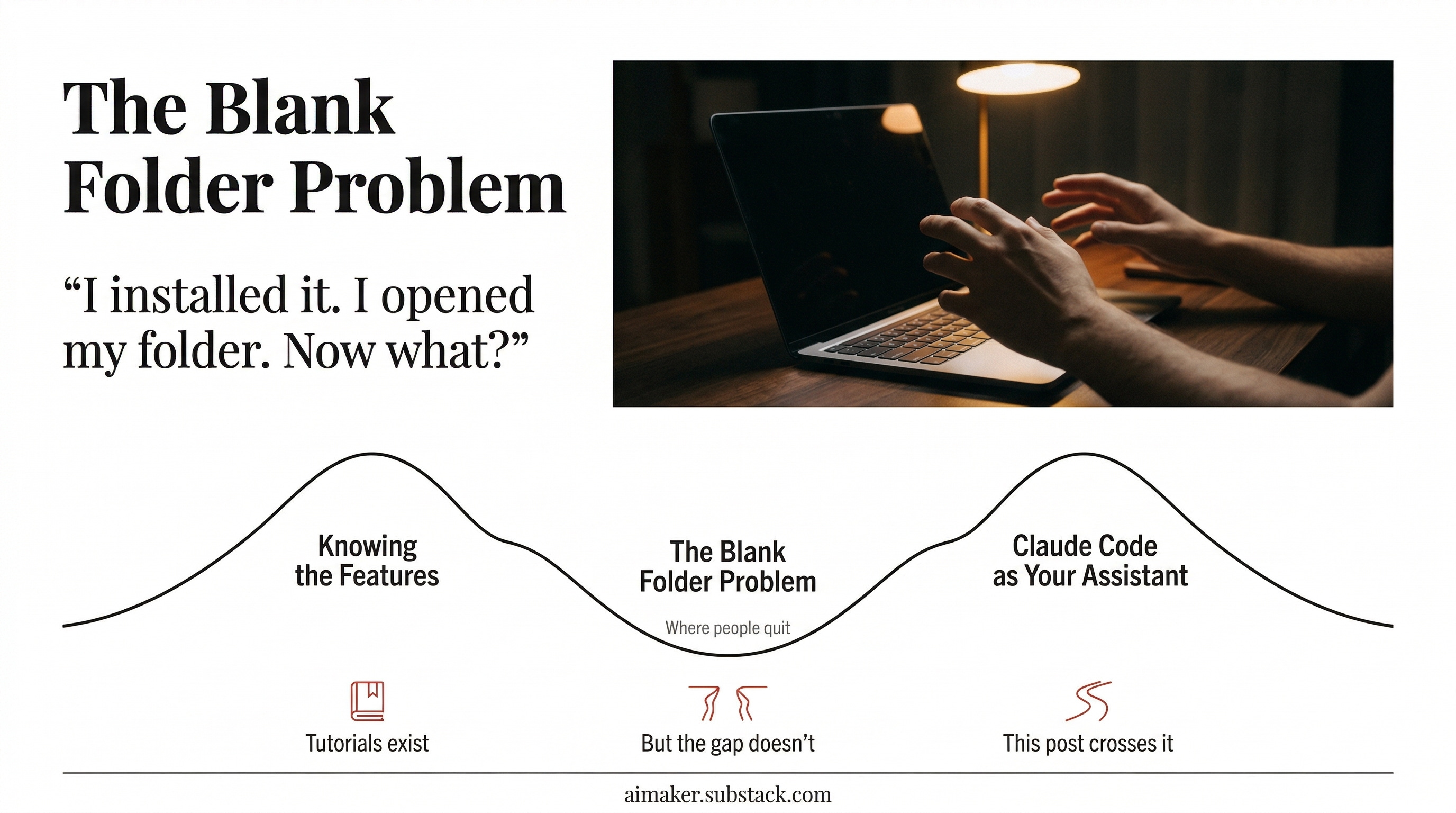
I started calling it the “blank folder problem.” And the more I dug into it, the more I realized this is the messy middle that nobody talks about. There are hundreds of tutorials showing you what Claude Code can do. Features, demos, possibilities. But almost nothing that addresses the actual gap: how do you go from “I have a project” to “Claude Code understands everything about me and my work”?
That’s where people quit. Not because the tool is too hard. Because the space between knowing the features and setting up YOUR project is a valley that no feature walkthrough can cross.
This post is about crossing that valley. By the end, you’ll know exactly what files to create, what order to create them in, and what to skip entirely. So you can get to the part that actually matters: Claude Code becoming your full agentic AI assistant that knows how you work, end to end.
And to be clear: don’t let the word “Code” fool you. This has nothing to do with coding. I’m not a developer. The people I’ve converted aren’t developers. Claude Code is an AI agent that lives inside your project files, and those files can be anything: newsletter drafts, client proposals, research notes, marketing campaigns, course materials, strategy docs. If your work involves creating, writing, researching, or managing projects, this applies to you.
The Anatomy of a Claude Code Project
Before we get into what to build, you need to see the full picture of what’s possible:
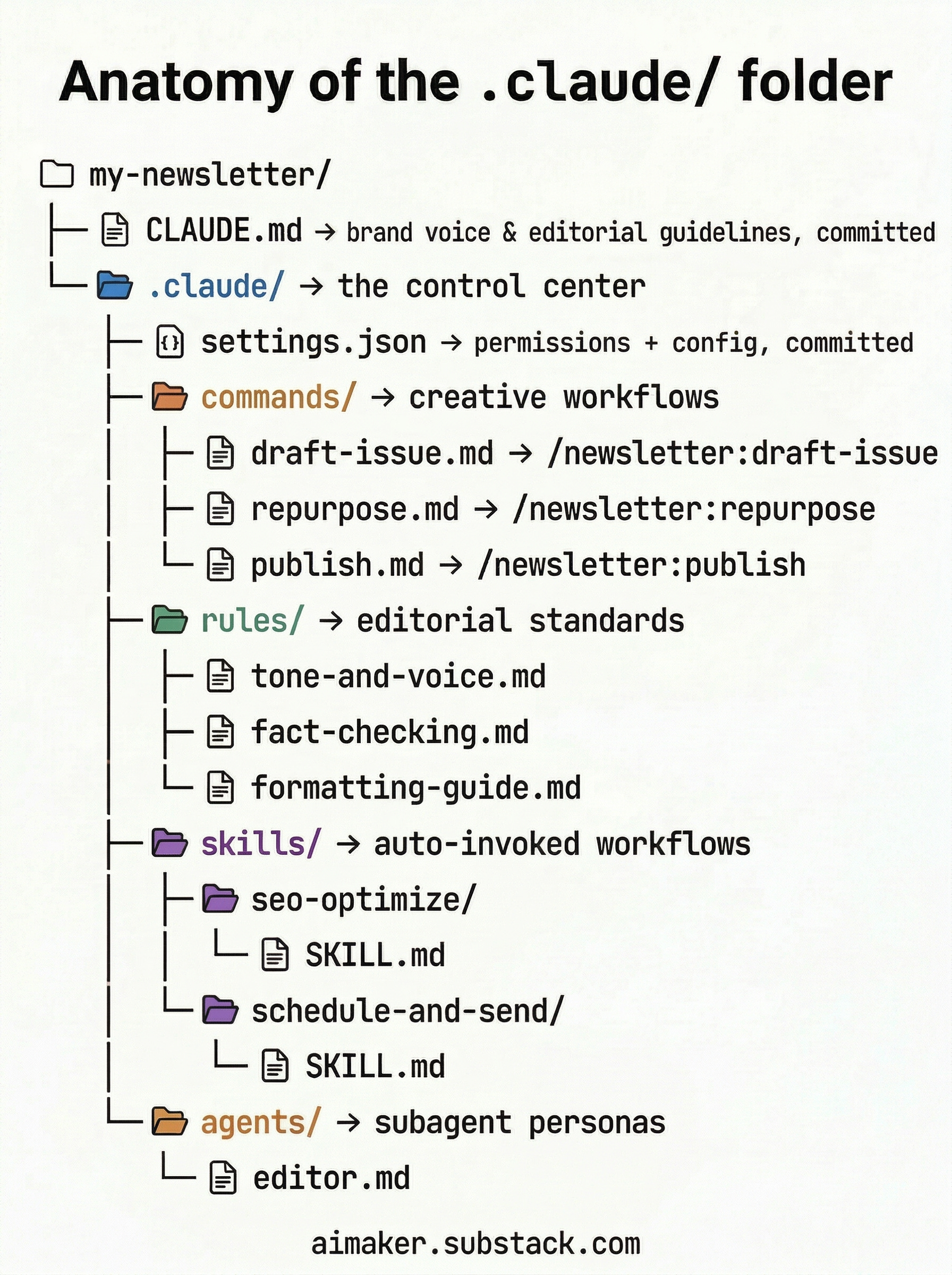
This image shows every file and folder a Claude Code project can have. Study it for a second, then take a breath. Because here’s the thing most people miss:
You don’t need most of this.
At least not on day one. But I’m showing you the full anatomy so you understand the territory, not so you build all of it right now. Think of it like a map of a city. You don’t need to visit every street just because they exist.
Let me walk you through each layer so you know what it does and when it matters.
Here’s something important before we go layer by layer: no matter what kind of project you’re setting up, whether it’s a marketing campaign, a content creation system, a consulting practice, or a personal research workflow, two things need to be in place every time:
CLAUDE.md
.claude/ folder
These are your non-negotiables. Everything else is optional and project-specific.
Let’s dive in.
🚨 Quick reminder…
If you enjoyed this preview and want the full blueprints, AI Maker Lab pricing is going up next Thursday (from $10/month to $15). You can lock in $10/month before then, and your rate stays the same forever. You can learn more details here.
Layer 1: The Foundation
These are the files Claude reads every single time you start a conversation.
CLAUDE.md is your project’s instruction manual. It tells Claude what you’re working on, how you like to communicate, and what mistakes to avoid. This gets committed to git, so if you’re on a team, everyone shares it. This is the only file you absolutely need on day one.
Layer 2: The Control Center
The .claude/ folder is where configuration lives.
settings.json controls what Claude is allowed to do in this project. Can it create files? Edit documents? Access the web? These permissions give you more control over what Claude can and can’t do.
Most people never touch these manually. Claude sets them up through permission prompts as you work. They exist in the background.
Layer 3: The Workflows
This is where things get powerful, and where most people over-build too early:
commands/ holds your custom slash commands. These are tasks YOU trigger when you need them. Write a markdown file, and it becomes a command you can run with a slash.
/project:daily-plan,/project:research,/project:weekly-report, whatever your workflow needs.rules/ holds modular instruction files that load automatically based on what you’re working on. You don’t trigger these. Claude reads them on its own when the context matches. A
writing-tone.mdrule loads when you’re drafting content. Aclient-communication.mdrule loads when you’re writing emails. Set them once, never think about them again.skills/ are auto-invoked workflows. The difference from commands: you don’t trigger skills manually. Claude recognizes when a skill is relevant and runs it. Each skill lives in its own folder with a SKILL.md file that defines when and how it activates.
agents/ are isolated specialists. They run in the background, handle longer tasks, and don’t interfere with your main conversation. A research agent. A content-repurposing agent. A weekly synthesis agent. Each one stays in its own lane.
What This Means For You
The anatomy image shows a mature, fully-built project. Yours won’t look like that in the beginning, but it will evolve over time as you add more capabilities to your Claude Code system, and eventually it will reach that state.
The rest of this post will help you figure out which layers you actually need and how to set them up for your project, so you can navigate it on your own.
What You’re Getting Below
Now you know the anatomy. You understand the layers. You know you don’t need all of them.
But knowing the map isn’t the same as knowing how to start walking.
Below, I’m sharing the exact three-phase process I’ve walked my founding members, clients, and friends through, one by one, to get their Claude Code projects running. The same process that turned “I opened my folder and froze” into “Claude already knows how I work.”
This is the first part of my agent harness guide, which I’ll expand in upcoming posts.
Here’s what’s inside:
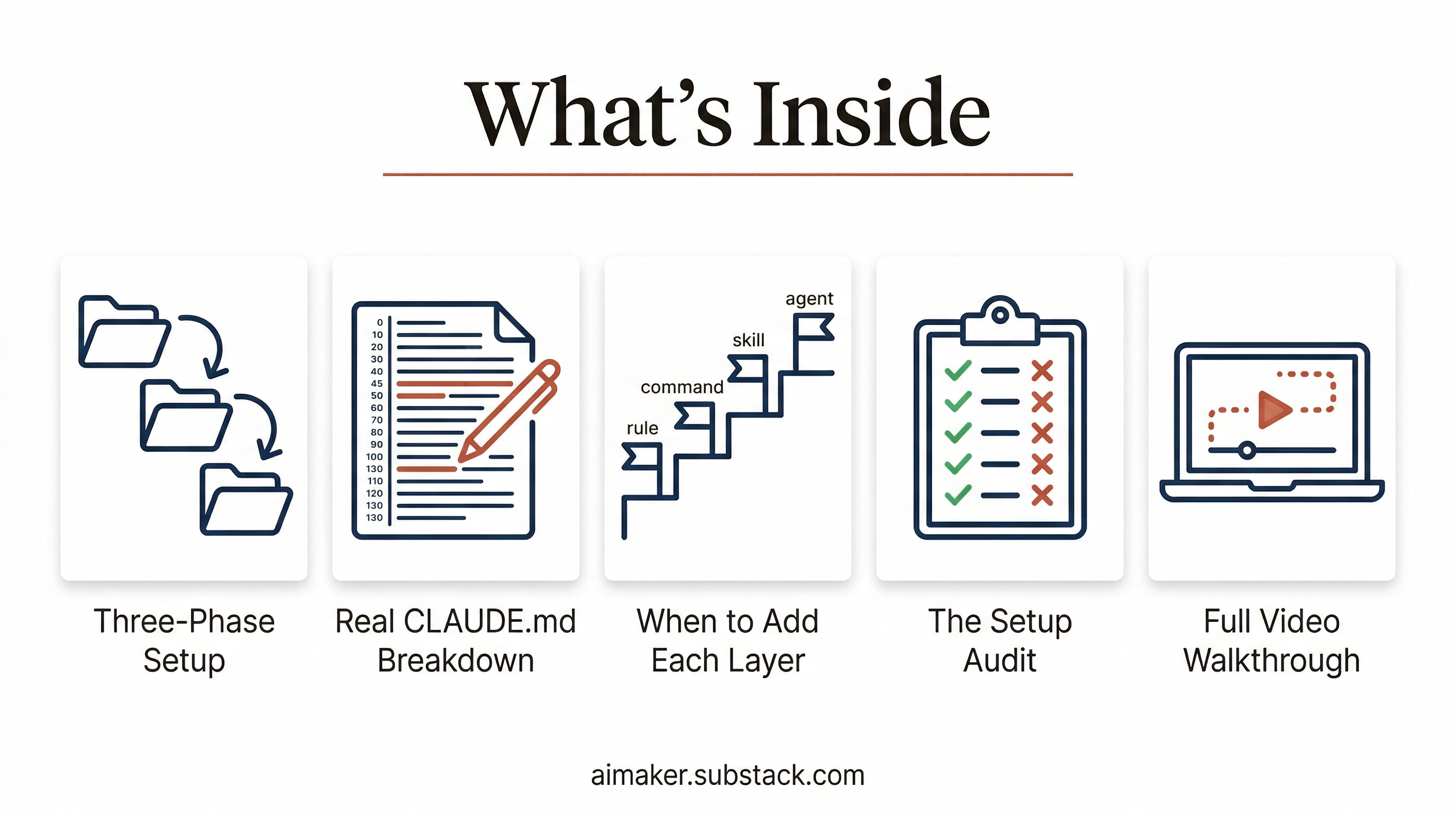
The Three-Phase Setup - The complete Dump > Refine > Audit process. What files to throw in your folder (by project type), how to run /init the right way, the interview prompt that fills in what your files can’t capture, and the plugin that scores your CLAUDE.md so you know it’s actually good.
My Actual CLAUDE.md, Broken Down Line by Line - I’m sharing the exact file that runs my entire newsletter operation. It started at 500+ lines and made Claude worse. I trimmed it to ~130 lines and Claude got dramatically better. I’ll show you what stayed, what got cut, why each section exists, and the principle that took me 9 months to learn about how to structure this file.
When to Add Each Layer - The exact signals that tell you it’s time to build your first rule, your first command, your first skill, your first agent. With the specific question to ask yourself before adding anything.
8 Stress Tests - Specific scenarios you can run to pressure-test whether your setup actually works. The ambiguity test, the rule canary test, the cold start test, and more. Each one targets a failure mode you won’t catch if you use it normally.
Video Walkthrough - I’ve recorded myself walking you through the Claude Code setup process from scratch all the way to a fully working system.
This is the guide I wish existed when I started. And it’s the one I keep sending people when they message me saying “I’m stuck.”
Before we continue, I want to be clear: if this is your first time reading about Claude Code, you might want to go through my previous Claude Code ultimate guide to understand its full capabilities, then jump into this post.
The Three-Phase Setup (From Blank Folder to Working System)
This is the part most people get wrong. They either create a CLAUDE.md but never improve it over time, or they keep adding to a 500-line instruction file that ruins the agent’s effectiveness.
Both fail for the same underlying reason: they focus on the file, not the process behind it.
I’ve landed on a three-phase approach that works every time. It takes about 30 minutes, and you end up with a CLAUDE.md that actually makes Claude useful from day one.
Here’s the process: Dump > Refine > Audit.
I’ve prepared two things to help you follow along:
I recorded myself running through this entire process from scratch: the three phases, setting up rules, building commands, creating skills, and deploying agents. If you prefer learning by watching, start here. If you prefer reading, skip the video and use the written guide below. The video covers the same ground.