



If you have been following AI Maker for awhile, you know that most of my content is about building AI agents in Claude Code. And if you have applied them, you probably already have a project folder that knows how you work.
Maybe you have a CLAUDE.md, an AGENTS.md, a context folder, a few skills, and connectors to the apps you use every day. Claude can read your source material, follow your rules, research a topic, update Notion, read your meeting transcription on Granola/Fathom, and prepare drafts in your voice.
That setup can do a lot.
Mine can help me plan newsletter posts, research ideas, repurpose my published articles, review form responses on my consulting website, build LinkedIn carousels, and work across the tools that run my business. I also have another project folder that essentially works as my Chief of Staff and knows my priorities, plus a second brain that stores any interesting information I consume across the internet and in real life.
But every one of those workflows still had the same starting point: me.
I had to sit in front of my laptop, open Claude Code, enter the project, and tell it what to do. Even when the instructions and tools were already there, the work waited until I showed up.
That is fine when I am actively writing or making a decision with Claude. But the limitation shows up when I need my AI to act on its own—to automatically start a task at a specific time, or to kick off a workflow after something happens in another app. And I want all of that to happen while I’m away from my laptop.
For example:
A new consulting inquiry shouldn’t sit untouched until I remember to check my Google Sheets form.
A daily AI news update from the newsletters I subscribe to shouldn’t have to wait until I open my laptop before it arrives in my inbox.
A content research task on my Notion calendar shouldn’t wait for me to tell my agent to research it; I should have a process to deploy agents to complete my tasks automatically.
And sometimes I am on my phone, walking somewhere, with no intention of opening my laptop just to start a task Claude already knows how to complete.
This is the part Claude Code Routines opens up.
Your existing Claude project can now run in the cloud
I think Claude Code Routines is an underrated feature that not many people are talking about, given the huge possibilities it unlocks.
We all think of it as a way to schedule tasks, but trust me, it’s much bigger than that.
Anthropic describes a Routine as a saved Claude Code configuration made from a prompt, one or more repositories, and a set of connectors. It runs through cloud infrastructure, so it can keep working while your laptop is closed.
So, of course, the obvious benefit is that the task no longer depends on my computer remaining available. The more important benefit for me is that I do not have to rebuild the workflow on other agent platform.
The research methods, writing instructions, examples, skills, source files, and tools I use already live inside my Claude Code projects. Routines give me a way to run selected parts of those projects in the cloud.
That is also part of a broader shift I have been watching in the developer community.


Boris Cherny, who works on Claude Code at Anthropic, recently recommended running Claude Code in the cloud for autonomous tasks that may take hours or days, specifically so you can close your laptop. Vincent van der Meulen, who says he now works almost entirely with cloud agents, argues that more engineers should start there because it changes how they can delegate work. He also admits that adoption remains limited and setting up cloud environments is still difficult.
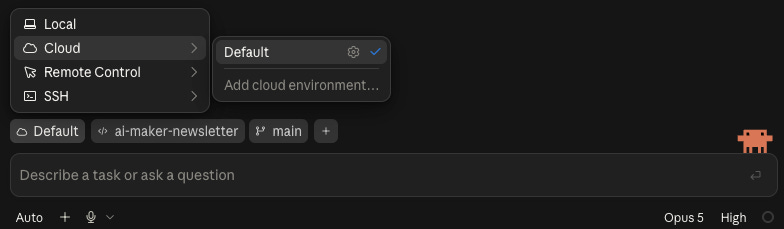
Lately, if you’ve been using Claude Code a lot, you may have noticed it increasingly nudges you to run your projects in a cloud environment.
For most people reading this, you are not developers—and neither am I. But there are a lot of similarities between what developers do and what we do in our typical knowledge work: research, writing, planning, meeting preparation, and content production. But, the issue is all of that work ends up waiting when the agent only runs after you open your computer.
So the practical starting point is this: how do we make Claude Code project also work in the cloud, so our work isn’t bounded by waiting to open the laptop?
That’s where Routines comes in.
How Claude Routines can help automate your work
So far, most conversations about Routines seem to stop at scheduling. You create a task that runs every morning, every weekday, or once a week. That alone is useful.
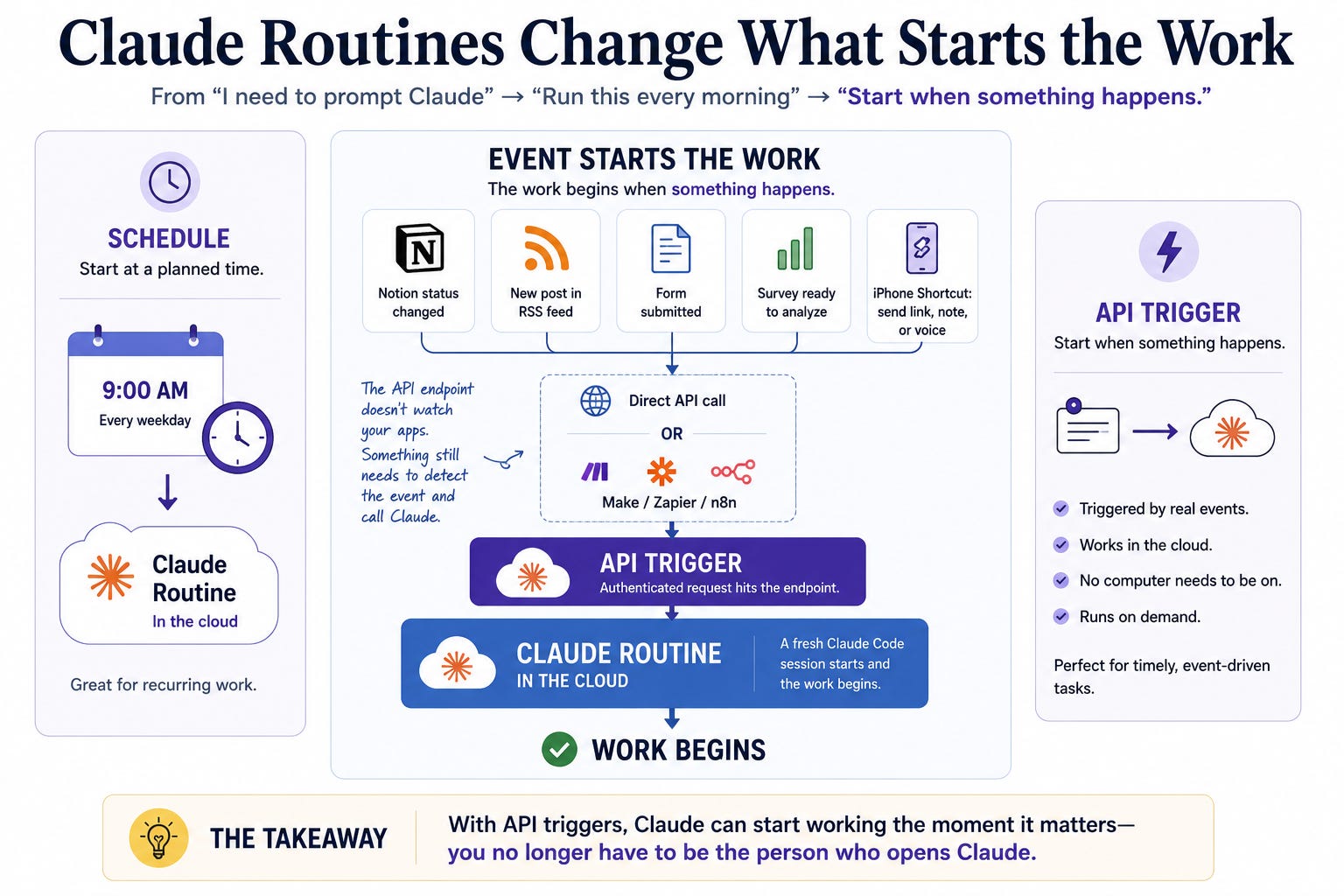
For example, you could ask Claude to check your calendar and recent email every weekday morning, compare them with your current project priorities, and send you a short briefing before you sit down to work.
That solves the first limitation: you no longer have to prompt it by hand to get this task done.
But there’s still a catch: you still need to open your computer, because the agents are running locally.
By running Routines in the cloud, you remove this problem because the agent can keep doing tasks without your computer always needing to be on.
These are the kinds of things the scheduling feature unlocks for us.
But some tasks should begin because something happened, rather than at 9:00 every morning.
A topic moved into research. A new post was published. Someone submitted a form. You sent a request from your phone.
That is what the API trigger adds.
Scheduling tells Claude to start working at a planned time. The API trigger lets an outside event tell Claude to start working now.
Every API-enabled Routine gets an HTTP endpoint. An authenticated request to that endpoint starts a fresh Claude Code session on demand. That request can come from another app, an automation platform, or a Shortcut on your phone.
There is an important limitation, though. The endpoint does not watch Notion, an RSS feed, or a form for you. Something else still has to notice the event and send the request in the format Claude expects.
Sometimes the source app can make that request directly. Other times you need Make, Zapier, or n8n to receive the event, reshape the information, and relay it into the Routine.
Change one label on Notion, start a full research workflow
Here is one of the clearest examples from my own setup.
I manage my content calendar in Notion. Each potential post has a topic, an angle, a status, and whatever source material I have collected so far.
When I decide a topic deserves more investigation, I change its status to Research.
That one change can start the rest of the workflow:
Notion sends the selected topic fields to Make.
Make reshapes that information and calls my Claude Routine.
Claude reads the incoming request and the instructions already inside my project.
It uses Tavily to research the topic and gather current sources.
It organizes the findings into a research brief.
It updates the correct item in my Notion content calendar.
It emails me a summary with the result.
Notion status change
        ↓
Make routes the topic
        ↓
Routine API trigger
        ↓
Claude project + Tavily research
        ↓
Notion update + email summary
By having this automation, I no longer need to open Claude Code and prompt it manually.
All of this is done simply by changing the status label in Notion.
Now you might be wondering why Make is still sitting in the middle of this workflow.
Let me explain.
Make still has a job in this setup
I used to build much more of my automation inside Make.
At the time, it gave me what I needed. Make could watch another app, start a workflow when something happened, move information between tools, and keep running without my laptop being open. Claude was one step inside that chain, so it made sense for Make to own most of the process.
But that workflow started to become irrelevant when I began using Claude Code more and more.
Moving the same job into a separate automation means passing all of that material into another AI step, which complicates my workflow because I now have two workflows to maintain between Claude Code and AI automation platforms such as Make.com.
This is why I’ve been using Make, or similar apps such as Zapier and n8n, less. Routines let me keep the research, interpretation, and production inside the Claude project that already understands how I work.
The Routine can also use selected connectors to read and write across apps such as Notion, Gmail, Google Calendar, and Google Docs. Once the run begins, Claude can coordinate those tools using the instructions in my project.
But there’s one particular limitation in Routines in how it can be triggered to run.
The current Routine API is a narrow entry point. It starts a session after receiving the correct authenticated request. It does not monitor a Substack RSS feed, detect a Notion change, filter an event, or reshape an arbitrary webhook payload.
That is where Make still helps me. It can watch for the event, filter it, reshape the information, log what happened, and pass a clean request into Claude.
Make catches and delivers the event. Claude uses the project to complete the work through Routines.
If what I just said is confusing, don’t worry—we’ll get into it later in the post. It will all make sense once you’ve seen the full tutorial.
How to think about building a useful Routine
Before turning a workflow into a Routine, we need to think about how to create a useful Routine that can help you automate your work:
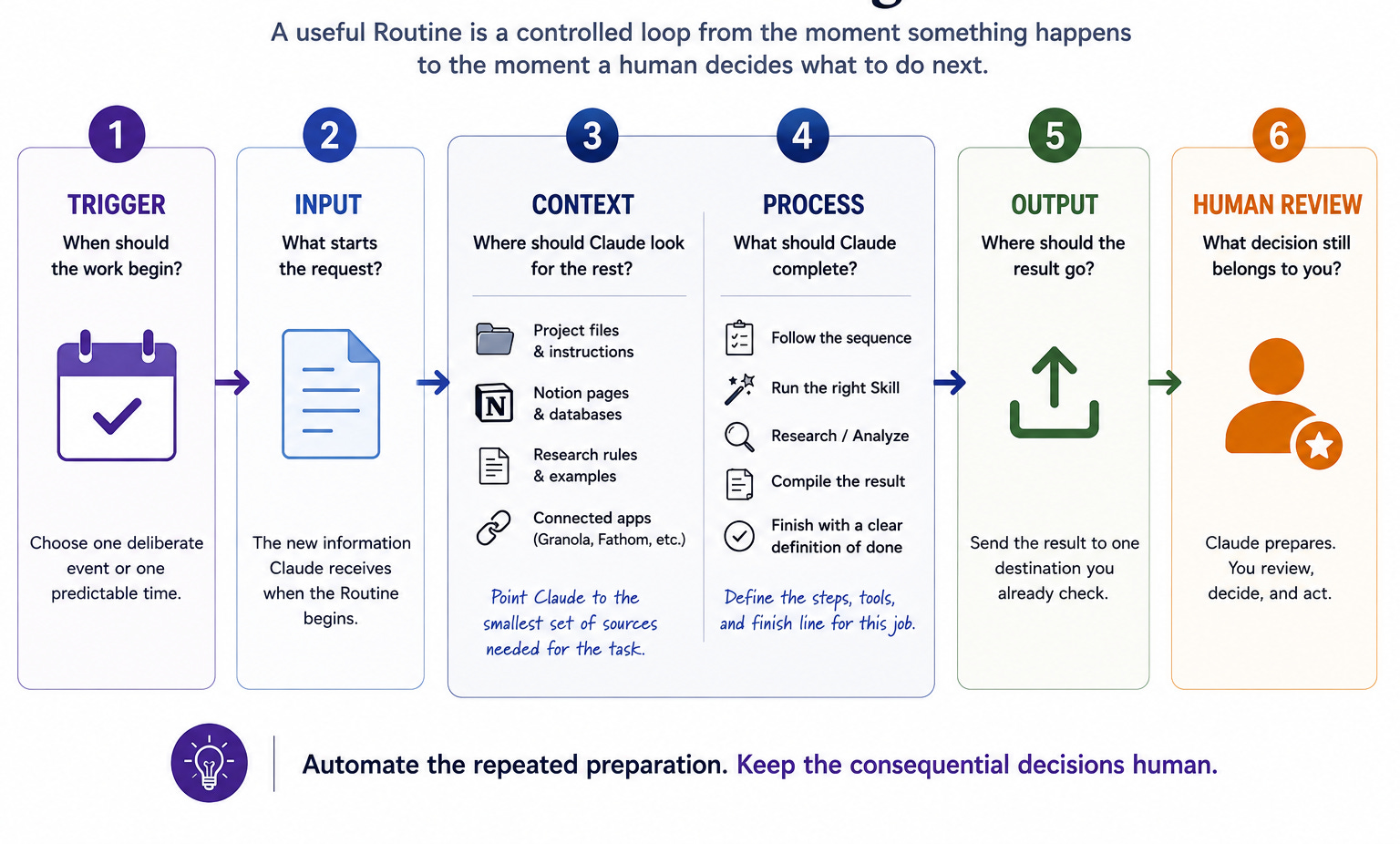
1. Trigger: When should the work begin?
Choose one deliberate event or one predictable time.
In my case, whenever I change a content status to Research in Notion, it triggers the entire research workflow.
Or you can also create a trigger whenever there’s a new RSS feed you want to monitor, which then starts the workflow.
2. Input: What starts the request?
The input is the new information Claude receives when the Routine begins. It could be a topic, URL, form response on your website, database ID on Notion, meeting transcript on Granola/Fathom, or note from your phone.
Send only what the Routine needs to identify and complete the job. A form submission may include the person’s name, company, stated problem, and response ID. A content request may only need the Notion database ID because Claude can retrieve the remaining fields from the database.
3. Context: Where should Claude look for the rest?
The input tells Claude what just happened. The context helps Claude understand what to do about it.
Some of that context may already live in the selected repository: your instructions, source files, examples, research rules, or Skills. The Routine prompt should tell Claude which files to inspect and which Skill to run.
Other context may live in a connected app. If the input is a Notion database ID, tell Claude which content calendar to open and which fields matter. If the task begins from a Granola or Fathom transcript, tell Claude where to retrieve the relevant transcript and what information to extract from it.
4. Process: What should Claude complete?
Define the actual sequence, not only the outcome.
For a research Routine, Claude might read the content-calendar record, inspect the research instructions in the project, run the relevant Skill, use Tavily to gather current sources, separate verified findings from open questions, and compile the result.
The task should have a visible finish line that you can see and assess.
5. Output: Where should the result go?
Choose one destination you already check: Notion, email, Google Docs, Google Slides, or a file in the project.
Be specific about the write target: “Update the Research Summary field on this Notion page and email me the link” is one way to do it.
The output should be easy to inspect. If you cannot quickly tell whether the task worked, the Routine will create more mental overhead than it removes.
6. Human review: What decision still belongs to you?
Claude can prepare research, summarize information, draft a reply, organize survey findings, or create a presentation.
For example, a consulting form can trigger a Routine that researches the person and company, compares the inquiry with the services you offer, and prepares a briefing with a draft reply. The Routine can do the preparation while you are away from your laptop.
You still decide whether the lead is a fit, what you can offer, and whether the reply should be sent. Publishing a post, contacting a lead, approving a proposal, or acting on a sensitive recommendation should still come back to you.
The goal is to remove the repeated preparation while keeping human judgment where it matters.
Five Claude Code Routines workflows I want to show you
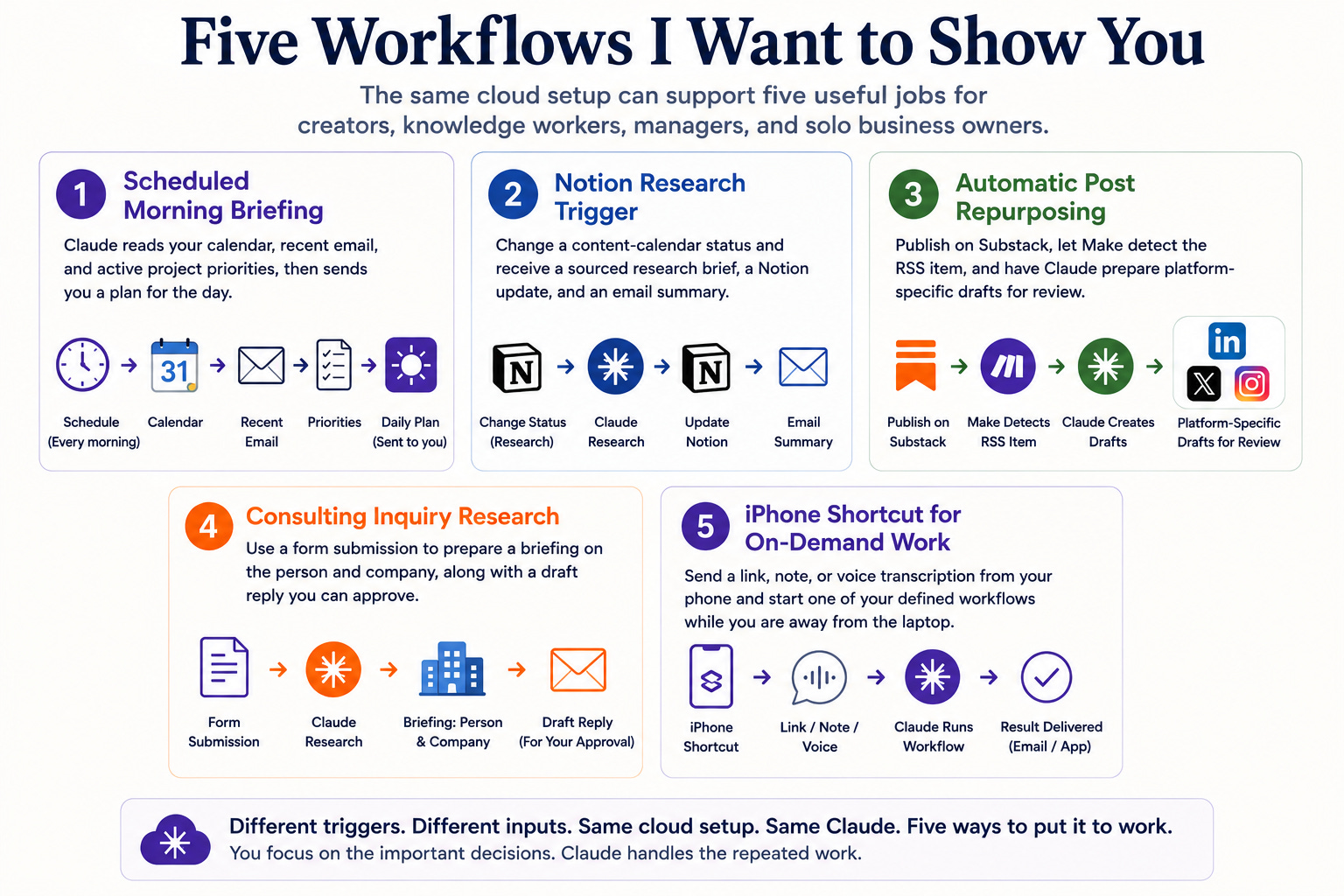
Here are five Routines workflows we’re going to cover today that work across any type of job you have, whether you’re a creator, knowledge worker, consultant, or entrepreneur:
Scheduled morning briefing: Claude reads your calendar, recent email, and active project priorities, then sends you a plan for the day.
Notion research trigger: Change a content-calendar status and receive a sourced research brief, a Notion update, and an email summary.
Automatic post repurposing: Publish on Substack, let Make detect the RSS item, and have Claude prepare platform-specific drafts for review.
Consulting inquiry research: Use a form submission to prepare a briefing on the person and company, along with a draft reply you can approve.
An iPhone Shortcut for on-demand work: Send a link, note, or voice transcription from your phone and start one of your defined workflows while you are away from the laptop.
Use these as reference points. Your version will depend on where your files live, which apps you use, what should trigger the work, and which decisions still need your review.
The rest of this guide shows how these workflows operate, where Make sits in the middle, and the configurations I use to pass events into Claude. Use the details to understand the pattern and decide what fits your own setup.
🚨 Before you try this
You should already have a Claude Code project you use for real work. If you are still setting that up, start with reading some of my posts here:
From Blank Folder to Working System: How to Set Up Any Project in Claude Code
How an Agent Harness Made My Claude Code Setup 10x More Reliable
The Complete Guide to the Context Folder That Changed How I Work With AI Agents
For the project-based workflows in this guide, your Claude Code project also needs to be in a GitHub repository that Claude can access. Each Cloud Routine clones the selected repository when a run starts, beginning from its default branch. It cannot see files or changes that still exist only on your laptop.
Before creating the Routine, commit and push the instructions, Skills, and source files it needs. Keep API keys, credentials, and sensitive local-only files out of the repository. You will also need to connect the repository to Claude Code on the web through the Claude GitHub App. I will show you the short connection and verification process before we configure the first workflow.
Some outside triggers have their own requirements. That’s why you’ll need a Make, Zapier, or n8n subscription to run all these workflows. In this guide, I’m only going to show you how to do it with Make.
By the end, you will understand how my Claude Code projects start selected work while I am away from my laptop, respond to deliberate events in other apps, and return something useful for me to review. You can then decide which parts make sense for your own work.
Let me show you how these workflows work.
Move your Claude Code project into the cloud
Every workflow in this guide begins with the Claude Code project you already use on your laptop.
That project may contain your CLAUDE.md, Skills, source material, examples, and the instructions Claude follows when it helps with your work. We do not need to rebuild any of that. We need to make the same project available to Claude Code in the cloud.
GitHub is the bridge.
Each Cloud Routine clones a GitHub repository when a run begins. It starts from the repository’s default branch, which means the Routine can only see files that have been committed and pushed. Anything that still exists only inside the folder on your laptop remains unavailable to the cloud run.
We will set this up once. Afterward, the same cloud project can support the Notion research workflow, scheduled briefings, post repurposing, consulting inquiry research, survey analysis, and requests from your phone.
Step 1: Push your local project to GitHub
Before Claude can open the project in the cloud, the project needs to exist in a GitHub repository.
If the project is already connected to GitHub, push the latest version. If it only exists on your laptop, create a private GitHub repository and connect the local folder to it.
You can ask Claude Code to help:
Help me push this local Claude Code project to GitHub.

Before you push anything:
- make sure the project instructions, Skills, and source folders are included
- check that .env files, API keys, credentials, tokens, and private files are excluded
- show me the files you plan to commit

Wait for my approval before committing or pushing.
If this is your first time, there are plenty of tutorials out there on YouTube that can help you create a GitHub account and push your project folder to GitHub.
Step 2: Connect GitHub to Claude Code
Next, follow Anthropic’s GitHub connection quickstart.
The process is short:
Visit Claude Code on the web.
Choose the option to connect GitHub.
Install the Claude GitHub App.
Give Claude access to the repository you just pushed.
Confirm the default cloud environment.
You only need to do this once for the GitHub account. If you add another project later, you can update the GitHub App’s repository access.
Step 3: Start the project in the cloud
Open Claude Code Desktop and start a new session.
In the new-session screen, open the Claude menu and choose the cloud option. Claude will show the GitHub repositories available to your account. Select the project you just pushed, choose its default branch, and start the session.
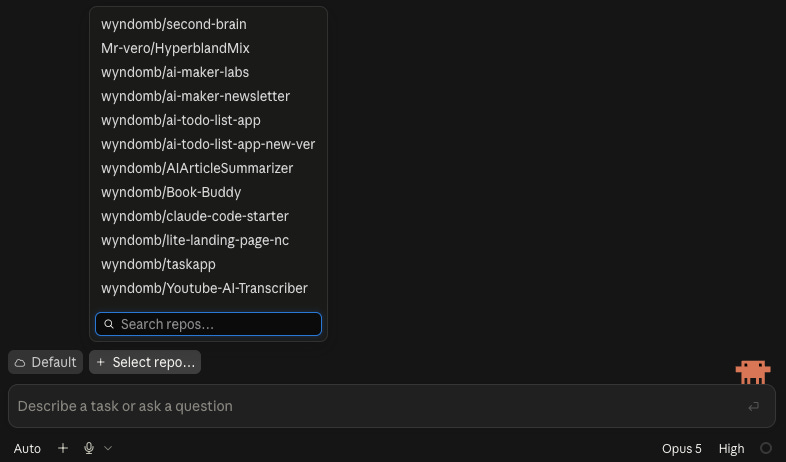
Ask Claude one simple question:
Read this project and tell me which instructions, Skills, and main source folders you can see.If the expected files appear, the local project is now available to Claude in the cloud. If the repository does not appear in the selector, check that the Claude GitHub App has access to it.
That is enough to move forward. We have the same project, available locally when we want to work closely with Claude and available in the cloud when a Routine needs to run without the laptop.
Step 4: Understand the five parts of a Cloud Routine
With the project available in the cloud, we can turn it into a Routine.