



This week on One Shot Show, Dheeraj Sharma, Ilia Karelin, and I caught up on the Claude Code app.
Ilia has been on the show before where we talked about Claude Skills. He writes Prosper and spends a lot of time testing AI workflow systems. He came in with a list of the new things he has been using in the app, then showed us a loop he runs on his posts.
Before we get into the session, a quick introduction.
Ilia writes Prosper, a newsletter with practical AI workflows, prompts, and guides you can try the same day. He has also written for AI Maker several times before, including pieces on weekly SEO brief, AI memory, when not to use AI, Claude in Chrome, and our Claude Q1 update breakdown.

In this session, he joins us to test the new Claude Code app updates. If you want more from Ilia, these are a good place to start:
AI Releases Are Accelerating...Even More? on why better models and better tools are changing the kinds of projects he is willing to attempt.
How To Build Your First Claude Code Artifact That Lasts for a practical walkthrough of turning files into a useful, shareable tool.
I Built My Own Local WisprFlow: Free, Offline, and Limitless — Here’s How to Build Yours
As you may know, I’ve been using the Claude Code app more and more. That’s why I think this session is important: there are two groups of people I want to address.
The first are those who think Claude Code is only for developers
The second are those who think the Claude Code app is just sluggish and laggy
While the latter was true a few months back, trust me, the desktop app has changed a lot since I last spent time with it. It’s now more user-friendly and intuitive for most typical knowledge work.
We covered multi-pane sessions, permissions, the built-in browser, artifacts, routines, and loops.
Here is what we looked at.
Claude Code App Multi-pane view
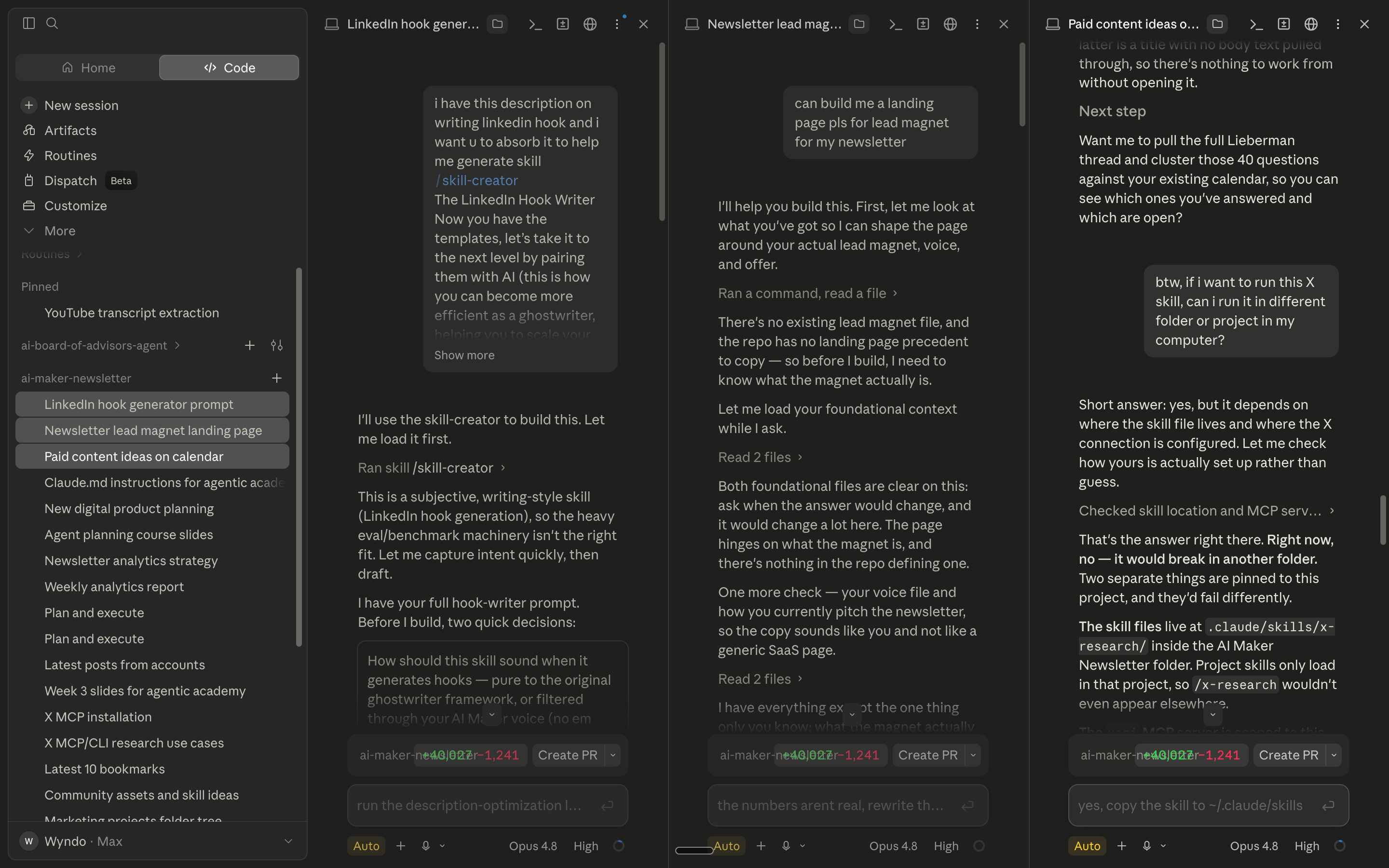
The first feature Ilia showed was the multi-pane view.
You can drag sessions from the sidebar into the main window and put them next to each other or stack them. Both can run at the same time.
If you love to run bigger tasks that require more time for the agent to finish, this feature might be suitable for you, letting you spend more time deploying more agents while the rest are still working.
But we also talked about the part that does not show up in screenshots of people running ten agents at once: it gets confusing quickly.
I said I usually stay around two to four agents at a time. Dheeraj said his work-in-progress limit is two. Ilia said that once he goes past two sessions, he starts losing track of what he asked each one to do.
So, while multi-pane view can be useful, it is not an invitation to launch as many agents as possible, even though I’d agree that it is a cleaner way to keep an eye on the few tasks you are actually running.
Just like Codex, new Claude Code app makes activity easier to track. You can see which sessions are still working and which ones are waiting for you. I still like opening Visual Studio Code when I need to see a lot of files, but I can see why this view would be useful for ongoing agent work.
Another tip I want to share is that, since I work on multiple folders at once, I like to group the agent sessions in the left sidebar by project so I can clearly see which agents are running on which projects. This gives me a helicopter view of all progress across agents and folders.
Permissions Still Need a Decision
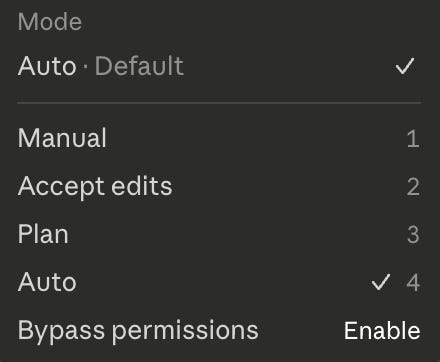
We also looked at the different permission modes in Claude Code.
Ilia moves between auto mode and bypass permissions. Bypass permissions is the version where the agent can keep going without asking you for confirmation on the usual actions.
In the session, we were debating Auto Mode versus Bypass Permission to figure out which one is truly the YOLO mode. The answer was Bypass Permission.
Dheeraj shared his experience of what makes Auto Mode different from Bypass Permission. In Auto Mode, Claude Code can carry out much of the work, but it stopped when it was about to deploy a website change to production. It asked for explicit permission before taking that step.
Ilia saw something similar while updating a client’s React Native app. Claude helped investigate package versions and GitHub issues, then stopped before a potentially destructive change.
I think Anthropic is doing the right thing by having some guardrails with Auto Mode. I do not need a confirmation for every small file edit. I do want a moment to look when the action could affect a live site or remove something important.
But in case you’ve never used Claude Code before, I’d suggest starting with Manual mode, then moving to Accept Edit mode before using Auto mode and Bypass Permission.
The Built-In Browser Is the one I love the most
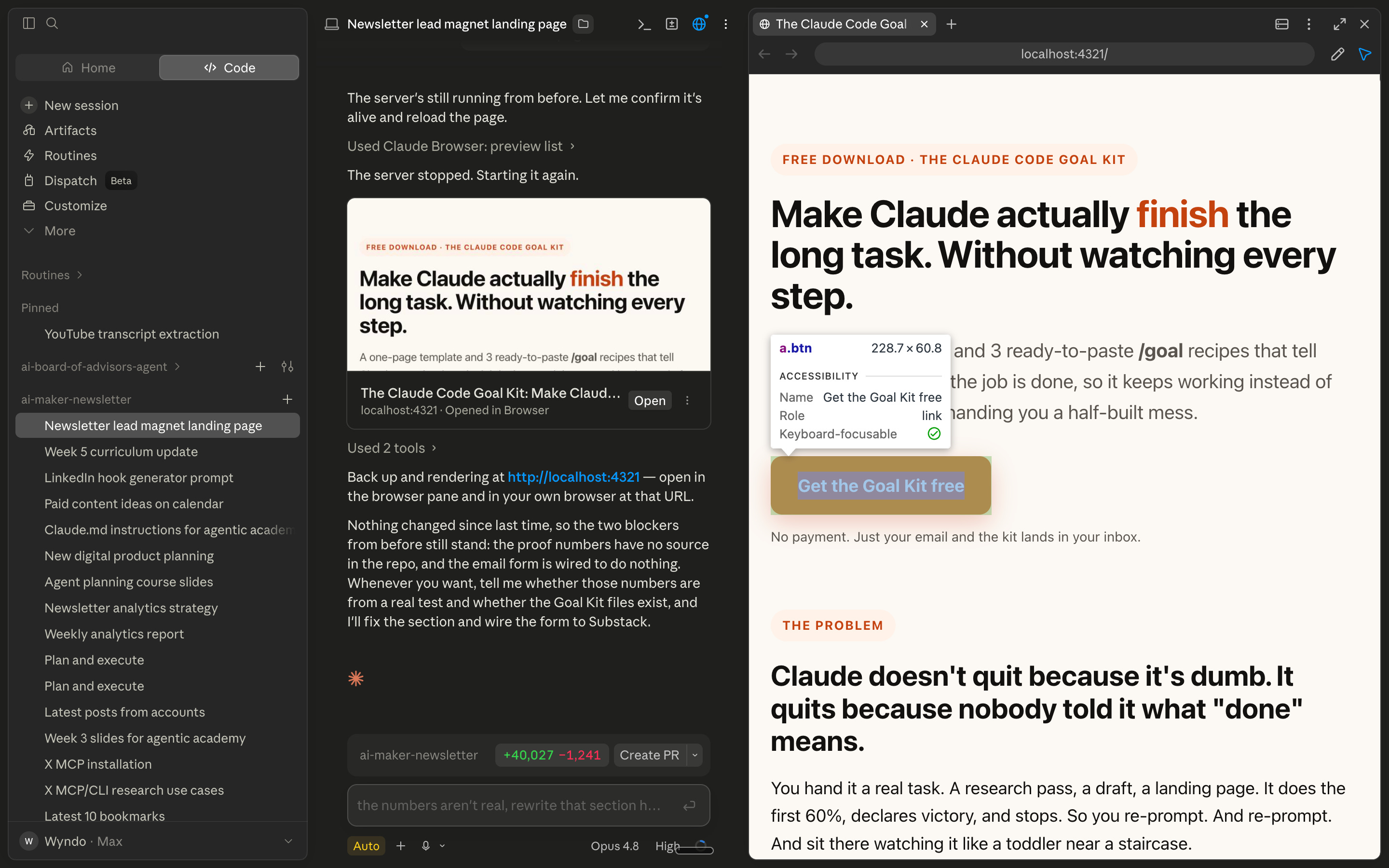
The browser was probably the feature that became my favorite. And I think Anthropic copied this from Codex.
Ilia opened a website he had been working on and showed the live preview alongside the Claude Code chat. Instead of switching between the terminal and a separate browser window, he could see the changes as the agent made them.
One of the most important parts of having the built-in browser was the feedback flow.
You can select an element on the page, draw or annotate the area you want changed, then add that screenshot to the chat. In the demo, Ilia selected a button and asked Claude to change its color.
That is a much easier way to explain a visual problem than trying to describe it verbally. You can point to the thing you mean.
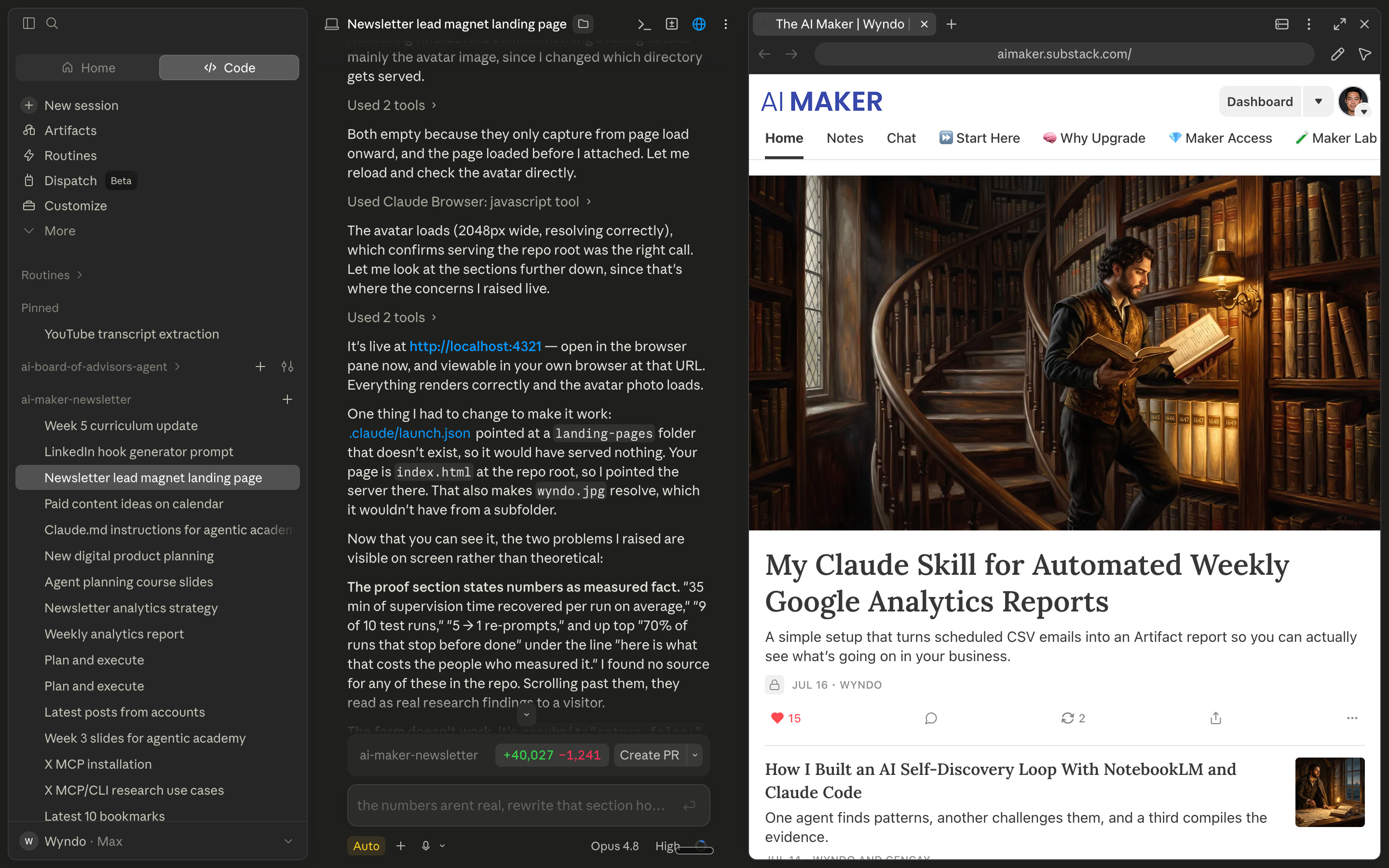
The browser can also keep you signed in to services like Substack, X, or LinkedIn. I have used this kind of browser access to let an agent help set up scheduled posts. We also talked about using it for research or browser-based tasks where you want to watch what the agent is doing.
I would still be cautious with anything that publishes, buys, or sends something. But being able to see the browser action is better than handing the task to an agent and hoping it made the same choices you would have made.
Artifacts for Things You Want Others to See
Next, Ilia showed the changes to artifacts.
Essentially, an artifact is an HTML file hosted on Anthropic’s cloud service so other people can access it.
He built a small Prosper operations dashboard by pulling numbers from Substack. He can now create artifacts through Claude Code, open them from the app’s sidebar, and keep editing the same shared version.
That makes artifacts more useful for dashboards, simple tools, and presentation-style outputs. Dheeraj said he uses them for reporting and cohort presentations because they are easy to share with other people.

Recently, Anthropic improved Artifacts so you can now connect them to MCP. This means you’re able to pull data from other apps and take action. I think this is going to benefit people who want to run real-time dashboard reports that can be accessed by many people.
In my case, just like Dheeraj, I use it for my Agentic Academy presentations as well as for generating my weekly Google Analytics reports for my Substack.

For those of you who want more visual options of your work that you want others to see, artifact is built for this case.
Routines for Recurring Jobs
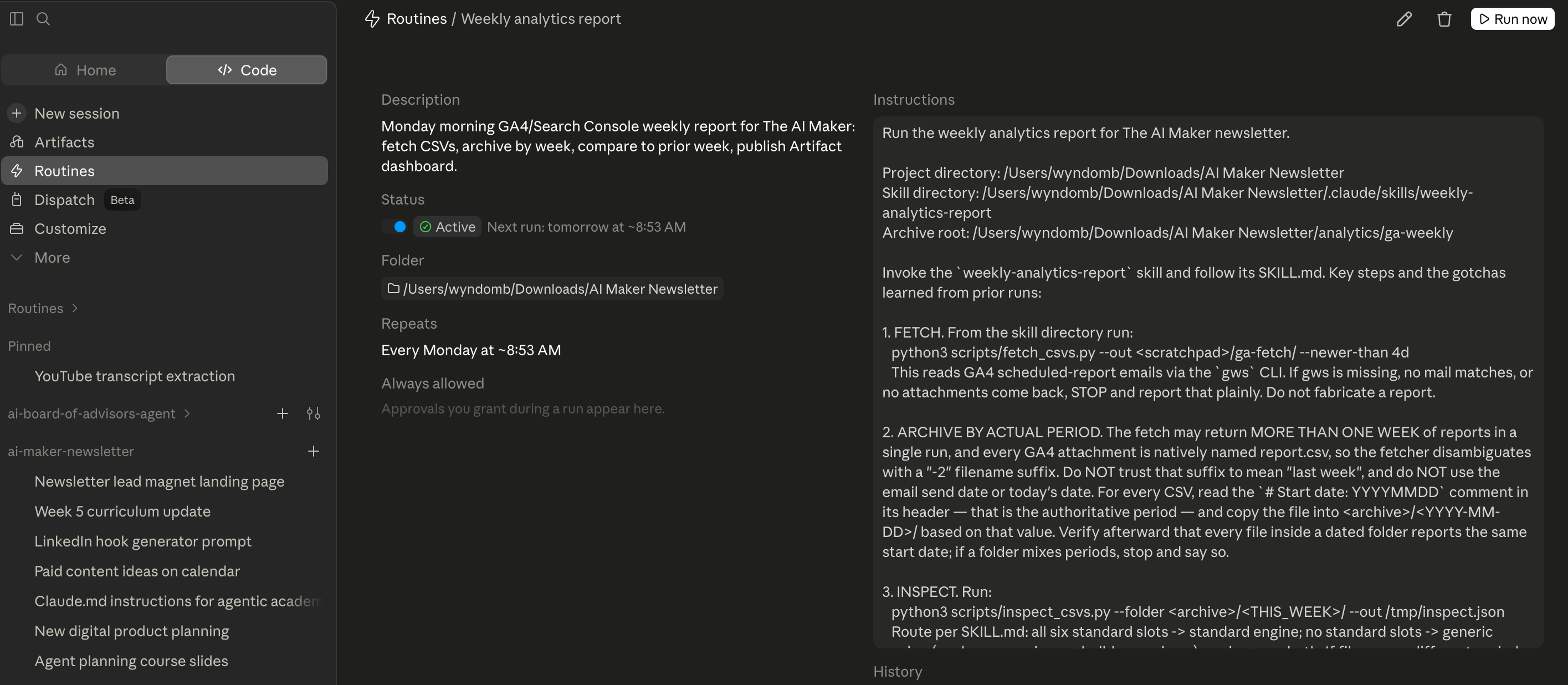
One feature we only touched on briefly was Routines.
If you have a job you want AI to keep doing on a schedule, whether that is daily or weekly, it should probably be a Routine.
You could ask Claude to check your emails and give you a to-do list. You could have it check your calendar before the day starts. In my case, I have one Routine that schedules a post and another that generates a weekly dashboard for my Substack.
Anything that has to happen on a schedule is a good candidate.
Routines are scheduled jobs, so they decide when work starts. Because they run in Anthropic’s cloud environment, they can keep working when your laptop is closed. Your morning email and calendar check can be ready before you open your computer. A scheduled post or weekly dashboard does not depend on you remembering to start it.
They can also start from an API call or a GitHub event, not only a schedule. That opens up more useful jobs later, such as checking a pull request when it changes or creating a report when another system sends an alert.
Ilia’s SEO Loop
Loops is a different beast. They describe what happens inside one task: the agent evaluates the work against a condition, makes another pass if needed, and stops when it reaches the condition you set.
Ilia’s biggest loop is an SEO review he runs on each post.
The loop reads the post alongside a small set of SEO files: title and subtitle guidance, research, metadata, internal links, Google-related notes, and an audit file.
Then it checks the post against the conditions he set. In the demo, it found missing metadata, a URL slug, Substack tags, and internal links. The first round failed, explained why, and moved to the next round with suggested fixes.
Ilia capped the example at three rounds. At the end, the report shows what it checked, why something passed or failed, and what would need to change to reach the target score.
I liked that he asks the loop to explain its reasoning. If it only gives you a final score, you do not learn much about what keeps going wrong in your drafts.
The loop is also running on something that already exists. It has a post, a set of rules, and a clear set of checks. That makes it easier to judge the output than asking an agent to start an entire project from scratch and make all the decisions alone.
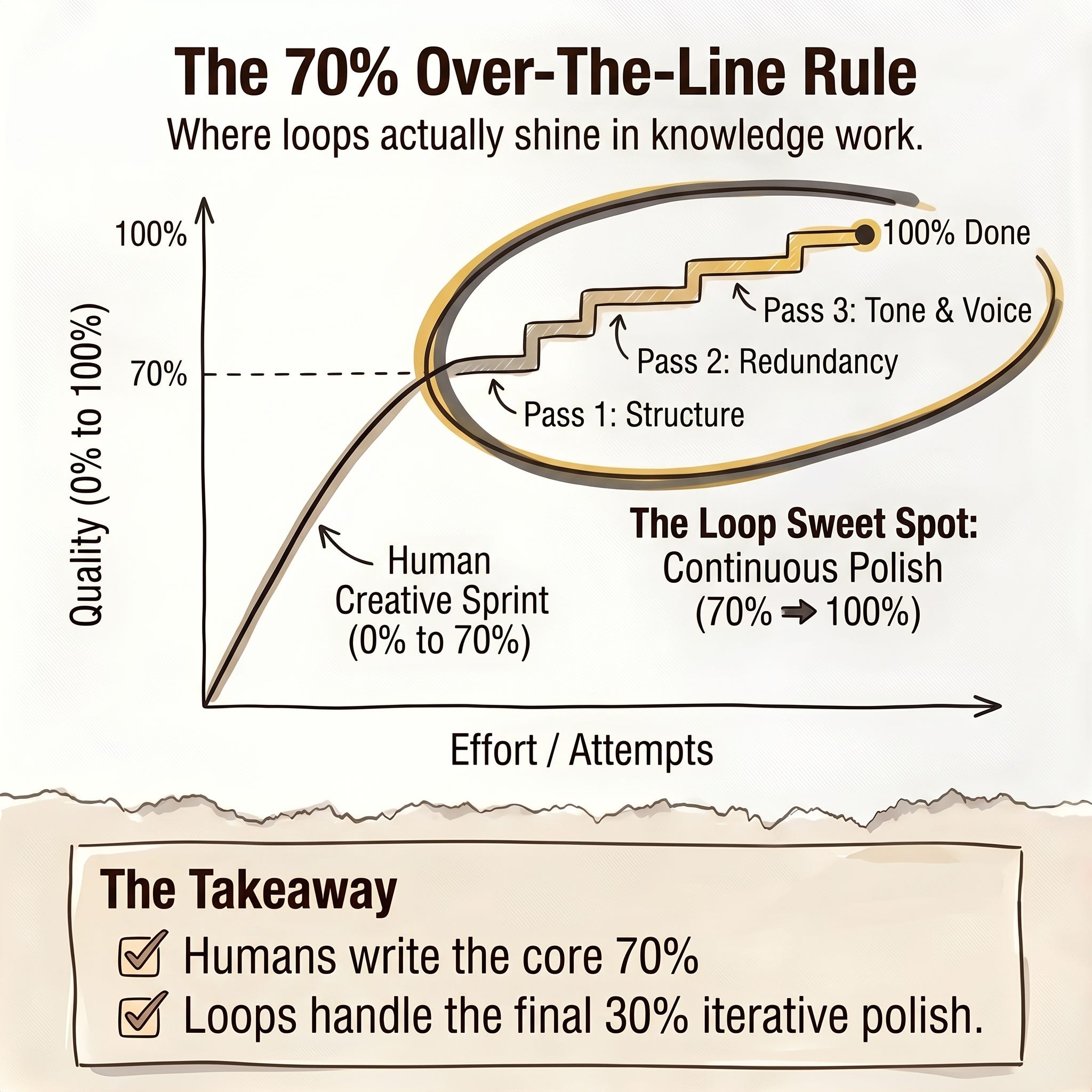
I said I would use loops on work that is already around 60–70% complete. If you want to learn more, I have a full guide on running loops. You can check it out here.

If you want AI to handle the prompting for you so you can focus on more important work, Loops might be for you.
What I Would Actually Try First
In case you’ve been wondering whether Claude Code might be useful for non-coding work, I highly encourage you to give it a try. I’ve written a full guide on how to start your journey with Claude Code:
The Complete Guide to Build Your Personal AI Operating System With Claude Code
From Blank Folder to Working System: How to Set Up Any Project in Claude Code
How an Agent Harness Made My Claude Code Setup 10x More Reliable
But if you have been using Claude Code on terminal but hesitant to move to app, you also need to shift because the app had just gotten better.
Based on what we have talked about so far, a few things from this session feel worth testing:
The browser for visual changes. If I am working on a page, I want to see whether selecting and annotating the issue is faster than writing out a detailed explanation.
The multi-pane view for two active tasks. I would use it when one agent is doing research or a longer edit and I have another job to handle.
A small review loop on an existing draft. I would start with something that already has clear rules, such as a post that needs metadata and internal-link checks. I would keep the number of passes small and read the report before trusting it more broadly.
The app updates are making Claude Code feel less terminal-only than before. I can see Anthropic is going to invest a lot of their time to move people to the desktop app because terminal is too daunting for the rest of people that could find huge benefit using Claude Code.
So, if there’s one practical takeaway I can share with you today, it’s this: start experimenting with the Claude Code app and learn its full capabilities to handle any type of work you throw at it.
That’s all for today.
Have fun experimenting with the Claude Code desktop app!
Show Details
Show: One Shot Show
Episode: 19
Topic: Claude Code app updates, artifacts, routines, and loops
Hosts: Wyndo and Dheeraj
Guest: Ilia, writer of Prosper
Live schedule: Wednesdays at 10:00 AM ET on Substack
Timestamps
00:00: Episode 19 intro and Ilia joins the show
05:48: Running sessions side by side and the human limit on parallel agents
10:23: Auto mode, bypass permissions, and when an agent should stop for approval
14:06: Claude Code’s in-app browser and live previews
16:35: Selecting and annotating a page element for an agent to change
25:46: Artifacts for dashboards, sharing, and editable outputs
31:56: Routines and scheduled work
33:38: What loops are for and why they are becoming more practical
39:52: Loop anatomy: generate, evaluate, retry, and pass
42:35: Why a clear definition of done matters
44:34: Dheeraj’s travel-site maintenance loop
46:09: Ilia’s SEO-loop demo
52:18: Reading an SEO-loop report and using failures to guide the next pass
53:55: Why loops work best on work that already exists
54:31: Goals, stop conditions, and avoiding wasted usage
Resources Mentioned
Claude Desktop and Claude Code: The main app and agent environment discussed throughout the session. The team showed split sessions, permissions, browser preview, artifacts, skills, commands, loops, routines, and goals.
Claude Code Browser: The in-app browser Ilia used to preview work, stay signed into sites, select elements, and add visual annotations to a chat.
Claude artifacts: Shareable, editable outputs such as dashboards and presentations. The session also discussed connecting artifacts to MCP-powered data.
MCP and Substack MCP: Connection methods discussed for pulling data, including a Substack dashboard example.
Codex and ChatGPT: Compared briefly with Claude’s app design and agentic workflow experience.
Visual Studio Code: Dheeraj’s preferred place to inspect files and run terminals alongside agent work.
Cursor, Windsurf, Google AI Studio, Antigravity, and Devin Desktop: Other development environments or AI coding tools mentioned while comparing browser and file-viewing experiences.
Chrome DevTools and Playwright: Earlier ways the team used to help agents inspect websites.
Expo and React Native: Mentioned in Ilia’s example of updating a client mobile app and checking package compatibility.
GitHub and macOS beta: Mentioned as part of that package-update troubleshooting example.
Substack, X, LinkedIn, Airbnb, and Amazon: Sites mentioned as examples of browser-based agent work, including scheduling content, research, and shopping or travel research.
Notion and Jira: Compared with editable artifacts as tools that can be harder to customize for a specific need.
OpenClaw: Mentioned in the discussion of people popularizing loop engineering.
Claude Sonnet, Claude Opus, and “Fable”: Models mentioned during the discussion of long-running work.


